
Table of contents
- Have an unpaid lunch break or short gap in the assignment?
- How can I add an unpaid break?
- Can I update breaks for multiple recurring requests at one time?
- Why can’t I use “dock pay?”
Have an unpaid lunch break or short gap in the assignment? #
How can I add an unpaid break? #
We recommend using the Additional Minutes to be Paid fields in the Service Provider Pay rollout to do this. If you put a negative number there it will reduce the time of the request by shaving off those minutes from the beginning or end of the request (depending on which additional minutes to be paid field you use).
Example:
For this 10:30am-1:30pm request, there was a 30 minute unpaid lunch break. Without the break noted, the service provider would be paid 3 hours. Adding in “-30” to the Additional Minutes to be Paid (Before Service Time) field will calculate pay from 11am-1:30pm, resulting in 2.5 hours pay calculation.
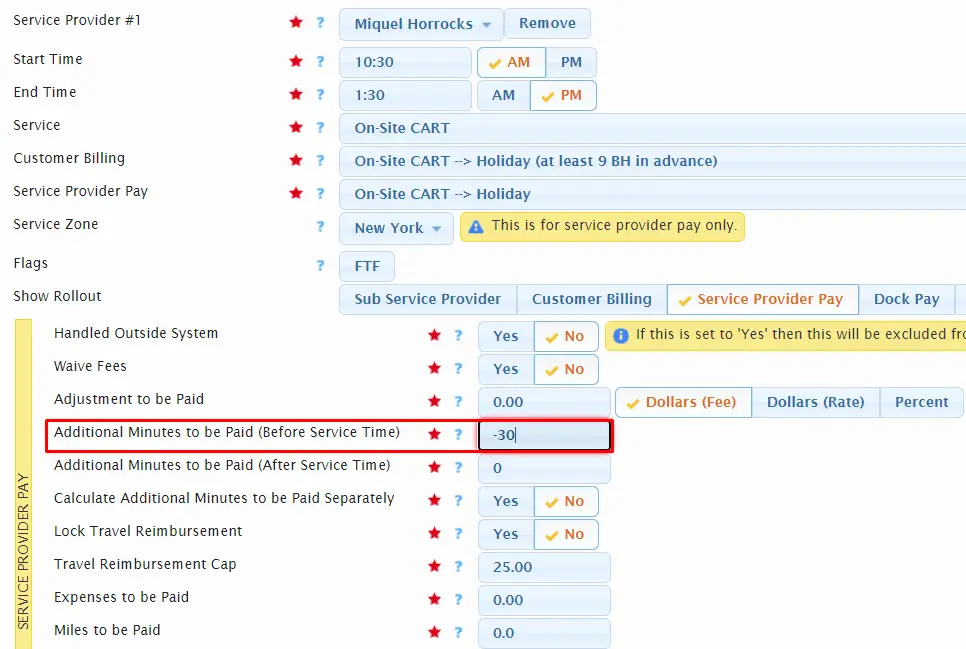
If the “-30” was added to the Additional Minutes to be Paid (After Service Time) the pay will be calculated from 10:30am-1pm, also resulting in 2.5 hours pay calculation for this request.
Can I update breaks for multiple recurring requests at one time? #
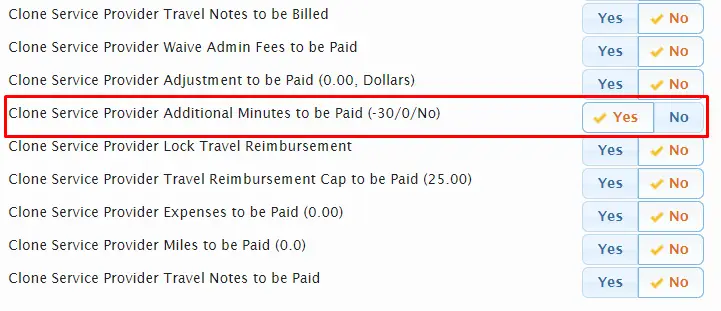
Yes – you can use the update recurring service requests tool (found in the actions menu) to update the additional minutes to be paid fields for multiple recurring requests at once. Just make sure to set the setting below to Yes in the tool.
Why can’t I use “dock pay?” #
Dock pay is designed to be used for things like service provider lateness or issues. It is punitive in nature and, when enabled, will remove the minimum time calculation and rounds down when calculating pay. If used for unpaid breaks your bill and pay calculations would be impacted. Using dock pay would also mean those assignments would show up on the Dock Pay report as well, making it harder to discern which assignments were docked due to lateness vs a break.