
Drowning in piles of paperwork? Looking to get rid of a filing cabinet or two or (if things are really bad) three? Look no further than the Paperwork feature in Usked! #
With the Usked Paperwork feature you can: #
- Manage all service provider paperwork from within Usked
- Set required paperwork at the group and/or service level
- Allow service providers to upload their own paperwork
- Set up automatic paperwork expiry reminders to service providers (60 days, 30 days, 1 day, and already expired)
- Get an alert when schedulers assign a service provider who is missing any required paperwork
Getting started #

Add your paperwork definitions. See video below on how to do this.

Add your paperwork definitions to the applicable services. Adding the paperwork definitions to a service ensures that you’ll see the paperwork box show up for this paperwork definition in the service provider’s paperwork folder. To do this go to Billing > Settings > Services. Click on the pencil (edit) icon next to the service. Next, click on Add a Paperwork Definition. Select the paperwork definition from the drop down and select Yes or No for Required. If Required is set to Yes, the service provider will need to have this paperwork for any job they are assigned to for this service. Repeat to add any paperwork definitions to this service and then select Save Changes. Repeat this process for any other service you’d like paperwork to show up for.

Now let’s add the paperwork definitions to the group(s). This will allow alerts to generate for schedulers when assigning a service provider that doesn’t have the needed paperwork, as well as prevent service providers missing required paperwork from receiving email blasts or seeing posted requests for the group. To do this go to People > Groups. Click on the pencil (edit) icon next to the group. Next, from the Required Paperwork tab, click on Add a Required Paperwork. Select the paperwork definition from the drop down, fill out any remaining applicable fields and then repeat the process by clicking on Add Another Required Paperwork. Once you’ve added all paperwork definitions you’d like to the group select Save Changes. Repeat this for any groups you’d like to add required paperwork to.
Frequently Asked Questions #
Who can see service provider paperwork? #
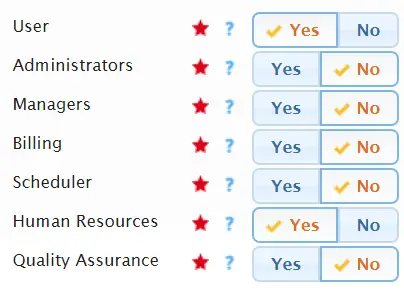
This depends on the allowed roles you set for each paperwork definition. In the example below, service providers and staff with the HR role would be able to see and update the service provider paperwork for this paperwork definition. Other staff roles in this example are set to No, so they would see the superficial details of the service provider paperwork, but would not be able to create, update, or see any files.
Can service providers upload their own paperwork? #
Yes and we encourage this to alleviate your administrative burden. Service providers can upload their own paperwork if they have their Usked log in info and the paperwork definition is set to allow the User role. For details on how service providers can upload their paperwork you can send them this article.
Can I upload paperwork for the service provider? #
Yes – if you are staff that has the Human Resources role enabled. Watch this video to learn how to upload paperwork to a service provider profile:
How do service providers know if they are missing paperwork? #
If the service provider is missing any required paperwork they will see a reminder at the top of their home page.

How do I verify paperwork that was uploaded by a service provider? #
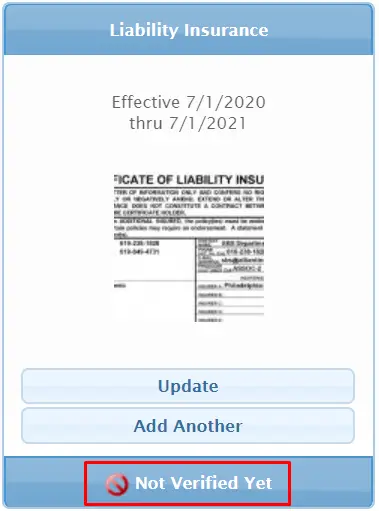
You can verify paperwork either from the service provider’s paperwork folder or the Unverified paperwork report. If you are want to verify from the service provider’s paperwork folder you will see “Not Verified Yet” for the paperwork they have uploaded. To verify it simply click on Update, then Yes for Verified, and select Save Changes.
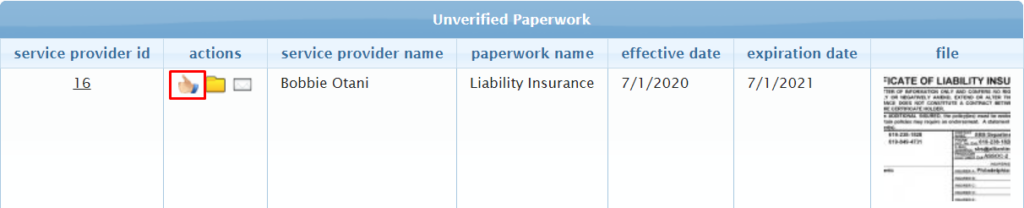
If you’d like to check for unverified paperwork for multiple service providers head to Reports > Human Resources > Unverified Paperwork. From here you can look at the file to check if it is acceptable, as well as match the effective and expiration dates. If all looks good, simply click on the thumbs up icon to verify it. If you’d like to visit the service provider’s paperwork folder you can do so by clicking on the folder icon. If the file uploaded it unclear, missing a signature, etc you can email the service provider by clicking on the mail icon. We suggest creating an email template for paperwork that needs to be reuploaded that you can use when corresponding about these issues.
What happens if I assign a service provider that doesn’t have required paperwork for that group or service? #
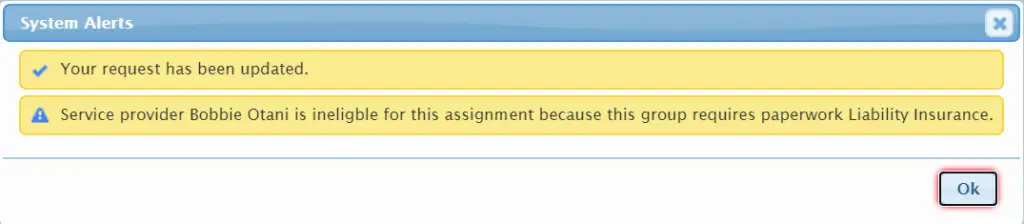
You’ll see a system alert pop up and an alert to schedulers will be generated. The service provider will still be assigned, but these alerts are designed to let you know so you can take action if necessary.
System alert:
Scheduler alert:
How do I set up paperwork reminders? #
First, you’ll need to make sure you have email templates set up how you’d like for each paperwork reminder you’d like to send out. These are found under Settings > Email Templates and are typically labeled as Paperwork Reminder – 1 Day Notice, 30 Day Notice, 60 Day Notice, Has Expired Notice. Make sure that these email templates are active and that the {MESSAGE} tag is included in them, as this will be replaced with the name of the paperwork when sent out. Here’s an example:
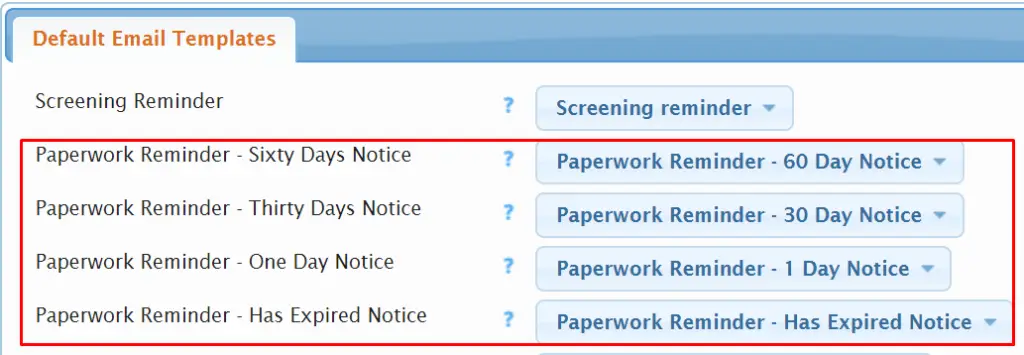
To enable Usked to automatically send out these email templates head to Settings > Default Email Templates. Select the email templates that match the corresponding paperwork reminder from the drop down, then select Save Changes.
Lastly, make sure the User role is allowed for each paperwork definition you’d like reminders to go out for and that all paperwork you want reminders sent out for have Send Reminders set to Yes.

Now, each morning Usked will check for expiring paperwork and send out any reminders.
What reports are available for paperwork management? #
There are four reports available to staff with the HR role enabled:
1. Unverified Paperwork – more on this report mentioned above.
2. Expired Paperwork – this will show all service provider paperwork that will be expired as of a given date. This is a great tool to use to manage upcoming expiration and work with service providers to get their paperwork updated before that date arrives. For example, if I want to see who has paperwork expiring by the end of this month (July) I could set the As of Date to the last date of the month and click on Search. I would then see service provider paperwork that will be expired by 7/31 and can email these service providers directly from this report by clicking on the mail icon.

Note: this report will not show paperwork that has not yet been verified, does not have an expiration date, or that has been/will be superseded. We recommend checking the Unverified Paperwork report to verify any uploaded paperwork prior to running this report.
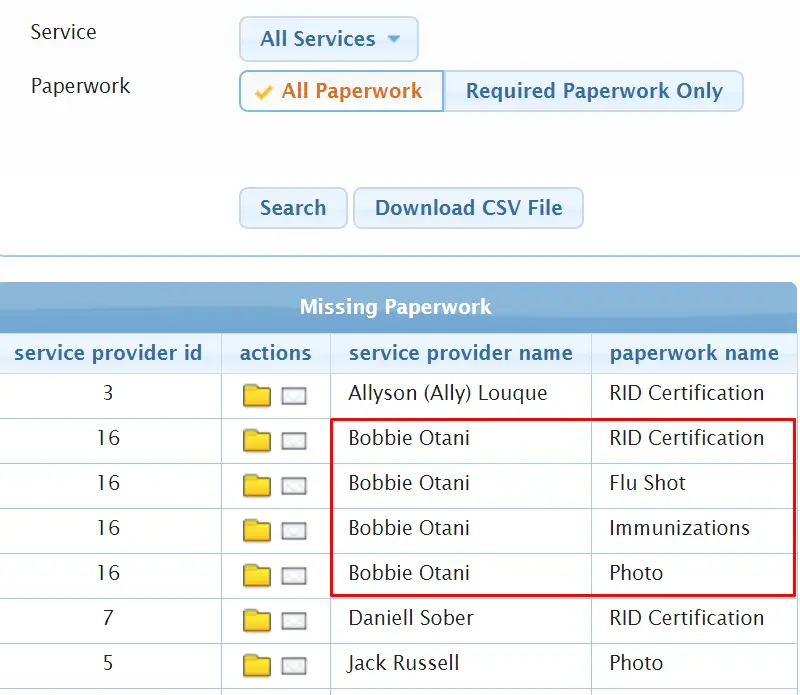
3. Missing Paperwork – this will show service provider paperwork that has never been completed before. Therefore, expired paperwork is not included as “missing.” This report can give you a good idea of who may need a gentle nudge to provide their paperwork when getting started with your organization. In the example below it looks like Bobbie Otani hasn’t gotten started with his paperwork upload and may need a reminder. I can email the service provider directly from this report by clicking on the mail icon.
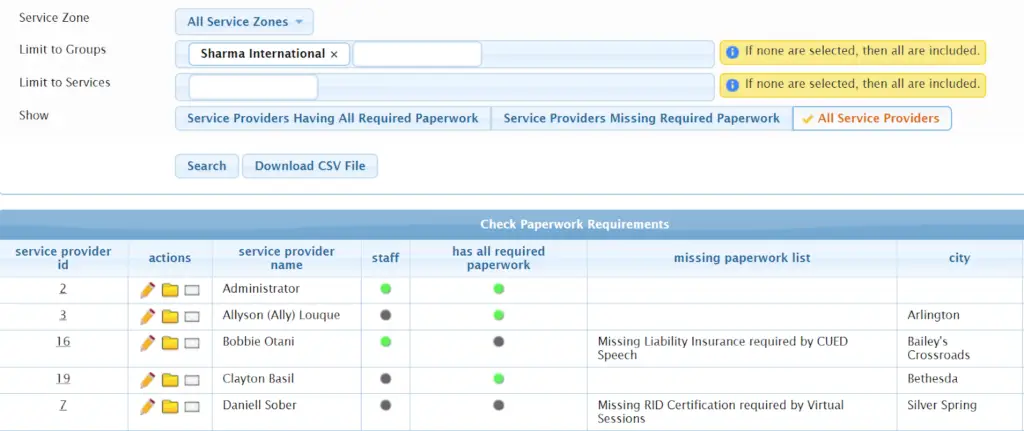
4. Check Paperwork Requirements – this will show service provider eligibility for an assignment based solely on if they have all of the required paperwork for the group and service. If they have all required paperwork you’ll see a green dot for “has all required paperwork.” If they do not have all required paperwork a gray dot is shown, as well as a list of missing paperwork. In the example below, I would be able to assign Allyson (Ally) Louque or Clayton Basil to a request for Sharma International, but would need to reach out to Bobbie Otani and Daniell Sober to get their missing paperwork before assigning them to this group. I could email them directly from this report by clicking on the mail icon.
Is there a limit to how many files are uploaded as paperwork? #
No, you are able to upload as many files as your heart desires. However, there is a limit to the amount of free storage allotted for your organization. Please refer to your Usked contract for the storage limit and associated fees for additional storage.