Read more to find out how your schedulers can create and confirm service requests, as well as assign service providers. #
Creating the Request #

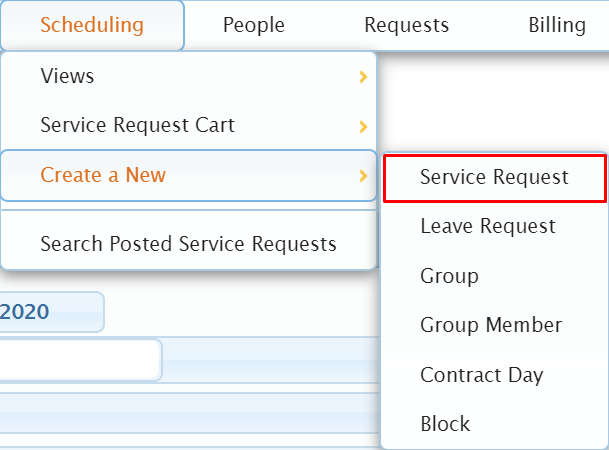
Go to Scheduling > Create a New > Service Request from the main menu.

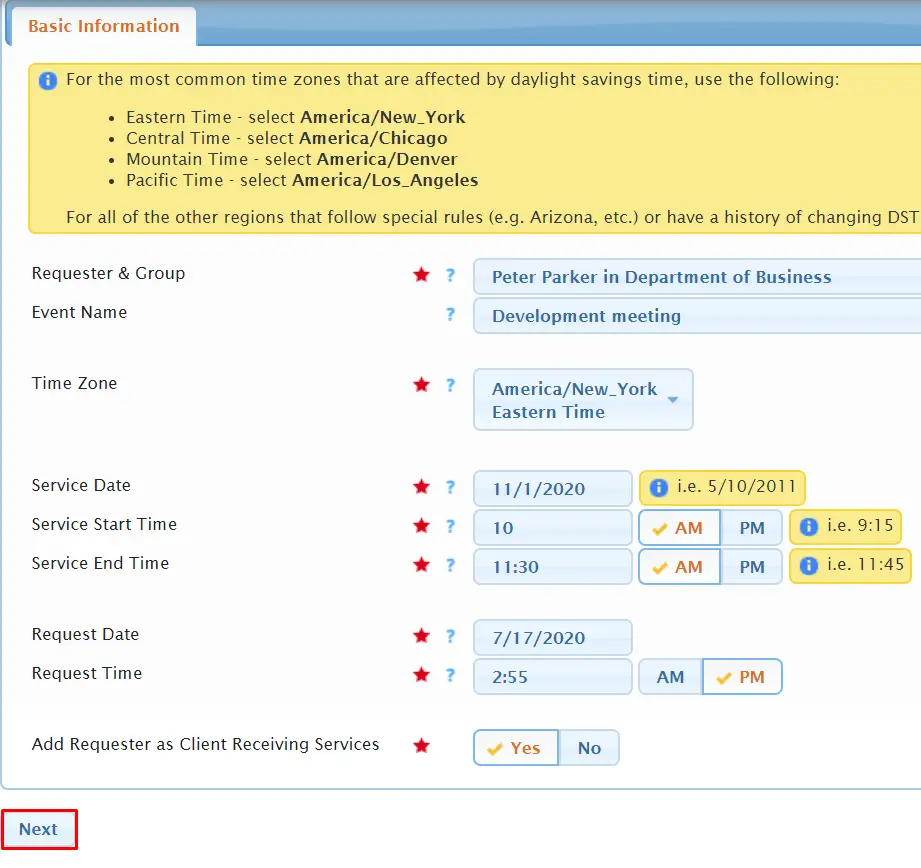
Fill out all of the Basic information, then select Next.

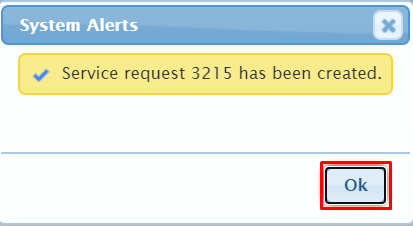
If your request has been created successfully, you will see a system alert appear. Click Ok.

Fill out the required information in each of the tabs at the top of the form. At a minimum these fields will require an entry/selection outside of any default populated required fields:
- Event name
- Details
- Room number
- Location
- Selected service for client
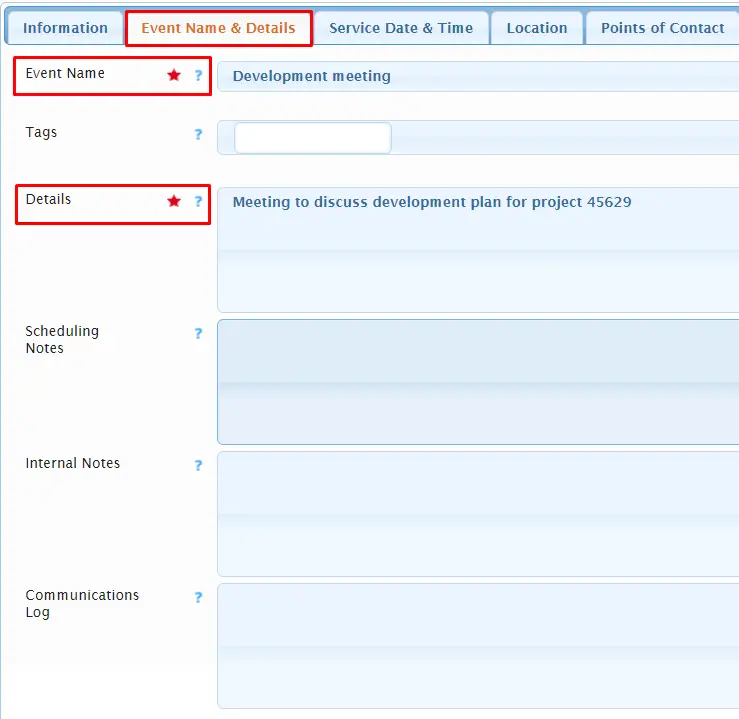
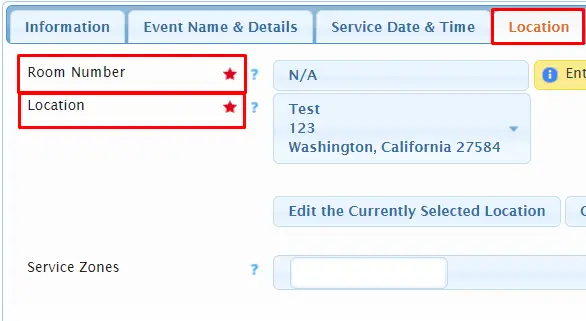
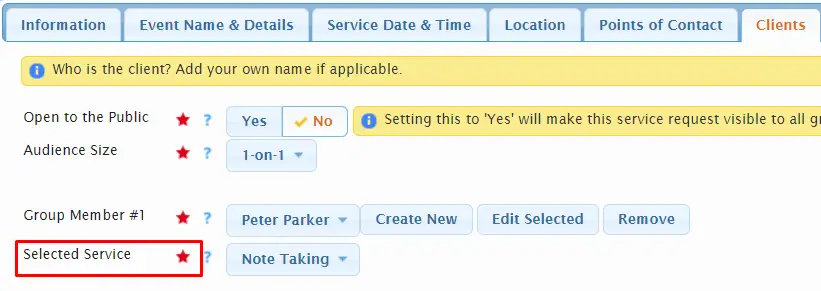
When you are done, select Save Changes and Submit as Pending Confirmation.

If your request has been submitted successfully, you will see this system alert. Click on Ok.
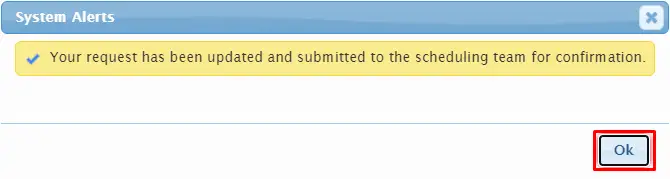
The request is now set to Pending Confirmation status.
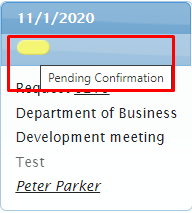
Confirming the Request #

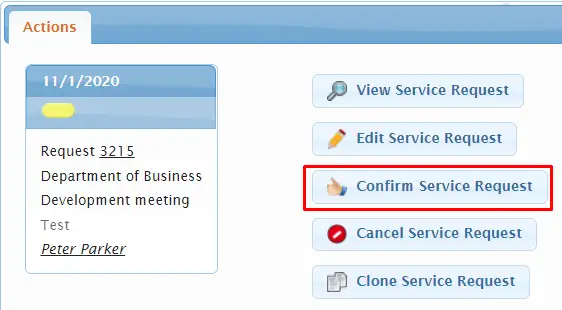
Select Confirm Service Request from the actions menu.

Select at least the service, customer billing service code, service provider pay service code, and number of service providers needed. You can use the guide on the right to determine which customer billing code may be most appropriate. In this example, the service request was created over 9 business hours in advance, so the Regular service code makes sense.


Select Confirm This Service Request.


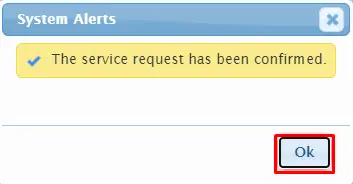
If your request has been confirmed successfully, you will see this system alert. Click on Ok.
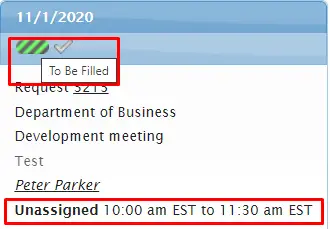
The request is then set to To Be Filled status and the service provider slot(s) have been created.
Assigning Service Provider(s) to the Request #

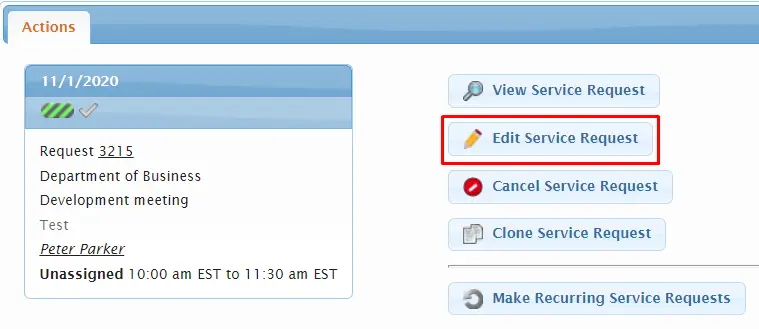
Select Edit Service Request from the Actions menu.

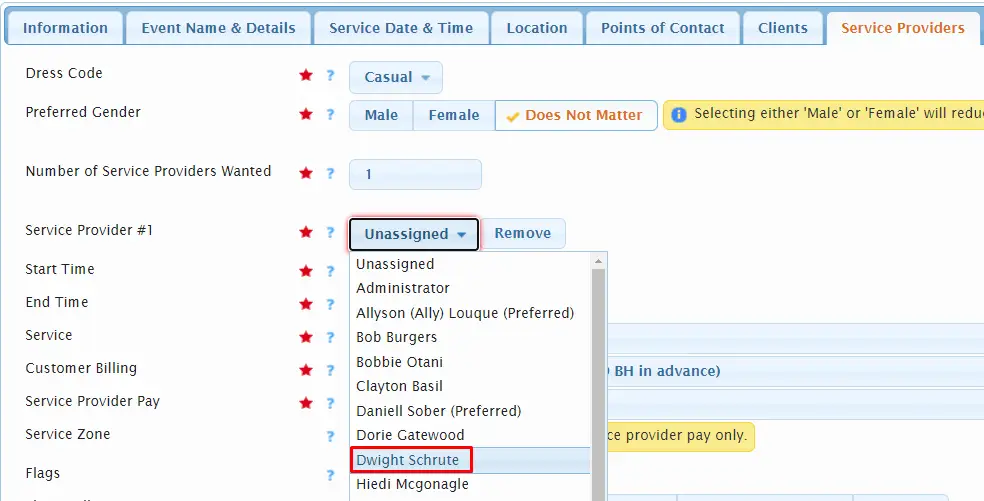
From the Service Providers tab, select the desired service provider from the drop down to assign them to the appropriate slot.

Select Save Changes.


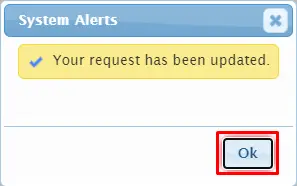
If your request has been updated successfully, you will see this system alert. Click on Ok.
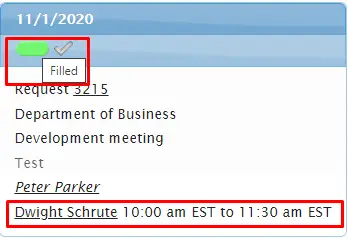
If all service provider slots are assigned, the request will change to Filled status. You’ll see the assigned service provider name is now filled into the slot.