
In this article, we will walk you through the steps of customizing what fields are available to see in the details view for requests! #

Currently this customization is only available for the web version of Usked.
Where can I find the details view of a service request? #
If you hover over a job ID on your actions screen, calendar, or posted/offered job board, a pop-up will appear with the details view of the request.
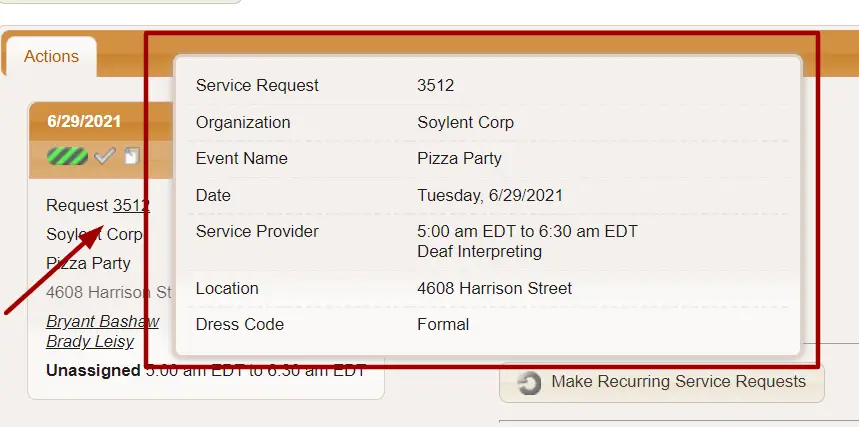
What is shown in the details view by default? #
For users that do have full access to the request:
- Service Request ID
- Service Request Status
- Organization
- Event Name
- Date
- Service Provider DOB
- Service Provider Names
- Service Provider Start & End Times
- Service Provider Services
- Address
- Room Number
- Map Link
- Location Notes
- Virtual+ Link
- Zoom Invite Link
- Customer-Provided Meeting Link
- Dress Code
- Point of Contact Names
- Point of Contact Information
- Point of Contact Notes
- Group Member Names
- Group Member Reference IDs
- Group Member Services
- Group Member Notes
- File Attachment Links
- Event Details
For users that do not have full access to the request (i.e. service providers viewing a posted or offered job):
- Service Request ID
- Organization
- Event Name
- Date
- Assignment Start & End Times
- Assigned Service
- Location Address
- Map Link
- Dress Code
How do I change what fields appear in the details view? #
The first step in determining what fields you want to appear is creating two email templates. We suggest naming them something like “Service Request Details (full access)” and “Service Request Details (limited access).” For a refresh on how to do this visit here.

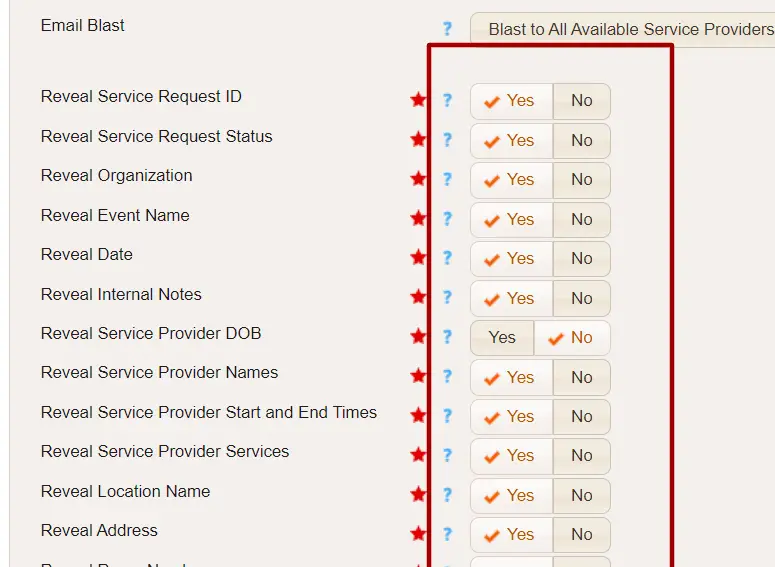
Only the reveal component fields of this email template will be used, as this will control what is revealed on your details view.
These options can be found on the Defaults tab of the email template. Select Yes for any field you’d like to show up on the details view and No for any that you don’t want to see.
Once you’ve saved the email templates, the last step is to connect these in your system settings. Head to ADMIN > CHANGE SYSTEM SETTINGS > SERVICE REQUESTS TAB.
You will see two fields on this page.
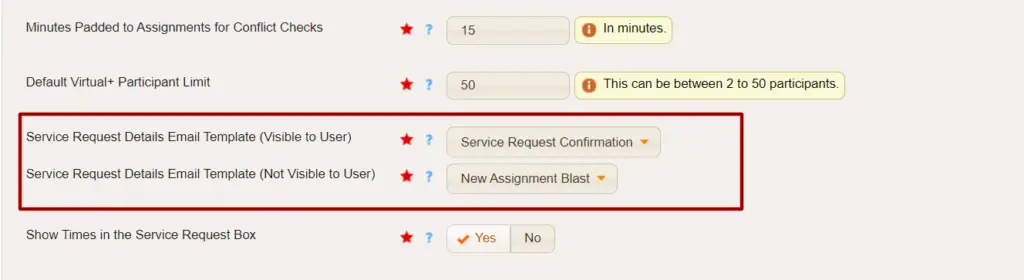
Service Request Details Email Template (Visible to User) is the one you want to select the “Service Request Details (full access)” email template for that you created earlier. This will make sure that anything you had toggled YES in the defaults section of your email template will appear when looking at your job.
Service Request Details Email Template (NOT Visible to User) is the one you want to select the “Service Request Details (limited access)” email template for. This is the one that is used when service providers are looking at posted or offered jobs.
Make sure to click Change Settings and you’re all set!