
Table of contents
- Have you ever had a job you want to make edits to but couldn’t because it was already invoiced? This article is going to walk you through what to do.
- What does this mean?
- How do I get it unlocked?
- Invoice Status
- IF YOUR INVOICE HAS A SUBMITTED STATUS:
- IF YOUR INVOICE HAS A PAID STATUS:
- IF YOUR ORIGINAL STATUS FOR THIS INVOICE WAS ORIGINALLY OPEN/SUBMITTING, YOU CAN STOP HERE. IF IT WAS SUBMITTED OR PAID, CONTINUE ON.
- IF YOUR STATUS FOR THIS INVOICE WAS ORIGINALLY SUBMITTED, YOU CAN STOP HERE. IF IT WAS PAID, CONTINUE ON.
Have you ever had a job you want to make edits to but couldn’t because it was already invoiced? This article is going to walk you through what to do. #

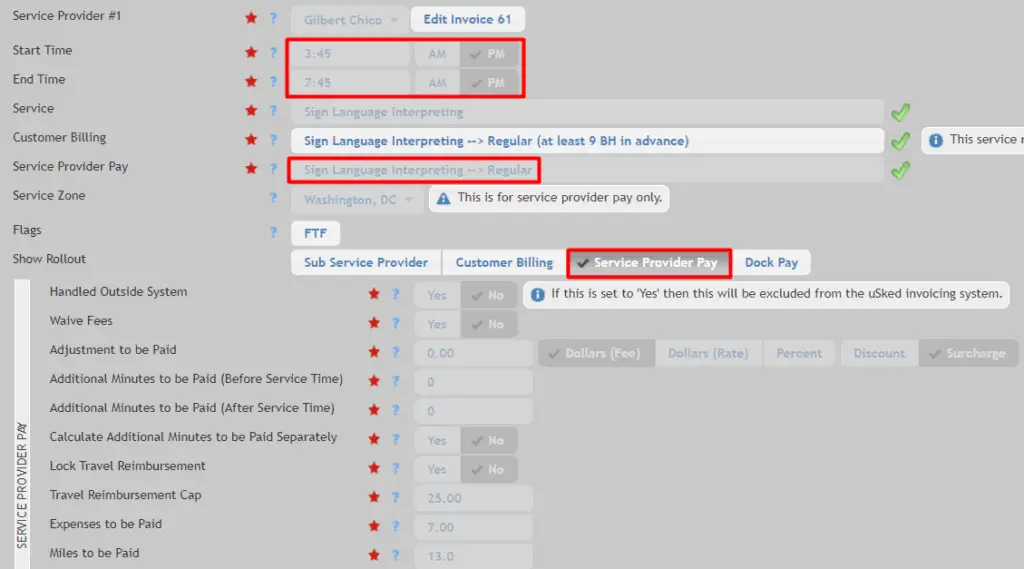
So…you go to adjust the end time or travel, etc. for a job only to see all fields related to service provider pay are now grayed out and locked.
What does this mean? #
If the service provider pay related fields are grayed out it means that this service provider slot has already been added to an invoice and is locked for editing.
How do I get it unlocked? #
This all depends on the status of the invoice this job is on. First, click on the Edit “#” invoice button next to the service provider’s name.

If you see a Remove button next to the job, then the invoice is in Open or Open/Submitting status.
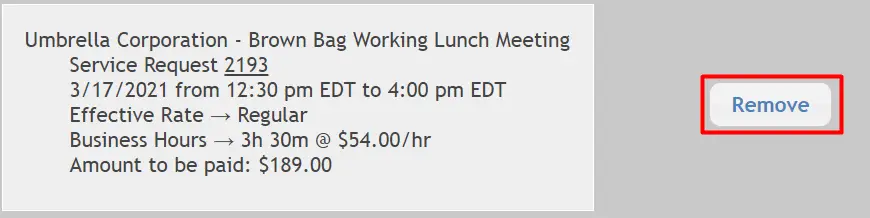
This means you can simply remove the job, make your adjustment, and add it back to the invoice. For instructions on how to do this start with step 7 here.
If you do not see a Remove button next to the job, it means the invoice has already been submitted and you’ll need to check the invoice status to determine further steps.
Invoice Status #
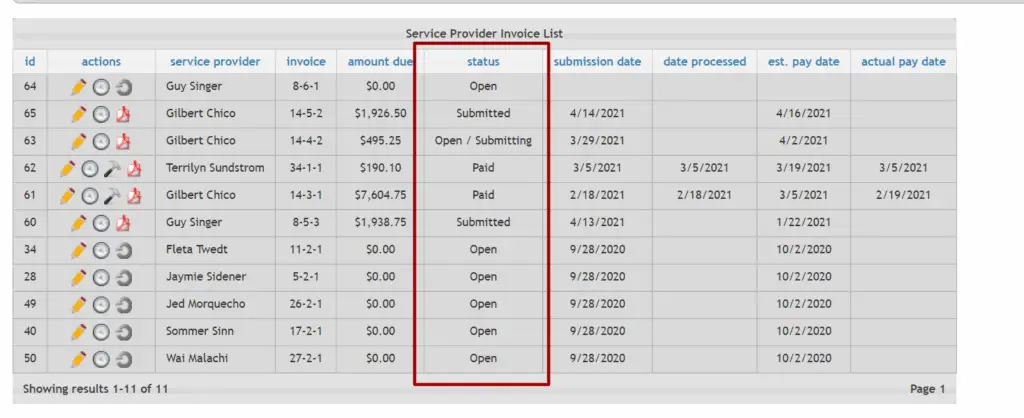
To check the invoice status you’ll need to go to BILLING > SETTINGS > INVOICES & PAYROLL > INVOICES. From there find the invoice and look at the status column.
IF YOUR INVOICE HAS A SUBMITTED STATUS: #
This means invoices have been submitted either manually or automatically by Usked following the “invoice by” date for the pay period.
To edit a job, you must first “unsubmit” the invoice. To do this, navigate to BILLING > INVOICES & PAYROLL > PROCESS PAYROLL and then start with step 5 here.
IF YOUR INVOICE HAS A PAID STATUS: #
This means your invoice has been submitted, processed, and added to a payroll report.
To edit a job on an invoice that has already been processed, the invoice would need to be removed from the payroll report and then unsubmitted.
Start with step 1 below:
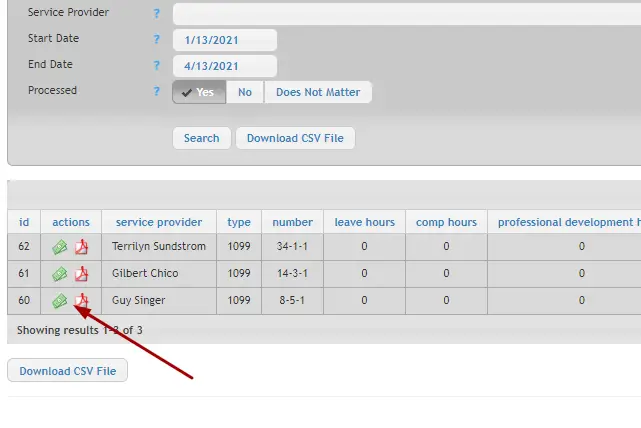
1. Go to Billing > Invoices & Payroll > Process Payroll and set filters to “Yes” for Processed and search.
2. Find the invoice you’d like to unprocess and click on the green money icon.
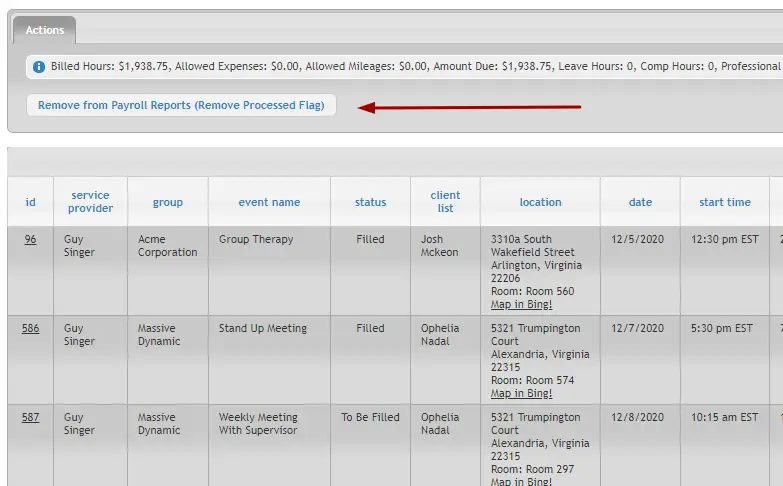
3. Select the Remove from Payroll Reports (Remove Processed Flag) button.
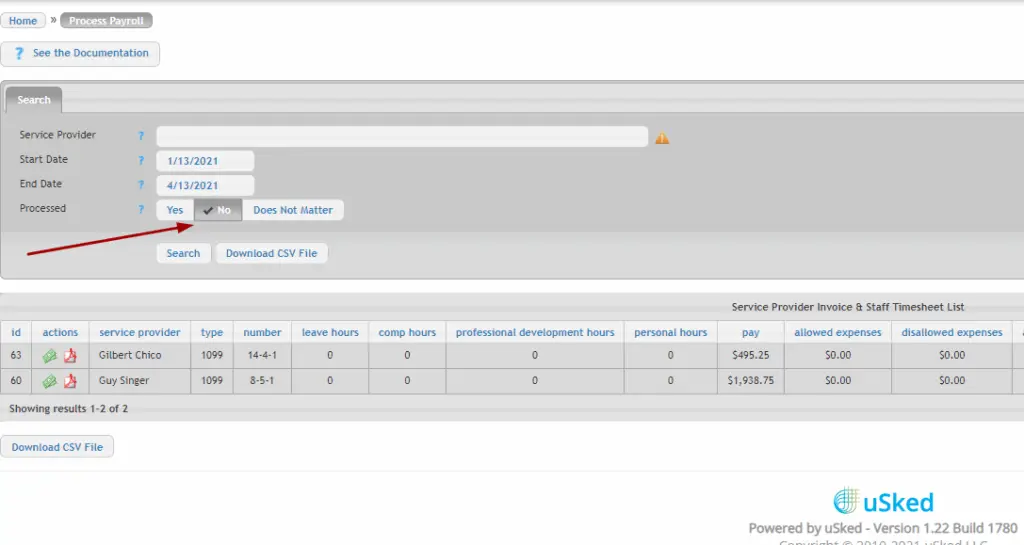
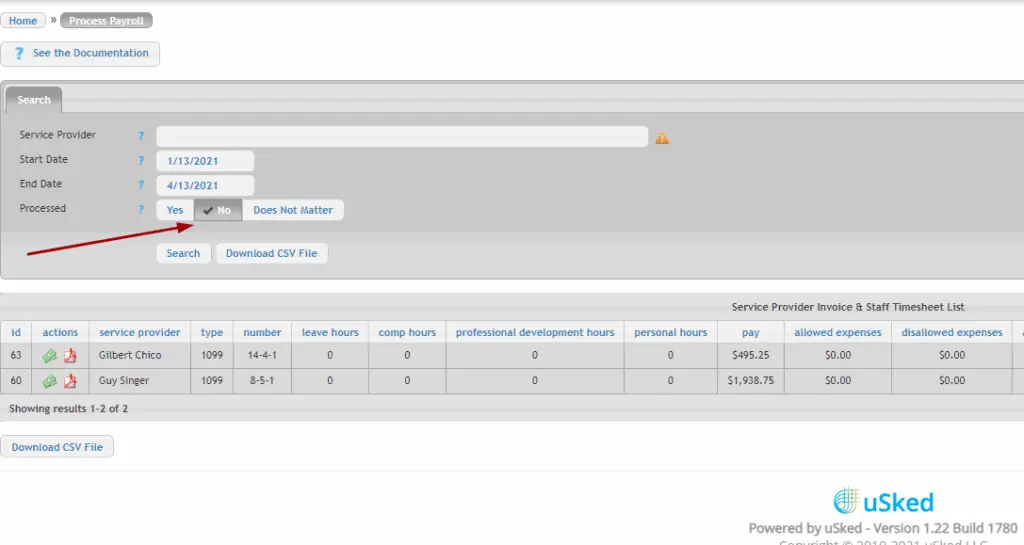
4. Once removed, it will take you back to the Process Payroll report. Switch your toggle for processed to NO and click Search.
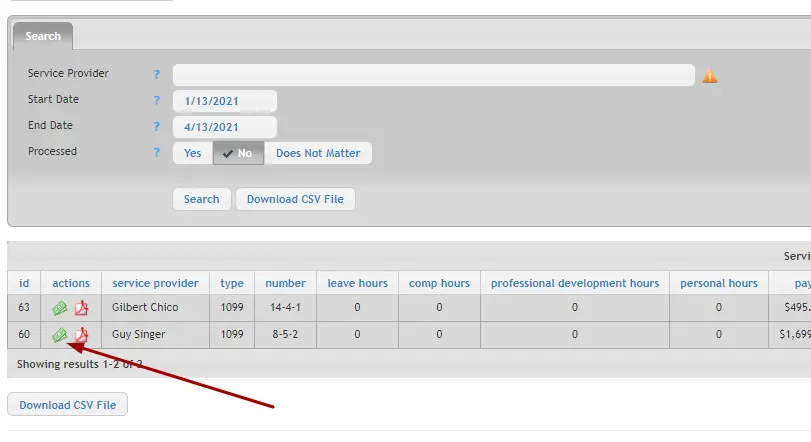
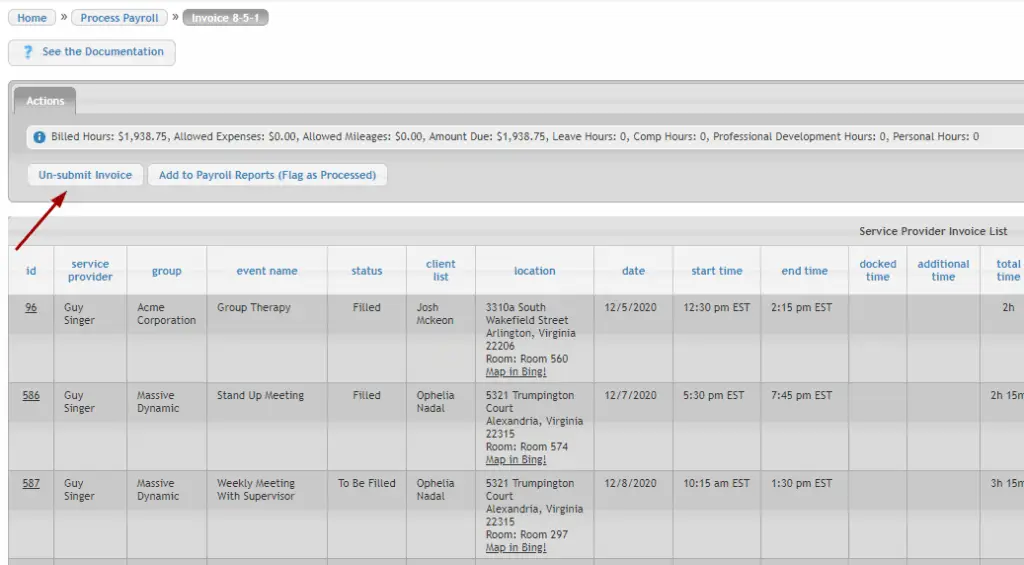
5. Click on the money sign icon next to the desired service provider’s invoice and then select the Un-submit Invoice button.
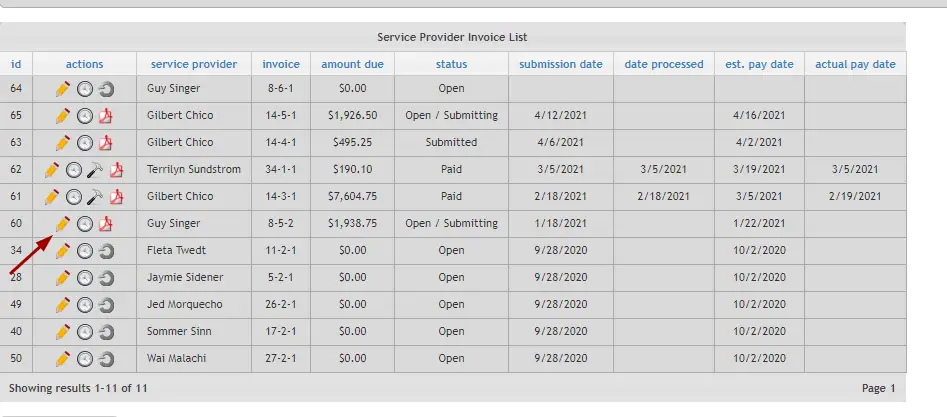
6. Navigate to Billing > Invoices & Payroll > Invoices and find the invoice you are unprocessing. Click on the pencil icon next to it.
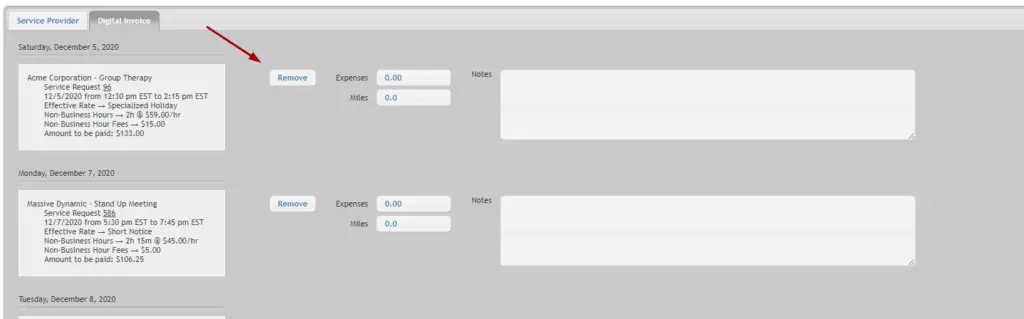
7. Next to the job(s) you’d like to remove, select the Remove button.
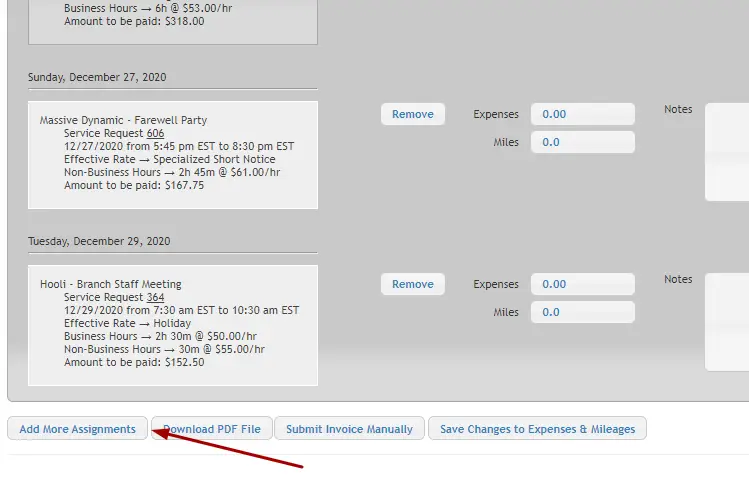
8. Once you remove a job from the invoice, you can go back and make your adjustment to the job(s).
When you’re ready to put it back, scroll down to the bottom of the invoice and click the button “Add More Assignments.”
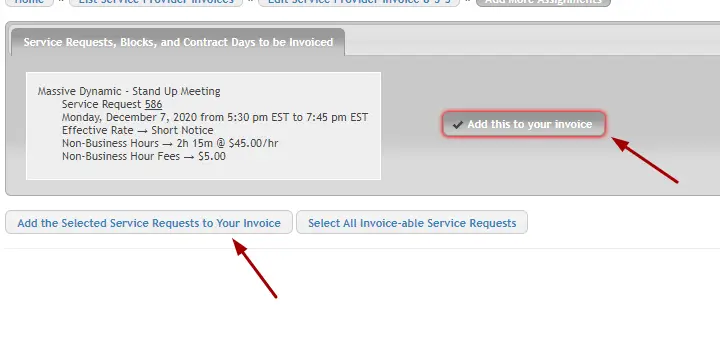
9. Here, add the newly adjusted job back onto the invoice by clicking Add this to your invoice. Then select Add the Selected Service Requests to Your Invoice.
IF YOUR ORIGINAL STATUS FOR THIS INVOICE WAS ORIGINALLY OPEN/SUBMITTING, YOU CAN STOP HERE. IF IT WAS SUBMITTED OR PAID, CONTINUE ON. #
Scroll all the way down to the bottom of the invoice and click the Submit Invoice Manually button.
#
IF YOUR STATUS FOR THIS INVOICE WAS ORIGINALLY SUBMITTED, YOU CAN STOP HERE. IF IT WAS PAID, CONTINUE ON. #
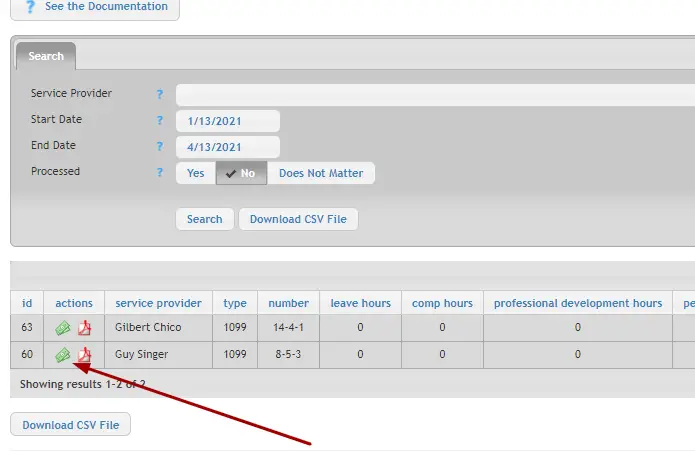
Go back to Billing > Invoices & Payroll > Process Payroll and once again, find the invoice you’d like to reprocess and click on the green money icon.
Click on the Add to Payroll Reports (Flag as Processed) button.
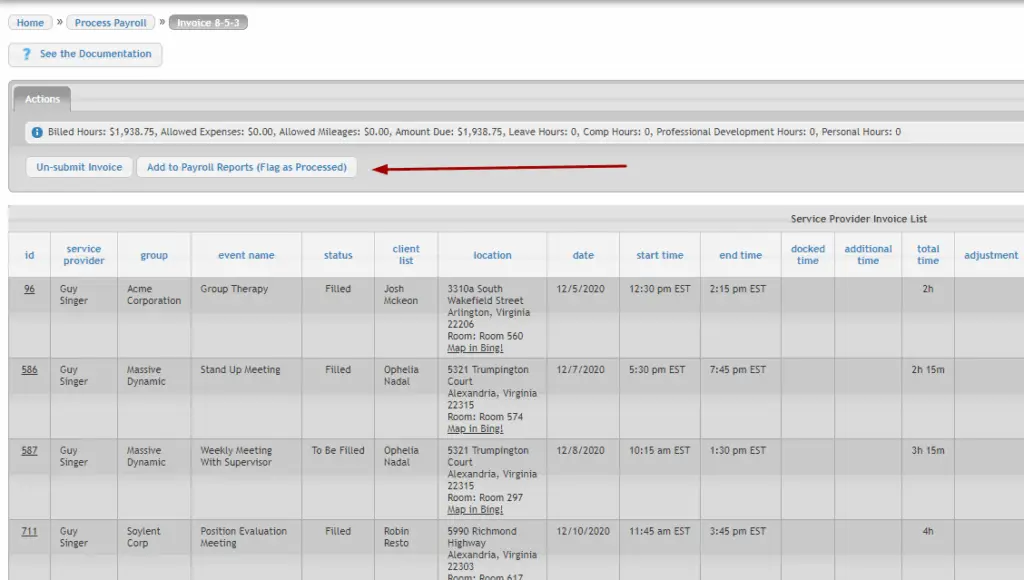
And VOILA! You have successfully adjusted your job and returned the invoice to it’s original status. 👏