
Have you ever wanted to announce something to your entire network within minutes? Now you can! Let’s talk about our Broadcast Message feature! #
As this Owl explains, you have the ability to send out a message to service providers, group members, and/or clients using our Broadcast Message feature. It can be used for all sorts of purposes – weather emergencies, holiday reminders, policy updates, and more! #
1. Where can I send a Broadcast Message? #
You can access the Broadcast Message by going to “People > Send Broadcast Message”.
2. Who can send out broadcast messages? #
Anyone with a staff role of Manager has the ability to send out Broadcast Messages.

Note: If you are looking to send a message through SMS, Staff with the Administrator role enabled need to first obtain a toll-free SMS number. To do this go to Admin > SMS number and click on Obtain a Toll-Free SMS Number.
Let’s dig into each field and see what they do. #
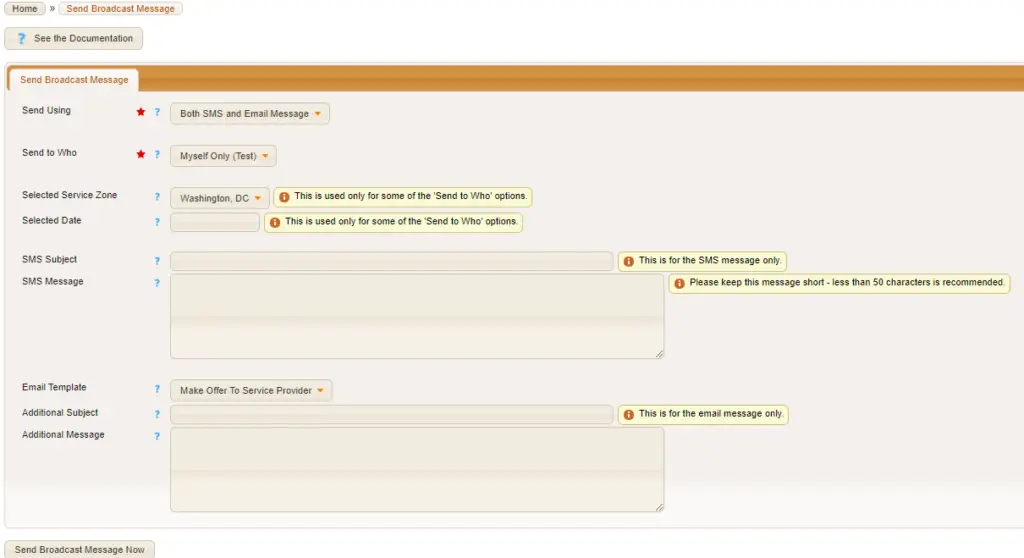
Send Using – This determines how you want to send the message. You have the option to send the message via email, SMS (text messaging), or both!
Send to Who – Whom would you like to send this message out to?

Here are your options! #
1. “Myself Only (Test)”
Select this to send a test SMS and/or HTML email message to yourself, without sending it to anyone else. This is so you can preview how the message will actually look.
THIS IS HIGHLY RECOMMENDED PRIOR TO SENDING OUT TO YOUR INTENDED AUDIENCE.
2. “All Service Providers” #
Select this to send your message to all service providers in Usked. The selected service zone and selected date fields are ignored.
3. “All Service Providers Living in the Selected Service Zone” #
Select this to send your message to all service providers in Usked where the selected service zone matches their home service zone. The selected date field is ignored.
4. “All Service Providers Working in the Selected Service Zone on the Selected Date” #
Select this to send your message only to service providers that have been assigned to service requests on the selected date, where the selected service zone matches what is set on the service provider slot.
5. “Staff Service Providers” #
Select this to send your message only to staff service providers in Usked. The selected service zone and selected date fields are ignored.
6. “Staff Service Providers Living in the Selected Service Zone” #
Select this to send your message only to staff service providers in Usked where the selected service zone matches their home service zone. The selected date field is ignored.
7. “Staff Service Providers Working in the Selected Service Zone on the Selected Date” #
Select this to send your message only to staff service providers that have been assigned to service requests on the selected date, where the selected service zone matches what is set on the service provider slot.
8. “Freelance Service Providers” #
Select this to send your message only to freelance (non-staff) service providers in Usked. The selected service zone and selected date fields are ignored.
9. “Freelance Service Providers Living in the Selected Service Zone” #
Select this to send your message only to freelance service providers in Usked where the selected service zone matches their home service zone. The selected date field is ignored.
10. “Freelance Service Providers Working in the Selected Service Zone on the Selected Date” #
Select this to send your message only to freelance service providers that have been assigned to service requests on the selected date, where the selected service zone matches what is set on the service provider slot.
11. “All Group Members Except Those in Human Resources” #
Select this to send your message to all group members in Usked, except those that are in the human resources group. The selected service zone and selected date fields are ignored.
12. “All Clients Receiving Services in the Selected Service Zone on the Selected Date” #
Select this to send your message to all clients receiving services on the selected date, where the selected service zone matches what is set on the service provider slot.
Selected Service Zone – Relating to whom you are sending this message, this broadcast message will only send to those whose Service Zone matched with their home service zone.
Selected Date – Also relating to whom you are sending this message, this broadcast would only be sent to those who are assigned to a Service Request on that Date.
The next fields are where you would enter the content and type of message you want to send. #
SMS Subject – The subject line of the SMS message you are sending. This should be 2-3 words max to avoid the SMS provider cutting off the subject line. If you are only sending an email message you can leave this field blank.
SMS Message – The actual message you are sending. This should be 50 or fewer characters. If you are only sending an email message you can leave this field blank.
Email Template – For sending an email, you’ll need to select what Email Template you want to send. This will drop down the list of Email Templates you’d normally find in the “Email Composer.” If you want to create a fresh email template, take a look at this article for further instruction. If you are only sending an SMS message you can leave this field blank.
Additional Subject –This is where you can add any additional information to the “Subject” line of the template. This information will show up on the template where “ {SUBJECT} “ exists on the template.
Additional Message – This is where you can add any additional information to the “Message” portion of the template. This information will show up on the template where “ {MESSAGE} “ exists on the template.
Once all these fields are filled out as you prefer, you would click “Send Broadcast Message Now” to send out the message. #

Note: It is highly recommended that you first send your broadcast message to yourself only, to check and make sure the message appears OK. This is because many SMS providers and email clients will mangle and alter your message in different and unexpected ways, and it is often quite tricky to create an SMS and/or HTML email that will look exactly as you intended for everybody reading it.