Learn more about the most common errors and how to resolve them. #
An Unexpected Error Has Occurred #

📣Translation: #
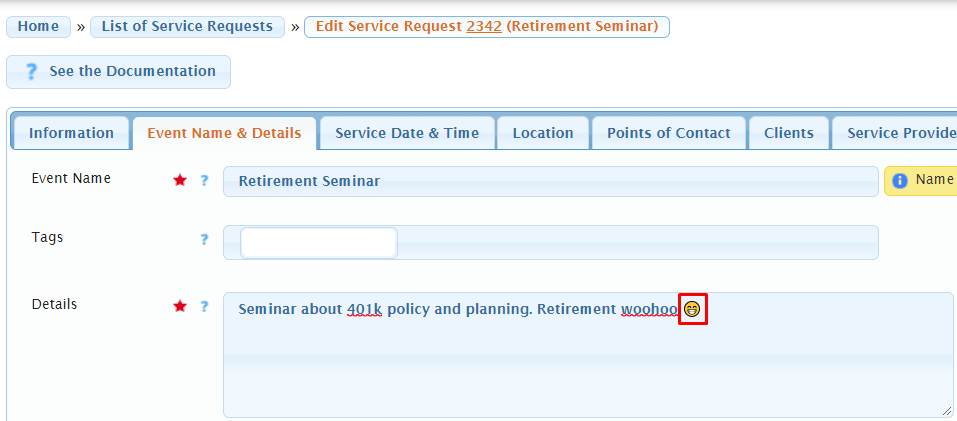
It’s likely that an unsupported character was added in a text box or message field and then you tried to save. This happens most frequently when updating a request with things like event details or internal notes (especially when pasting from an outside source), crafting a broadcast message, or updating an email template. The most common offender are emojis. 😱
👩💻To resolve: #
Type in or paste your text without the emoji and Save Changes again.
Tip: When pasting into Usked it is best to paste as plain text to avoid accidentally pasting in characters or format that are not supported. To do this:
On Windows: use shortcut Ctrl + Shift + V to paste as plain text.
On Mac: use shortcut Option + Cmd + Shift + V to paste as plain text.
#
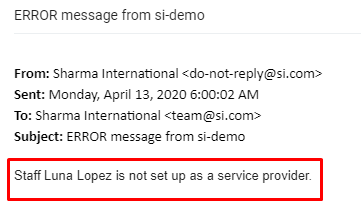
{Staff name} is not set up as a service provider #
#
📣Translation: #
This staff needs to be set up as a service provider as well. All staff in Usked also need a service provider profile, regardless of whether or not they will actually provide services to your customers. This is so that payroll can be processed for staff and freelance in the same system.
👩💻To resolve: #
Follow steps 1-4 from this article.
There is no QuickBooks product code for… #

📣Translation: #
The QuickBooks invoice export report has nothing to put in the LineItem column for some/all items due to missing QB product codes in the customer billing rates listed.
👩💻To resolve: #
Head to the group listed (in this example “Sharma International) and navigate to the Customer Billing Rates tab. From here look for the service code listed (in this example from the first line “Sign Language Interpreting –> Regular”). The bottom row of the customer billing rate are the QB product codes. If the text in these fields are gray it means they are blank fields.

Go ahead and fill out these fields to match the SKU you have saved for the corresponding service in QuickBooks and then select Save Changes.
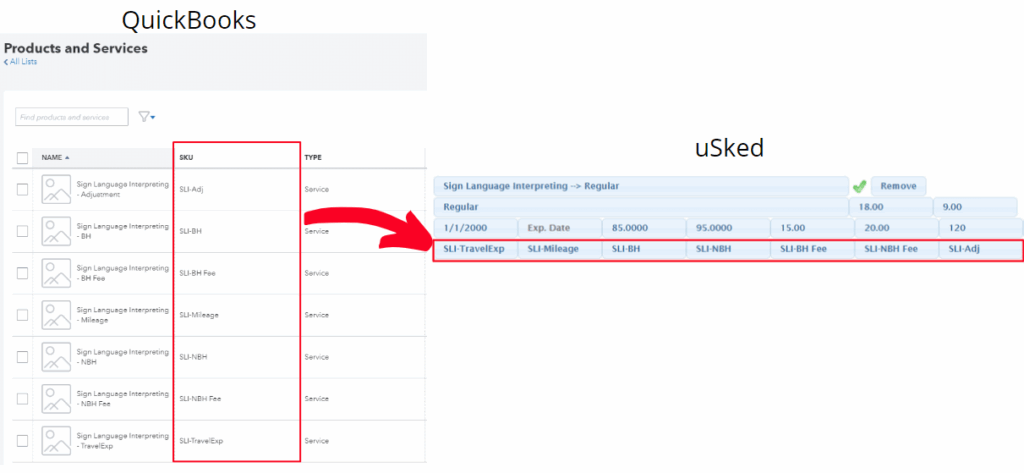
If you do not have a SKU saved for the service in QB you can fill in the product codes in Usked to match the placeholder text (Tra.Exp, Tra Miles, BH Rate, etc).
#
When adding requests to invoices: #
#1: Cannot be added because the service provider pay rate could not be found #

📣Translation: #
The pay rate needed to process pay is missing from the service provider profile.
👩💻To resolve: #
Open the request and check which service code and service zone were selected for Service Provider Pay.
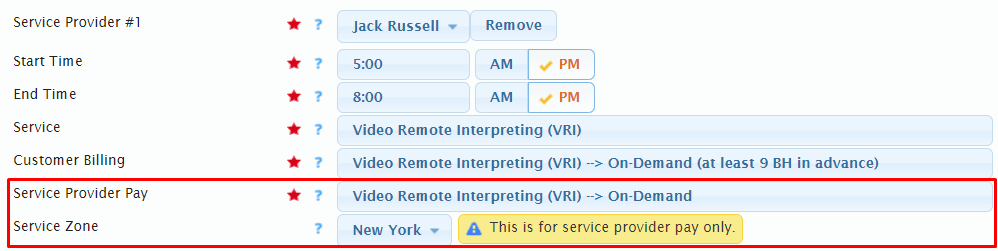
Then, head to the service provider’s profile and navigate to the Pay Rates tab. If you do not see a pay rate for the service provider pay service code, click on Add Another Pay Rate. Fill out the fields as appropriate, making sure that the correct service code is selected and that the service zone matches the one in the request or that All Service Zones is selected. Then, click on Save Changes.
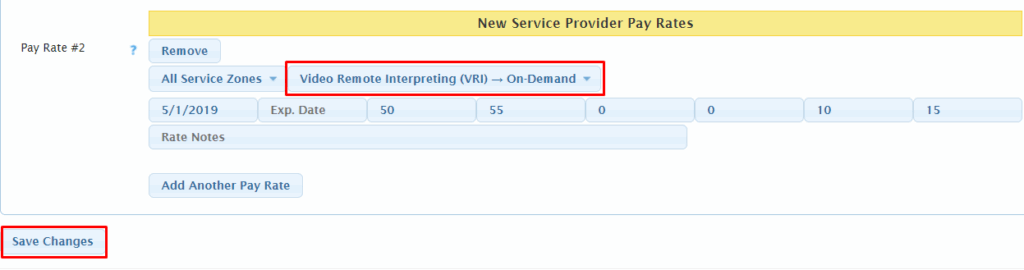
Tip: If you see a pay rate that matches the service provider pay code used in the request check the Service Zone in the pay rate to make sure it matches the service zone selected in the request. If the service provider is paid differently based on the service zone for the same service code, create a new pay rate. Otherwise, update the existing pay rate to All Service Zones and Save Changes.
#2: Cannot be added because this is for the next pay period #
📣Translation: #
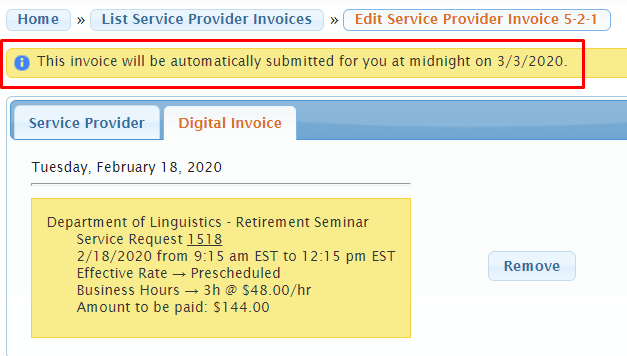
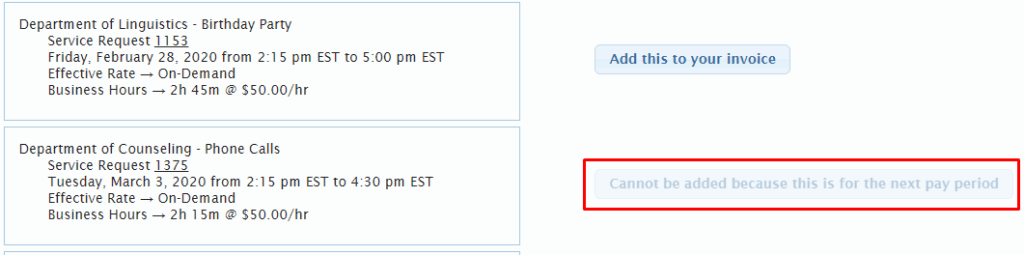
It’s likely there is an open invoice that needs to be submitted for this service provider prior to being able to add jobs for the next pay period. For non staff service providers, invoices with at least one billable object added to it will be auto submitted once the Invoice by Date of the pay period has ended. Usually there are a few days between the start date of the next pay period and the current period’s invoice submission. During this time service providers will not be able to add jobs to their invoice. Once the Invoice by Date has ended, service providers will be able to add jobs to a new invoice.
👩💻To resolve: #
Wait until the Invoice by Date passes for that pay period. The system will auto submit the invoices the morning after the Invoice by Date. Once the invoice is submitted, service providers can create a new one for the next pay period. Communicating to service providers that there will be a few days of processing time between the end date of one pay period and the time they can add jobs for the next pay period will ensure their clarity about when jobs can be added. Additionally, you can let them know that they will see a message on the top of their invoice about when the invoice will be auto submitted. They will be able to add new jobs to a new invoice after this time. For the example below, the service provider would be able to add new jobs from 3/3/2020.