
Table of contents
- Planning to add a service to what you offer your customers? Here’s how to do that and make sure customers can be billed and service providers can be paid for this new service.
- If you want to bill/pay for this service the same as another service:
- If you want to bill/pay for this service differently than other services:
Planning to add a service to what you offer your customers? Here’s how to do that and make sure customers can be billed and service providers can be paid for this new service. #

Only staff with the Billing role enabled can add a new service, service codes, etc.

Go to Billing > Settings > Services and click on Create a New Service.

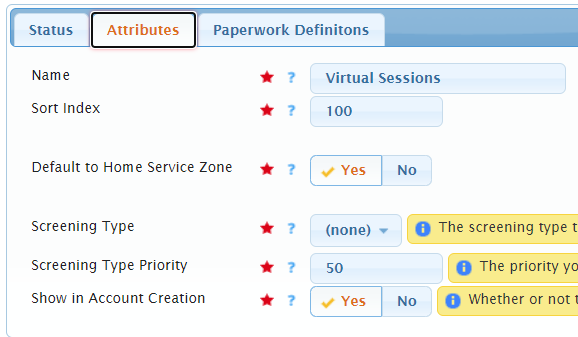
Fill out the Attributes and Paperwork Definitions tabs accordingly and select Save Changes. In this example the new service is called “Virtual Sessions.”
Note: If you have enabled service providers to create their own accounts and would like them to be able to select Virtual Sessions as a service they provide, please set Show in Account Creation to Yes.
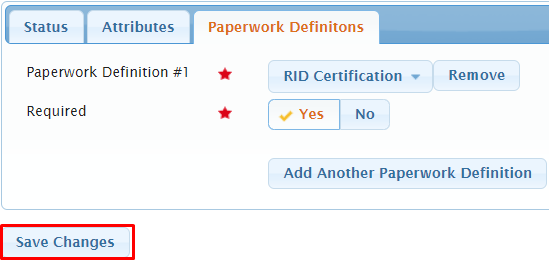

Next, you’ll want to determine whether this new service will be billed/paid in the same rate as an existing service or if you want to bill/pay for this service at different rates.
If you want to bill/pay for this service the same as another service: #
Go to Billing > Settings > Service Codes. Then add the new service to applicable existing service codes. For example, you may have a “Regular” service code tied to multiple services and if this Virtual Sessions service will be billed/paid at that same “Regular” rate you can add it to this service code.
If you want to bill/pay for this service differently than other services: #
Go to Billing > Settings > Service Codes and click on Create a New Service Code. Fill out the Attributes, Customer Billing, and Service Provider Pay tabs accordingly. In this example the new service code is called “Regular-Virtual.” Make sure to add your new service to this service code. Then select Save Changes.
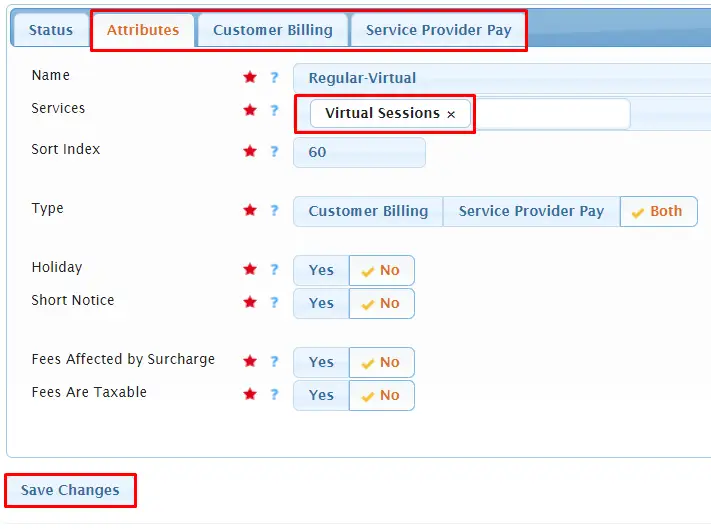
Repeat this for any bill/pay differentials you’ll have for this new service, such as Holiday, Short Notice, etc.

If you’ve added the new service to existing service code(s) you can skip this step if those service codes are already added to the appropriate groups.
Next, you’ll want to make sure you can select the service code(s) tied to the new service in the Customer Billing drop downs in requests. To do this, you’ll need to add them to the group(s) that you’ll provide this service to. Go to People > Groups and click on the pencil (edit) icon next to the desired group. Navigate to the Customer Billing Rates tab and click on Add Another Customer Billing Rate. Type in and select the new service code, then fill out the remaining fields. Select Save Changes.
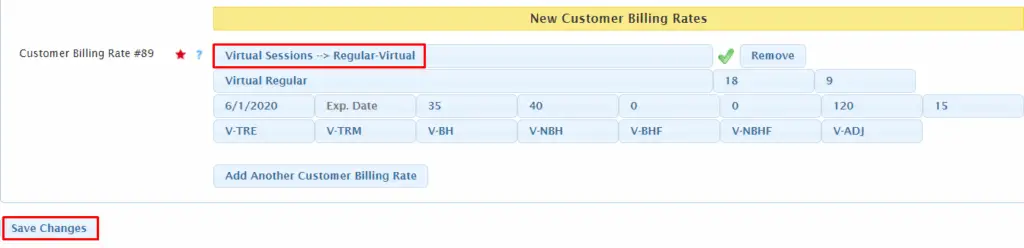
Repeat this to add any new service codes associated with the new service to appropriate groups.
If you’ve added the new service to existing service code(s) you can skip this step if those service codes are already added to the appropriate groups.
If your new service codes are for service provider pay or both, you’ll also want to make sure you can select them in the Service Provider Pay drop downs in requests. To do this, you’ll need to add them to the group(s) that you’ll provide this service to as well. From the group profile, navigate to the Service Provider Pay Service Codes tab and click on Add Another Service Provider Pay Service Code. Type in and select the new service code, then select Save Changes.
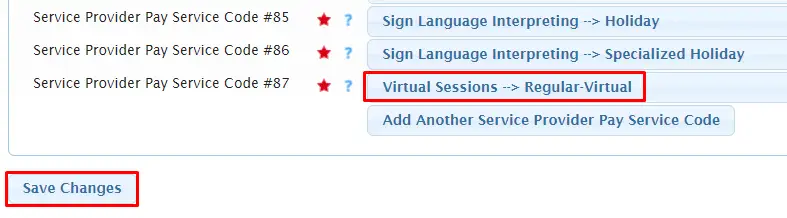
Repeat this to add any new service codes that apply to service provider pay.

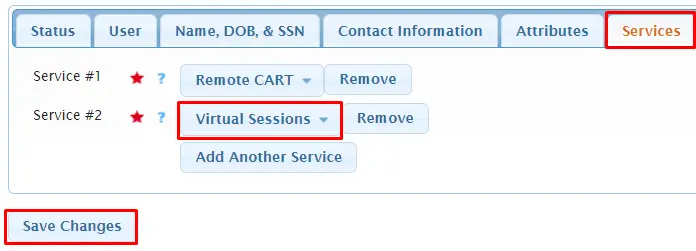
Now you can add the new service to any service provider that will be providing this service to your customers. To do this, go to People > Service Providers. Then click on the pencil (edit) icon next to the desired service provider. From the Service tab click on Add Another Service. Select your new service and then Save Changes.
If you’ve added the new service to existing service code(s) you can skip this step if pay rates already exist for these service codes in the service provider’s profile.
Lastly, you’ll need to add corresponding pay rates for your new service to the service provider’s profile. From the service provider profile, navigate to the Pay Rates tab. Click on Add Another Pay Rate. Next, select the new service code from the drop down and fill in all the remaining fields. Then select Save Changes.
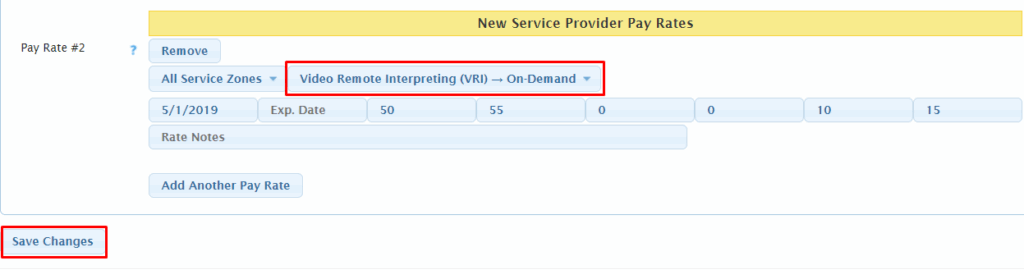
Repeat to add pay rates for any additional service codes tied to your new service.