Want a glimpse of your week in one place? You are in the right place! This article will walk you through our 7 Day Scheduling View! #

1. Who can see the 7 Day Scheduling View? #
- Any staff
- Requesters and clients
- Service providers
2. Where can I find the 7 Day Scheduling View? #
Head to Scheduling>Views>7 day view.
3. What filter options do I have for the 7 Day Scheduling View? #
#
Date #
This is the date you want the seven-day view to include the week for, starting from Sunday.
Limit to Groups #
If you limit your search to a certain group or groups, then only the service requests or blocks that have been created under these group(s) will be displayed.
Limit to Service Provider #
If you limit your search to a certain service provider, then only the service requests that have this service provider assigned to them will be displayed.
Limit to Services #
If you want to include all assignments, leave this field empty. Otherwise, you can specify service(s) to include only assignments that fall under these services.
Service Request Tags #
By entering service request tag(s) here you’ll see requests and blocks that have ALL of those tags included. Selecting the exclude option inverts the results, so you’d see all requests and blocks that don’t have ALL of those tags included.
Filter Terms #
If you want to filter by a service request ID number enter in numbers here.
If you want to filter for name of the group, event name, internal notes, group member name, or service provider name then enter in text here and anything that partially matches will be returned.
Filter Status #
This will allow you to include only service requests that have one of the selected statuses.
Posted #
If this is set to YES, then include only posted service requests. If this is set to NO, then include only service requests that are not posted. Otherwise, if this is set to does not matter, then this filter is ignored.
Open to the Public #
If this is set to YES, then it will include only service requests where the open to the public field is set to YES. If this is set to NO, then it will include only service requests where the open to the public field is set to NO. Otherwise, if this is set to does not matter, then this filter is ignored.
Date Change Options #
If you want to look at a different week or month in the future or past, you can click on these buttons to take you there, rather than updating the date manually.
- -1 Month
- -7 Days
- +7 Days
- +1 Month
4. What does the 7 Day Scheduling View look like? #
Once you enter in all of your parameters and click Update Options, it will look something like this.
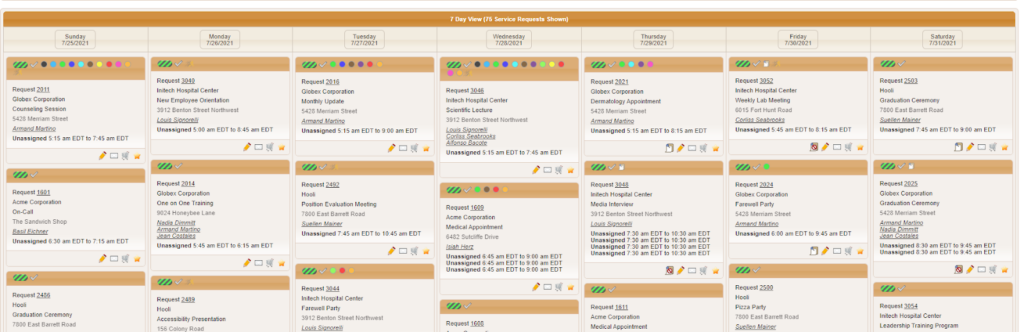
From here you can click on a day in the header to go to the one-day side-by-side view of that day if you’d like. Let’s take a look closer look at what a specific box includes on the 7-day view.
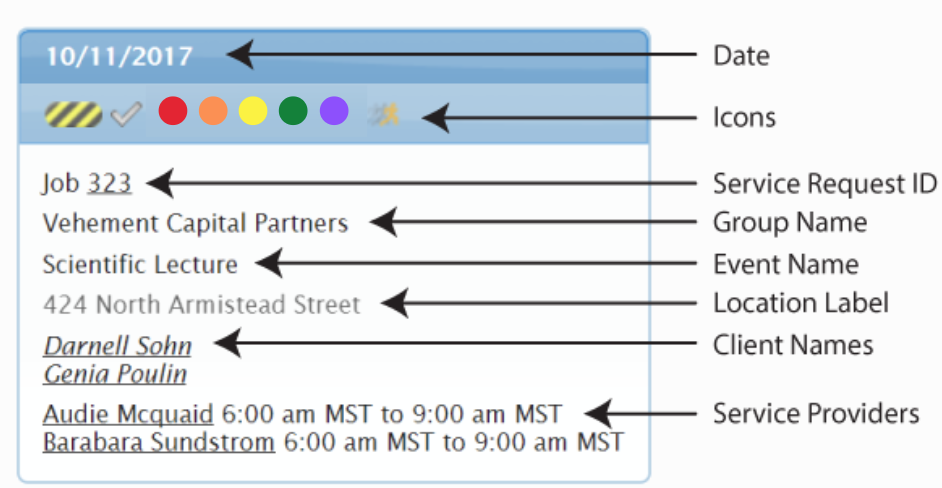
Icons explained #
- The pill icon in the top left corner with dashed lines represents the status of the service request.

- The gray check icon will show up if at least one service provider slot on the request is billable to the customer.
- The colorful circles represent service request tags for this request. You can hover over them to see the tag name.
- The running man icon will show up if at least one service provider slot tied to this request has a short notice service code assigned to it.
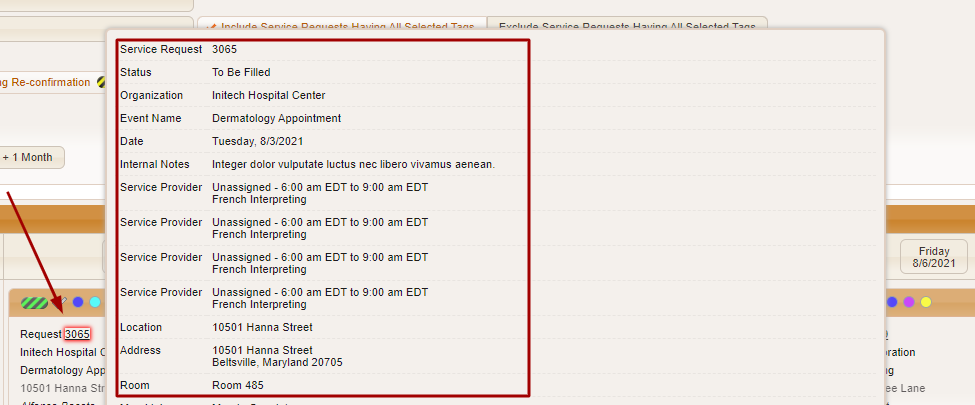
If you hover over any of the underlined content in the service request box, a pop-up will appear with more details.
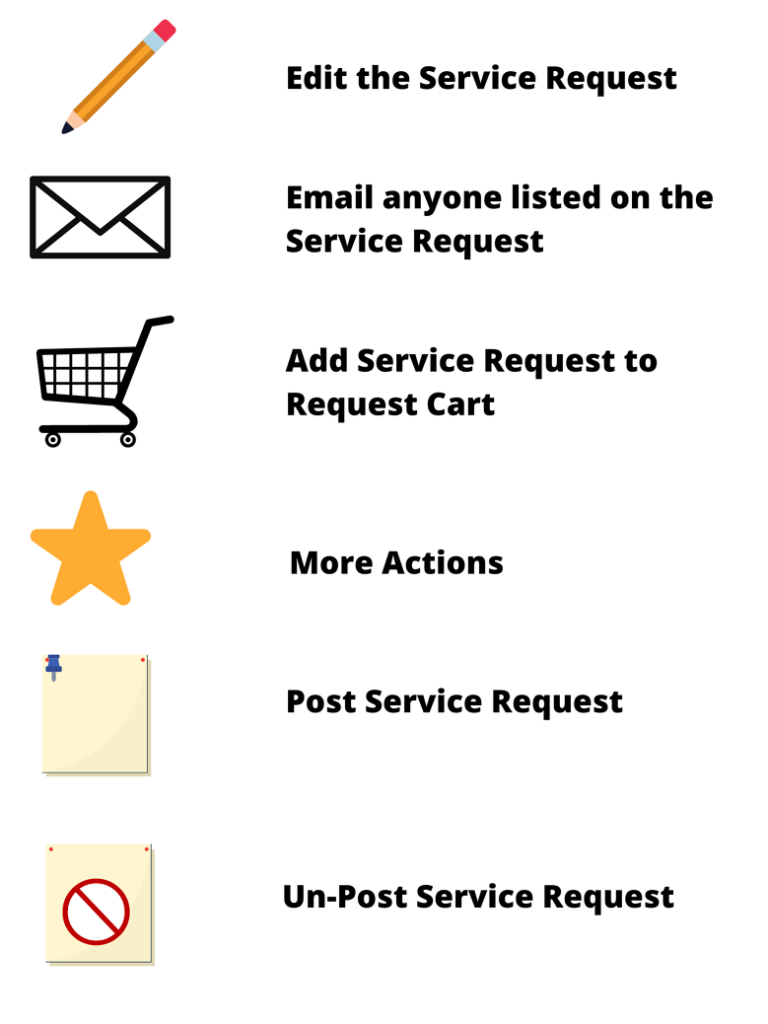
At the bottom of the box, you will see further icons for actions you can take for this request. Here are what these icons represent: