
Within each Usked site, the system settings allow for the entry of the business hours of your organization, such as 9:00 am to 5:00 pm. These settings also allow for business hours to be set on weekends if needed.
For customer billing and service provider pay, these business hours are then used to determine when to apply business hours rates, and when to apply non-business hour rates. This constitutes two normally available billing windows (within business hours, and outside of business hours) in Usked.
Many licensees, however, may have a need for the ability to apply different rates at various times that are considered separate from the normal business hours, and/or do not always apply to non-business hours. Such examples include an overnight/graveyard shift rate, a weekend-specific rate, a “combined” rate (i.e., weekend-overnight), or a rate that is valid for a specific date range only. There may also be the need to apply more than one rate variation for the same service code during various time frames (i.e., a late evening differential, an overnight differential, or an early morning differential).
The customer billing differentials and service provider pay differentials feature is intended to solve for these rate variations, and this article will introduce how this feature works.
Both customer billing rates and service provider pay rates are entered as normal (each will include a business hours rate, a non-business hours rate, a business hours fee, a non-business hours fee in addition to any necessary Quickbooks product codes). In a separate location, differentials are then entered with the intention that they will eventually be “added” to specified service code rates when Usked processes the service provider slot during billing or pay calculations.
First, to locate differentials:
For Customer Billing:
People > Groups > [Edit a group] > Customer Billing Differentials tab > Edit Customer Billing Differentials For This Group button > [Edit Customer Billing Differential Icon]
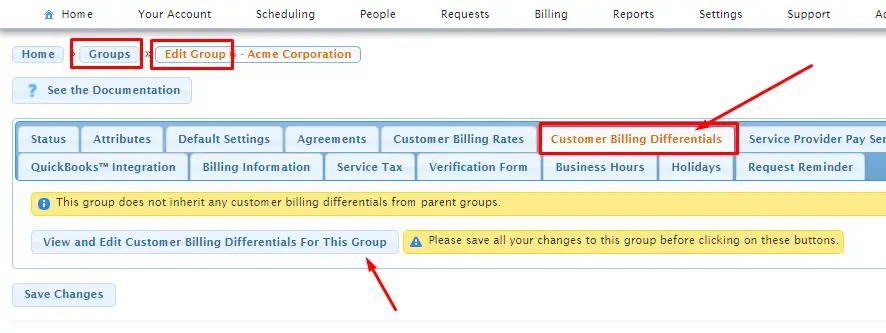
For Service Provider Pay:
People > Service Providers > [Edit a service provider] > Pay Differentials tab
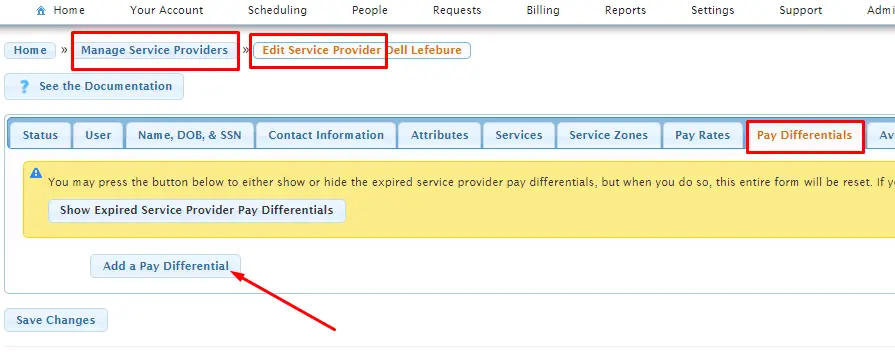
Each of these differentials lists (pay and billing) will contain the following data fields per differential:
- service code
- effective date
- expiration date
- start time
- end time
- weekdays
- weekends
- rate adjustment (dollar amount)
- differential name
If any pay or billing differentials are entered on either differential list, Usked will factor those into calculations going forward. Whether to apply a differential is determined by its assigned service code, effective date, expiration date, start time and end time. Each differential also identifies whether the rate adjustment is to be applied to only weekdays, only weekends, or to both.
Before one can comprehend how billing differentials are applied, one must first understand service provider slot processing logic in Usked. Mainly, with this logic, the service provider slot is divided, time-wise, into chunks using the billing or pay increment (i.e., 15 minutes or 30 minutes). Typically, any chunk that overlaps the working hours is paid/billed using the business hours rate, and the rest are paid/billed using the non-business hours rate.
The first step in Usked’s slot processing logic is to determine the working hours for this service provider on the date of the said request. This is necessary because the working hours for staff service providers can be different from the organization’s regular business hours.
- For staff service providers, the working hours are determined by the staff settings for this day.
- For freelance service providers, the working hours are identical to the organization’s regular business hours from Monday through Friday only (unless “business hours on weekends” is toggled to “yes” in your System Settings).
The next step in the logic is to determine if there is a contract day which overlaps this service provider slot. All chunks that overlap a contract day are excluded (unless the service provider slot falls on a holiday for staff). Note that this affects service provider pay only, and does not have any effect on customer billing.
Next, on the slot rollout, if the “calculate additional minutes to be paid separately” flag is set to “yes”, then any additional minutes in either the “additional minutes to be paid (before start time)” or the “additional minutes to be paid (after start time)” fields are calculated separately from the service time. This also means that the billing increment is applied to any additional minutes separately. If the “calculate additional minutes to be paid separately” flag is set to “no”, and either of the additional minutes fields are not zero then the minimum time is disabled.
After this, the start time of the service provider slot is used. If the “dock pay” flag is enabled for this service provider slot, the start time is advanced forward by the number of “minutes docked”. The start time can also be moved backward by the number of “additional minutes to be paid (before start time)” specified in this service provider slot, unless the “calculate additional minutes to be paid separately” flag is set to “yes”.
The end time of this service provider slot is then factored in. The end time is moved forward by the number of “additional minutes to be paid (after start time)” specified in this service provider slot, unless the “calculate additional minutes to be paid separately” flag is set to “yes”.
At this point, the service provider slot is now divided into chunks, starting at the calculated start time, and ending at the calculated end time. If there is any extra time remaining in the service provider slot after the last chunk, an extra chunk is added, except in the case of where “dock pay” is enabled.
All chunks that overlap a contract day are discarded (for service provider pay only), unless this service provider slot overlaps a staff day and the date falls on a holiday. For each chunk that overlaps the working hours, the number of business hour chunks is incremented by one, otherwise the number of non-business hour chunks is incremented by one.
- Business hours time = number of business hour chunks multiplied by the billing increment
- Non-business hours time = number of non-business hour chunks multiplied by the billing increment
Under normal circumstances, Usked will look at a whole chunk and determine whether it overlaps business hours, and if any part of the chunk did overlap, then the whole chunk is paid as business hours. Otherwise, it gets paid as non-business hours. With differentials, this is different. Instead, Usked will only look at the start time of the chunk (instead of the whole chunk).
For example, if a rate’s billing increment is entered as thirty (30) minutes, this means each individual chunk will be 30 minutes. So, for a 2:00 pm to 4:00 pm job, Usked will break this down into four chunks: 2:00, 2:30, 3:00, and 3:30, and then those interval chunks are what Usked uses to check differentials. If the start time of the chunk is within the time frame of the differential, then the differential is applied to the entire chunk. Differentials are not “partially applied”.
Each chunk that has a differential applied is always a business hour chunk. Differentials are always added to the business hours rate, never to the non-business hours rate. For example, for an “overnight” differential, one would need to enter the time frame for application of the differential (i.e., 10:00 pm to 7:00 am), but always make sure the entered rate adjustment “math” applies as an addition to the business hour (BH) hourly rate, and not to the non-business hour (NBH) hourly rate.
Now, while “stepping through each chunk”, Usked checks each applicable differential:
- If the start of a chunk falls on a weekday, and the “weekdays” toggle is set to “no”, then the differential will not be applied to the chunk.
- If the start of a chunk falls on a weekend, and the “weekends” toggle is set to “no”, then the differential will not be applied to the chunk.
- If the start time is equal to the end time, then the differential is “24 hours” and always applied.
- If the beginning of the chunk is within the differential time range, then the differential is applied to the chunk.
Finally, the business hours time and non-business hours time are added together to see if there is enough to meet or exceed the minimum time. If not, additional time needs to be added to meet the minimum time.
If there are no differentials applied anywhere to the assignment:
Whether this additional time is added to the business hours time, or non-business hours time, depends on whether the business hours time, or non-business hours time, is larger. If the business hours time is larger, then this additional time is added to the business hours time. Otherwise, if the non-business hours time is larger, or equal to, the business hours time, this additional time is added to the non-business hours time.
If at least one differential “touches” the assignment:
When/if the time “added” to meet the minimum falls within the same time frame as a differential, then a “minimum time differential” is added.
This type of differential is always labeled as “minimum time differential” as to provide a clear distinction between the two differentials on invoices.
An example of this would be an one-hour job, where the rate itself has a two-hour minimum. A specific differential (i.e., “weekend”) may be applied to the first hour, and a “minimum time differential” will be applied to the second hour (which was only added to bring the job up to minimum).
The rate of the “minimum time differential” is always equal to all the differentials applied to the last chunk. For example, if the last chunk on a one-hour job had both a “Evening Differential $5” and a “Weekend Differential $7” applied, the minimum time differential rate on the added second hour would always be $12/hour.
At the end of each calculation, each applied differential will then be displayed as its own “fee” line item in billing details and/or the “breakdown” columns of reports (in addition to any other entered fees).
- The name of this fee will be the same as the name of the differential, and the amount of the fee listed will be the same as the total amount of the differential.
- Any surcharge settings within a service code will affect the differential.
- The Quickbooks product code listed for the differential will be the same as the Quickbooks product code for business hours rate.
- Whether a differential is taxable or not will be determined by the “fees are taxable setting” in the service code. If this setting is set to “yes” then the service tax amount listed will be the calculated tax on the differential.
Some other key points to remember when working with differentials:
- For service provider pay and customer billing rates, only one pay or billing rate can be in effect at a time on a service provider slot. But, for service provider pay differentials and customer billing differentials, multiple ones can be in effect at any time on any service provider slot. For instance, a “regular” pay rate service code may be in effect on a service provider slot, but more than one differential could be applied to this “regular” service code regardless of the time frame of the slot (i.e., a job taking place from 10:00 pm to 7:00 am could have three differentials on its regular service code like 10:00 pm to midnight, midnight to 3:00 am, and 3:00 am to 7:00 am).
- Service provider pay (and pay differentials) can be affected by service zones. Customer billing (and billing differentials) cannot be affected by service zones.
- For start and end time, in cases where the start time is greater than the end time (i.e., 5:00 pm to 8:00 am), the differential will be effective starting at 5:00 pm and continuing to be effective until 8:00 am the next morning. If the start time is equal to the end time, then the differential is always in effect (24 hours).
- Contract days and staff days are always paid at the business hour rate specified in the selected service provider pay rate / service code with no differentials applied.
- The determination of which rate fee (business hour fee or non-business hour fee) gets applied depends on the very first chunk of a slot. The only time a non-business hour fee is applied is if the first chunk is non-business hour and has no differentials applied. If the first chunk is non-business hour, but it does have differentials applied, then the business hour fee is applied instead of the non-business hour fee (because differentials always use business hour rate/fees).
- Keep in mind when checking the “Billing Details” via a job’s actions screen, that this space always gives you totals “as if” there is no block or contract/staff day in effect (stand alone). Those numbers may differ when comparing them against service provider or customer billing invoices (on which blocks and contract/staff days are always in effect).
About parent and child group differentials:
It is important to note that differentials are not “replaced” – they are always “stacked” in Usked. When a child group has a differential that is essentially a “copy” of one that resides in the parent group – Usked will apply both differentials, instead of using only the child group one (unlike billing rates). In Usked, billing rates cannot be stacked (you can only pick one), while differentials can. It should always be assumed that differentials on child groups (where the parent group already has differentials listed) are “in addition to” – meaning the child group will always get “calculated” for all its own differentials and all its parents’ group differentials. This will be true as long as the differential can be applied (taking into consideration service code, service zone, effective and expiration date, weekdays toggle, weekends toggle, start and end time).
Because differentials “stack”, licensees are encouraged to create only differentials that apply to all service zones, or if they must have different differentials for different service zones, then they should enter/add a differential for each and every specific zone that needs one – in order to eliminate “double” differential applications (i.e., a differential for the “Los Angeles service zone”, and a differential for “all service zones”).
An exception to this would be if you had a pay differential that would apply to all service zones (such as a weekend differential) then you would select/assign “all service zones” when creating that differential. Then, if there were a specific service zone that also had a special night rate (and only for that one service zone), then you would create the night rate differential and enter only that specific zone. When processing the slot, if Usked recognizes that it meets the criteria of both “ weekend + night” in that service zone, then both differentials would be applied.