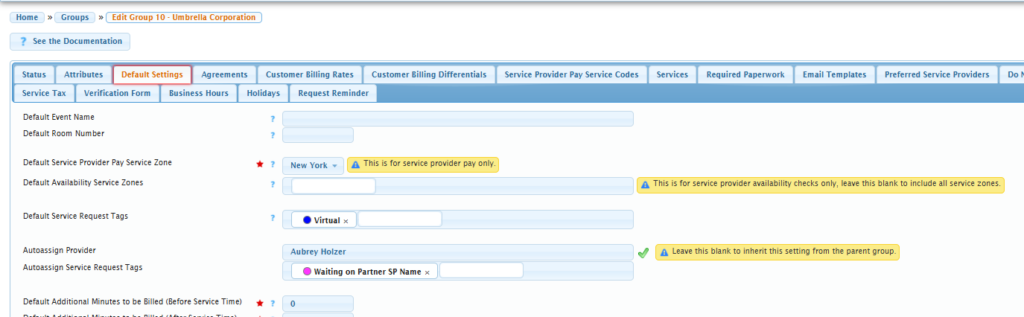
For Groups, on the “Default Settings” tab, there exist two different fields: Default Service Request Tags, and Autoassign Service Request Tags. This article explains the difference between the two.
Both of these fields are means to automate the adding of tags to a new service request (as group member requestors feeding in service requests cannot add or edit tags).
Any tag can be edited by the scheduler during the service request confirmation stage and thereafter.
“Default Service Request Tags”, when entered on a group profile, are instantly placed on a service request when one is created for that particular group. These would be general tags that should be on all of the group’s requests (i.e., “virtual”).
“Autoassign Service Request Tags” are only available for licensees that have the “allow same service provider on multiple slots” feature enabled for their site.
Tags related to the actual action of auto-assigning a service provider, such as “waiting on partner service provider name” are used in this field.
These tags are only triggered when there is also an Autoassign Provider value entered; they are fed directly into the service request confirmation screen for the scheduler to “preview” first before confirming the service request, and then officially being added to the service request itself.
The reason for having both is because you may decide that all requests made within a particular group should have a “virtual” tag on it, but not all of these requests are/will be auto-assigned.
In the below example, for the group “Umbrella Corporation”, a “virtual” tag (blue) has been entered in the “Default Service Request Tags” field. Service provider “Aubrey Holzer” has also been entered on the “Autoassign Provider” field along with the “waiting on Partner SP name” tag (pink) in the “Autoassign Service Request Tags” field:
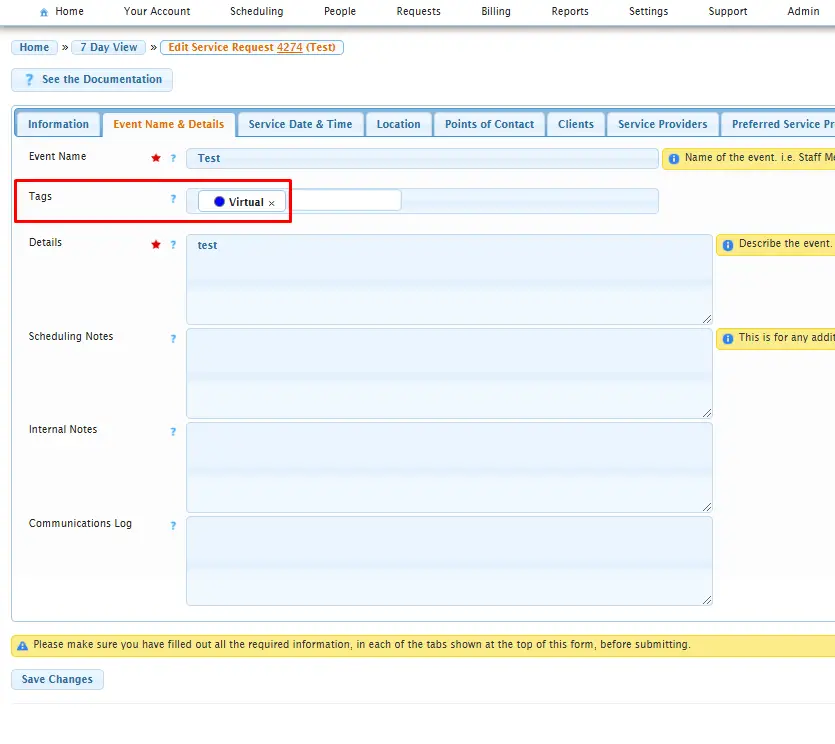
If a new service request for this group, “Umbrella Corporation”, is created, the default “virtual” tag (blue) is automatically added to it:
When a scheduler goes in to confirm this pending service request, this is what appears on the confirmation screen:
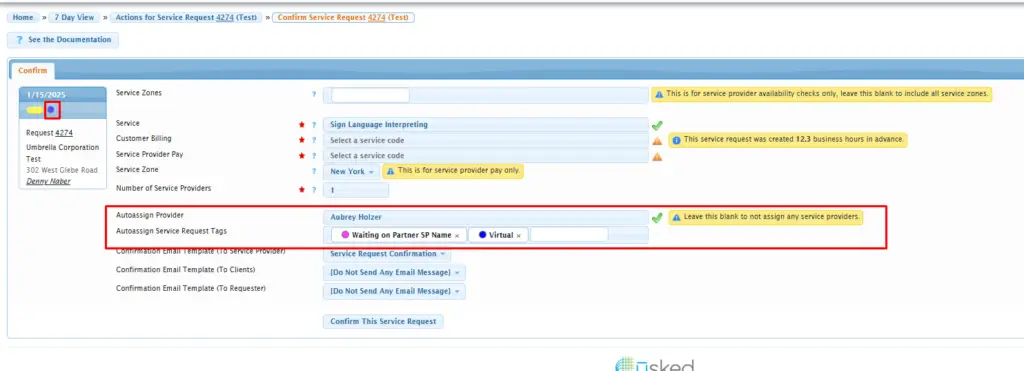
Both the Default tag (blue/virtual) and the Autoassign tag (pink/waiting on Partner SP name) appear (but can also be edited/moved from this screen by the scheduler if needed during the confirmation process).
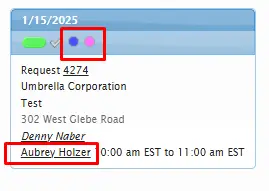
The Autoassign tag (pink / waiting on Partner SP name) will show up on the service request box, after this request has been confirmed by the scheduler, and the provider autoassigned: