
Want to allow your customers to create their own accounts? Read more to find out how. #

Create a “Self-Created Customer Accounts” group. Click here for how to add a group. Typically any customer billing rates or agreements are not stored at this group level. This will be the group that all new customers who create their own accounts will be placed in.

Create a “create account” email template. Click here for how to create an email template. Below is an example:
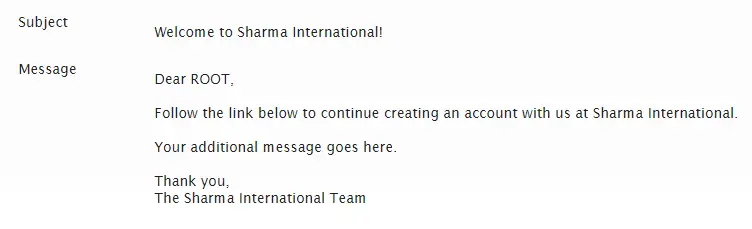
NOTE: Make sure you include the {MESSAGE} tag in the body of the email template, as this becomes a web link users can click on to continue creating their new account.

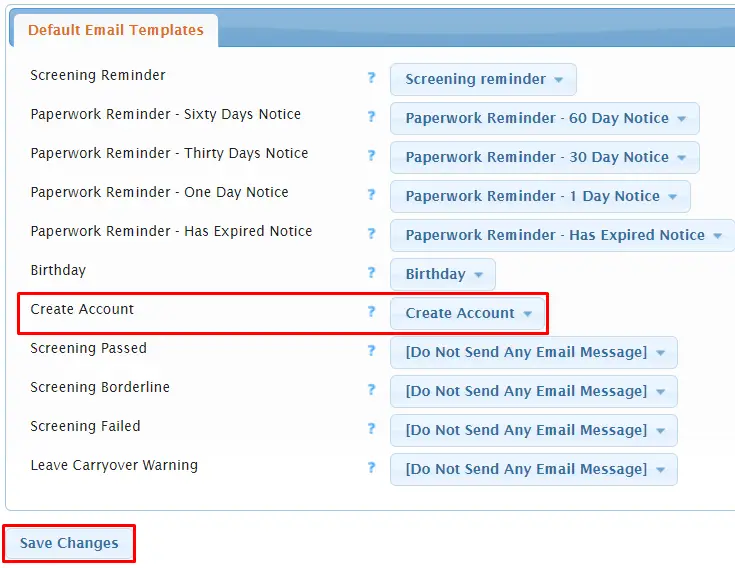
Set your “create account” email template as a default email template. To do this, go to Settings > Default Email Templates. Next, to Create Account, select your create account email template from the drop down. Then select Save Changes.

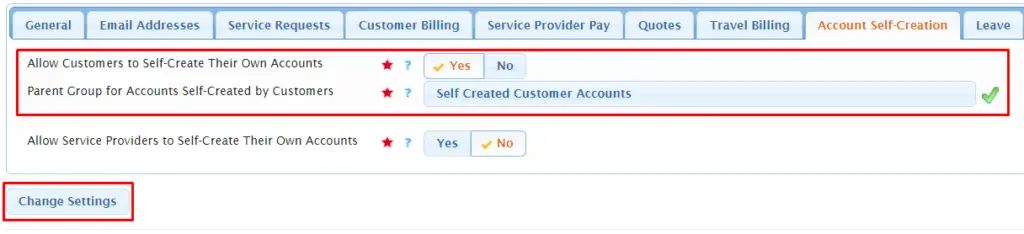
Go to Admin > Change System Settings. Under the Account Self-Creation tab, set Allow Customers to Self-Create Their Own Accounts to Yes and type in and select your new Self Created Customer Account group in the Parent Group for Accounts Self-Created by Customers field. Then select Change Settings.

Decide how new customers will get the web address to self create their account. You could place a link to the web address on your company website or email the link to new customers that have expressed need for a service request. The web address will be your Usked site address followed by /client/create.php. So, if your Usked site web address was https://love.usked.com the self create customer web address would be https://love.usked.com/client/create.php.
FAQS #
What do I do once the customer has created their account? #
You’ll want to assign the new customer group to the appropriate parent group based on what rate structure they will fall under. To change the parent group go to People > Groups and click on the pencil icon next to the new customer group. Under the Attributes tab, in the Parent Group field begin typing in and select the appropriate parent group and then select Save Changes.
What if I want to have this new customer sign an agreement? #
We recommend adding an agreement to the highest parent group level possible that would cover all the child groups below in that hierarchy. For example, if I have a parent group called Standard Rates that breaks into many smaller children groups that all follow the standard rate structure, I can add the agreement to the Standard Rates group and then all children groups under it would need to sign the same agreement. This way once you’ve changed the new customer’s parent group from Self Created Customer Accounts to the appropriate parent group, they will be prompted to sign the agreement.
NOTE: If you later change the parent group to a group that doesn’t follow the same hierarchy you will no longer be able to see any agreement that existed before for that child group. Agreements will follow the group structure.
What does the account creation process look like for my new customer? #
Once the new customer clicks on the self create web address link they are taken to the create an account page and will need to enter their email address.

They will then receive the create account email with a link to continue. They will be taken to a page where they are prompted to enter in their basic information.
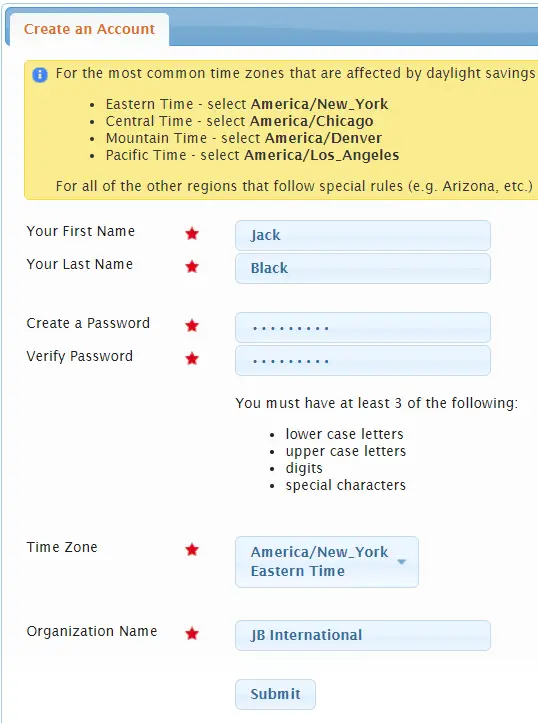
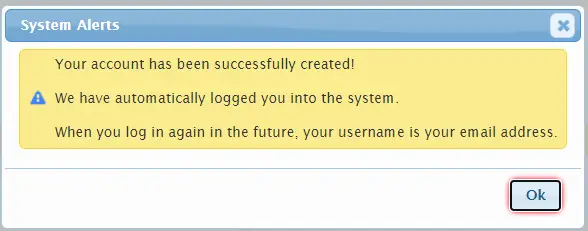
Once they click Submit they will be automatically logged into their new account and will see this system alert:
What is created in Usked when a customer creates their own account? #
There are three things created in Usked from a customer creating their own account:
- New Group – the name of this group will be the Organization Name the customer types in.
- New User – the information for this new user will include the first name, last name, password, and time zone given in the self create account process. The email address provided will become their username.
- New Group Member – the new user is added to the new group as a group member. They will have the following attributes set to Yes.
