
Table of contents
- Have you ever wanted to know how to mark a job as being billed in Usked after you’ve downloaded the billing report?
Have you ever wanted to know how to mark a job as being billed in Usked after you’ve downloaded the billing report? #

If you use Quickbooks™, Usked has a workflow that allows you to “Tag” every job included in a Quickbooks™ Invoice Export report. Find out how below.

You’ll need to first create a Tag and call it Billing Completed or something similar. For instructions on how to create a Tag, click here.

Next, you’ll want to open the Quickbooks™ Invoice Export report (Billing > Reports > Customer Billing > Quickbooks™ Invoice Export). For more information on this report, click here.

Then, select the filter options you want for this billing report. When you get to the “Service Request Tags” field be sure to select that new Billing Completed tag you created and toggle on Exclude Service Requests Having all Selected Tags. Then click on Search to pull the data.
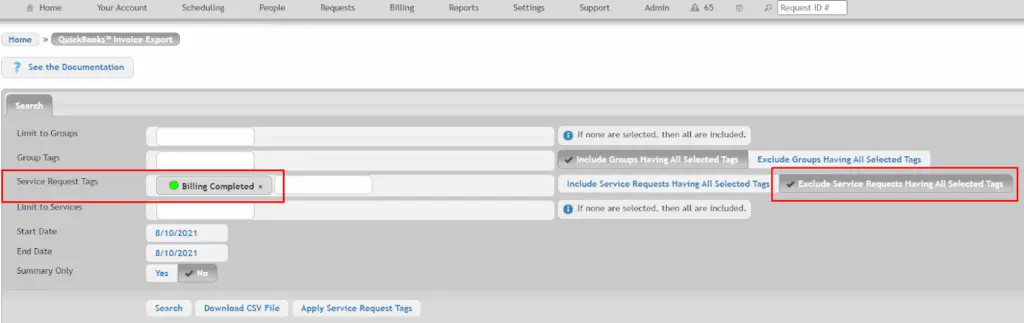

Once the data is returned, you can then click Download CSV File and follow your typical workflow of how to import that file into Quickbooks™. Make sure to keep this report up while you do so.

Once you’ve completed the import you can then come back to your filtered Quickbooks™ Invoice Export and click the button Apply Service Request Tags.
This will add the Billing Completed tag to all of the jobs that you just downloaded in that customer billing batch and the jobs once displayed on the screen will now disappear from view because you have the filters toggled to “Exclude” all jobs with that Tag.

The next time you run a billing report, you’ll start by filtering to exclude that Billing Completed tag, because you want to return jobs that haven’t yet been billed.
📌 This workflow will not work properly unless that “Exclude” button is toggled in the filter options.