
Find out how to setup this integration, how to convert a request to a Zoom meeting, and more. #
Setting Up Zoom Integration #
You must have Admin role in both Zoom and Ūsked accounts to complete the setup. Your Zoom account must have at least one paid licensed user on the account.
Go to https://zoom.us and log into your Zoom owner account.
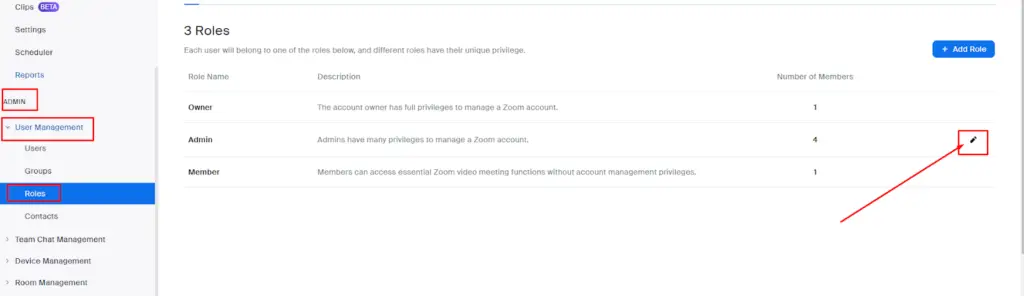
In the Admin sidebar under User Management, click on Roles. (Note this is not visible if you are not logged in using an owner account.)
Edit the Admin role:
Under the Advanced Features section, turn on “Server-to-server OAuth app”:

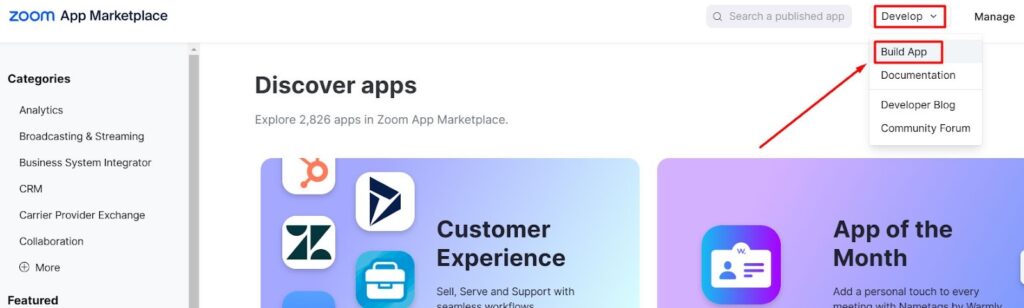
Next, log into https://marketplace.zoom.us using the same owner account. On the top right of the screen, click Develop, then click Build App.
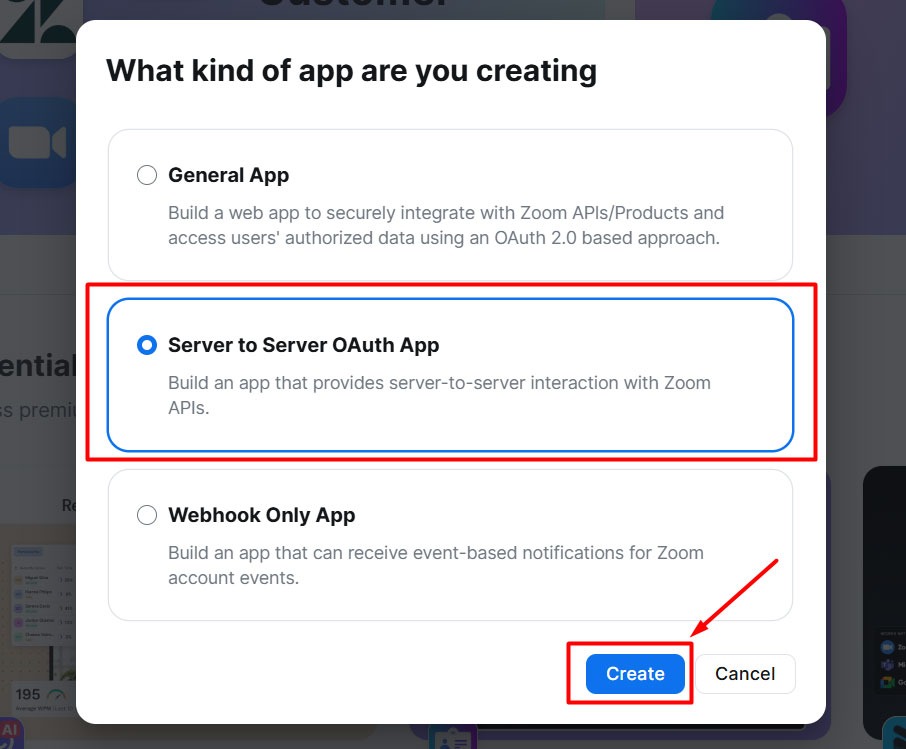
A modal window will open, select Server to Server OAuth App, and then click Create.
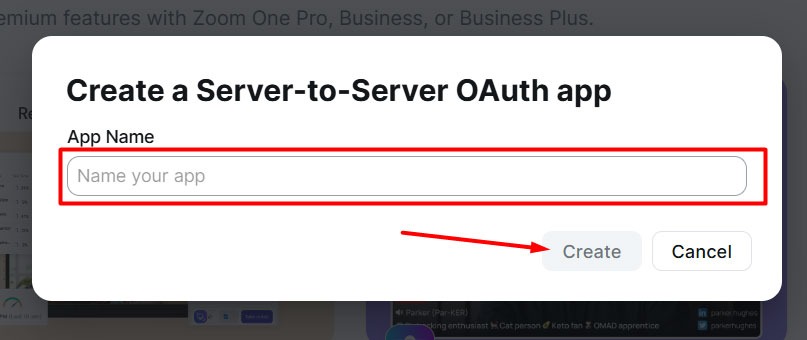
You will be prompted to give the App a name. Please choose a name appropriate for your app and click Create.
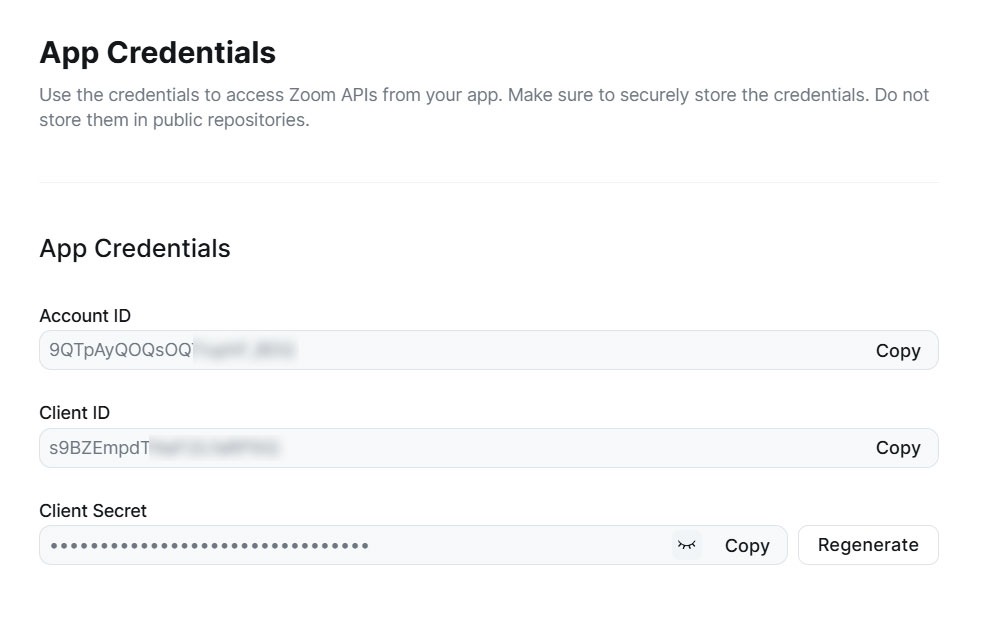
The following screen will display (3) items: Account ID, Client ID, and Client Secret. Copy these fields, as you will need to plug them into Usked later.
On this same screen, there are several required areas that you will need to fill out. On the left sidebar, click on Information. Here, you will need to fill out the “Company Name” field using your organization’s name:
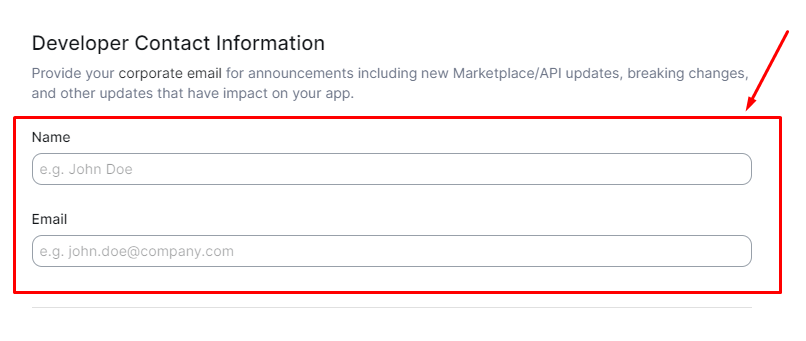
Next, scroll down to the “Developer Contact Information” section. Here, you will need to complete the “Name” and “Email” fields (using your information):
Once this is complete, return to the left sidebar and click on Scopes, then on “+ Add Scopes”:

On the following screen, go to the left sidebar and click on “Meeting”, then on the right click to expand, “View all user meetings” and check “View a meeting”:
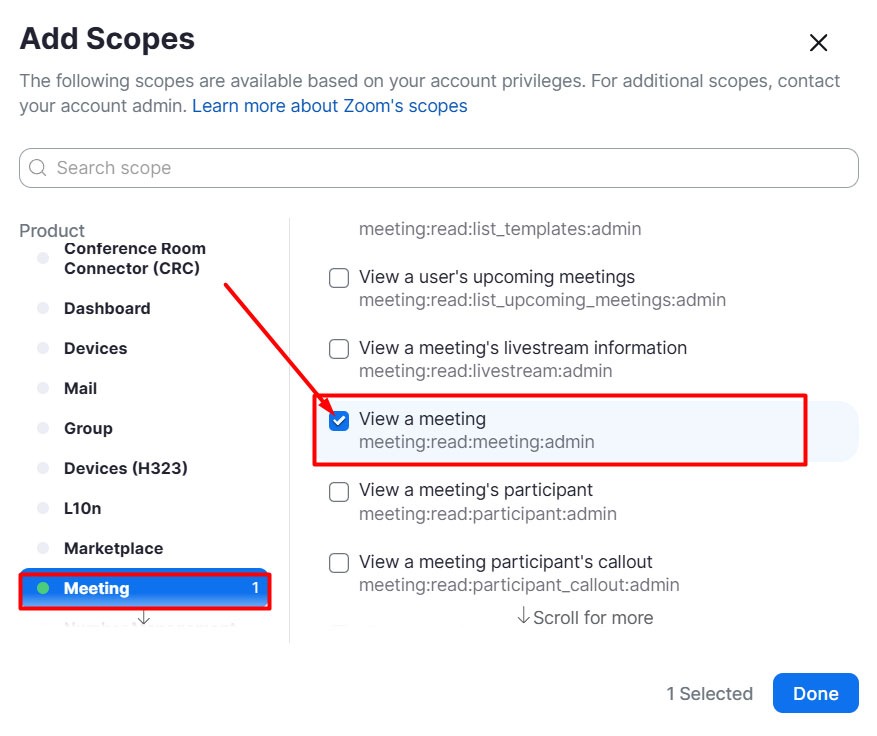
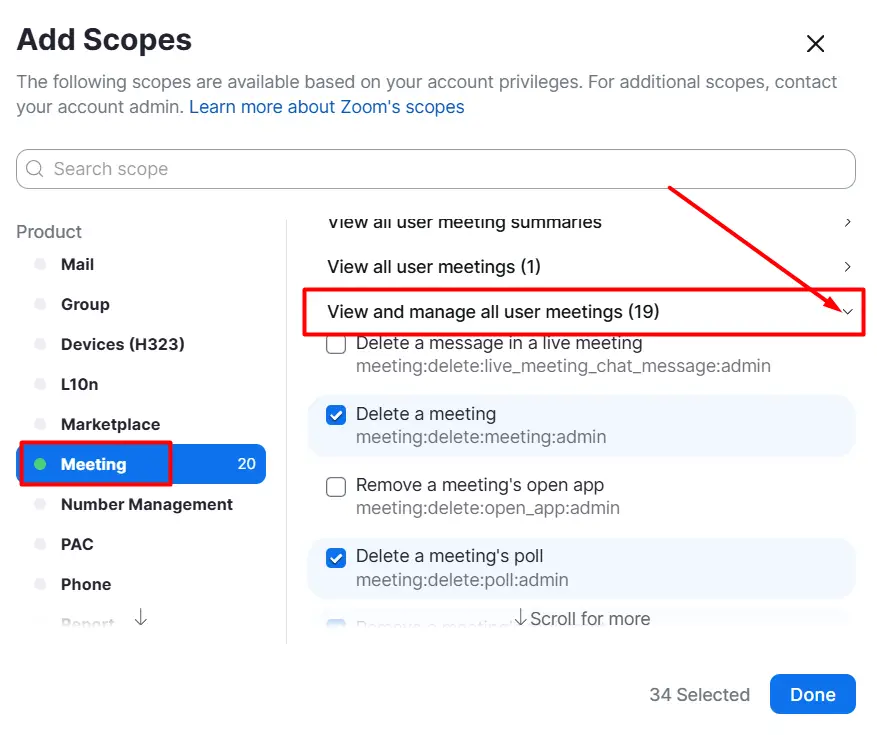
You may collapse “View all user meetings” that you previously expanded, and then expand “View and manage all user meetings”. Check the following 19 options:
- Delete a meeting
- Delete a meeting’s pole
- Remove a meeting’s registrant
- Delete a meeting’s survey
- Update a meeting’s in-meeting control
- Update a meeting’s livestream information
- Update a meeting’s livestream status
- Update a meeting
- Update a meeting’s poll
- Update a meeting registrant’s registration status
- Update a meeting’s registration questions
- Update a meeting’s status
- Update a meeting’s survey
- Create polls for a meeting
- Add registrants to a meeting
- Create invite links for a meeting
- Create a meeting for a user
- Create a poll for a meeting
- Add a registrant to a meeting
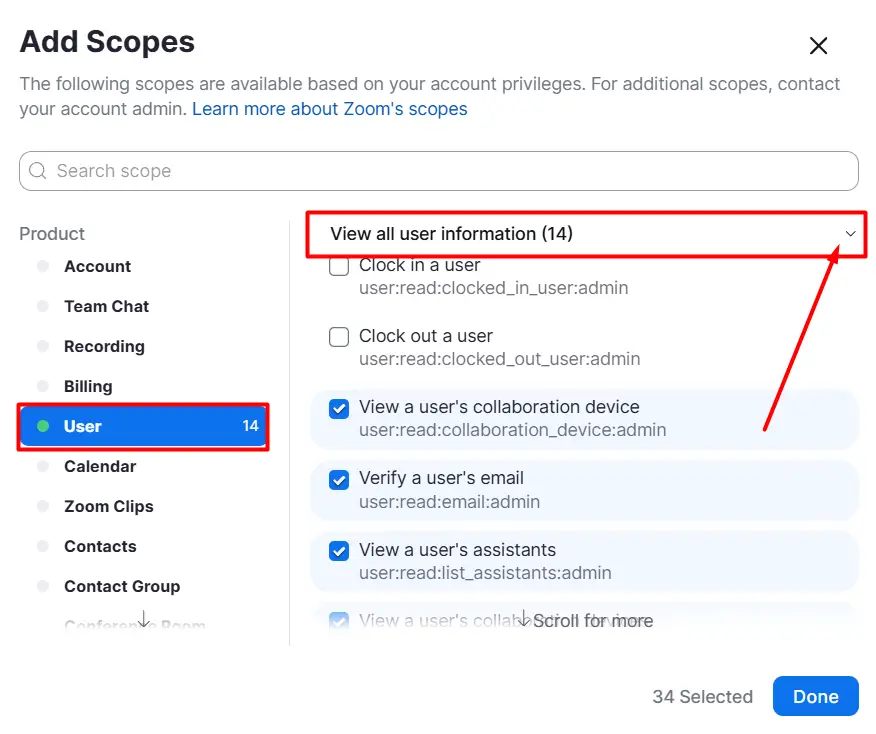
Return back to the left sidebar, and click on “User”, then expand “View all user information” on the right, then under “View all user information”, check the following 14 checkboxes:
- View a user’s collaboration device
- Verify a user’s email
- View a user’s assistants
- View a user’s collaboration devices
- View a user’s permissions
- View a user’s schedulers
- View users
- View a user’s personal note
- Verify a user’s personal meeting room
- View a user’s presence status
- View a user’s settings
- View user summary
- View a user’s token
- View a user
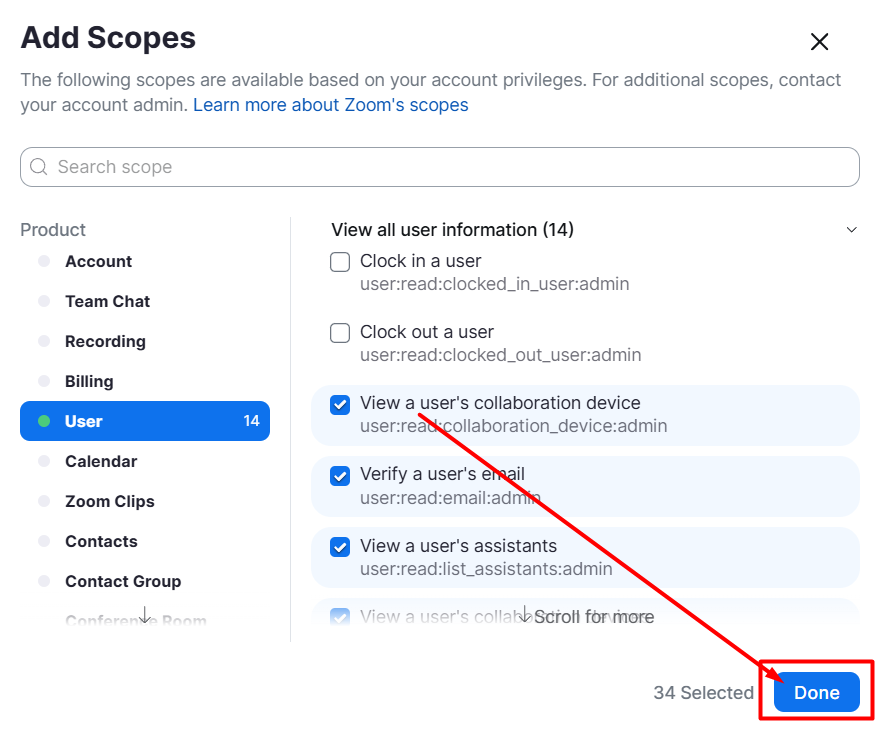
Once the checkboxes are checked, press the “Done” button.
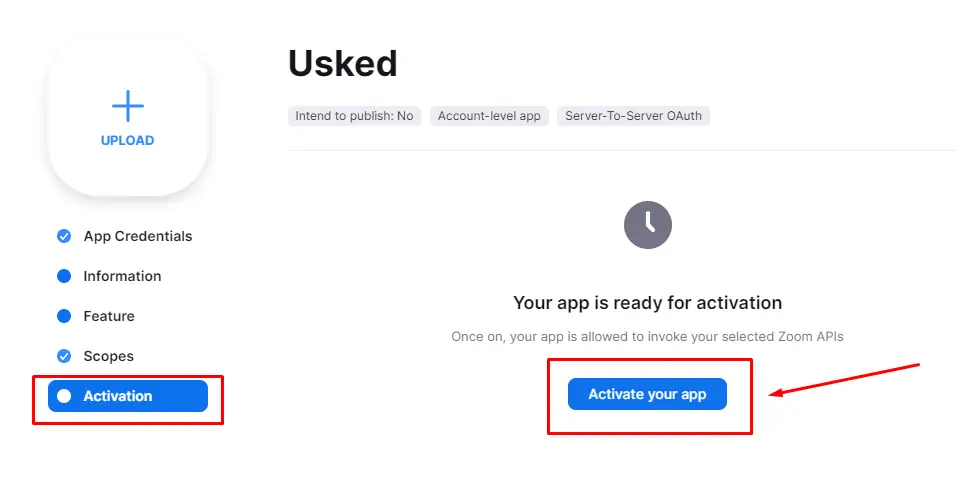
Next, return to the left sidebar, and click on “Activation”, then on the “Activate your app” button.
Next, you’ll need to log into your Usked site as an Admin.
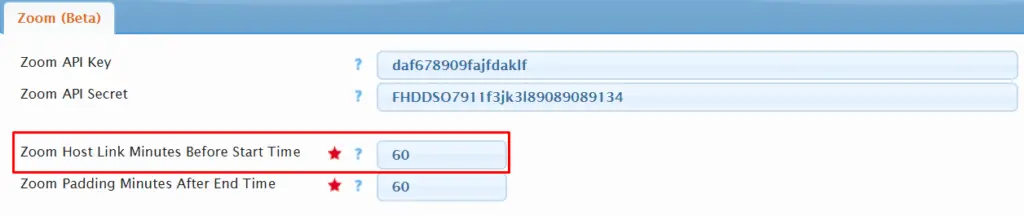
Once you are logged in, go to Admin > Change System Settings and select the “Zoom” tab. On this screen, paste the (3) items from your App Credentials (Zoom Account ID, Zoom Client ID, and Zoom Client Secret — as seen earlier in this document) here:
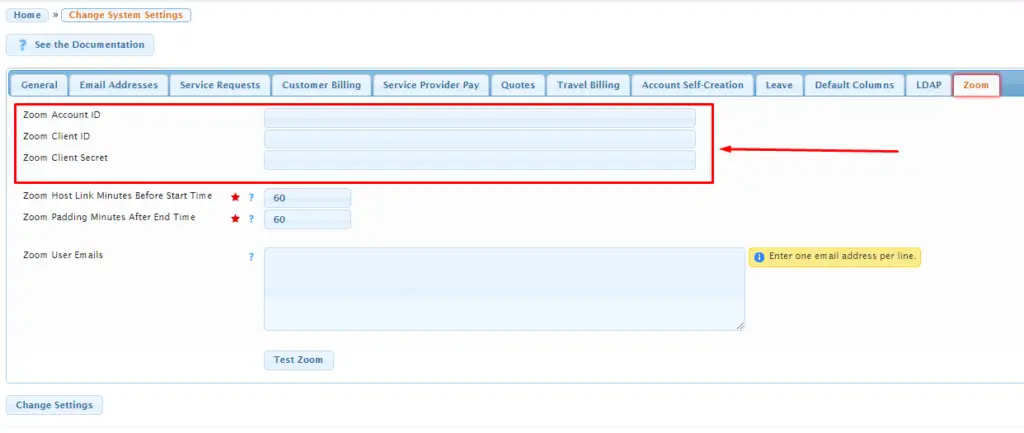
Next, fill out the remaining information on the tab form:
- Zoom Host Link Minutes Before Start Time
This is the number of minutes before the start time of the meeting, that you would like to make the Zoom host link available for use. This can be between 0 and 120 minutes. This setting affects the conflict checks when converting a request to a Zoom meeting.
- Zoom Padding Minutes After End Time
This is the number of minutes after the end time of the meeting, that you would like to block out time for Zoom meetings. This helps mitigate issues relating to meeting overruns. This can be from 0 to 1440 minutes. This setting affects the conflict checks when converting a request to a Zoom meeting.
- Zoom User Emails
This is a list of email addresses of users in your Zoom account.
Type in one email address per line. Do not use commas or spaces.
- These email addresses need to be for Zoom users on your Account.
- Ūsked will create new Zoom meetings only under those users when you convert a service request to a Zoom meeting.
- These users should be paid licensed users to avoid some severe restrictions that Zoom imposes on free (basic) users.
- Meetings will be created based on a shuffled, random selection of one of the Zoom user emails. If the selected Zoom user already has a conflicting meeting scheduled in Ūsked, Ūsked moves on to the next random selected Zoom user. If there are no more available users, Ūsked will fail to convert the service request to a Zoom meeting, and will report an error.
- Ūsked will not be aware of any meetings created in Zoom outside of Ūsked. Those meetings will not be factored into conflict checks when Ūsked decides which Zoom user to use to create a Zoom meeting. The hosts in the Zoom users list given to Ūsked should ideally be hosts dedicated to Ūsked.
In the example below, Zoom meetings would need to spaced more than 2 hours apart to avoid conflict errors:
When all fields are entered and complete, click on the “Test Zoom” button:
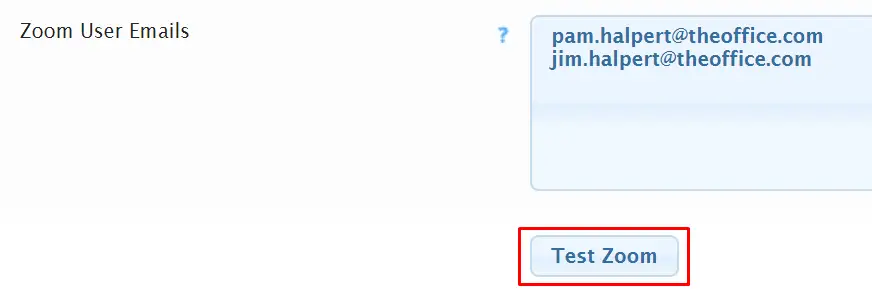
If the test is successful you’ll see a System Alert indicating this.
If the test is not successful you’ll see an error message specific to the issue. You will then need to go back and review the Zoom Account ID, Zoom Client ID and Zoom Client Secret fields in your Zoom account and make sure to match that information in Ūsked. After making the appropriate changes, repeat “Test Zoom” until you get a successful Zoom test.
Once you have a successful Zoom test, go ahead and select the “Change Settings” button to save your settings.
Your Zoom integration setup is now complete!
How do I convert a request to a Zoom meeting? #
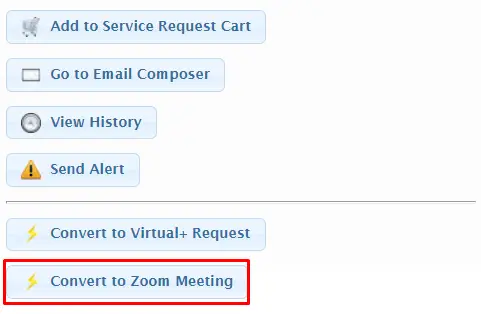
From the actions menu () for the request, simply click on the Convert to Zoom Meeting button:
NOTES:
- Requests that are draft or canceled status will not be able to converted to a Zoom meeting.
- To convert a request from a Zoom Meeting back to a Regular request just click on Convert to Regular Request from the actions menu.
- Converting a Zoom Meeting back to a Regular request or canceling a Zoom meeting in Ūsked will delete the Zoom meeting in the Zoom account.
How do I know which requests are Zoom meetings? #
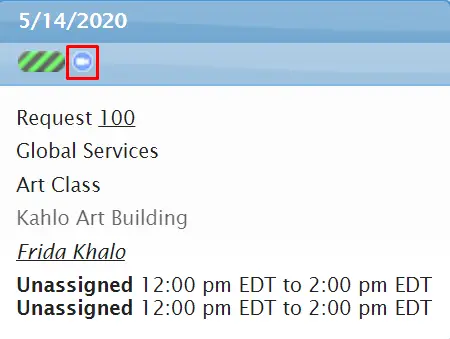
From the scheduling views:
You’ll see a Zoom icon on the service request box of those that are Zoom meetings.
From the Service Requests report:
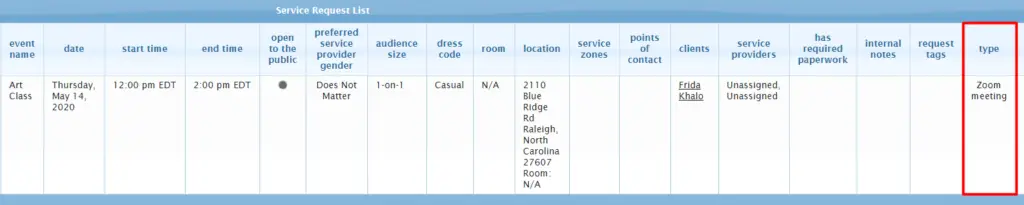
You’ll see Zoom meeting in the Type column for those that are Zoom meetings.
How do I send out the Zoom Invite link to participants? #
The job specific Zoom Invite link can be sent out using email templates that you have set in place already. To make sure the Zoom Invite link will be included in an email template, go to Settings > Email Templates. Click on the pencil (edit) icon for the desired email template, then from the Defaults tab toggle this setting to Yes, and click Save Changes.

Make sure to change this setting for each email template you’d like Zoom Invite links to be included on. Now, for any Zoom meeting requests, the Zoom Invite link will be included when this email template is used.
For other ways that participants can access the Zoom Invite link see below.
How do I join a Zoom meeting? #
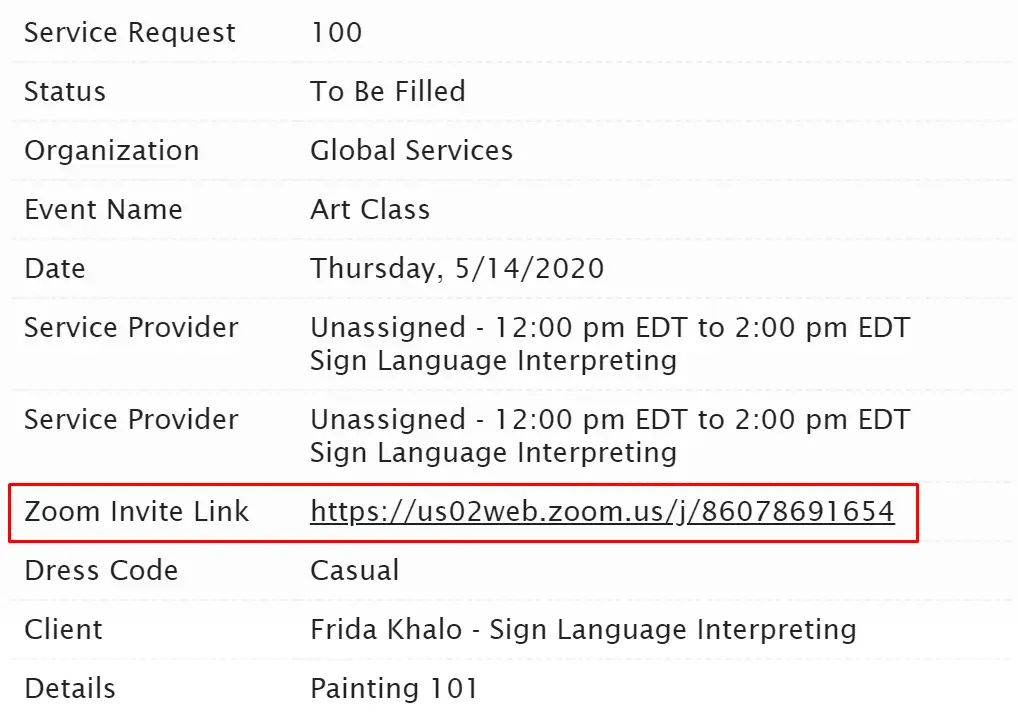
If you hover over the service request ID of a Zoom meeting request or click View Details from the web portal, you’ll see the Zoom invite link in place of Location. You can also join from the Zoom invite link sent via email using a Ūsked email template or from the calendar event notes, if you have your Ūsked calendar connected via iCalendar. Simply click on the Zoom invite link to open Zoom and join the meeting.
How do I update recurring requests to include the Zoom settings? #
To update recurring requests to include if the request is a Zoom meeting request, simply select Yes for Clone Zoom Settings when updating the recurring requests.

What do I do if I’m the host of the Zoom meeting? #
How do I join the Zoom meeting as a host? #
If you are the host of the Zoom meeting you’ll need to start the meeting so that others can join. To join as the host go to the actions menu for the request and click on Get Zoom Host Link. This link allows you to join the Zoom meeting as the host and have access to host controls.
When can I get the Zoom host link? #
The Zoom Host Link button will only be available a specific amount of time prior to the request start time. This time frame is determined by the setting found in the System Settings in your Ūsked web portal. In the example below, hosts will be able to get the Zoom host link 60 minutes before the Zoom meeting is scheduled to begin.
NOTE: Ūsked currently does not restrict who can get the Zoom host link. Any person able to see the job actions screen for a job can get the Zoom host link; this includes clients, service providers, and schedulers. Zoom does not seem to have any issue with multiple people using the Zoom host link to enter a meeting. Any person with the Zoom host link can take control of the meeting. Currently, we are leaving it up to the licensee to determine who should be using the Zoom host link, and to communicate this to their customers and service providers. A licensee could decide that it makes more sense for the paying customer to get the Zoom host link, so they can have control of all the features of Zoom. Or, for them, it could make more sense for a service provider to start the meeting. At this time, we are leaving this decision up to the licensee.
Frequently asked questions #
Can Zoom be accessed from the Ūsked app? #
No, Zoom can only be accessed by opening the Zoom invite link from a web browser.
How can I run a report for all Zoom meeting requests? #
We recommend creating a “Zoom” tag for use as a service request tag. This way, you can tag assignments that are Zoom meeting requests and then use the service request tag filter in various reports to see those.
How can I see Zoom meeting demand? #
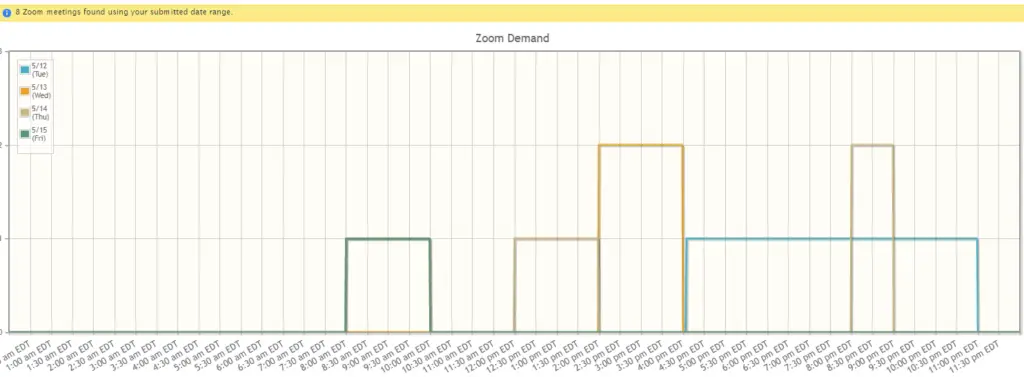
Go to Reports > Scheduling > Zoom Demand. This report will show you an overview of how many concurrent Zoom meetings you have at any given time.
Zoom Limitations #
- For Zoom meetings in which two or more people join, once only one person or no one is left in the meeting, a timer starts. After 40 minutes, Zoom will automatically close the meeting.
- The Zoom meetings API has a limit of creating 100 meetings per user in a 24 hour period. We recommend avoiding the creation of too many Zoom meetings in bulk (via the create / update recurring jobs feature) to avoid running into this limit.
- A Zoom user cannot host multiple meetings at the same time. If the Zoom user attempts to start a second meeting while the first one is still in progress, Zoom will give that user the option to close the first meeting. This means that in case of meeting overruns, a person with the host link for a job has the power to end another completely unrelated job created under the same Zoom user. The padding minutes setting is intended to mitigate this situation, but does not prevent users from running into this completely.
- The name of the person who uses the Zoom host link will always be whatever is configured to be the name of the host in that Zoom account. This means if you have a Zoom user named “Barry”, every person using the host link to start meetings under that user will be named “Barry” in the meeting. It would be best to give your Zoom users generic names, for example “Acme Corp Host A”, etc.
- It does seem like “basic” (free) user Zoom accounts will work with Ūsked, even though Zoom documentation says that basic users do not work with the Zoom API. However, basic users have severe restrictions imposed on them by Zoom. For example, basic user meetings will not be allowed to run for more than 40 minutes. Due to this we recommend that all Zoom users provided in Ūsked system settings be paid licensed users.
- Using Zoom features such as “join before host” can have disastrous results because Zoom does not allow more than one meeting per user account at a time. When “join before host” is enabled, anybody can use the invite link to join and start a meeting outside of the scheduled meeting time, even on a different day.
📣 These limitations do not exist for Virtual+.
What do I do if I’m having issues joining a Zoom meeting? #
Contact Zoom support.