
In this article, we will talk about parent and child groups and what that structure means in Ūsked. Let’s dive into family dynamics – what could go wrong? #

#
What is Group Hierarchy? #
Group Hierarchy is the structure in which you have groups “nested” into other groups. They are often called “Parent Groups” and “Child Groups”. Sometimes, there are even “Grandfather Groups!”
How can I see the Group Hierarchy? #
You can see the hierarchy when you go to “People > Groups.”
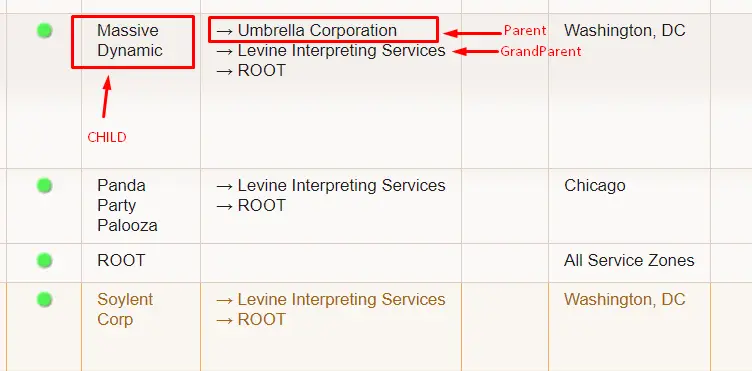
Also, if you click on the icon on the left that looks like a “fidget spinner”

You will open up the “Hierarchy Display” which gives you a graphical display of your organizations group hierarchy, like this:
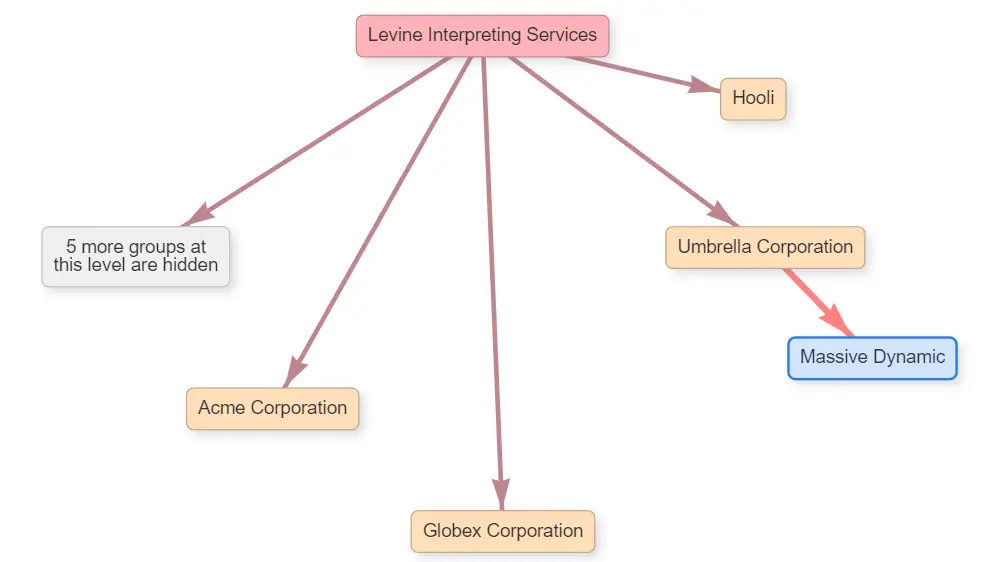
This display allows you to see the group structure. The filter options at the top of the page allow you to define how deep into the structure to display and you can access any of these groups by simply right-clicking on the box to be taken directly to that group’s profile.
Why Parents? #
There are three primary reasons for setting up your Group Hierarchy in this manner.
Much like in real family dynamics…
1. Parents set the rates. (You can get the $50 jeans – not the $200 jeans)
2. Parents foot the bill for the expenses of their children. (You can pay me back when you get a job)
3. You want to see all children listed under their parent (like a family tree but for reports).
All jokes aside, these rules hold true for a few reasons. Let’s add some real examples.
1. Parents set the rates.

Example: One of your groups is “Walmart”, and you have several Walmart stores that you provide services to.
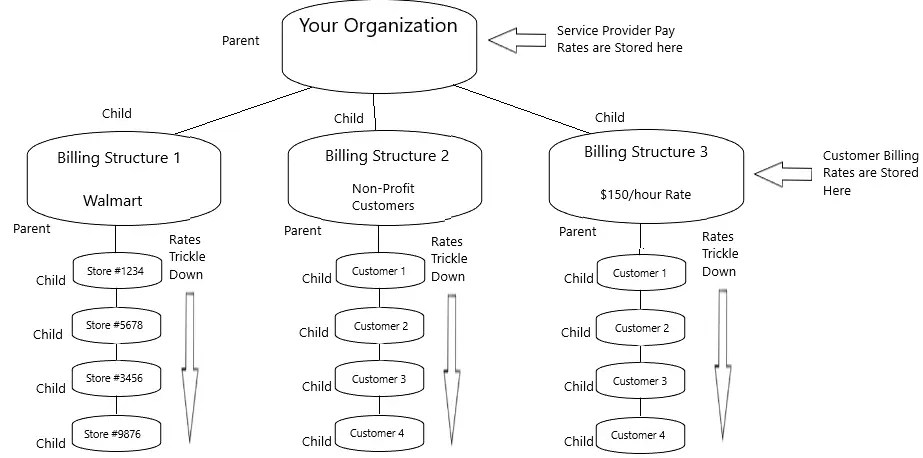
Each of those stores follows the billing rate that is set by the Parent Group Walmart. So the structure would be:
PARENT Group: Walmart
Child Group: Walmart Store #1234
Child Group: Walmart Store #5678
Child Group: Walmart Store #3456
The billing amounts reside at the Parent group level and “trickle-down” to all of the children. More on this at the end of this article.
The benefit of setting the structure up like this is if you decide to change your billing rates for all Walmart customers. You only need to change them in one location – the Parent Walmart – rather than each individual Walmart store group.
You would set this structure up (each Walmart store being a separate Group) if, and only if, each of those children stores has a different requester who was only permitted to see their own service requests and/or the Walmart Parent wanted to receive one invoice per store rather than all of the services on one invoice.
If the Parent Group Walmart wanted all services – regardless of a store location – all on one invoice, and it didn’t matter if the requesters could see other Walmart requests (or Walmart didn’t submit their own requests at all), then these children groups wouldn’t need to be groups at all, they could simply be listed as “Default Locations” connected to the one Group “Walmart.”
Setting the Parent Group up as the one who sets the rates allows you to categorize your rate structures according to various similarities.

Examples: If you have one rate structure for Commercial customers, one for Educational customers, one for Non-Profit customers, etc. You could create those categories as Parent groups, then every other customer group would be labeled as children under that parent and those rates would trickle down.
Or perhaps you already have your billing structure set as “$100 billing” and another as “$150 billing” and “$175 billing” etc. You could create those Parent groups and then place each of your customers under those categories.
Regardless of the nomenclature, the foundation that ties them all together under a category would be the similarities in billing rates. Other factors wouldn’t necessarily apply for group hierarchy like, billing frequency, other billing dynamics like cancel/billable window or minimum billing amount. Those items would be handled within the group service codes.
2. Parents foot the bill for the expenses of the children. #
(This ONLY applies if you use QuickBooks™ for customer billing.) #

Example: You have “Target” as a Group/customer. Target has several stores you provide services for. Whether each of the stores is billed at the same rate or not, all services provided to any Target store get added to a single invoice and sent to Target HQ, and they pay the bill. What sets the Parent Target Group apart from the children as the “Billable Entity” is the “Invoice ID Prefix” found in the Group profile. The Target children don’t need one, the Parent does.
The Invoice ID Prefix can be found in the group profile under the tab “QuickBooks™ Integration.”
All of the services provided for each of the children are added together and placed on the Parent Group invoice that contains the QB ID Prefix.
If you don’t use QuickBooks™ for customer billing, then Parent/Children hierarchy would not apply in this manner, and each Group would be their own separate Billable Entity.

Fun fact: At the very top of every Group Hierarchy structure sits your organization group.
What is passed down from Parents to Children groups? #
1. Billing Rates
2. Service Provider Pay Service Codes
3. Email Template Configurations
4. Agreements
5. Verification forms*
6. Preferred and DNS Service providers
7. Service tax
8. Required Paperwork
*You’ll still need to toggle on “Allow Verification Form uploads” in the children group(s) to see the Verification form.
What items copy over from a parent group when you create a new group under it? #
1. Group Tags
2. Copy Service Provider Pay Travel Expenses to Customer Billing (when Invoiced)
3. All settings under the Default settings tab
How does group hierarchy apply to reports? #
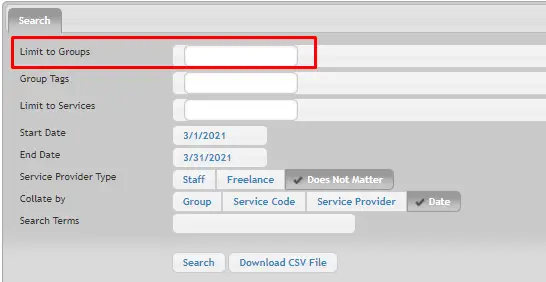
When pulling a report in Ūsked, you can select a group/groups in the “Limit to Groups” field and the data that appears will be that of the parent group plus the data from all its children. So, if you’d like to run a report for a parent group + children group all you have to do is enter in the parent group in the Limit to Groups filter and VOILA!
Caution: Since several attributes/settings trickle down from Parent group to its children, you’ll want to exercise some level of caution when changing the Parent group for any group!
The “Attributes” tab of a Group profile shows each group’s Parent group.
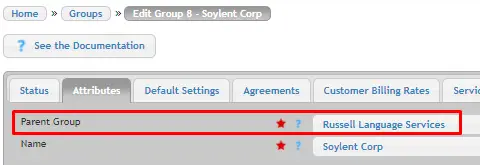
Changing this Parent group can have a dangerous impact on several factors of any group. We advise that if you need to make changes to your Group hierarchy structure to go ahead and submit a support ticket, so our Customer Success team can help guide you through it!