
Do you ever want to send an assignment or block to a specific or select few service provider(s) and be able to see who is interested? Offers allow you to do just that! #
Say what?! #
With the Offer feature in Usked, you can:
- Avoid having to blast to all service providers when you have a few in mind already
- Offer an assignment or block to specific service providers via SMS and/or email
- Have service providers express interest in an assignment or block by responding with either a thumbs up or thumbs down
- View responses to offers from the job’s action menu or from a convenient report
How does it work? #
There are a few things to set up before you can utilize the power of offers.

Staff with Administrator role enabled needs to first obtain a toll-free SMS number in order to allow for offers via SMS messages. To do this go to Admin > SMS number and click on Obtain a Toll-Free SMS Number.

Staff with Administrator role enabled can change this, if desired, by going to Admin > Change System Settings and reviewing the Default SMS Offer Message from the General tab.

The SMS message must have the {URL} tag included, as this will be replaced with a short web address which, when clicked on, will take the service provider to a page in Usked where the offer can be accepted or declined.

Staff with Manager or Human resources role enabled can create email templates. Refer to this article: How to Create an Email Template.
This email template must include the {URL} tag, as this will be replaced with a short web address which, when clicked on, will take the service provider to a page in Usked where the offer can be accepted or declined.
Who can send out offers? #
Staff with the Scheduler role enabled are able to send out offers.
How can I send out an offer? #
There are two places you can send out offers from.
Option 1: #
From the actions menu for the service request or block select either the Offer Slot [#] [TIME] to Service Provider button (for a service request)
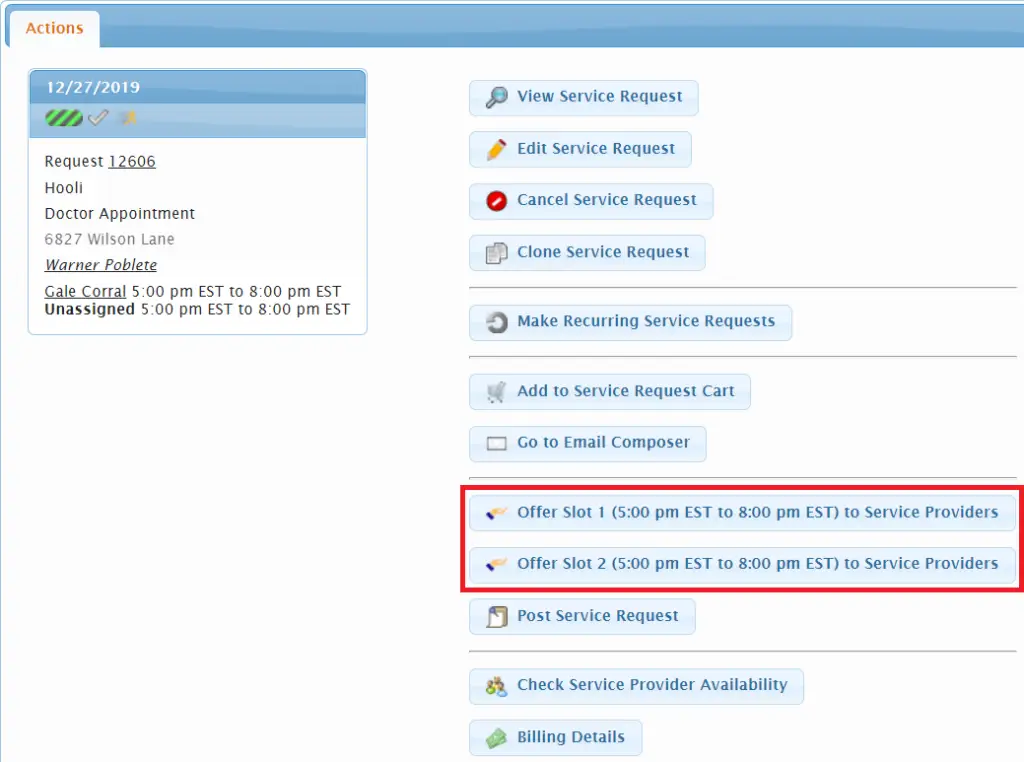
or this button for a block:

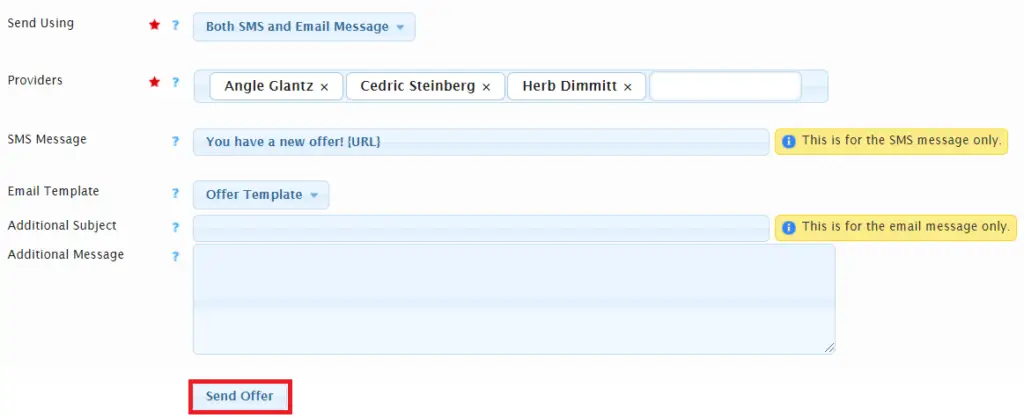
Next, select the method of delivery (SMS, Email, or both) in the Send Using drop down and type in the names of the service provider(s) you want to send the offer to. Then, modify the SMS message and/or select an email template, as applicable, before selecting Send Offer.
Option 2: #
You can also initiate an offer from within the “Check Service Provider Availability” report by clicking on the hand icon:

Regardless of the option you choose, once the offer is sent, you’ll be able to see the date, time, to whom the message was sent and the status from the service request or block’s actions menu.

What happens once I send an offer? #
The service provider will receive the offer via an email message or an SMS message. In the message, there is a link for them to click on, that will take them to Search Posted Service Requests and Offers, where they will see all of their offers for that date. On that screen, they are able to click on either the “I’m interested” or the “I’m not interested” icon for each offer shown. After clicking on either icon, the offers list on the actions screen is updated, and an email message is sent to schedulers.
What do I do once I’m ready to fill the assignment? #
After receiving a number of accepted offers for an assignment or a block, the scheduler would then proceed to select one service provider to fill the assignment or block. This is done by editing the service request or block and assigning a service provider, as is normally done. To remove an outstanding offers at this point you can click on this button, found below the offers listed on the job action menu:

Frequently Asked Questions #
What happens if a service provider responds with a message via text? #
Each licensee will have their own phone number. Should someone send a text message to that number, Usked will receive the text and convert it to an email. Usked will then search the database to identify from whom the message was sent, populate their name, and add a clickable email address. The message is then sent to the scheduling team email (email address noted in system settings).
How many offers can I send at once? #
Using the email message option there is no limit, but for the SMS option you can only send to 10 service providers at one time.