
Happy New Year! We are so happy to have you with us using Usked, and thought a wonderful way to start the beginning of the year is to introduce a few new features and system modifications that should help your team! #

Customize a Message for Holiday Requests #
You now have the option to add a message for requests that will occur on a holiday, letting your requester know of a potential rate change.
HOW DO I SET THIS FEATURE UP? #
To create this message, you’ll need to navigate to PEOPLE > GROUPS and then click on the pencil icon next to one of your groups. Select “Messages” from your listed tabs. The last box you will see is for Holiday.
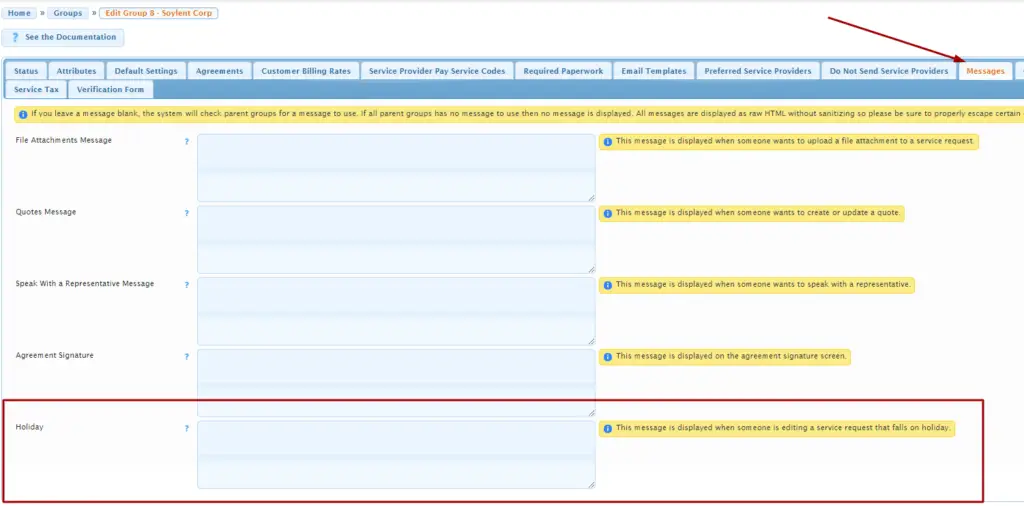
An example of what you’d write is something like this: “Your request will be subject to a different rate because there is a holiday within the requested timeframe. If you would like to proceed, please fill out the additional request information and submit it as pending confirmation.”
Once you save your message, anyone making a request that will occur on a holiday for this group will see the message in a yellow bar on the top of the screen.

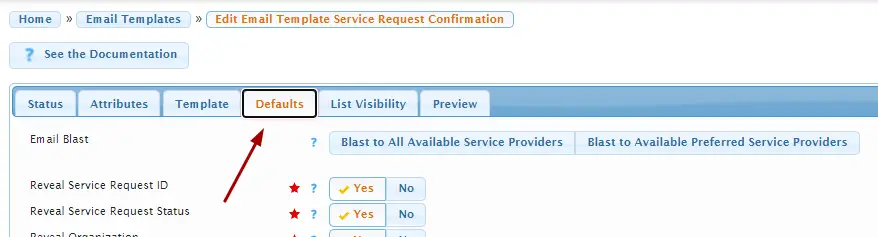
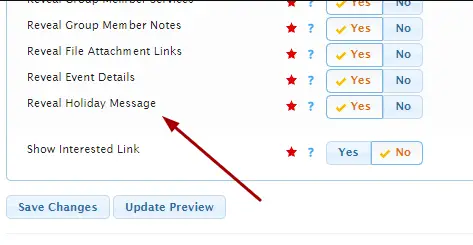
You also have the option of including this in email templates as well! To do this, navigate to SETTINGS > EMAIL TEMPLATES and choose which template you’d like the holiday message to be visible on. Select the tab “Defaults” and make sure the toggle for Holiday Message is switched to YES.
Reveal Service Provider Contact Information on Job Info and Emails #
You now have the option to allow service provider’s contact information to be included when viewing job details and within email templates. This is useful if clients want to reach out to the service provider directly.
HOW DO I SET THIS FEATURE UP? #
Navigate to PEOPLE > SERVICE PROVIDERS and select the pencil icon next to whichever service provider you’d like contact information to appear for. When you click on the tab “Contact Information“, you will find the toggle for “Share Personal Contact Information with Clients“.

To choose whether this toggle’s default is set to YES or NO, navigate to ADMIN > CHANGE SYSTEM SETTINGS and scroll down on the first tab, GENERAL.

Note: this default setting will only apply to service providers created after the setting is changed. All service providers currently in the system will have this setting set to “No” even if the default is changed to “Yes.”
If a Service Provider would prefer not having their contact information shared, they can navigate on their own to YOUR ACCOUNT > YOUR SERVICE PROVIDER PREFERENCES and switch this toggle to NO.
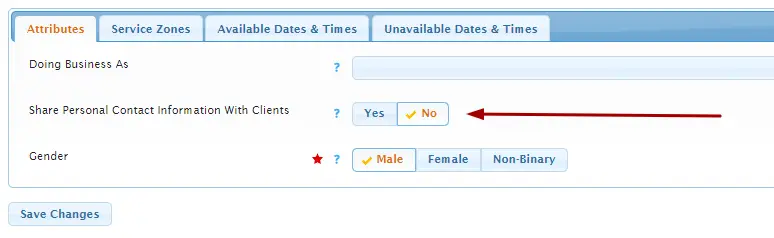
If “Share Personal Contact Information with Clients” is set to YES, it will be displayed for anyone when viewing details of a job, including email templates that use the {JOBS} tag.
Remove Watermarks on PDF Invoices #
You now have the option to remove watermarks from your PDF invoices!
HOW DO I SET THIS FEATURE UP? #
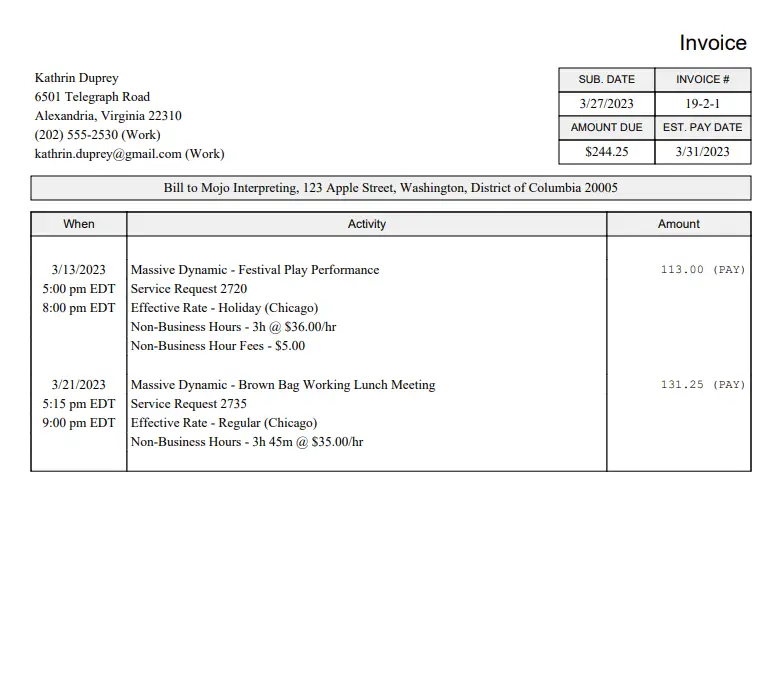
If you navigate to ADMIN > CHANGE SYSTEM SETTINGS and go to the “Service Provider Pay” tab, you will find a toggle “Show Watermark on PDF Invoices”

If set to yes, a watermark will appear like this with the invoice status:

If set to NO, no watermark will appear.
See the last activity date and time for Users list #
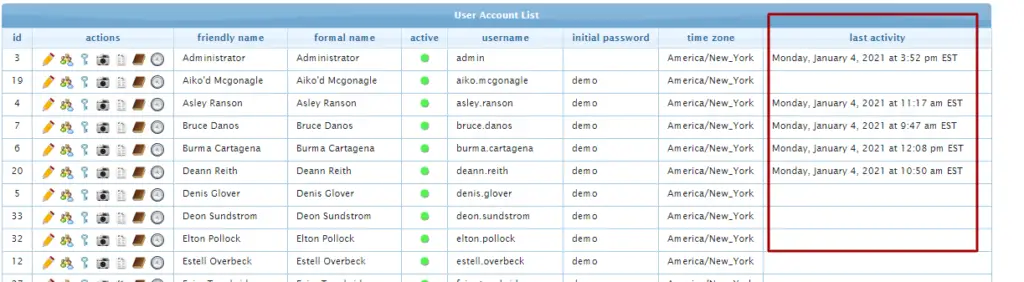
We have added a new column to the User Account List that shows the last date and time they were active in Usked.
WHERE CAN I SEE THIS UPDATE? #
If you navigate to PEOPLE > USER ACCOUNTS you will see the new “last activity” column here.
Service Providers to update their gender #
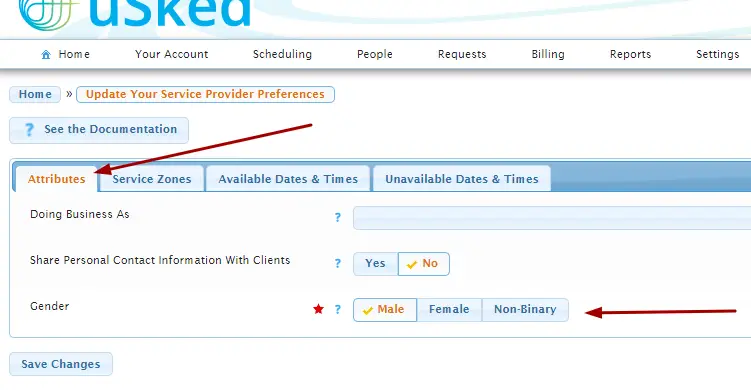
Service Providers now have the ability to update their gender in Usked.
WHERE CAN SERVICE PROVIDERS SEE THIS? #
If they navigate to YOUR ACCOUNT > YOUR SERVICE PROVIDER PREFERENCES and look under the attributes tab, they will find the toggle for gender.
Location no longer hidden for Virtual+ or Zoom Requests #
Previously, location information was hidden for Virtual+ and Zoom requests. With this new update, all location info (location name, address, room number, map link, and location notes) will now appear when viewing job details or when someone is sent an email template for Virtual+ and Zoom requests!
WHERE CAN I SEE THIS UPDATE? #
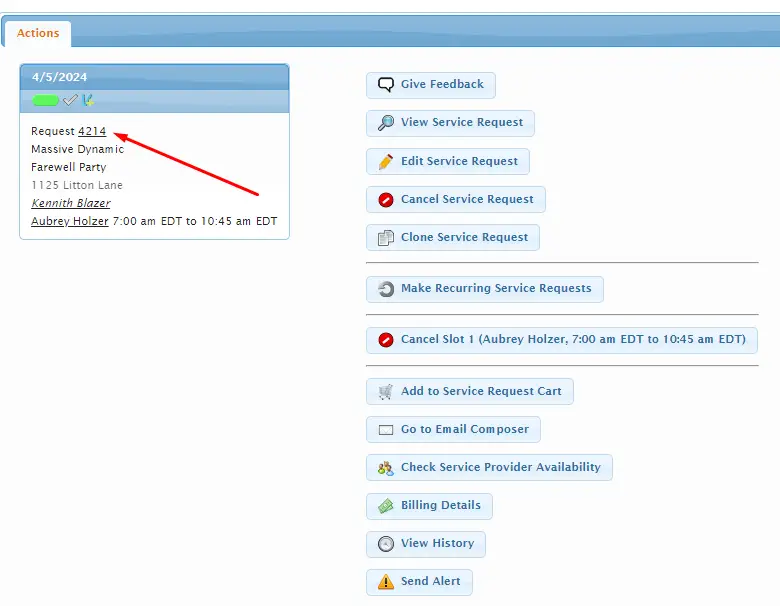
On the actions screen of your job, if you hover over the job ID, information about the job comes up in a pop-up view. You’ll see the location info below the virtual meeting link.
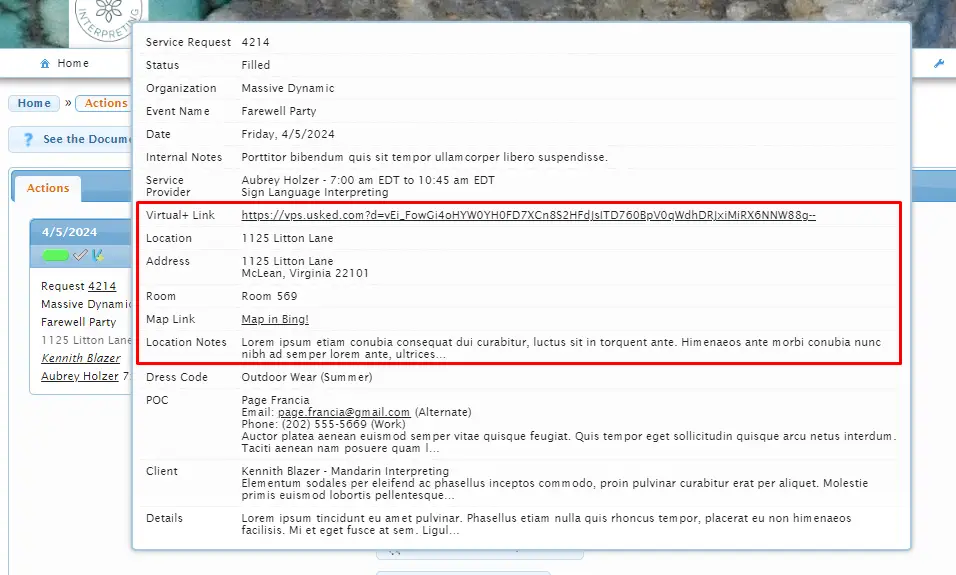
Service Providers can also view this information when looking at posted jobs, hovering over the job ID, similar to above.
Specify cancellation received date/time when cancelling requests #
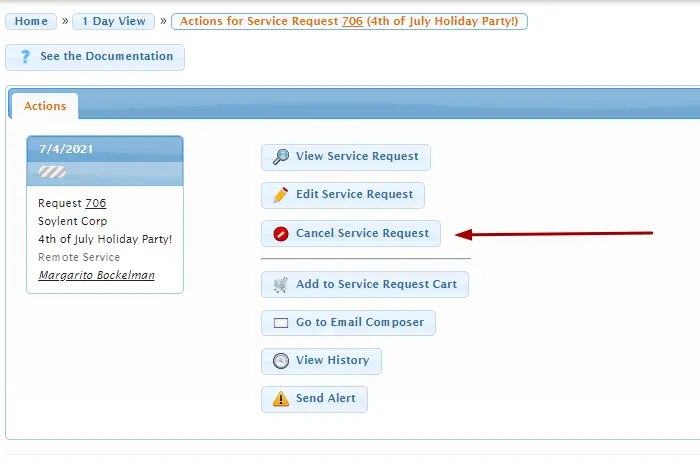
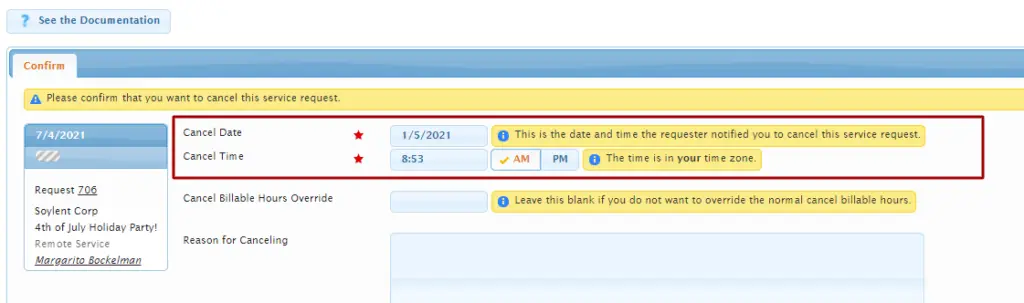
Scheduling department, this feature is for you! You can now specify the exact date and time a cancellation was received when cancelling a request. This will allow the system to calculate cancellations based on when the cancellation was received instead of when the job was cancelled in Usked.
WHERE CAN I SEE THIS UPDATE? #
You can find this on the actions page of your job when you click the button Cancel Service Request.
Service Providers can withdraw interest for a posted job #
Service Providers now have the ability to withdraw interest for a posted job!

This is only available in the web version of Usked at this time.
WHERE CAN SERVICE PROVIDERS SEE THIS UPDATE? #
When a service provider looks at posted jobs, they will see the thumbs up icon on the bottom corner of a job. Clicking this says they are interested in a job.
Once they click on it, the icon now switches to a thumbs down. Your service provider now has the option to click on this if they change their mind or are no longer interested in the job.

Clear alerts in bulk per role #
Spring cleaning came early this year! We are now able to clean up your alerts by clearing them in bulk per role!
WHERE CAN I SEE THIS UPDATE? #
Your alerts show up on your home screen. Now, you’ve got options on the top called “Quick Clears” where you can clean up your alerts by staff role or any directly to you.
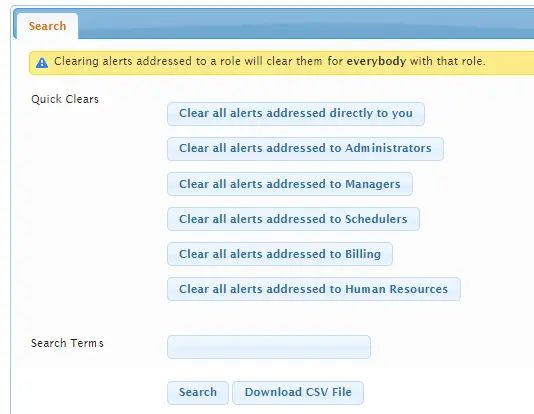
Clearing alerts will clear them for everyone with that same role the alert was addressed to. Ex. If a scheduler has taken care of all the alerts addressed to Schedulers and clears them they will no longer show up for any of the other schedulers.
Just to be safe, you’ll will get a message confirming you want to clear the alerts that looks like this:
and then…POOF! You’ve got a clean house.
Hide/Show name labels in Virtual+ #
You now have the option to hide name labels on V+ for more visibility!
WHERE CAN I SEE THIS UPDATE? #
Clicking on the signature icon will hide the name labels at the bottom of each participants stream. If you’d like the labels shown, simply click on this icon again.
Help icon in Virtual+ that links to the Troubleshooting Guide #
We have created a help button that takes users straight to the Virtual+ Troubleshooting Guide!
WHERE CAN I SEE THIS UPDATE? #
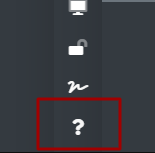
The question mark icon is now available in the Virtual+ tool bar. Clicking it will take you to our article, Troubleshooting for Virtual+ Services.
Client-Provided Meeting Links #
Requesters and your staff will now have the option to add a client provided meeting link when creating or editing a request.

This is only available in the web version of Usked at this time.
WHERE CAN I SEE THIS UPDATE? #
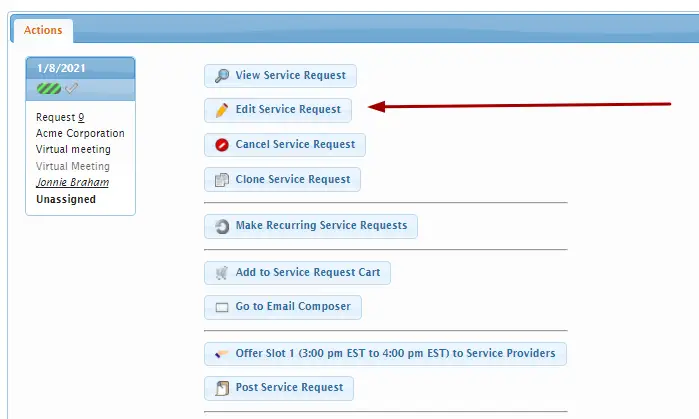
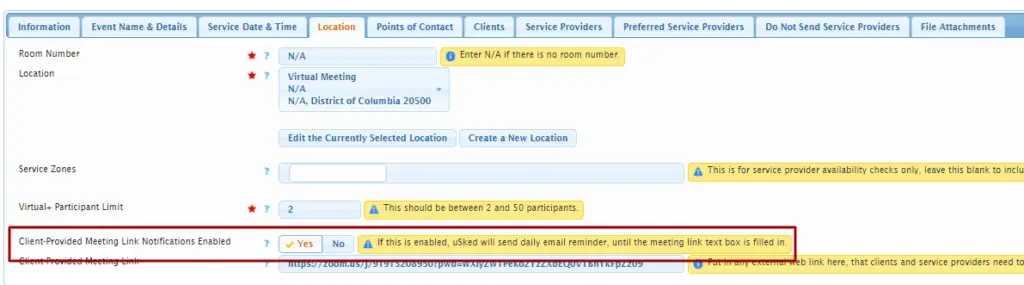
If you click on “EDIT SERVICE REQUEST” from your Actions page, go to the tab LOCATION. There you will see a field for adding a client-provided meeting link.
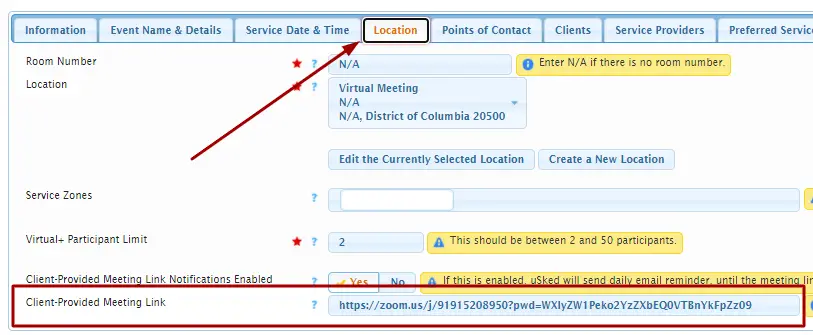
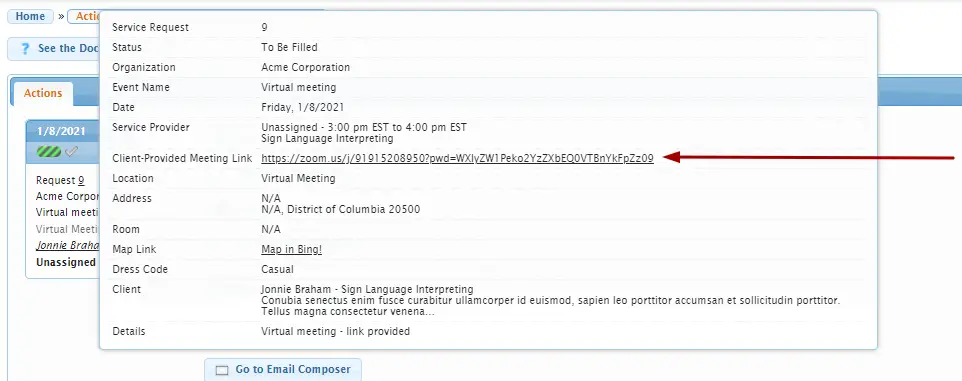
Once you put a link in the client-provided meeting link field, it will appear in your job details, as well as in email templates using the {JOBS} tag.
We have also created a Client-Provided Meeting Link Notifications Enabled field, which is located directly above the meeting link field.
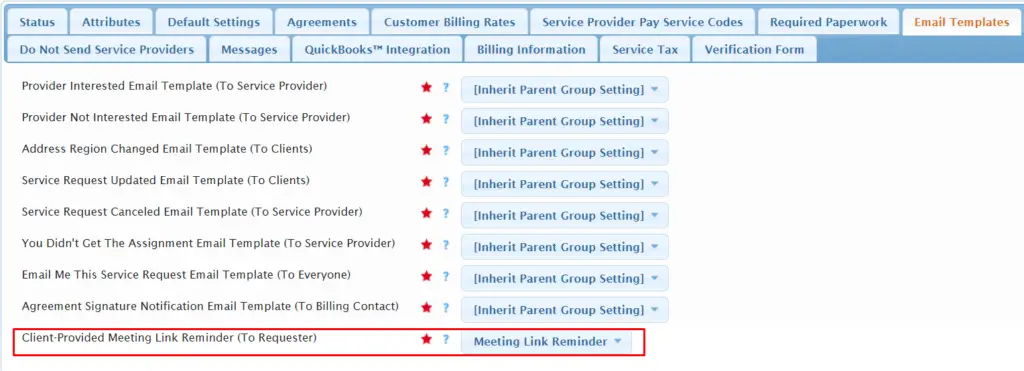
To utilize this feature you’ll need to first create an email template for a meeting link reminder. Then for any group that you’d like the requesters to receive this email for go to Email Templates tab in the group profile. Then select this new email template next to Client-Provided Meeting Link Reminder (To Requester).
Then when Client-Provided Meeting Link Notifications Enabled is set to YES in the request and the Client Provided Meeting Link field below is empty, Usked will send this meeting link reminder email to the requester on a daily basis. If it is set to NO or if you set to Yes but do not have an email template selected for that group, then Ūsked will do nothing.