
Let’s talk quotes! In this article, we are going to talk about how to create quotes for requested services without going through the process of creating service requests. #

How do quotes work in Usked? #
As I mentioned above, quotes allow you to quickly create an estimate for service requests that your team can approve or reject. Once a quote is accepted, it will create a draft service request for each quote entry.
Who can create a quote? #
Anyone with a staff role (other than Quality Assurance) or an Administrative group member (can see all service requests set to Yes) can create quotes.
Where do you go to create a quote? #
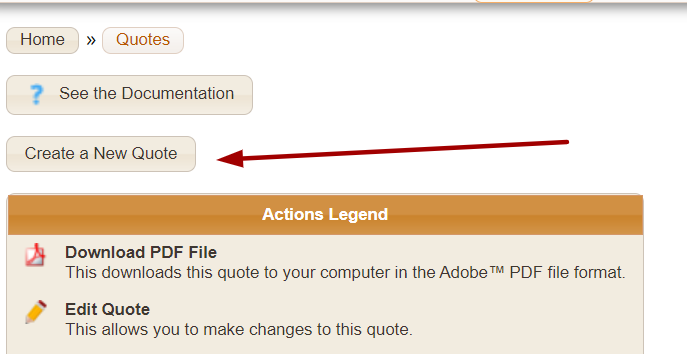
You want to navigate to REQUESTS > QUOTES. There, you will see a button on top that says “Create a New Quote”.
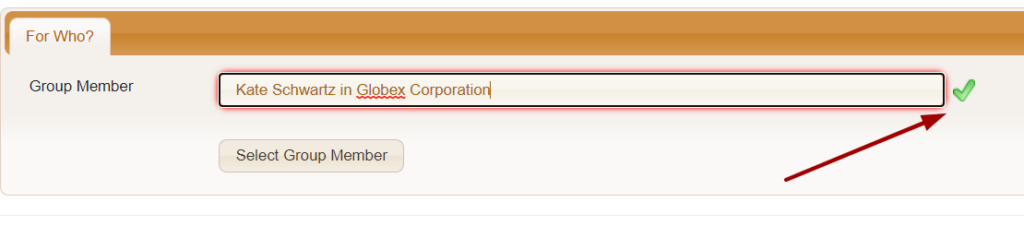
Once clicked, you need to fill in the group member you are created this quote for. Make sure when you choose your group member, there is a green checkmark next to their name. This means the person is a valid entry. Once you see the green checkmark, click “Select Group Member.”
Now we are on the quote entries page. Each quote must have at least one entry, and they must be a unique request for services regarding this event.

EXAMPLE: Jillian is hosting a carnival for the holiday weekend! She needs one service provider for three days. This means we would need three quote entries. Each day requires a new quote.
Let’s go through each field:
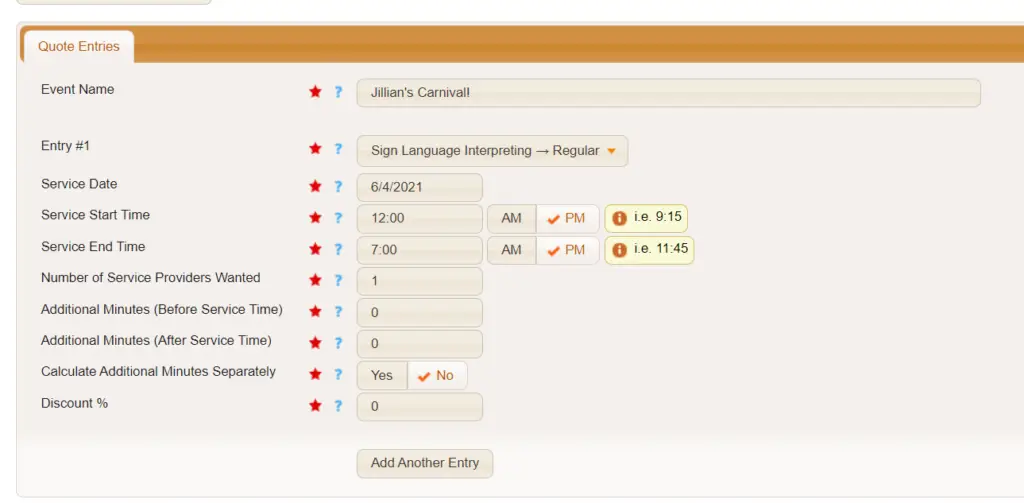
Event Name – Here is where you determine the name of the event. This one is called Jillian’s Carnival!
Entry # – This is where you would select which service code to use for this quote entry.
Service Date – The date on which the clients want these services performed.
Service Start Time – This is the time that the service will begin.
Service End Time – This is the time when the service will end.
Number of Service Providers Wanted – This is the number of service providers that this client wants for the request. (This information is only to be used by the scheduler when adding service provider slots to the service requests)
Fields only available for office staff:
Additional Minutes (Before Service Time) – This is the number of additional minutes before service time you’d want to bill the customer and pay the service provider.
Additional Minutes (After Service Time) – This is the number of additional minutes after service time you’d want to bill the customer and pay the service provider.
Calculate Additional Minutes Separately – If toggled to YES, Usked will factor in the billing increment for additional minutes separately from the service time. It also means negative amounts for additional minute fields will be ignored. If set to NO, then the start time of the assignment is modified by subtracting the number of additional minutes before the assignment, and the end time is modified by adding the number of additional minutes at the end of the assignment. Negative amounts can also be used for additional minute fields.
Discount % – This is how much you want to discount the cost of services to this customer.
Once you create your quote entry, you will be directed back to the quotes page. Now you will see your quote listed on the page with a number of action items you can choose from.

Besides your action items, you will also see the ID of your quote, the group it is related to, the group member the quote was created for, the event name, the quote number (GROUP ID-QUOTE ID-VERSION OF QUOTE), date of quote, and grand total (based on the service code you choose).
Let’s go over the actions you can now take for your quote. #
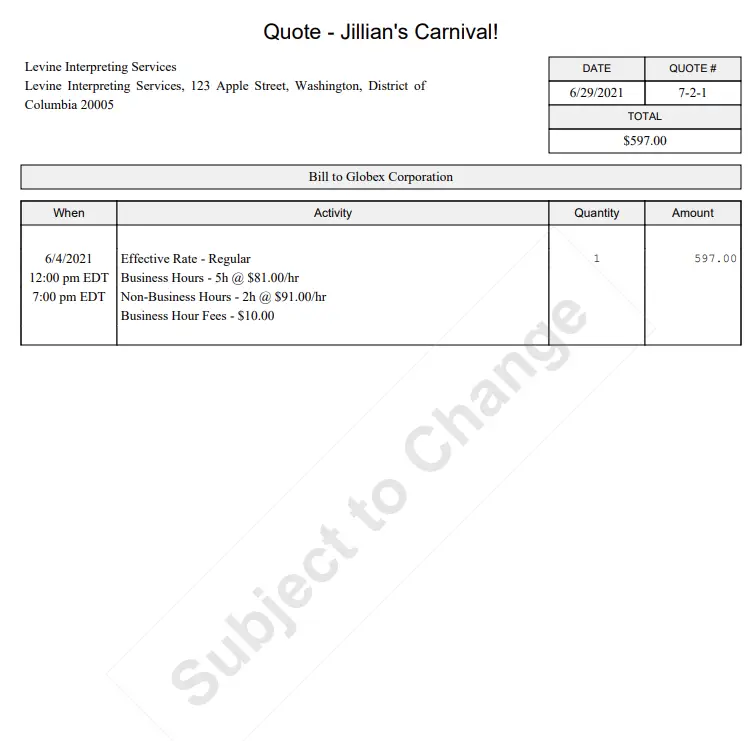
Download PDF File – clicking on this will provide you with a PDF version of your quote that looks like this:
Edit Quote – this allows you to make changes to your quote.
Accept Quote – once you click on this thumbs up you’ll be taken to a page to confirm your choice.
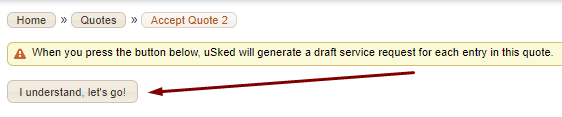
Once you click on “I understand, let’s go!” the system will create a draft service request for each quote entry. You can then finish editing your service request(s) as usual and submit them as pending confirmation. You’ll be able to tell which service requests were created from quotes by looking at the internal notes (includes a link to the quote it was created from).

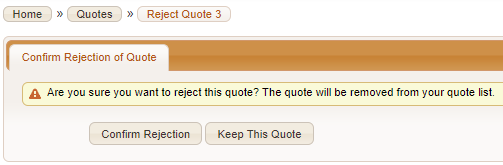
Reject Quote – once you click on this thumbs down you’ll be taken to a page to confirm your choice. If you select “Confirm Rejection” the quote will be removed from your list of quotes.
View Quote History – from here you’ll be able to see the full history from creation through any changes made to the quote.