
Wondering when to make a staff profile for your service provider? What about a service provider profile for your existing staff? Continue on to find out the answers to these questions and more. #
“Staff” as defined by Usked is a person who works directly with your company. They are usually delegated by the staff roles.

All staff need to also have a service provider profile in Usked. Even if they aren’t assigned to requests like a traditional service provider they still provide a service to your organization. They will need to be added as service providers in order for the system to process necessary connections and payment.
Let’s look at a Staff profile more closely. To navigate there you can head to People>Staff and click on the pencil icon next to one of the staff profiles.
Attributes Tab #
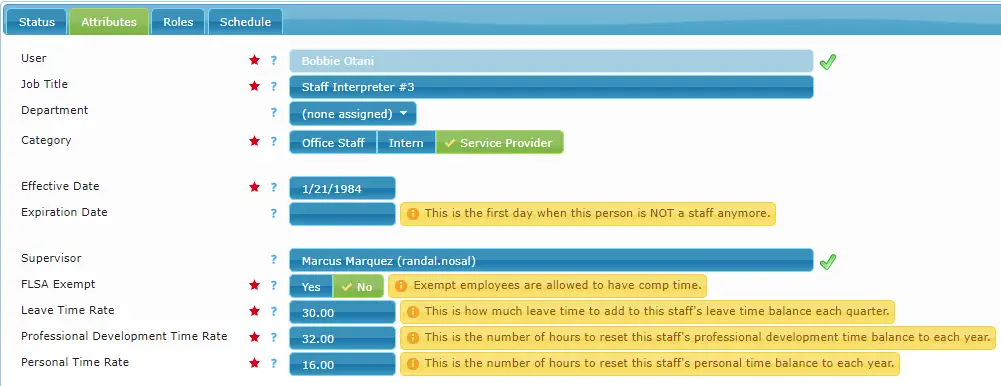
User – This is the selected user account. This cannot be changed once set.
Job Title – This is the job title for this staff. This is displayed in some reports.
Department – Select the department to assign this staff to if applicable.
Category – You can select either office staff, intern, or service provider for this staff. This is used by some dashboard widgets, as well as some reports.
Effective Date – The first day this person begins working as staff.
Expiration Date – The last day this person is working as staff.
Supervisor – Select the staff that will be this person’s supervisor if applicable.
FLSA Exempt – Select yes if this person is exempt from the FLSA overtime rules, and select no if not. This is used only by the leave system to determine who is allowed to get comp time.
Leave Time Rate – This is the number of hours to add to this staff’s leave time balance each quarter.
Professional Development Time Rate – This is the number of hours to reset this staff’s professional development time balance to each year.
Personal Time Rate – This is the number of hours to reset this staff’s personal time balance to each year.
Roles Tab #
#
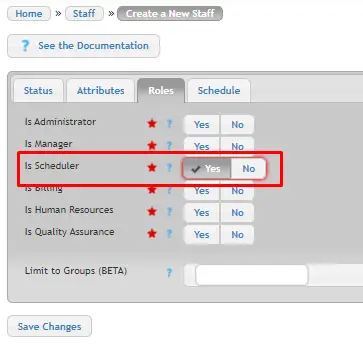
Roles – As discussed earlier, all staff have certain roles (they could have zero or multiple if you’d like!) For more information about staff roles, take a look at our article All About Staff Roles.
Limit to Groups – Limit this staff to one or more groups. *Please note that this feature mainly affects the scheduling role only.*
If this field one or more groups entered, then the following happens:
- Many of the menu bar items are hidden
- The service request ID search field in the menu bar is limited to the assigned groups.
- Service requests on the alerts page will be hyperlinked only if they belong to one of the assigned groups.
- The limit to group filter on the side-by-side, compact, 7-day, 35-day scheduling views, as well as the service request and assignments views, will always be the assigned groups
- When creating a new service request, the requester & group field is limited to group members of the assigned groups.
- When adding users to a group, the group field is limited to the assigned groups.
- When creating and updating blocks, the list of attachable service requests is limited to those within the assigned groups.
- When viewing the list of blocks, only those blocks where the master service provider slot, or the first linked service provider slot, is within the assigned groups will have action icons and have the service request id numbers hyperlinked.

Note: The menu items are merely hidden from their menu. If they attempt to type in the web address manually or click on a link shared to them for any of those hidden menu items, they will see the page with all of the information on the page. There is no security measure to prevent them from seeing those pages.
Schedule Tab #
#
Days of the Week – for each day of the week, specify whether this staff is off, or working as a salaried or hourly employee.
Start Time – This is the time at which this staff’s regular working hours for this day begin.
End Time – This is the time at which this staff’s regular working hours for this day ends.

Note: If any day is set to anything other than “Off” Usked will AUTOMATICALLY create staff days for this User according to the days and times listed and add the staff days to their timesheet.
So now that we have gone over the tabs, what if you have someone with one of these roles, who you ALSO want to assign to service requests? #
Many times it depends on the needs of the individual. User accounts define a person’s ability to view a limited perspective or a company-wide perspective within Usked. Meaning, a scheduler, for example, when they log in under a User Account with the Scheduler role, can view everyone in the agency – all schedules, however, if they also have a Service Provider-ONLY role, and they wish only to see their own schedule – no one else’s – then they would need a separate User Account for that. Let’s take a look at an example!
Jennifer Smith is an ASL Service Provider, but sometimes she helps out with scheduling. She would need two User accounts – one login per function.
User Account Profile needed Service What she sees
Jennifer.Smith Service Provider ASL Just her schedule
Jennifer.Smith.Staff Staff with Scheduler Role No Services All schedules
Jennifer would need to have TWO User Accounts and TWO Group Member profiles of Human Resources. She would also have TWO Service Provider profiles, but only ONE Staff profile. The staff profile would not have any services listed because you don’t ever want that profile used to assign into any Service Requests.
One of the Service Provider profiles would have services listed (along with rates) and the other Service Provider profile would not (the one used for staff).
When Jennifer is acting as a Service Provider (looking at her job details, invoicing her jobs), she would log into Usked using her Service Provider user account.
Only when she was working with scheduling would she log into Usked using her staff user account.
How to set the staff profile in this scenario #
Create a new staff by going to People>Staff and clicking on “Create a New Staff.” Then set the staff profile up as below:
Attributes tab
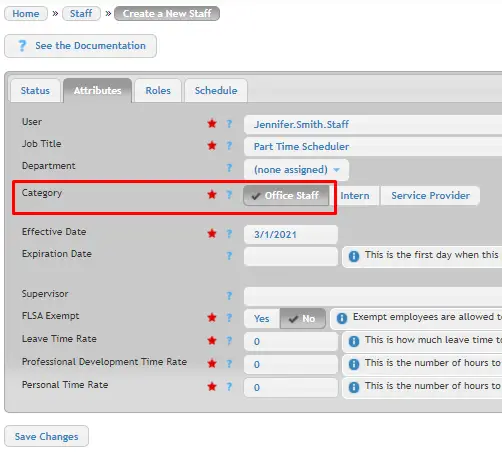
Roles tab
Schedule tab
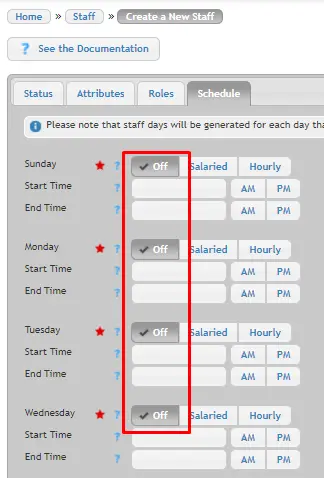
We are choosing “Off” every day here because we don’t need Usked to create staff days.
If Jennifer didn’t really need or want to see her own personal Service Provider schedule or invoice for jobs, then she wouldn’t need a User Account just for that. She’d always log in using her Staff User account – where she could see her everyone’s schedules, including her own.
Here is another example!
What if someone is just a Service Provider? Meaning, they don’t have any other role other than Service Provider and they are paid as a W-2 employee, not as a Freelancer?
In Usked, a Service Provider needs a “Staff” profile, if the following applies: #
- They are a W-2 employee.
- They need to have access that one or more staff roles allows.
- They are paid a set 8 hours per day (salaried).
- They are paid based on time and not the jobs they work (hourly).
In the case listed above where someone is a service provider with a W2, they would also need a staff role — however, their schedule as defined in the staff profile would be “Off” every day.
Doing this means their jobs would end up on a timesheet (not invoices) and they would only get paid for the jobs they do as a W-2 Service Provider.
If they are paid based on time, then you could define their paid schedule on the “Schedule” tab. If they are paid 8 hours per day, no matter what hours they work or what jobs they do, you would select the “Salaried” toggle. If they are paid straight through from the start of the first job to the end of the last job each day, then you would select the “Hourly” toggle.