The multistep request process pairs nicely with SSO-enabled sites, and leverages default group settings to automate request funnel management. #
The multistep request process is designed to force all group members (non-staff) who have the attribute “can make service requests” set to “yes” to undergo a sequence of selections that will “funnel” available choices and ultimately narrow down to a group under which the request will reside within Usked.
When this multistep process is enabled, any requester who initiates the addition of a service request will be presented with this series of choices – essentially, they will be allowed to select the/any group in which they want to place their request under, instead of being limited to only making requests for the group(s) of which they are a member of. This feature will work well for organizations who wish to allow for any group member to make a request under ANY group in their hierarchy (i.e., a singular company with a number of employees in various divisions, or a college/university with requestors for various departments).
For this process to be effective, the Usked licensee must first create a hierarchy structure in which there is a first level, second level, all the way down to a final bottom level. Usked will begin by prompting the requestor with choices within the first level, and once a selection has been made at that level, the requestor will then proceed to make another selection from a choice within the second level of the hierarchy, and so forth, until a bottom and final level has been reached.
An example of such a structure would be:

Here, in red color are the choices available within the first level. In blue color are the choices available within the second level.
Below is a screenshot of the initial screen the requestor will see upon clicking the “make a service request” button (i.e., all the choices in red):
A requester who selects “Virtual” at the first level will then be presented with two options at the second level (i.e., USA or Canada, or all the choices in blue):

Since there are no more subgroups/ lower levels in the hierarchy, the requestor will make the final selection of the multi-step process here and the new request will be placed within the group that is selected (i.e., “Virtual-Canada”).
To enable the multistep request process:
- Identify the groups which should reside in the “first level” of your multistep process.
- Go to People > Groups, and click on the pencil icon in the actions column to the left of the name of the Group you wish to edit.
- On the group’s Attributes tab, set toggle for “Is Four Step Request Process Root?” to “yes” and then click on “Save Changes”.
- Repeat until all first level groups have had this toggle set.
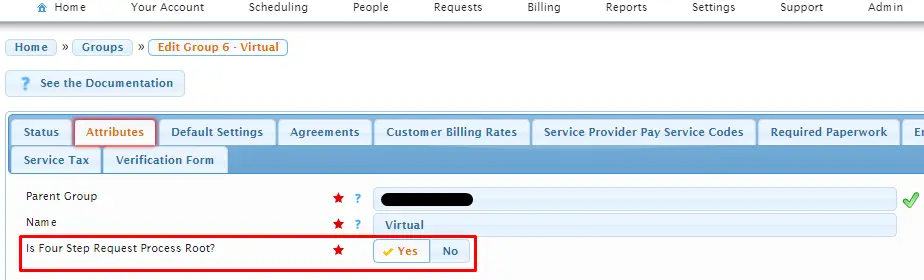
Once you have designated and enabled your “first level” groups – you may want to add instructions for each step of the process. To do this, go to the “Messages” tab of each group for which you want an instruction box to appear, after the requestor has chosen that group from the dropdown list during the multistep process. On this screen, you will see a field named “Four Step Request Process Message”:

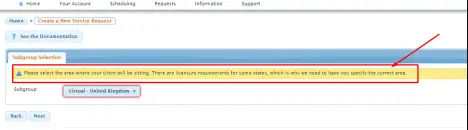
Messages entered and saved in this field (on the group’s Messages tab) will appear in a highlighted information box that looks like this to the requester.