
In this article, we are going to walk through the purpose of each of the email templates you are given when you first sign up with Usked. #

I get email templates already when I first sign up with Usked?! #
Yes, you certainly do! When you first join Usked, you get a number of things including a list of email templates to use for assignments, paperwork, and even birthdays.
Sweet! Where are these email templates? #
Navigate to SETTINGS > EMAIL TEMPLATES. You will land on a page that looks like this:

Can I edit these? What about creating a new one? #
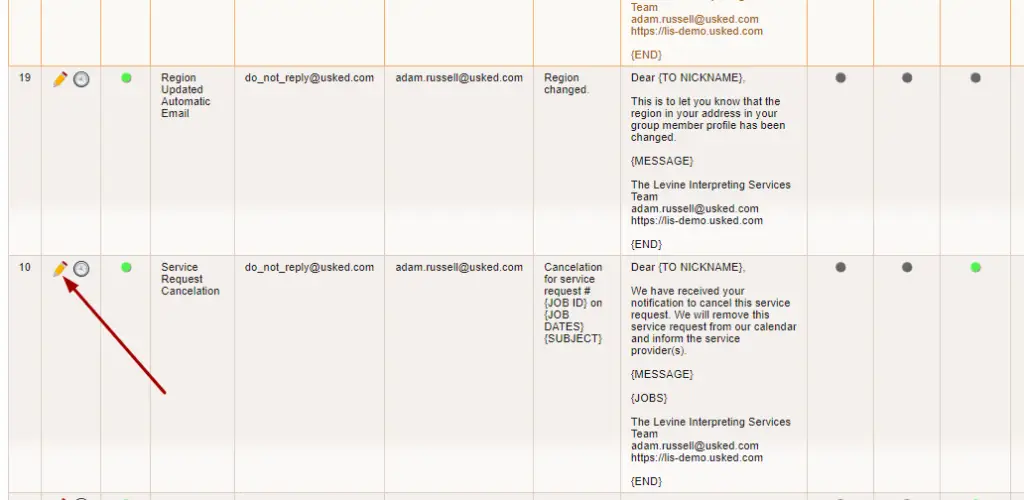
You sure can! Take a look at our article HOW TO CREATE AN EMAIL TEMPLATE to learn more. If you want to edit an existing template, just click on the pencil icon next to any of the templates listed here.
What is that text in the curly brackets? #
That’s a tag! Tags are codes that take information from another place in Usked and bring it into an email template for customized emails. Take a look at our article EMAIL TEMPLATE TAGS for more information!
Let’s take a look at our templates! We’ve got over 20 to choose from! #
Assignment Canceled Automatic Email – This template is for when a job is canceled. This is typically set at the group level to be automatically sent out to the Service Provider when an assignment is canceled. This is set under the Group’s Service Request Canceled Email Templates (To Service Provider) setting in the Email Templates tab.
Birthday – Happy Birthday to You! This is an automatic email from your organization wishing service providers a happy birthday! This will go out when the service provider’s DOB matches the current day if set under Settings>Default Email Templates.
Create Account – This email message is sent when a customer or service provider self creates an account or when an authorized signatory invites a member of their organization to join. This email will go out once the user gives their email address and is used to verify their email address if set under Settings>Default Email Templates.
Electronic Agreement Signed – If you have an agreement for the group this email will automatically send to the billing contact of the group if the agreement was signed. This is set under the Group’s Agreement Signature Notification Email Template (To Billing Contact) setting in the Email Templates tab.
Email Myself This Service Request – If any user associated to the job would like the job info sent to them via email, this template would do so when they click on this button from the Actions menu:
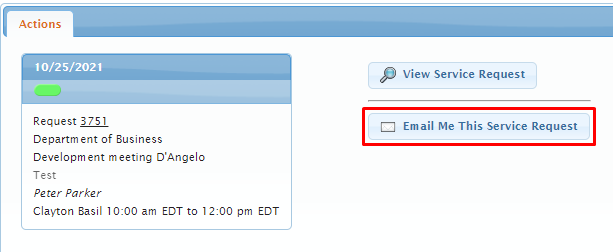
This is set under the Group’s Email Me This Service Request Email Template (To Everyone) setting in the Email Templates tab.
I’m Interested – When a service provider receives an offer or blast, they can let us know if they are interested by clicking on the thumbs up icon. Once they do that this is the email template sent out to the service provider. This is set under the Group’s Provider Interested Email Template (To Service Provider) setting in the Email Templates tab.
I’m Not Interested – When a service provider receives an offer, they can let us know they are not interested by clicking on the thumbs down icon. Once they do that this is the email template sent out to the service provider. This is set under the Group’s Provider Not Interested Email Template (To Service Provider) setting in the Email Templates tab.
Leave Warning – This is sent on October 1st of each year, to any staff that has more leave hours remaining in their balance than is allowed to be carried over into the next year. This is set under Settings>Default Email Templates.
Make Offer to Service Provider – This is the email to use when a scheduler is offering an assignment out to a service provider. To learn more about offers, take a look at our article ALL ABOUT OFFERS. This email template is manually sent via the email composer.
Meeting Link Reminder – This email is used to send out daily reminders to the requester when Client-Provided Meeting Link Notifications enabled is set to Yes, but the Client-Provided Meeting Link field is empty.
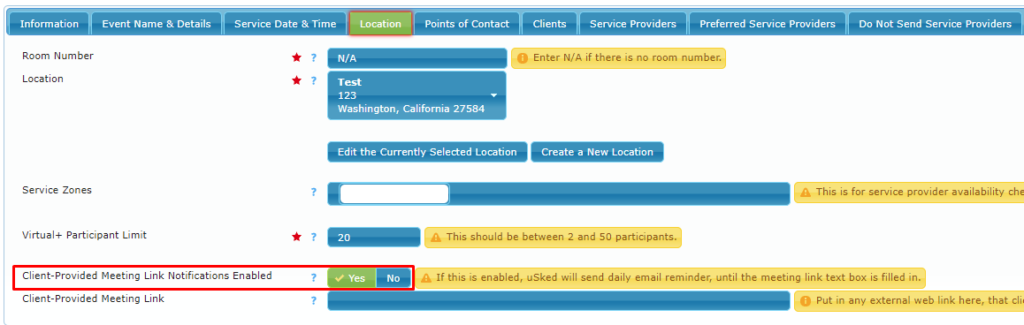
This is set under the Group’s Client-Provided Meeting Link Reminder (To Requester) setting in the Email Templates tab.
New Assignment Blast – This email is used when you send out blasts for assignments. For more information on blasts, take a look at our article ALL ABOUT BLASTS. This email template is manually sent via the email composer.
Paperwork Reminder – 1 Day Notice – This email is sent to service providers for any paperwork that will expire the next day, unless the “send reminders” flag is set to No for the paperwork. This is set under Settings>Default Email Templates.
Paperwork Reminder – 30 Day Notice – This email is sent to service providers for any paperwork that will expire in 30 days, unless the “send reminders” flag is set to No for the paperwork. This is set under Settings>Default Email Templates.
Paperwork Reminder – 60 Day Notice – This email is sent to service providers for any paperwork that will expire in 60 days, unless the “send reminders” flag is set to No for the paperwork. This is set under Settings>Default Email Templates.
Paperwork Reminder – Has Expired Notice – This email is sent to service providers for any paperwork that will expire today, unless the “send reminders” flag is set to No for the paperwork. It is then sent every 30 days after the paperwork expires. This is set under Settings>Default Email Templates.
Region Updated Automatic Email – This email is sent to group members when they change their mailing address. This is set under the Group’s Address Region Changed Email Template setting in the Email Templates tab.
Screening reminder – This email is sent each Monday morning to any service providers that have started the screening process but have not yet completed it (screening status is set to Screening). This is set under Settings>Default Email Templates.
Service Request Cancellation – This email is used when you want to notify requesters or clients that a request has been cancelled. This email template is manually sent via the email composer.
Service Request Confirmation – This email is used when you want to send a confirmation to service providers and/or requesters/clients that the request has been confirmed and filled. This email template is manually sent via the email composer.
Service Request Updated Automatic Email – This email template is used when a user makes a major change to a service request or when a new service request is submitted. It is sent to the requester and any administrative group members for that group (those with Gets all email messages set to Yes). This is set under the Group’s Service Request Updated Email Template (To Clients) setting in the Email Templates tab.
Username and Password – This email template is used prior to launching with Usked to send out usernames and passwords to anyone that will need their log in info to log into Usked. This email template is manually sent via the email composer, typically via the broadcast message feature.
You Didn’t Get The Assignment – This email template is used when you click on the Email Unassigned Interested Service Providers button from the Action menu of the job.

Any service provider that clicked on the thumbs up to show interest in this assignment, but were not assigned to it will receive this email. This is set under the Group’s You Didn’t Get the Assignment Email Template (To Service Provider) setting in the Email Templates tab.
For more info on how email templates work in Usked, take a look at our article ALL ABOUT EMAIL TEMPLATES!