
What is Usked Partners? #
- Enables the connection of inbound and outbound request sharing between two separate Usked websites.
- Supports maps for lists such as: Dress code, Audience size, Services, and Service codes.
- It also reveals a new Partner Provider field to store/receive the name of the service provider assigned by your Usked Partner and manages job statuses accordingly.
Supporting Features Associated with Usked Partners: #
Assigning Default Service Provider/Vendor
Multi-assign Service Providers
Ignore Conflicting Assignments
Group Level Business Hours and Holidays
Most Obvious Difference: #
When an assignment is transferred to a Usked Partner, the display for the service provider name will be formatted as:
“(Partner) Partner Service Provider Name”
The “ignore conflicting assignments” flag is turned on for each Partner – there will be no more alerts of this type (unless the toggle is set to “yes” on the service provider’s profile).
First Step: Identification of Two Usked Licensee Partners #
The first step is to identify “direction” for the request transfer process. A Partner must be created for each needed direction.
Outbound site (OB) < ————— > Inbound site (IB)
Partners who send requests are Outgoing/Outbound (OB).
Partners who receive requests are Incoming/Inbound (IB).
Second Step: Set Up on the Outgoing (OB) Side #
1. Create an User, then a “Service Provider” (using the name of IB licensee) with all necessary pay rates. This service provider will eventually be made into a Partner.
2. Go to Settings > Usked Partners, and click “Create a New Partner”. These are the fields you will need to fill out:
- Name = [Name of IB licensee]
- Direction = Outgoing
- Domain name = [Name of IB licensee].usked.com
- Transfers enabled = Yes
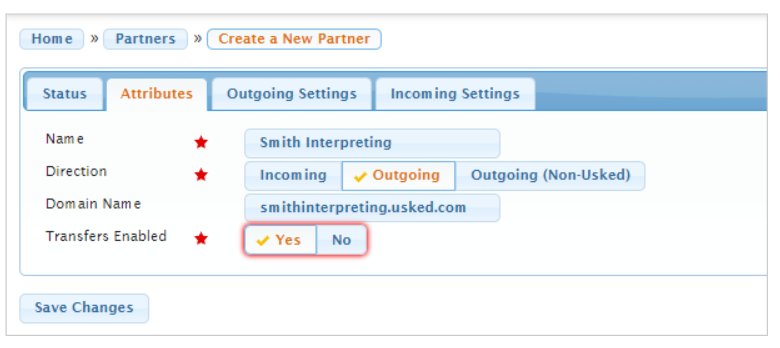
Then on the Outgoing Settings tab, select and assign the “Service Provider”, then click on “Save Changes” button:
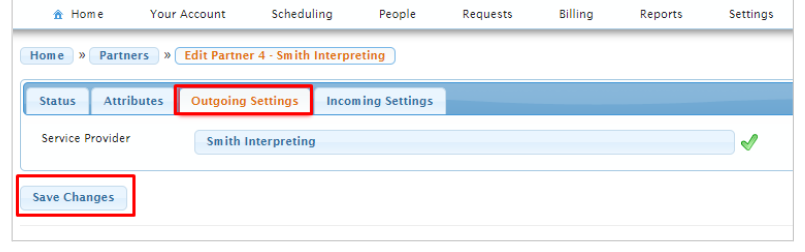
3. After creating a Partner on Outbound side, you’ll need to confirm a Partner Service Provider field appears on requests assigned to the Partner and those field(s) are unassigned.
To take care of these unassigned Partner Service Provider fields:
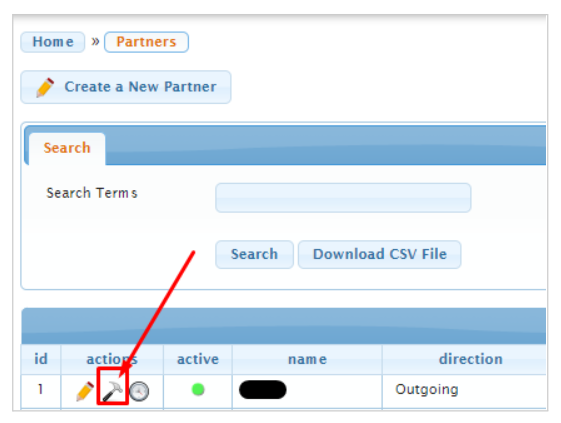
Run the “transition tool” action icon (hammer) (found on the Partners table). Clicking on this icon will create a Service Provider named “Pre-Usked Partner” and assign that Service Provider as the Partner Service Provider to all slots that are assigned to the Partner, but where the Partner Service Provider is unassigned. Job statuses for requests that are assigned the “Pre-Usked Partner” will then show as “filled”.
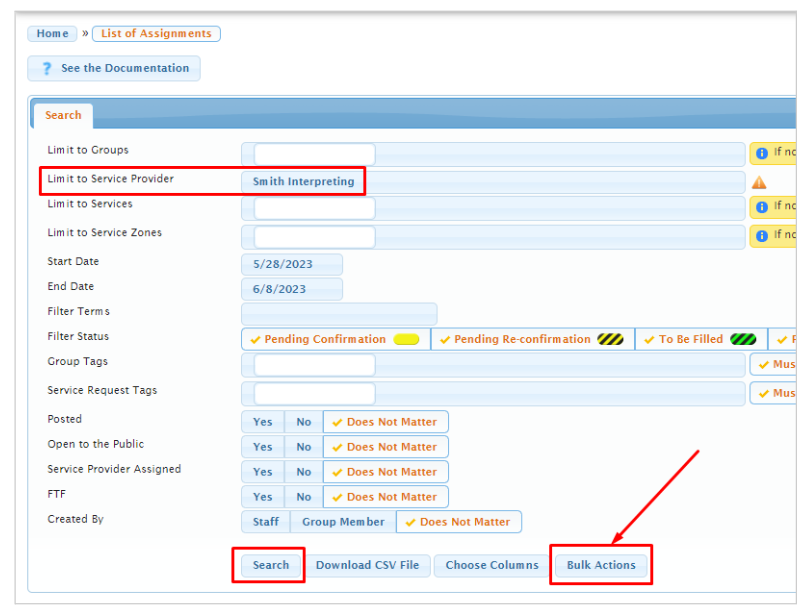
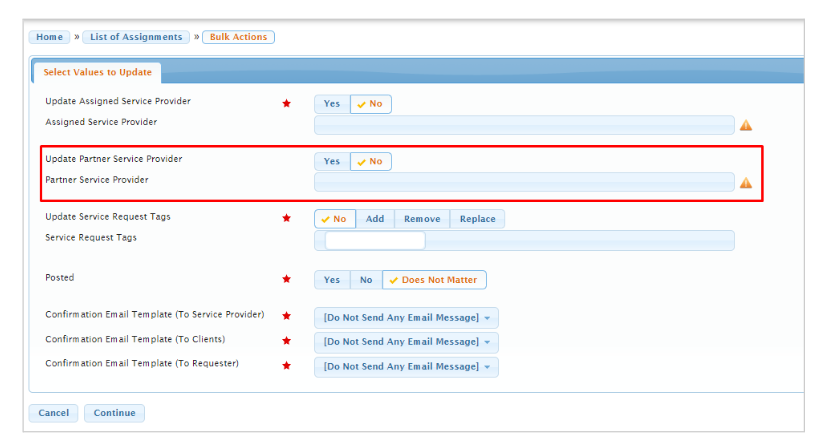
4. Next, use the Assignments Report / Bulk Actions. Use search filters (service provider field) to limit results to the Partner, and then the Bulk Actions button to unassign any Partner Service Provider slots you want to undergo the Usked Partner (ŪP) transfer process (i.e., all requests after your launch date). All filled Partner Service Provider slots will not transfer.
5. Next, the Outbound Partner should provide Usked with a list of service codes to be used for each map below:
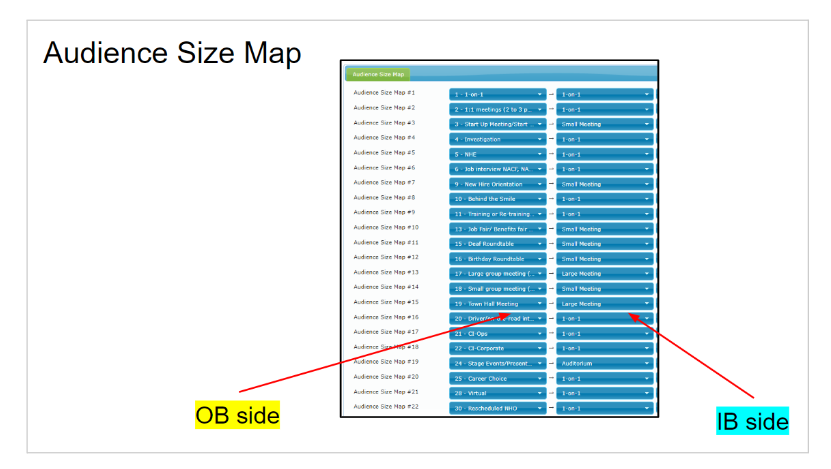
- Audience size map
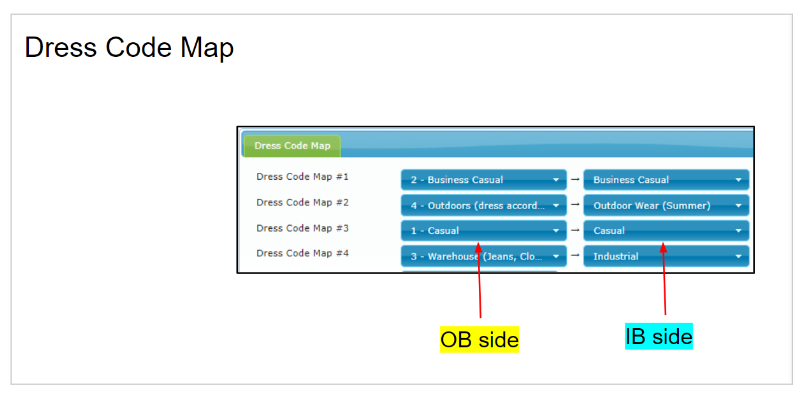
- Dress code map
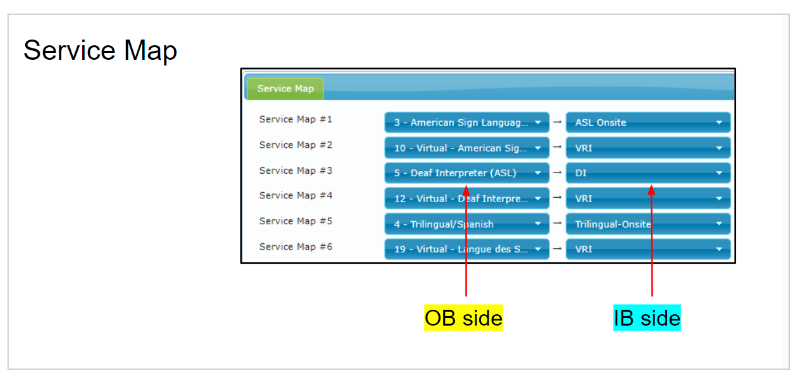
- Service map
These are what the mapping settings will look like in Usked when complete:
Once Usked is in possession of these lists from the Outbound Partner, their portion of the Partner setup is considered done.
Third Step: Set Up on the Inbound Side #
1. Go to People > Groups > “Create a New Group” (if one does not already exist for the Outbound Partner). These are the fields that will need to be entered:
- Parent Group = Parent – [Name of OB licensee]
- Name = [Name of OB licensee] (Partner)
(All transferred requests will be created directly under this group!)
2. Go to People > User Accounts > “Create a New User Account” (if one does not already exist for the Outbound Partner). These are the fields that will need to be entered:
- First name = [Name of OB licensee] (Partner)
- Username = [Name of OB licensee].partner
- Initial Password = random
3. Go to Settings > Usked Partners > “Create a New Partner”. These are the fields that will need to be entered:
- Name = [Name of OB licensee]
- Direction = Incoming
- Domain name = [OB licensee].usked.com
- Transfers enabled = NO
Then, on the Incoming Settings tab enter these:
- Group = [OB licensee] (Partner)
- User = [OB licensee] (Partner)

4. The Inbound Partner then needs to inform Usked that the above (3) steps have been completed.
5. Usked will initiate mapping by adding rows for each map (using codes provided by the Outbound side). The left side columns of all maps then become pre-populated for the Inbound side.
6. Usked will reach out to the Inbound Partner to fill out remainder of maps (right side columns). Note: On the customer billing map, AP (pay) details on the Outbound side equal AR (bill) details on the Inbound side. (In the future, if new codes get transferred over that have no existing map, a new row will be created and an alert generated.)
7. Once mapping is finished, Usked performs the initial forced transfer of Partner service requests from Outbound to Inbound. All request/slots assigned to the Inbound Partner from -30 days (today) to +390 days (from today) will be transferred from the Outbound site.
8. If and when a transfer attempt has failed, then a message will appear at the top of every page for staff: “Most recent transfer attempt failed for Usked Partner [OB licensee].”
Clicking on the [OB licensee] link takes us to the mapping settings for this Partner:
Necessary corrections to all mappings must be made before transfer can be successfully completed. To check if the most recent transfer was successful, go to Settings > Usked Partners > Partners List table on the Inbound side:
9. After Usked’s initial forced transfer, and when no more mapping errors are detected, Usked will edit the OB Partner settings on the Inbound side by setting the “Transfers enabled” toggle to “Yes”:
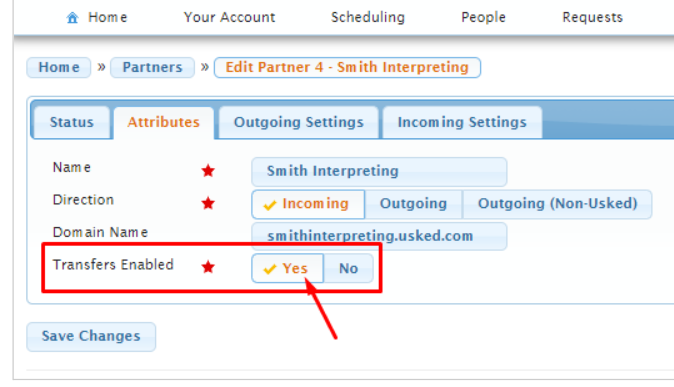
This Partner set up is now completed.
Going forward, every 15 minutes (:00, :15, :30, :45), a live transfer will occur between Outbound and Inbound Usked sites:
- New assignments from Outbound to Inbound
- Update existing assignments if they have been modified
- Sync items from Inbound back to Outbound such as assigned partner service providers and billing rollout details
- Alerts will appear when transfers fail (i.e., missing mapping)
___________________________________________________________________
How Service Request Status Will Work for Usked Partners: #
- Outbound creates draft job, confirms = “to be filled”
- Outbound assigns (Partner) = “to be filled”
- ŪP script transfers to Inbound = “pending confirmation”
- Inbound confirms the job = “to be filled”
- Inbound assigns service provider to slot = “filled”
- ŪP script transfers to Outbound, fills in Partner SP name = “filled”
Transferred Assignments: How Do You Know? #
Outbound Side:
- Can no longer change the assigned service provider.
- Requests will still show as “to be filled” on the Outbound side, even if all slots have been assigned a provider, if the Inbound provider has not assigned service provider(s) to the transferred assignments yet.
- Transferred slots can no longer be removed or reassigned. Can only be canceled.
- Has the ability to control whether SP pay details are synchronized or not (open up “service provider pay rollout” to find “enable partner sync” option for transferred slot/assignment – default is always set to “yes”).
Inbound Side:
- Almost all request and assignment fields are not editable. Exceptions are: internal notes, communication log, scheduling notes.
- Job actions:
- Jobs can’t be canceled
- Jobs can’t be cloned
- Can’t make new recurring requests
- Can’t add recurring slots
- Can’t cancel slots
- Can’t convert requests to Zoom or V+
- Confirmation screen: “blocked fields
- Service
- AR service code, AP service code
- Number of providers
- Auto-assign provider
- Auto-assign service request tags
- Confirmation email inputs
- When changes are made to Customer Billing details rollout, changes will immediately be reflected on the Service Provider Pay details (rollout) on the Outbound side – unless sync is disabled.
Billing & Pay for Usked Partners: #
Outbound service provider pay codes are completely independent of the inbound customer billing codes. They are not connected in any way, other than the initial customer billing map that is applied when the slot is first transferred.
Outbound AP = Inbound AR
Changes to service codes (either AR or AP) on either side after the initial transfer have zero effect on the other side and do not sync!
Usked Partners should discuss and decide on one of two options for the Inbound side to get paid:
- Adding jobs to invoices in Usked (as a service provider)
- Customer billing report
Other Usked Partners Related Information: #
Recurring assignments set up on the Outbound side will also be recurring on the Inbound side. The Inbound side can use “Update Recurring Service Requests” to mass assign a service provider to recurring assignments but not all other service request parameters will be able to be updated.
Schedulers are allowed to cancel one slot on a request without needing to cancel and clone the entire request. The slot will remember the date/time it was canceled, and the canceled slot will be crossed out in the job box on both sites. Canceled slots will also have a “This slot has been canceled” message near it when editing jobs:
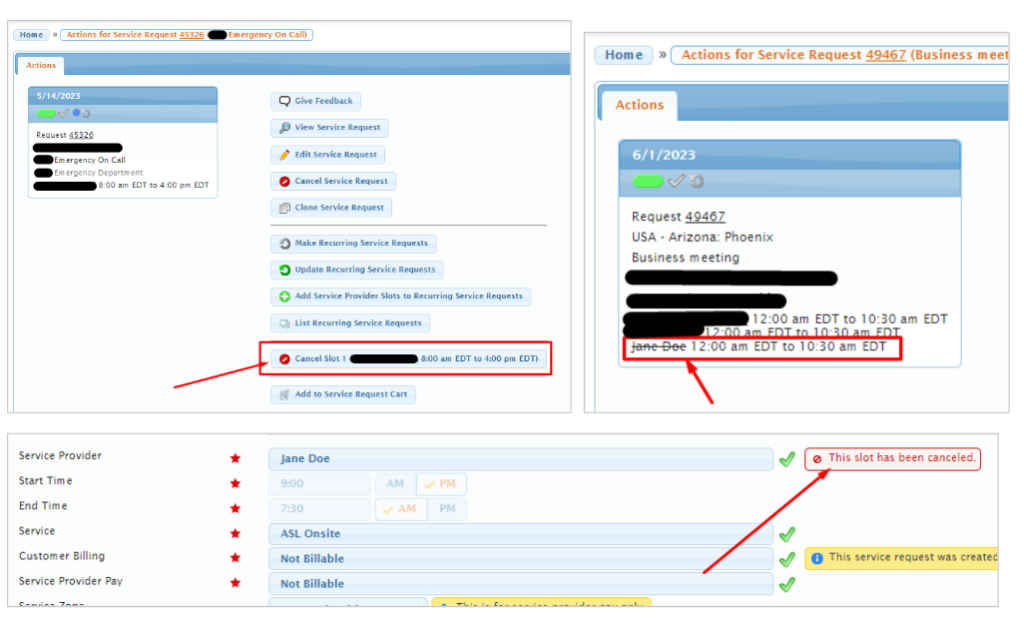
The following alerts will be generated on the Inbound side as normal for transferred jobs:
- This service request has been submitted for confirmation.
- The service request needs to be re-confirmed by…
- The service request has been modified.
The partner service provider field on service provider slots is searchable the same way a normal service provider field is using search terms on various reports.
There are a number of different records in your site such as: group, group member, file attachment, request (job), point of contact, service provider, region, user, and location. To know whether a record was created by a Partner, check the status tab:
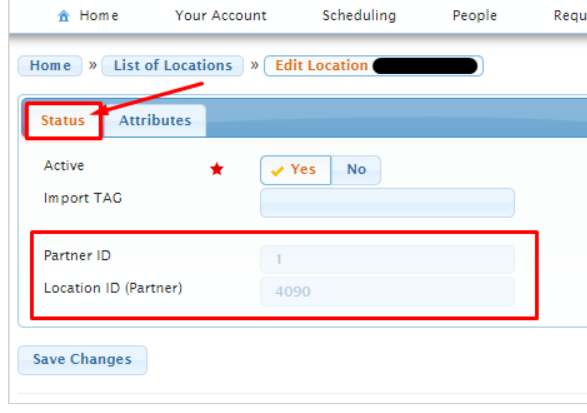
The Settings > Regions page also has a button to display Partner Regions.
On the mobile Usked app, clients will see the Inbound assigned service provider instead of the Outbound assigned service provider.