
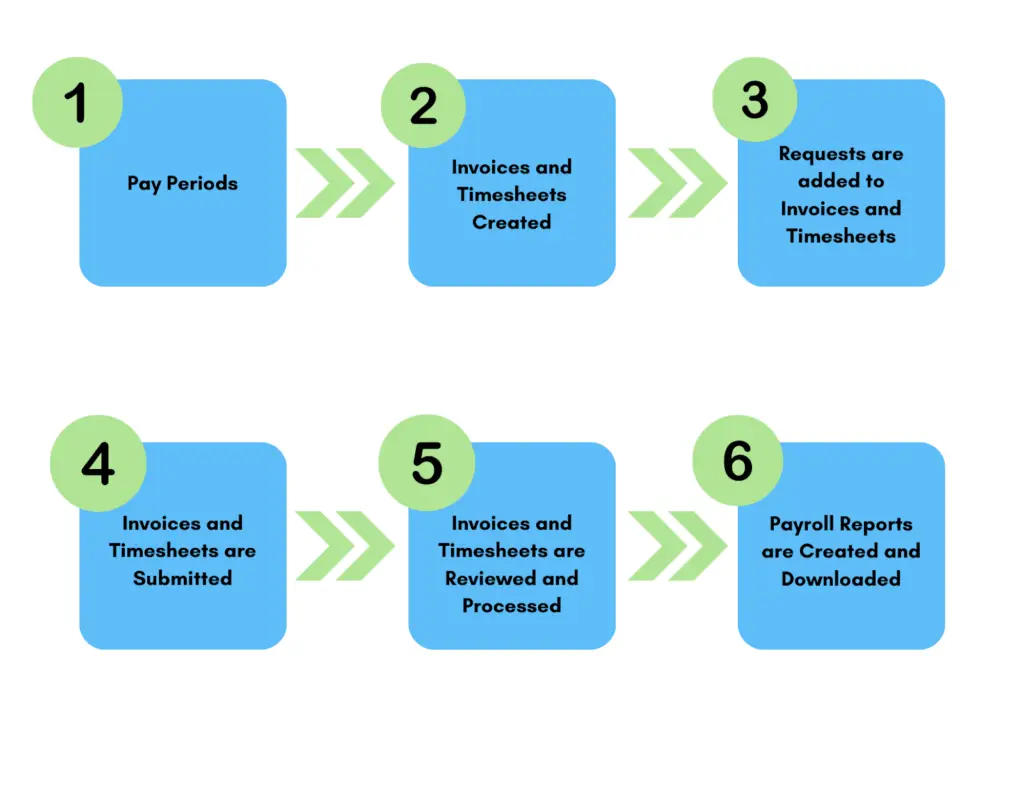
This is a high-level look at how the payroll works in Usked. There are 6 steps, as shown below. Let’s walk through it! #

Pay Periods Set Up #
Pay periods are the foundation of payroll. To find your pay periods head to BILLING > SETTINGS > PAY PERIODS.
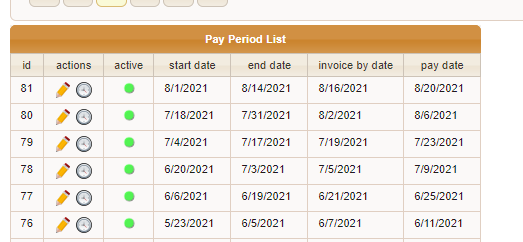
During the payroll process, the system creates invoices for freelance service providers and time sheets for staff service providers based on Start Date and End Date of these pay periods.
Invoice By Date is the date your freelance service providers must add jobs to their invoice by if they want to receive their payment by the Pay Date. Please note that the Pay Date of a pay period is a date on which you would normally pay out for work done during that pay period, but has no real function in Usked other than for reference.
For more on pay periods see All About Pay Periods.

Invoices/Timesheets are Created #
Invoices #
Usked creates invoices when:
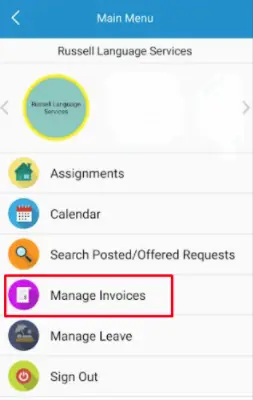
1. A service provider taps “Manage Invoices” on the app and does not have an existing “Open” status invoice.
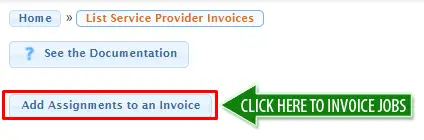
2. When a service provider does not have an “Open” status invoice already and goes to Billing>Invoice Assignments and clicks Add Assignments to an Invoice from the web portal.
Timesheets #
Usked automatically creates a timesheet each pay period for any staff that has staff days. Staff days are created by the system when the staff schedule is set to anything other than “Off” for any day of the week.

Requests are added to Invoices/Timesheets #
Invoices #
Freelance service providers need to add the requests to their invoice. There are two ways they can do this:
1. From the Usked mobile app:
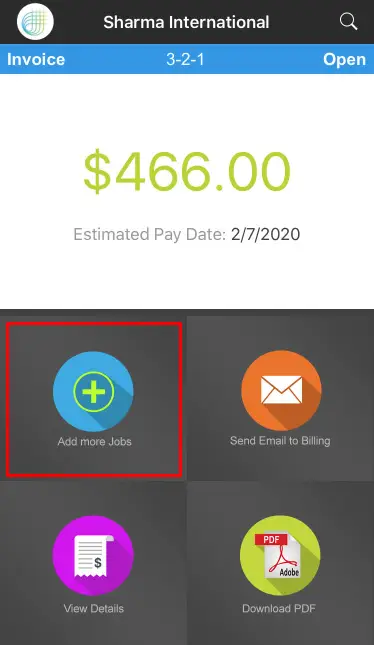
After clicking on Manage Invoices from the menu, they can click Add more Jobs to add jobs to their most recent, open invoice here:
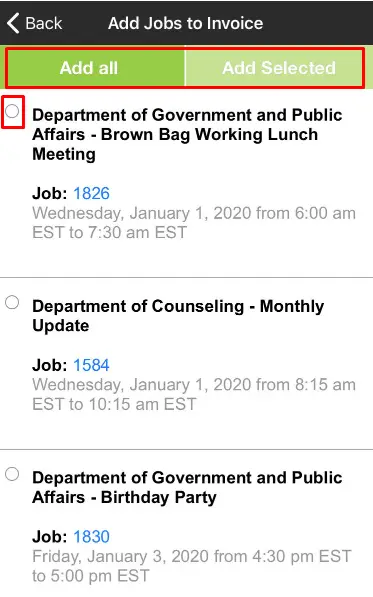
They will then see a list of jobs and can select any job they want to add to the invoice, before tapping Add Selected or Add All.
2. From the Usked web portal:
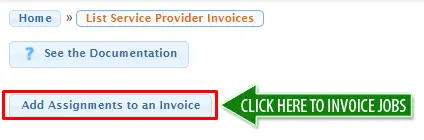
From Billing>Invoice Assignments they can click Add Assignments to an Invoice to add jobs to their most recent, open invoice.
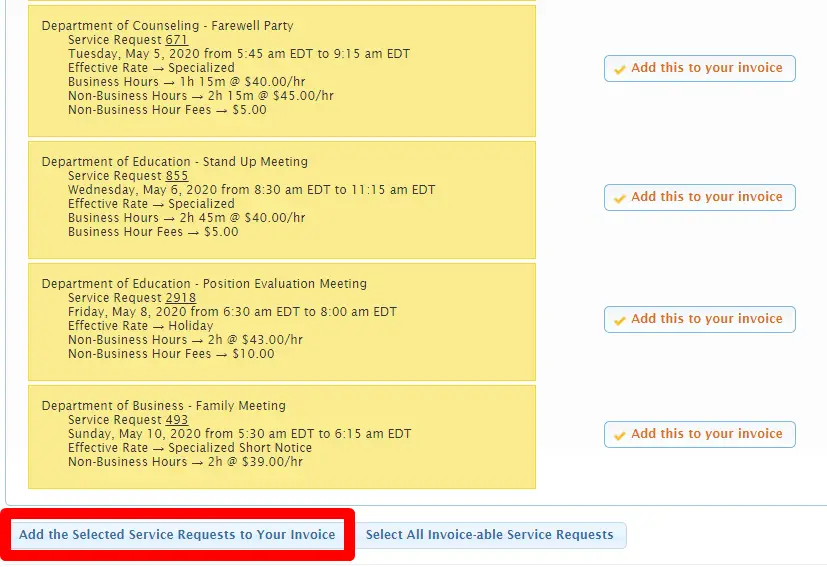
They will then see a list of jobs. To add a job to their invoice they can select Add this to your invoice.
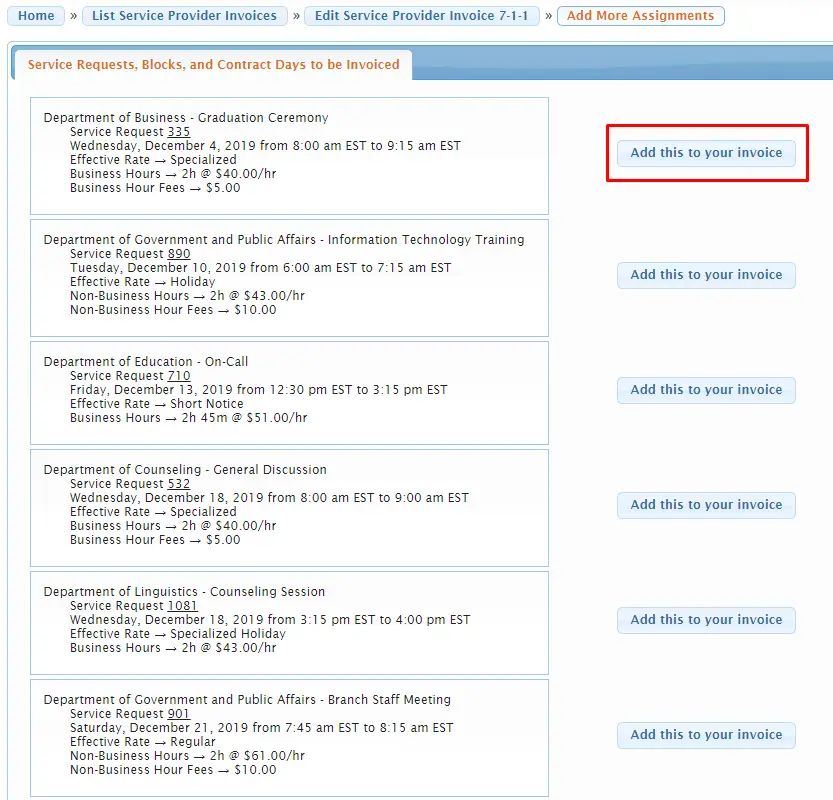
On the next page, they click Add Selected Service Requests to Your Invoice.
Timesheets #
Every morning Usked will automatically add any staff days from the previous day to staff time sheets.
 #
#
Invoices/Timesheets are Submitted #
The system will automatically submit any invoices and timesheets in “Open/submitting” status (those that have one or more billable objects added to them) once the Invoice by Date for that pay period has passed (first thing the next day). Once submitted the invoice/timesheet status will changed to “Submitted.” This allows them to show up on the Process Payroll report and locks the invoice from modification by the service provider.

Invoices/Timesheets are Reviewed and Processed #
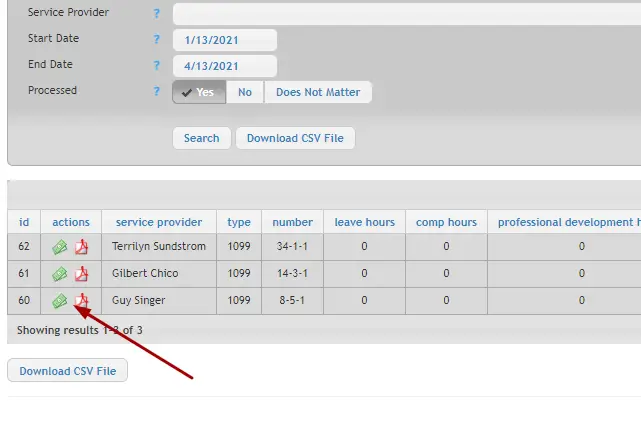
Once the staff with Billing role is ready to review submitted invoices/timesheets (typically starting the day after the invoice by date for the pay period) they can navigate to BILLING > INVOICES & PAYROLL > PROCESS PAYROLL.
They can review each submitted invoice/timesheet for accuracy by clicking on the money icon.
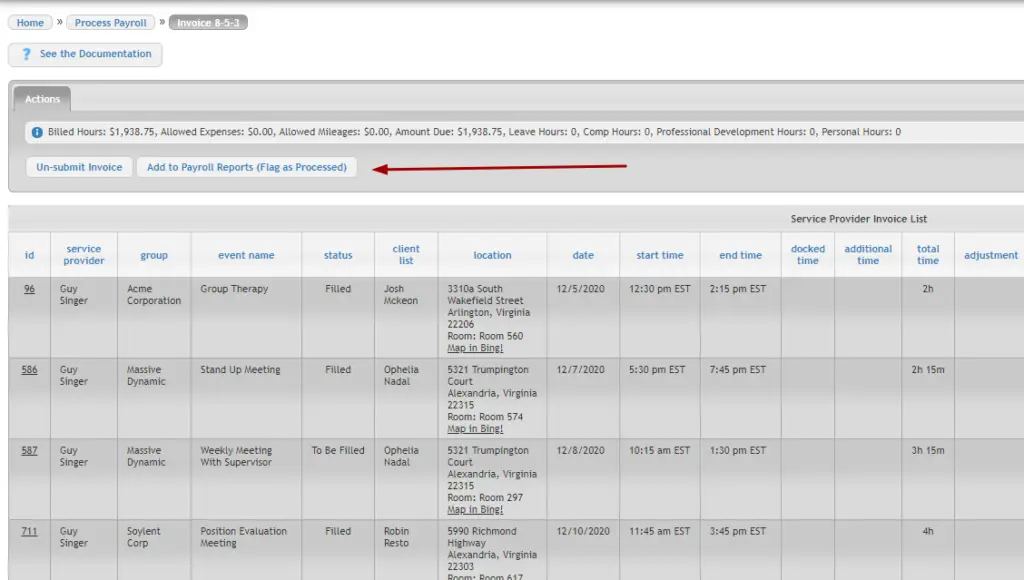
If all the details look good, they can click on Add to Payroll Reports (Flag as Processed) at the top.
If adjustments are needed they can follow these steps to do so.

Payroll Reports are Created and Downloaded #
Once the list of invoices/timesheets have been processed, they will all be added to a single Payroll Report line for the pay period. You can navigate there by going to Billing > Invoices & Payroll > Payroll Reports.

From here you have three payroll reports to choose from for the pay period:
1. Freelance* – displays what is paid out via freelance invoices.
2. Staff* – displays what is paid out via staff timesheets.
3. QB Bill Export – combo report of freelance and staff service provider times and rates for use to import into QuickBooks.
*If you need to adjust the columns you see on the Freelance or Staff payroll take a look at this article.