
In this article, we are going to go through the steps of setting up and tracking billable vs. not billable cancelations. #
What does “canceled billable” mean? #
When a customer cancels a service request, depending on the when it was canceled and what is listed as the cancel billable business hours for the group, they may or may not still need to be billed.
Where do I set the cancel billable hours? #
There are two places in Usked that you’ll see a setting for cancel billable hours.
1. System settings #
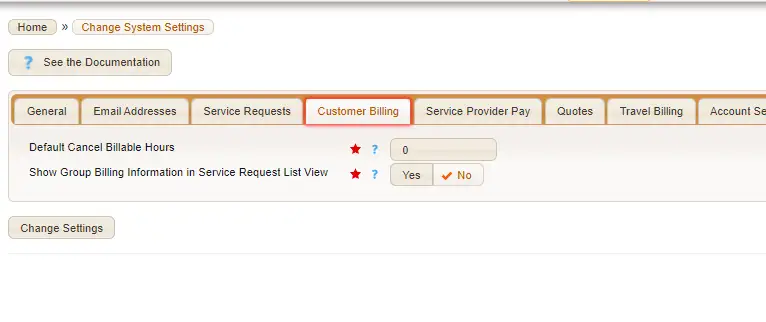
ADMIN>CHANGE SYSTEM SETTINGS>CUSTOMER BILLING TAB

This cancel billable setting is only used if a matching customer billing rate cannot be found for the Customer Billing service code selected on the assignment.
2. Group settings #
PEOPLE>GROUPS>EDIT GROUP (PENCIL ICON)>CUSTOMER BILLING RATES TAB
From here you can look to each specific customer billing rate to see the Cancel Billable Hours setting below the “Remove” button. This setting controls the maximum number of business hours prior to the start date/time of the service provider slot that an assignment with this customer billing service code can be canceled and will still be billable to the customer.
If you only see “Customer Billing Rates Inherited from Parent Groups” you need to either adjust the cancel billable hours from the parent group or create a new rate for this group separately with it’s own cancel billable hours setting.

Note: If you make any adjustments to a parent group customer billing rate, that will affect all children groups.

How do I know when a job is canceled and billable? #
There are two ways to determine if a job is canceled and billable. One is creating a tag as a visual indicator for your billing team. The second option is to look at the customer billing report. Let’s talk about both options!
TAGS #
Tags are like labels. They help you associate groups or service requests that further enable you to filter reports, or simply indicate a color as a flag for someone on your team. For more information about this, take a look at our articles ALL ABOUT TAGS. In this scenario you could create a “Canceled Billable” tag that could be applied to requests that have at least one canceled billable service provider slot on them.
CUSTOMER BILLING REPORT #
Navigate to BILLING > REPORTS > CUSTOMER BILLING > CUSTOMER BILLING REPORT. On this report, you will see a field called status here.
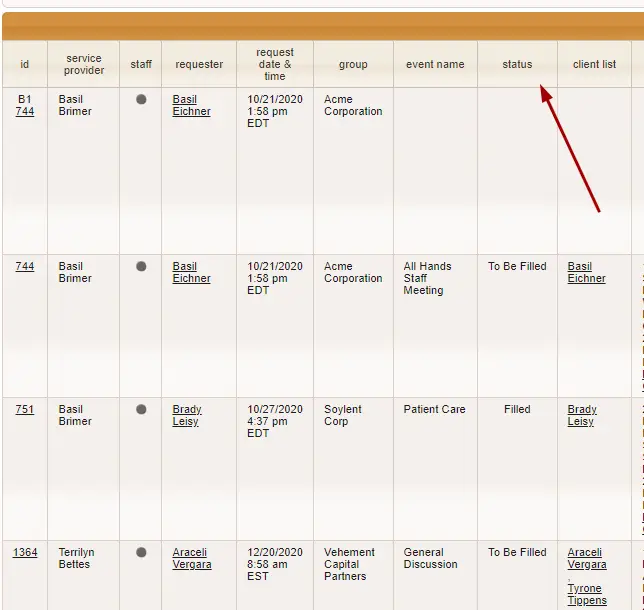
Because this report shows all requests that are billable, anytime you see a status of cancelled and it shows up on this report, that means it is billable. You can either scroll down the list to find your service request or download this report as a CSV and use excel to filter what you need. You could also use this report to know which jobs to apply a “Canceled Billable” tag to.