How do you cancel a request? What happens when a request is canceled? #
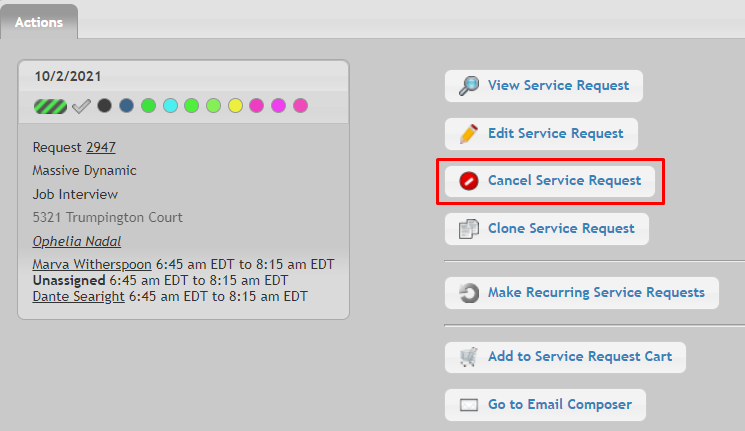
From the Actions menu on any Service Request (accessible via the “star” icon), you will find a button that will allow you to cancel a request.
On the next screen, you’ll need to answer a few more questions, before you click “Cancel This Service Request”
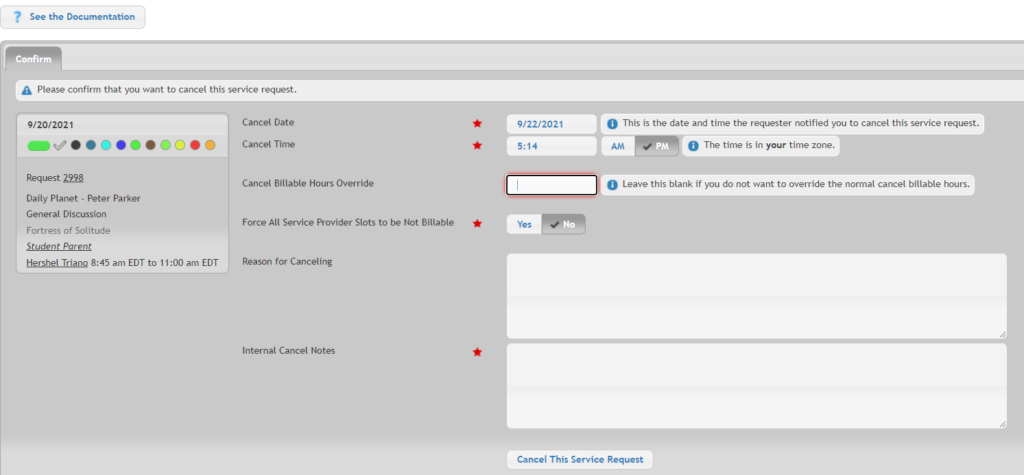
Cancel Options: #
Cancel Date and Time #
This option is available only to staff.
You can change the cancel date and time to reflect the actual date and time the requester notified you of the desire to cancel the request. This will have an impact on the cancel billable hours calculations.
Cancel Billable Hours Override #
This option is available only to staff.
By typing in a decimal value here, you can override the cancel billable hours setting from the customer billing service code selected on each service provider slot.
If force all service provider slots to be not billable is set to Yes, then this override has no effect.
For the service provider pay service code, if the service provider has their cancel billable hours set up to be non-zero in their profile, that will always be used to determine whether or not the slot is changed to not billable for the service provider pay.
Force All Service Provider Slots to be Not Billable #
This option is available only to staff.
If this option is set to no, or if you are canceling recurring service requests, then:
- The customer billing service code will automatically be switched to not billable only if we are not already within the cancel billable hours specified in the customer billing rate. If the cancel billable hours deadline has already passed, then the customer billing service code will be left alone.
- For the service provider pay service code, what will happen depends on the cancel billable hours setting specified for the assigned service provider.
- If the cancel billable hours for the assigned service provider is set to 0, then the service provider pay service code will automatically be switched to not billable only if we are not already within the cancel billable hours specified in the customer billing rate. Otherwise, the service provider pay service code will be left alone.
- If the cancel billable hours for the assigned service provider is set to something other than 0, then the service provider pay service code will automatically be switched to not billable only if we are not already within the cancel billable hours specified for that service provider.. Otherwise, the service provider pay service code will be left alone.
If this option is set to yes then both the customer billing service code, and the service provider pay service code, will be forced to be not billable.
Note: If you are canceling recurring service requests, then your selection for this option is ignored, and will be forced to be no.
Cancel Recurring Service Requests #
If this service request is part of a recurring series of service requests, then this option will be shown. If this is set to yes then, on the next screen, you will be able to specify exactly which service requests in this recurring series you want to cancel. If this is set to no, then only this one service request in the recurring series will be canceled.
Reason for Canceling #
This is a text box to allow you to type in some optional text to explain why this service request has been canceled. This will be added to the event details for this service request, and will be visible to all users with access to this service request.
Internal Cancel Notes #
This option is available only to staff, and is required. This is a text box to allow you to type in some text to explain why you are canceling this service request. This will be added to the internal notes for this service request, and will not be visible to anyone but staff.
To see a video of request cancellation head here.
How do I know if this cancelation is billable to the customer and/or payable to the service provider? #
Cancel Billable Hours Definition #
Cancel Billable hours is defined as the window of time prior to the service start time in which you would still bill the customer and/or pay the service provided if the request is canceled. For example, if your cancelation policy says you will bill the customer if the request is canceled within 8 business hours before the request starts, then the cancel billable hours for this group would need to be set to “8.”
Service Provider Cancel Billable Hours #
Found in each of the Service Providers profiles (“People > Service Providers” > “pencil” icon > tab “Attributes”)
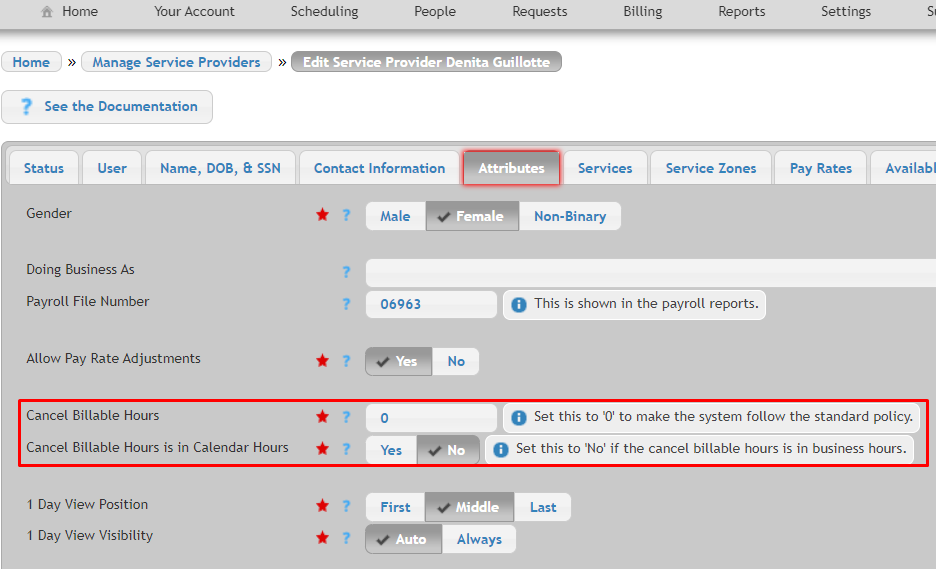
When “Cancel Billable Hours” is set to 0, Usked uses the standard policy, which is to follow the cancel billable hours setting in the customer billing service code (see below for more information) selected for an assignment. When this is set to anything other than 0, the standard policy is overridden and this number of hours is used instead.
Cancel Billable Hours is in Calendar Hours #
The “Cancel Billable Hours is in Calendar Hours” specifies whether or not the value in the cancel billable hours field is in business hours or in calendar hours. Usked makes all calculations in business hours by default, but sometimes you may have to subcontract to another agency that does calculations in calendar hours.
| ** “Business Hours” does not calculate/include weekend hours. If your Business Hours are set for 9a – 5p in your System Settings, this is a 9 hour period of time so one business day = 9 Business hours. Calendar hours includes weekend hours. |
Customer Billing Cancel Billable Hours #
This can be found in the Group’s Parent Customer Billing Rate (“People > Groups” > “pencil” icon > tab “Customer Billing Rates”)

If a customer cancels a service request, this is the maximum number of business hours in advance of the start date & start time of the service provider slot, for which the service provider slot will still remain billable to the customer.
Default Cancel Billable Hours #
The Default Cancel Billable Hours is found in your System Settings (“Admin > Change System Settings” > tab “Customer Billing”
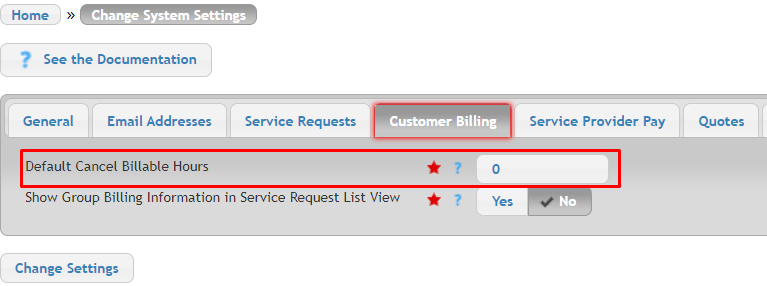
This option is only used in situations where a matching customer billing rate cannot be found for the selected customer billing service code on an assignment. This should be set to match your standard cancelation policy.
What if I don’t see the cancel button? #
There are certain conditions under which a service request may NOT be canceled by anyone:
- The request has already been canceled.
- The request has been added to a service provider invoice already.
Under these conditions requests can only be canceled by staff:
- The request is in pending re-confirmation status.
- The request’s service start time is in the past.
- The request is confirmed and has more than one client listed.
- The request has a service provider slot that is the master slot for a block.
What happens after I cancel the request? #
An automatic email is sent to Service Providers when a Request is canceled. The email template used for this automatic cancelation email is found under the group in the “Email Templates” tab.
**This automatic email template is NOT sent to Service Providers with a Staff profile. See “System Setting” notes below for more information.
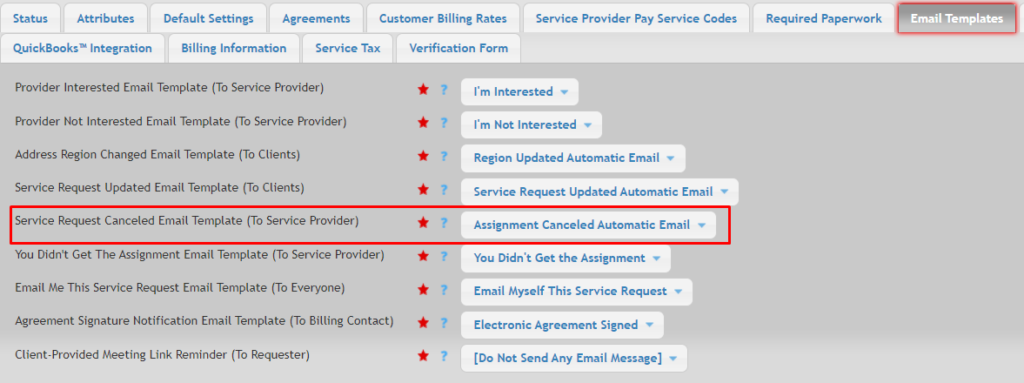
Cancellation emails to anyone other than the service provider need to be sent manually via the Email Composer. An example of the email template you would select when sending this out is given below:
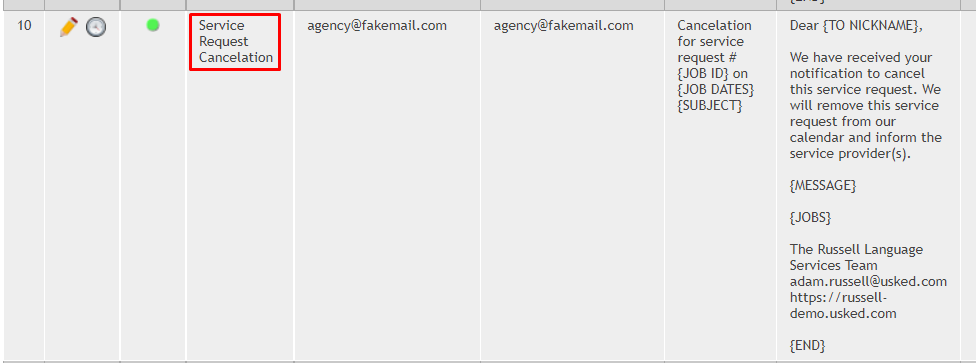
This template is NOT sent automatically with a Request cancellation. You can send this template by going to the Action menu for the job and clicking “Email Composer” > selecting this template > and the Recipient.
Cancelation Related System Settings #
(These can be found “Admin > Change System Settings” > Service Requests tab)
Allow Requester to Cancel Request With Multiple Clients #
Group Member Requesters can normally cancel service requests at any time before the request start time, as long as there is only one client on the request. If there are multiple clients on the request, Usked normally does not allow the Group Member Requester to cancel the request, as that would cancel it for every client on the request. If this setting is set to yes then group members are able to cancel the request, even if there are multiple clients on the request.
Send Cancel Email to Service Providers on Blocks #
If this is set to no then service request cancelation email messages will not be sent to the service provider, if the canceled service provider slot was part of a block.
Send Cancel Email to Service Providers on Contract Days #
If this is set to no then service request cancelation email messages will not be sent to the service provider, if the service provider is on a contract day.
Send Cancel Email to Staff Service Providers #
If this is set to no then service request cancelation email messages will not be sent to the service provider, if the service provider is staff.
How to View Canceled Service Requests #
7-Day View #
Click the “Canceled” Filter Status so it is highlighted (with a checkmark) and Click “Update Options”
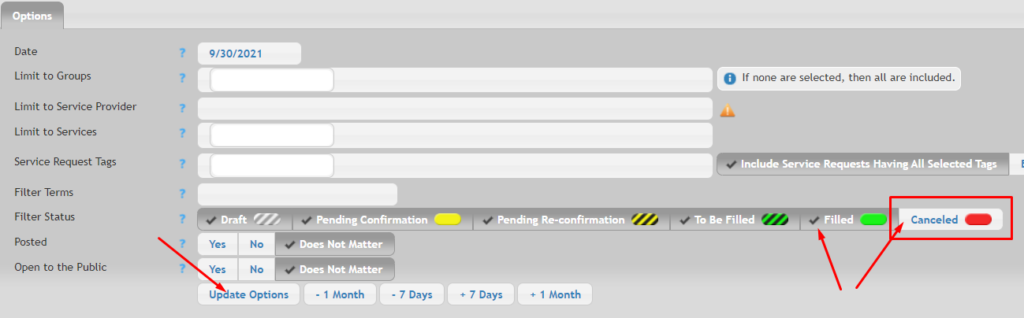
One Day View Compact View #
If Request is assigned to a Service Provider, the slots are Red – Cancelled billable
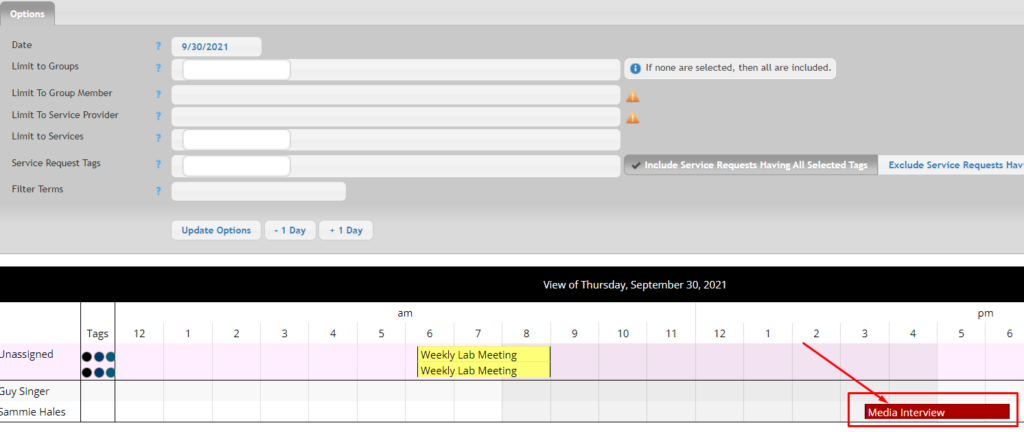
| **Cancelations are not visible using the 1Day View (Side by Side) or the 35 Day View. |
How do requesters cancel a request? #
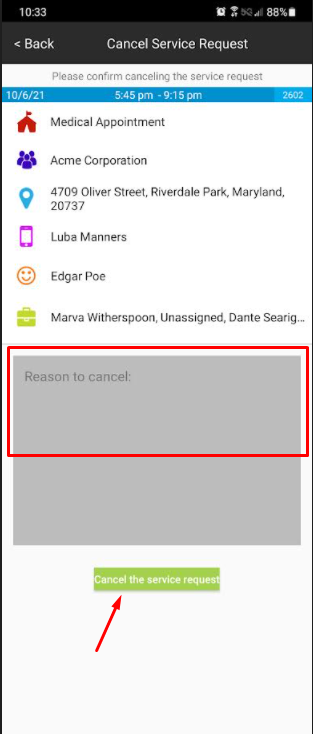
Group members can cancel requests via your Usked website the same way that staff can (from the actions menu). They can also cancel requests from the Usked app. Here’s how:
1. Log in, scroll to the job that needs to be canceled, and click “Cancel Service Request” from the bottom right.
2. Enter the reason for the cancelation and then select “Cancel the service request.”