
If a default service provider is assigned to a group, there are (3) basic functions that will occur, once a scheduler has confirmed a submitted request:
- A service provider will be automatically assigned.
- The request will be automatically tagged.
- An email notification will be sent to the service provider, to clients, and to the requestor.
To activate this feature on a specific group, go to People > Groups. Click on the pencil icon in the actions column to the left of the name of the group you want to work with. On the next screen, select the “Default Settings” tab. Here, you will see two available fields: “Autoassign Provider” and “Autoassign Service Request Tags”.
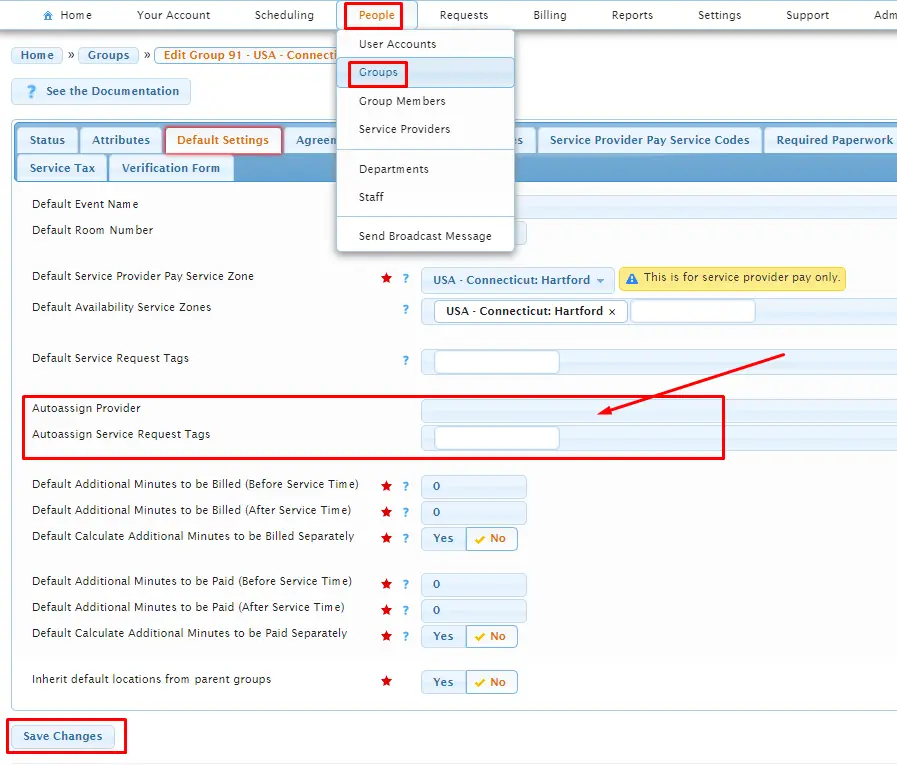
Fill out these fields with the default service provider name as well as any necessary tags that should be added to a service request for this group upon the request’s confirmation by schedulers, and then “Save Changes”.
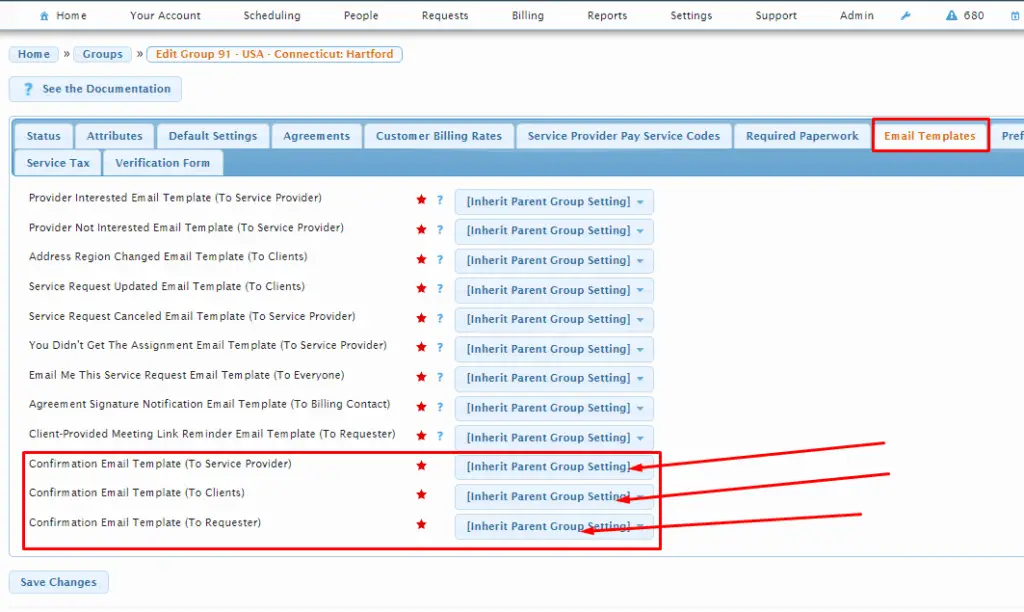
Next, go to the “Email Templates” tab. On the bottom of this screen, you will see three confirmation email templates that need to be assigned: one to be sent to the service provider, one to be sent to the client(s), and one to be sent to the requestor. Set these as needed, and “Save Changes”.
Once this has been completed, going forward, when schedulers go to confirm a request for this group, they will see these fields on the confirmation page auto-populate as you previously set them on the group level:
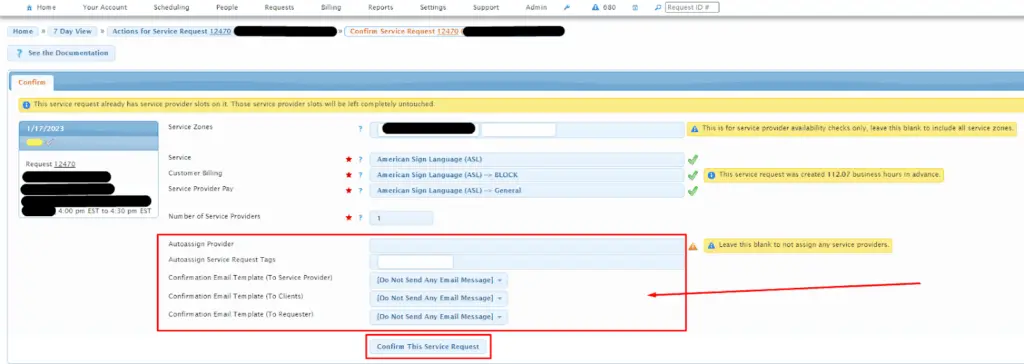
Here, you can leave “as is” or you can edit as needed to override any default settings. Note, the listed Service Request Tags here will be a combination of both the group’s Default Service Request Tags and Autoassign Service Request Tags.
When the “Confirm This Service Request” button is activated, the default service provider will be automatically assigned, the request will be automatically tagged, and finally, email notifications will be sent to the service provider, to clients, and to the requestor.
Select Usked licensees currently have the ability to assign the same service provider to multiple slots on the same (1) request. (Contact Usked directly if your organization is interested in investigating this option further). If this specific system setting is enabled, then Usked will automatically assign the default service provider to all unassigned slots. If this is not enabled, Usked will only assign the default service provider to the first available unassigned slot.