
This article is going to go through the first onboarding meeting: The Kickoff! #
This is a great place to refer back to after meeting with our onboarding specialist, or if you just need a refresher! Let’s dive in! #
Whether it’s your first time reading one of our knowledge base articles or your seventh, we send you a hearty WELCOME!!! We are so happy to have you with us on this platform and hope it serves your organization well.
Our team has written over 100 articles to help you along your journey with Usked! You are free to read through them, and if you have a question, you can submit a support ticket!
How long does the Kickoff meeting last? #
Normally, the kickoff meeting will last about 1.5-2 hours.
Who should be in the Kickoff meeting? #
Anyone who will be involved in getting the company up and running on Usked. Typically this will include people that understand the business operations and rate structures.
How do I schedule the Kickoff meeting? #
Email support@usked.com to schedule your Kickoff meeting!
What will we go over in the Kickoff meeting? #
- Timeline – Goals and Expectations
- Data Collection – Import Sheet
- Your Usked Site, Alerts, and System Settings
- Training & Communication
- Virtual+ Services
Timeline – Goals and Expectations #
The onboarding process takes about 4-6 weeks, which is more flexible if needed. Below is how the weeks will play out.
- WEEK 1: Kick-Off! This is where we have an introductory meeting about what to expect from Usked and start the beginning stages of onboarding.
- WEEKS 2-5 (FLEXIBLE): Data Collection! Each week, our onboarding specialists will assign you projects to fill in the data to import into Usked. These meetings will go over that data as well as other set goals.
- WEEK 6 (FLEXIBLE) : uLaunch! We define uLaunch as the date when you send out usernames and passwords to your network. On that date, your service providers will be able to log in and download the app to see all the assignments they are scheduled for. From that date forward, all jobs are entered directly into Usked.
Things happen all the time – hurricanes, holidays, pandemics. We will work together to set reasonable goals. The other thing to consider with the timeline of onboarding is how your data currently exists and if it is easy to bring over to the google sheet environment Usked works from before the import.
Data Collection #
With all this talk of data for our onboarding timeline, I suppose now is a good time to dig into it! Anytime we use the word “data” during onboarding, we are referring to the migration of your data from your previous system to Usked. We typically use Google Sheets for this process. By now, you should have received an email from one of our onboarding specialists called “Your Organization Name Import Spreadsheet-Phase 1“. If not, let us know and we can send it your way!
We decided to break down this spreadsheet into two phases because, depending on the size of your organization, there could be A LOT of data. Using the timeline above as a reference, you’ll likely finish working with the phase 1 spreadsheet by week 2/3 before moving on to phase 2. In this article, we will specifically be going over phase 1, explaining what is necessary to fill under each tab.
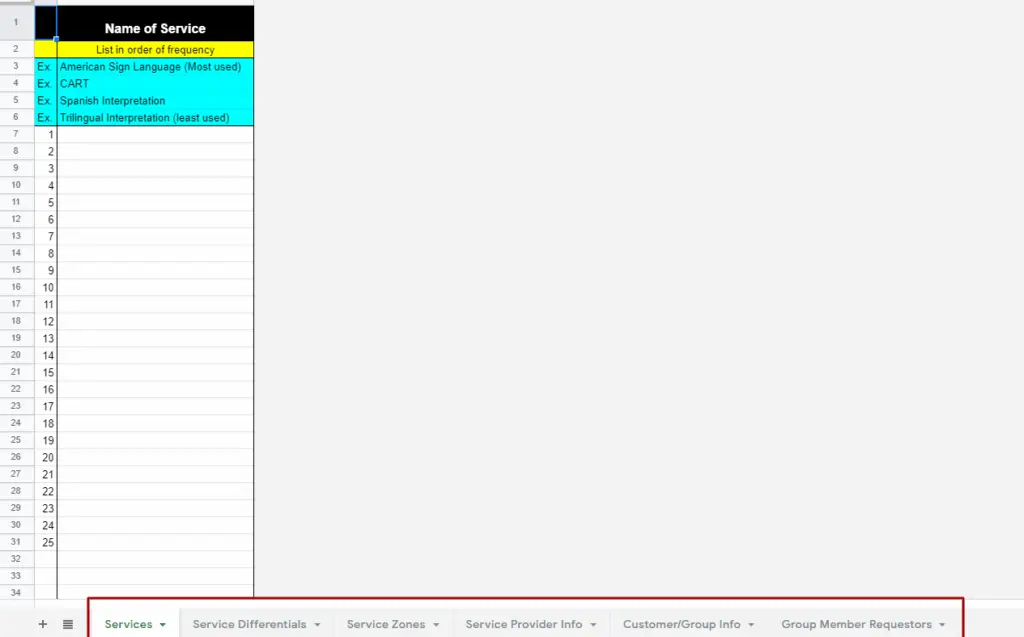
- Services – What kinds of services are done in your agency? ASL, CART, Spanish Interpretation, etc. List in order of Frequency.
- Service Codes (Differentials) – Anytime, place, or event that you are paying/billing different amounts for the same service. Examples: ASL Regular, ASL Short Notice, ASL Holiday, etc.
- Service Zones – Your list of areas where your company provides services. Service Providers can pick from this list where they want to work. This can be broken down by State, County, Zip Code, etc. Remote can be added as a service zone as well, but also consider having “Virtual” as a service too.
- Service Provider Information – A list of your service providers. Let’s go over the required fields.
- First Name – All Service Providers must have a first name in Usked.
- Time Zone – This must be written out with Country/State. For example, EST would be America/New York. For more on time zones see here.
- Email Address – Almost all communication sent in Usked to your service providers goes through email. If you do not have an email listed, they will not be able to receive email messages from Usked.
- Cancel Billable Hours – What is the window of time where you will still pay the service provider if the job is canceled? Ex. 8 hours before the job starts
- Cancel Billable in Calendar Hours – Is the canceled billable hours in business or calendar hours? Ex. Do you want those 8 hours from the above example to be counted in calendar or business hours?
- Gender – This is used for gender preference checks when a requester has asked for a service provider of a preferred gender for the request.
- Customer/Group Information – List of your customers – the people to whom you send invoices. In Usked they are called “Groups”. The required fields are as followed:
- Customer Name – This could be FedEx, Hospitals, etc.
- Billing First Name – similar to service providers, all billing people need the first name in Usked.
- Billing Contact Email Address – The email address of the person listed above.
- Group Member Requesters – Who specifically makes the request. They are part of the group. Example: Dana from FedEx, Ben from the Hospital. Required fields are as followed.
- First Name
- Customer Name (From Customer/Group information tab)
- Time Zone – Same as service providers, this must be written out with Country/State. For example, EST would be America/New York.
- Email Address
While I only listed required fields here, the optional fields are useful as well. You and your team can decide what optional information you’d like to import into Usked.
Your Usked Site, Alerts, and System Settings #
When you log in to your Usked site, it will look something like this:
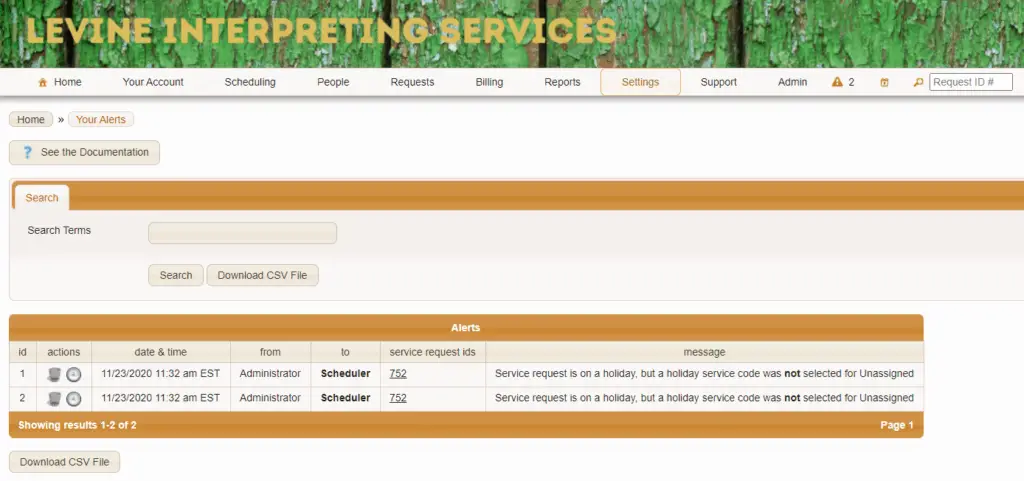
Let’s break down each part.
1. The Banner
This is where you can put your company’s logo. When you first begin with Usked, one of our support specialists will help you upload this to your site, but anyone with an Administrator Staff Role can further adjust if needed on your own. We recommend that banners will ideally be 80px (height), ideally by 3,440px (width), and saved as a PNG for high quality.
2. Menu
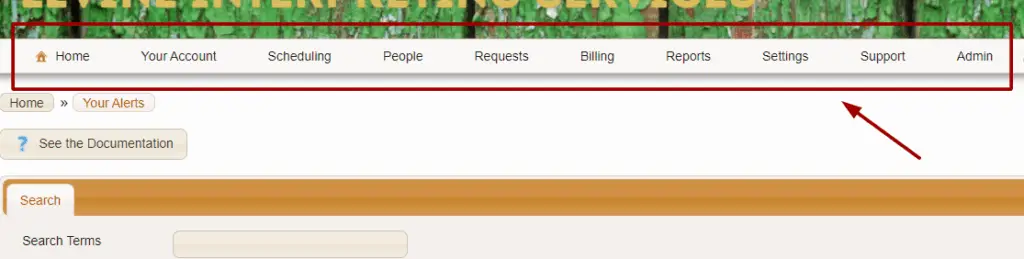
These tabs help you navigate throughout Usked. Hovering over any of these options will give you a drop-down list of items to look through. For example, under PEOPLE, you will be able to see your Service Providers, Staff, Groups, Group Members, etc. Under Billing, you will be able to see information about invoices and payroll.
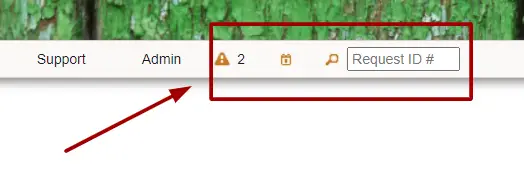
3. Alerts, Calendar, and ID Search
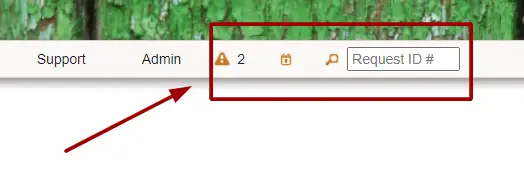
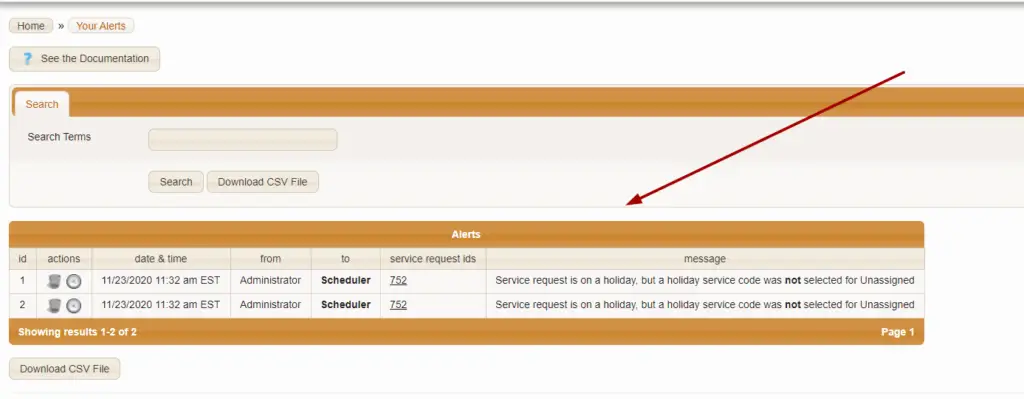
The triangle is your Alerts. When someone does something in Usked that looks like it may be a problem or needs your attention, Usked will generate an alert. The purpose of an alert is to let us know of a potential situation. For example, double booking a service provider will generate an alert, and so will double booking a client. All alerts will show on your home screen here:
If hovered over, the Calendar Icon will show a monthly calendar. When you click on a date, it will take you to the 1-Day View of that day’s work, which you can also access by navigating to SCHEDULING > VIEWS > 1 DAY VIEW SIDE BY SIDE. Take a look at this link for more information about that scheduling view.
The REQUEST ID box is a shortcut to find a specific job. For example, if I type in “750”, the actions page of my job with the 750 ID will appear.
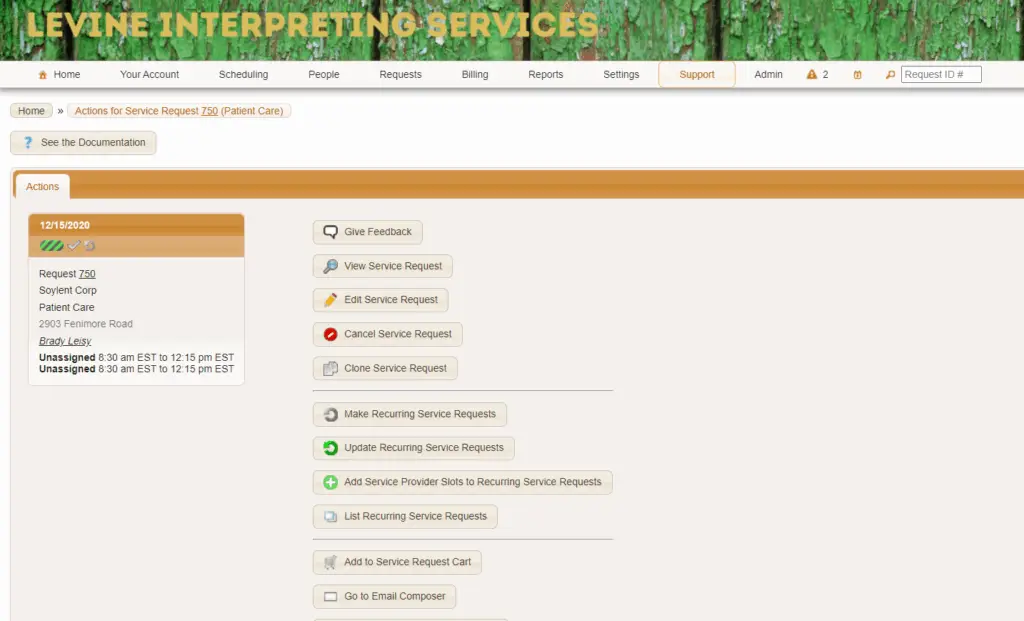
For system settings, we have this article that will go through each of the tabs for you!
Usked Training & Communication #
Training #
If you would like to learn more about Usked through training, we have two options for you!
- For the people who like to read – Our Support Center has all of our basic, intermediate, and advanced training articles you can read through. Feel free to take your time looking through it and come back to it as a useful tool throughout your time here with us. Training on Support Center
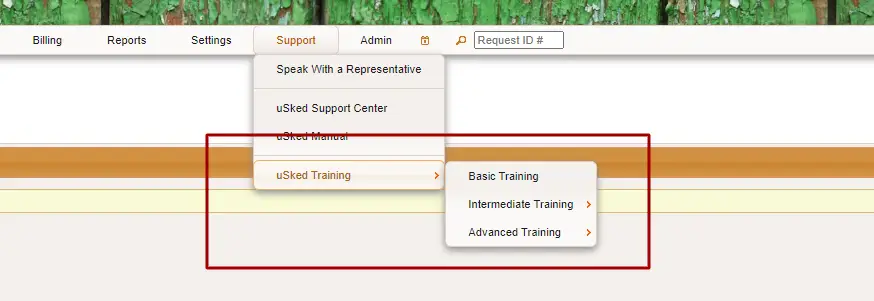
- For people who like quizzes – If you navigate to the SUPPORT menu option and scroll to Usked Training, you will be sent to an outside website that presents the basic, intermediate, and advanced training in a PowerPoint/quiz format.
Communication #
- You’ll be provided with a set of generic email templates that you can customize and use to communicate with staff, service providers, and customers.
- There are Getting Started Guides you can send out to your service providers and customers to help them get acquainted with features in Usked, as well as our Usked app.
- You may want to add a Usked “Log In” button to your company website, so that service providers and customers can be taken directly to Usked from your website. For steps on how to do this look here.
Usked Virtual+ Services #
In the spring of 2020, Usked launched Virtual+, a virtual meeting feature that is built directly into Usked. It is great for providing service virtually! We’ve got a number of articles that tell you more about this feature.