
In this article, we are going to talk about how to set up and navigate Usked’s Payroll Reports! #


What is the purpose of a payroll report? #
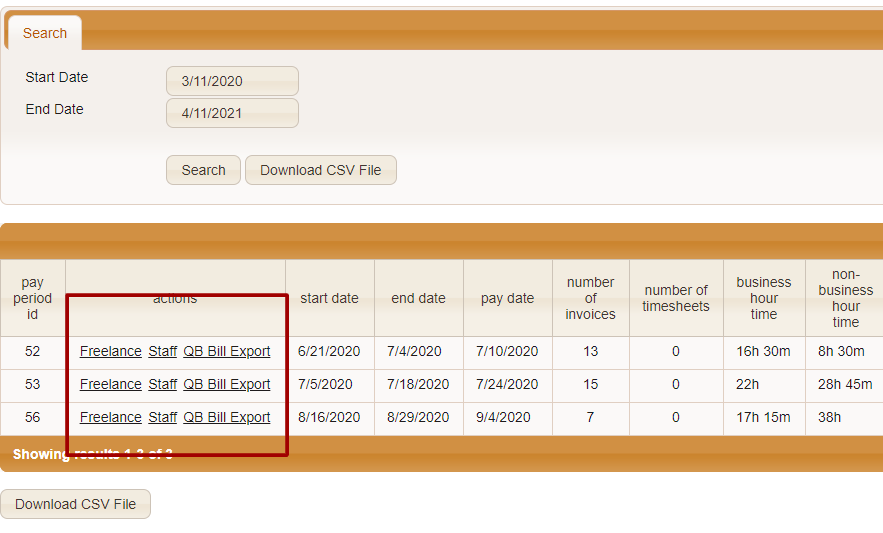
Payroll reports provide the amount payable to each service provider for a single pay period. Once the invoices and timesheets for a pay period are processed, the data for that pay period can be accessed by using one of three available payroll reports in Usked.
- Freelance Service Providers
- Staff Service Providers
- QB Bill Export (Includes all service providers and is formatted for import into QuickBooks)
Where can I access payroll reports? #
To navigate to payroll reports, go to BILLING > INVOICES AND PAYROLL > PAYROLL REPORTS and then choose which type of report you’d like to see on the left-hand side of your screen.
Let’s take a look at each type of report! #
Freelance Payroll Report #
This report displays what is paid out via freelance invoices. By default it displays the following data:
- Service Provider Name (or ID number)
- Amount of time worked in hours
- The rate earned at each of those hours
- The total amount of money to be paid
- Any fees owed for that period
- Any travel expenses accrued
- Any travel miles accrued
Staff Payroll Report #
This report displays what is paid out via staff timesheets. By default it displays the following data:
- Service Provider Name (or ID number)
- Amount of time worked in hours
- The rate earned at each of those hours
- The total amount of money to be paid
- Any fees owed for that period
- Any travel expenses accrued
- Any travel miles accrued
Both the Freelance and Staff payroll reports can be customized by navigating to Billing > Settings > Payroll Report Columns #
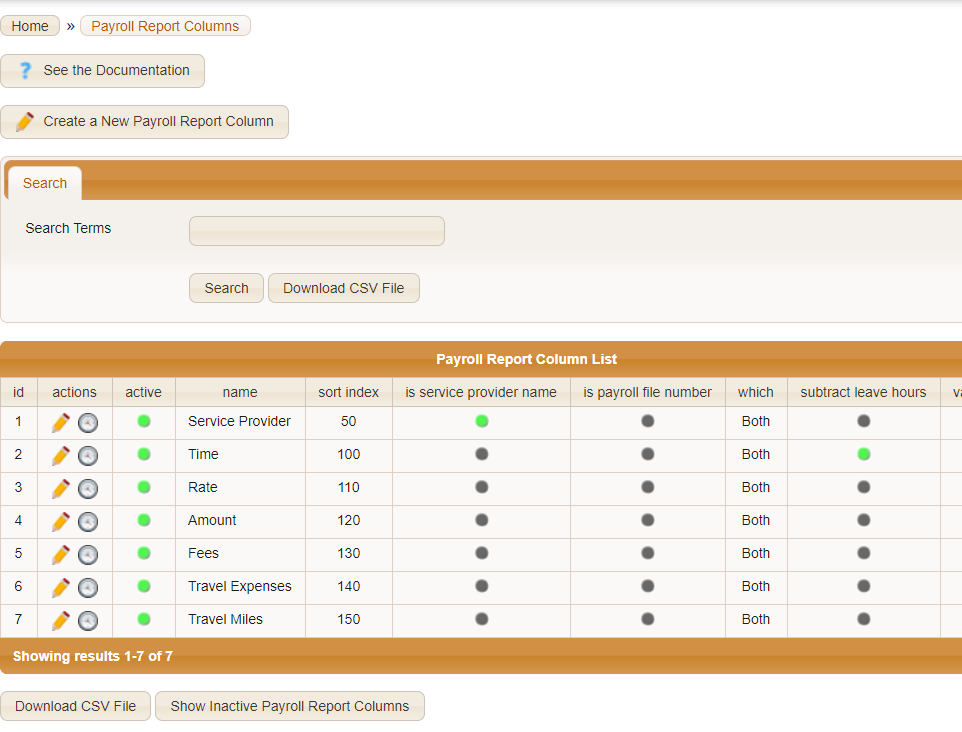
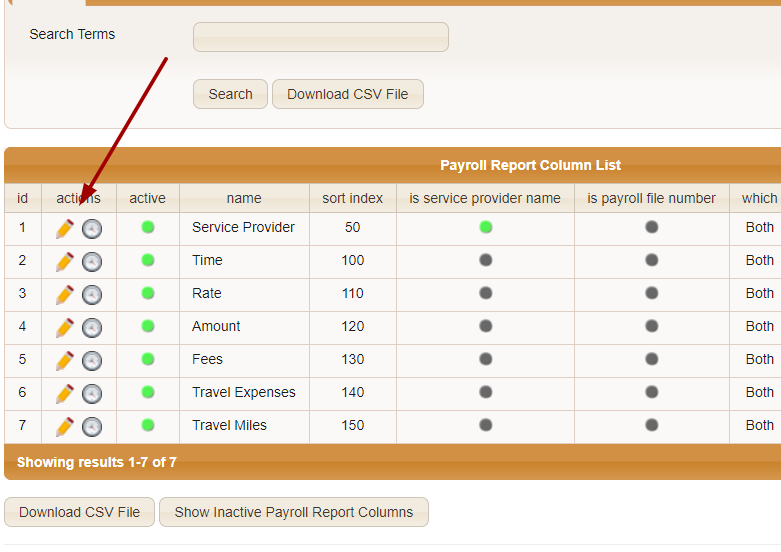
From here, you can create new columns, change the names of the columns, assign where on the report you want this column to show up (sort index), set each column as either for the Freelance report or the Staff report, subtract any leave hours (PTO), or override the value of any column. You can also deactivate any of the columns by clicking on the pencil icon and changing the Active status.
Each of the values for these columns is pulled and collated from the Service Codes assigned to each Service Request. The Staff and Freelance Payroll Reports are designed to provide generically formatted data for use with whichever variety of financial software your organization uses.
Let’s try setting up a new payroll report column! #
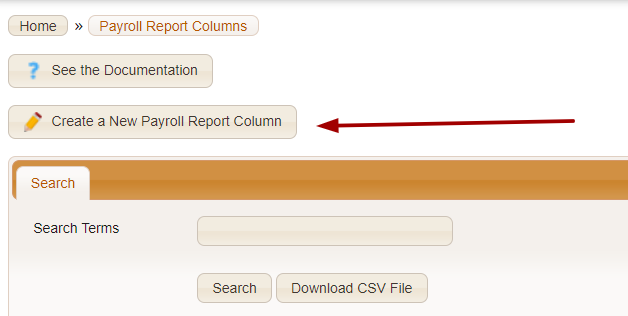
The first thing we will want to do is go to BILLING > SETTINGS > PAYROLL REPORT COLUMNS and select “Create a New Payroll Report Column” here.
Once clicked, it will take you to a page with two tabs – Status and Attributes. The Status tab lets you know if the column is active. The Attributes tab has all of the details of the column. Let’s see what each one means!
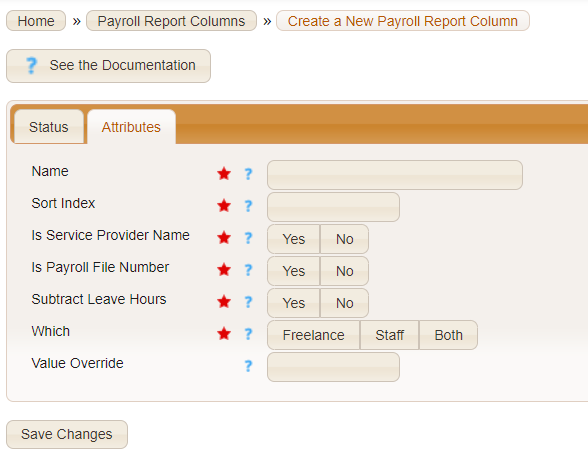
Name – The label that you want to give this payroll report column. This label is what appears in the column heading on the payroll reports.
Sort Index – This is a number. The sort index controls the order in which the payroll report column appears in the payroll report. Payroll report columns with a smaller sort index value will appear before payroll report columns with a larger sort index value.
Is Service Provider Name – If this is set to YES then the data cells for this column are used to display the names of service providers.
Is Payroll File Number – If this is set to YES then the data cells for this column is used to display the payroll file number of the service provider.
Subtract Leave Hours – If this is set to YES then the number of leave hours is subtracted from the values of the data cells for this column.
Which – Set this to FREELANCE to make this column appear on the freelance payroll report only. Set this to STAFF to make this column appear on the staff payroll report only. Set this to BOTH to make this column appear on both payroll reports.
Value Override – If this is left blank, this has no effect on this payroll report column. If this is set to a numerical value or a text string, then all data cells for this column will be replaced with that numerical value or text string. This value override is also configurable on the payroll report itself.
Freelance and Staff Combo for QuickBooks Reports #
The third Payroll Report (QB Bill Export) is intended and designed to be used specifically for QuickBooks. It combines both the Freelance and Staff service provider times and rates together.
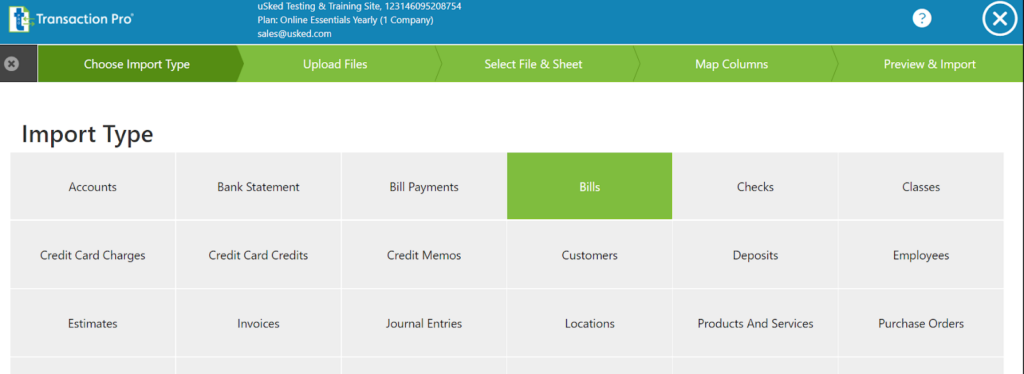
The intent is to download the CSV file of this report “QuickBooks Bill Export” and import it directly into QuickBooks using the Import Type “Bills” when using Transaction Pro.
You can also customize how your Freelance and Staff Payroll reports look and what data is displayed in the default columns of the Payroll Report. These default columns are set as:
- Service Provider Name
- Time
- Rate
- Amount
- Fees
- Travel Expenses
- Travel Miles
The data displayed in each of these columns is taken from the Service Codes. To get to service codes, navigate to Billing > Settings > Service Codes. From there, select the pencil icon next to the Service Code you’d like to edit.
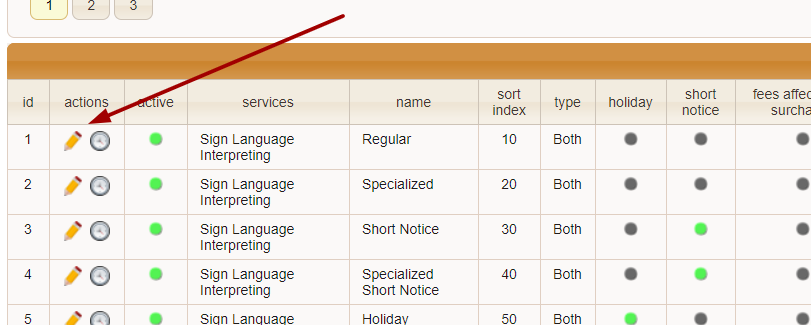
Next, click on the Service Provider Pay tab. You will see a page similar to this:
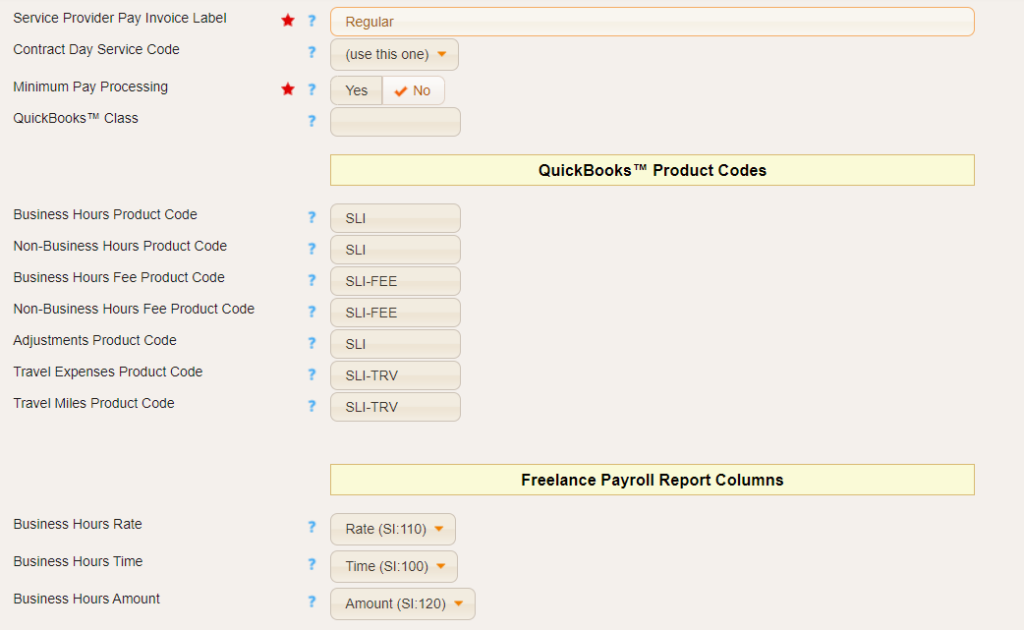
Within each section, there are three fields for business hours and three fields for non-business hours. There are some additional fields for fees, travel expenses, and travel miles. What these do is allow us to control where these values go in the payroll reports.
We may decide that we want to keep things simple, by having Usked add up everything owed to each service provider into just one column in our payroll report. Or, we may decide that we want to be super-detailed, and have Usked break up the amount owed into separate columns.
We can also have a mix of the two extremes, by having some service codes report the amount owed into one column, with other service codes breaking down the amount owed into multiple columns.
While the amount and time fields are additive (able to be accumulated into a single row on a report) the rate fields are not.
If you have a rate column present in your report, Usked will separate out the pay to each service provider into multiple rows, for service providers that have different pay rates being used.