
Whether you are eating some cheese or working with billable objects, blocks are a great tool to use if you want to bill a customer and pay a service provider for one specific amount of time. Let’s look into it! #

That joke was way too cheesy… what exactly is a block and how does it work in Usked? #
Blocks are billable objects used to both bill customers and pay service providers. Instead of using an individual assignment to bill/pay, the entire block is used to bill the customer and pay the service provider.
Because of this, the service provider slots connected to the block must be part of the same group hierarchy. Once you create a block you can attach service provider slots to it and it will shrink wrap from the start time of the earliest job to the end time of the latest job to bill/pay. The parts of a block are as follows:
- Date – The date of the block will determine what slots you can connect to the block. The start date of any service provider slot must match this date if you want to add it to the block.
- Service Provider – The service provider you want to pay for the block.
- Service – The service that the service provider will provide for this block. (Say that three times fast) This overrides selected services on individual service provider slots that are connected to the block.
- Customer Billing – This is the service code that will be used to bill the customer for this block.
- Service Provider Pay – This is the service code that will be used to pay the service provider for this block.
- Service Zone – This is used to determine which rate to pay the service provider for this block.
- Master Service Provider Slots – If you select a master service provider slot for the block a few things happen:
- Service requests that have one or more service provider slots connected to blocks as the master service provider slot, cannot be modified or canceled by clients. They must contact you if they want the service request updated or canceled.
- When a block with a master service provider slot is canceled, the master service provider slot, as well as all of the linked service provider slots, are canceled as well.
- Recurring service requests, that have one or more service provider slots connected to blocks as the master service provider slot, must be canceled individually.
- Service provider slots linked to blocks that have a master service provider slot are not counted towards the man-hours tally in the dashboard.
- When checking for conflicting service provider slots, service provider slots linked to blocks that have a master service provider slot are ignored.
- Linked Service Provider Slots – Service provider slots added here become part of this block and will no longer be billed/paid individually.

Note: Non-Billable Service Provider Slots can NOT be connected to a block.
Who can create and update blocks? #
Any staff that has at least one role enabled, excluding the Quality Assurance role.
How do I create a block? #
To create a block, go to Billing > Settings > Blocks. Then select Create a New Block. Fill out each of the fields as appropriate and select Save Changes. Next, link the desired service requests to the block and if appropriate, select a Master Service Provider Slot and then click on Save Changes.

Note: You can also use the Service Request Cart feature to help you create blocks. To do this, simply add the desired, assigned requests to your cart, then when you go to create the block select Guess Using the Service Request Cart . As long as the requests are on the same day and have a common service provider assigned to them, Usked will be able to auto fill the block information. All you have to do then is select Save Changes.
The Golden Rule for Blocks #
The service provider slots connected to the block must be part of the same group hierarchy and rate structure.
Can I make a block recurring? #
You cannot directly make a block recurring, but you can make the master service provider slot recurring and then create blocks for each using an easy tool. Here’s how to do it:
- First, make sure the block you want to recur has the service provider slot desired set as the master service provider slot.
- Then, go to the request for that master service provider slot in the block to make it recurring. Visit here for a refresh on how.
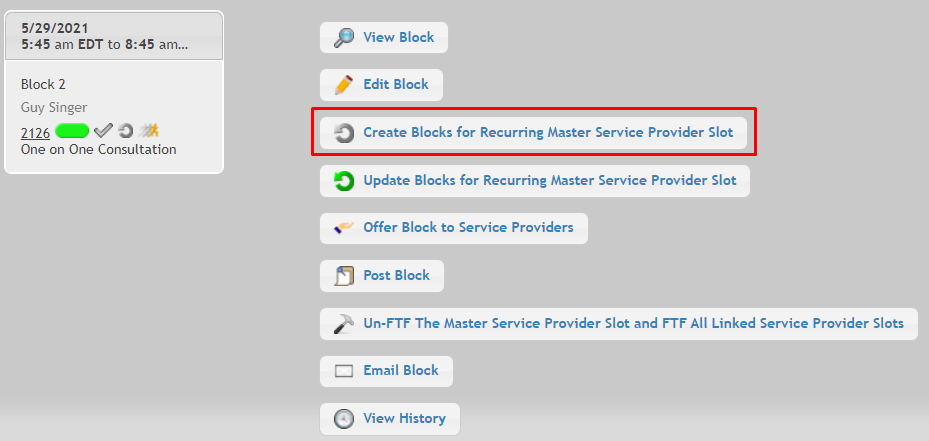
- Go to Billing > Settings > Blocks and click on the star icon of your block to view the Actions menu.
- Click on Create Blocks for Recurring Master Service Provider Slot.
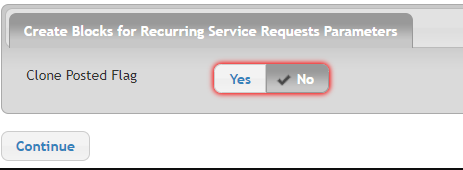
- You’ll then be asked if you want to clone the Posted Flag (if the block was posted – do you want all occurrences to also be posted?)
- Just like when making a service request recurring, you’ll then see a list of all of the Blocks you’re asking Usked to make.
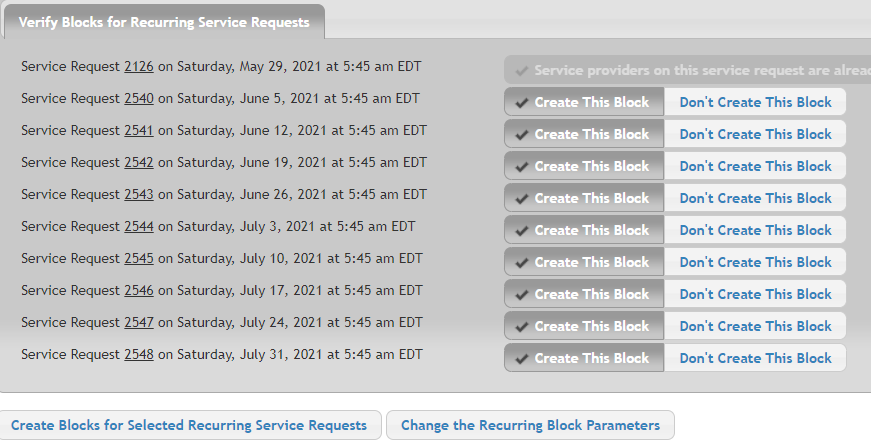
- Click “Create Blocks for Selected Recurring Service Requests” to finalize the process.