Let’s go shopping! In this article, we will talk about our Service Request Cart feature. The cart can hold one or more requests that you can then use to send an email message that contains all of these requests or run the scenario optimizer. #

Let’s now take a closer look at the cart and how it functions! #
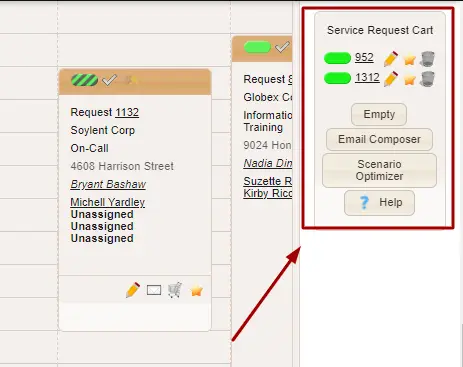
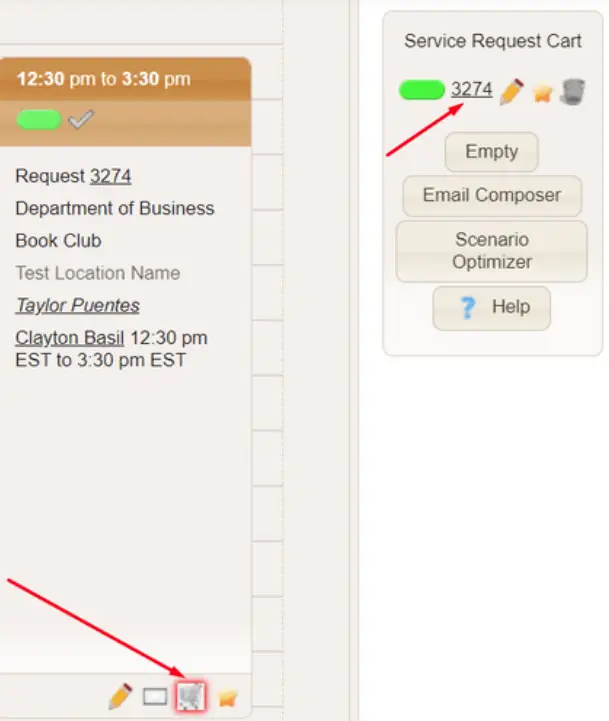
In the image below, I clicked on the shopping cart icon for job 3274. I then see it show up on the right-hand side in my service request cart.
What do I do now that it is in the cart? Let’s look at the options available for each job in the cart. #
#
#
…and the buttons underneath! #
#
Empty – When clicked, it removes all service requests from the cart. The service cart will then disappear from the right side of the screen.
Email Composer – When clicked, this will take you to your email composer. The {JOBS} tab will be replaced with the information on all of the service requests in this cart.
Scenario Optimizer – When clicked, it will take you to the scenario optimizer. This tool helps you figure out which service providers to assign to which requests. It looks at Service Provider Slots and Service Providers to make its calculations. You can also have it show a maximum number of solutions to show (It’s your choice. It could be 3 or 30!)
Help – When clicked, this will take you to the Usked manual page about the Scenario Optimizer.
What if I want to use the service request cart to blast out requests from different services? #
No problem! When you have requests from different services in your cart, just click on Email Composer and select your Blast email template. Usked will automatically check each job and only send the blast email to service providers who are “available” for that job (this includes having the matching service). For more on the availability logic Usked uses for email blasts see here.
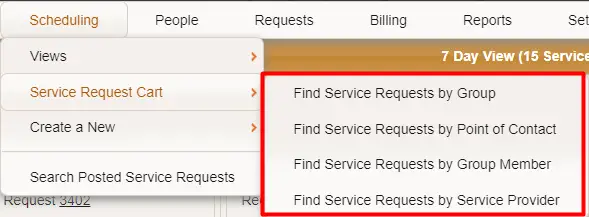
Along with the buttons from above, you also have a way to find and add service requests to your cart by Group, Point of Contact, Group Member, and Service Provider! #
These helper tools are found when you navigate to SCHEDULING > SERVICE REQUEST CART
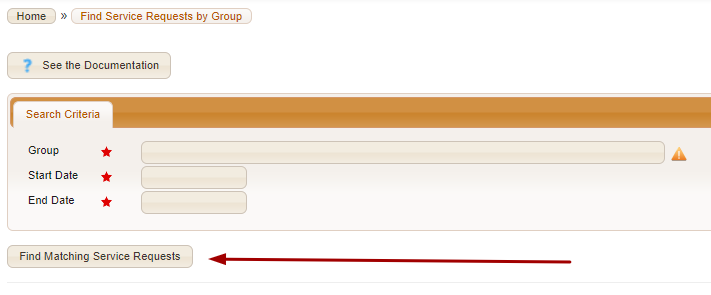
When any of these options are clicked, it takes you to a page where you can filter to get the service requests you want to add to your cart.
The Service Request Cart can also be used as a shortcut for creating blocks! #
But how?
- Add service requests to your cart that are all on the same day and have a common service provider assigned to all of them.
- Create a new block via Scheduling>Create a New> Block.
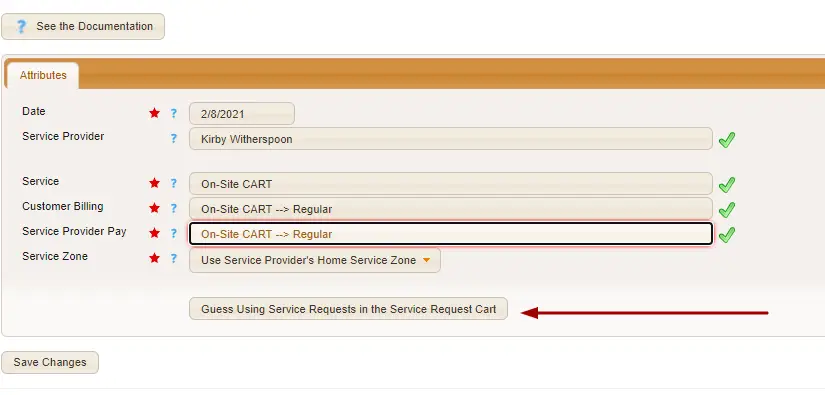
- Click on the “Guess Using the Service Request Cart” button. Then Usked will be able to automatically fill out the date and service provider fields.