
Recurring Service Requests are a quick and easy way to set up several requests at once that are all connected as a series. Curious about how to create and/or update them? You’ve come to the right place! #
Creating Recurring Requests #
1. Create and confirm the first request of the series the same way you normally do for any new request.
2. Assign any service provider(s) to the request that will be ongoing for the duration (or most of it) of the series – if any. If there is no one assigned just yet, you can always do that later too.
3. Click the Star icon for the request to go to the Actions menu.
4. Select Make Recurring Service Requests.
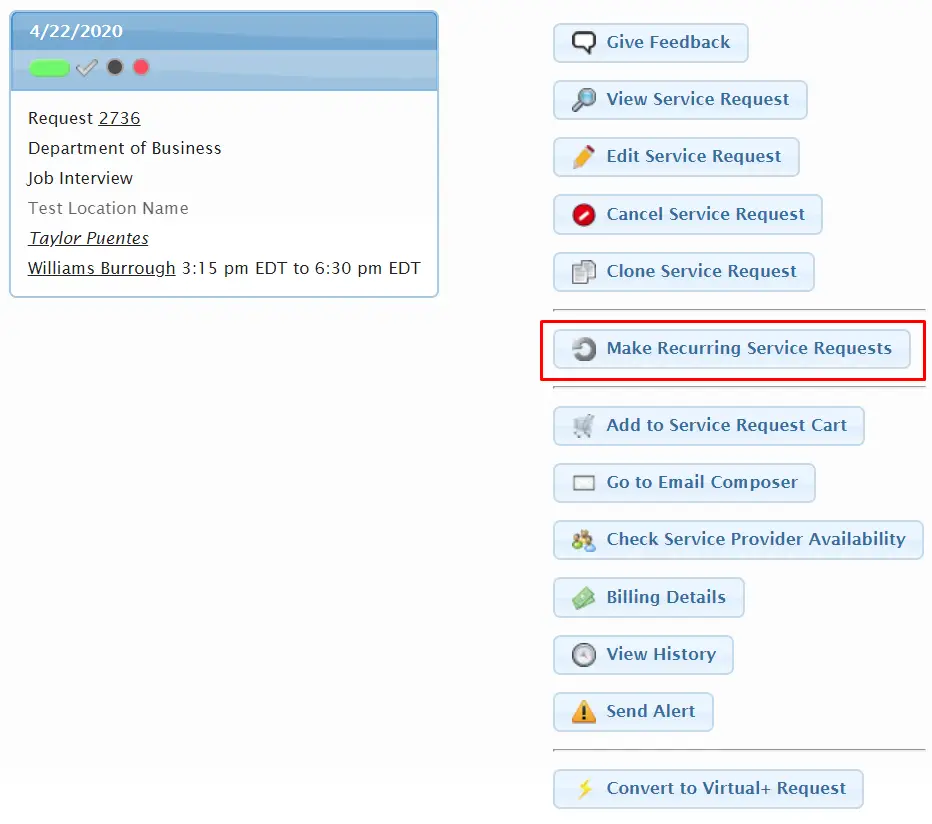
5. Next, you’ll set up the recurrence pattern for this request series:

Days: Which week days do these requests fall on?
Interval: How often does this pattern repeat (ex. every week, every 2 weeks, etc)?
Include Holidays: Will these requests be needed on holidays too if the pattern falls on a holiday?
Last Date: Enter in the last date you want a request created for this series.
6. The next fields you’ll need to direct your attention to are geared towards what information you want cloned over from the initial request of the series.
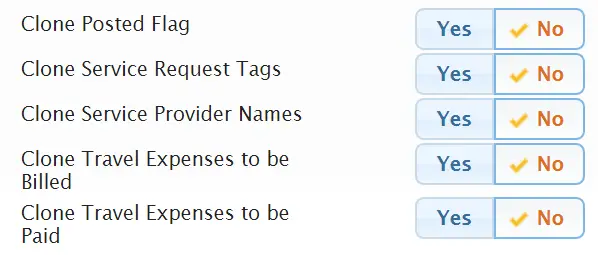
Clone Posted Flag: Was the original request posted? Do you want all the rest of the series to also be posted?
Clone Service Request Tags: Did the original request have any service request tags? Do you want those tags to apply to the rest of the series as well?
Clone Service Provider Names: Was the original request assigned to a service provider(s)? If so and you want to copy over those assignments toggle this to Yes.
Clone Travel Expenses to be Billed/Paid: Did the original request have any travel expenses to be billed or paid? Do you want these to apply to the rest of the series as well?
7. Next, select Continue.
8. You’ll then see a list of all requests that will be created for this series. You can select Don’t Create This Service Request for any of them you want to exclude from being created.
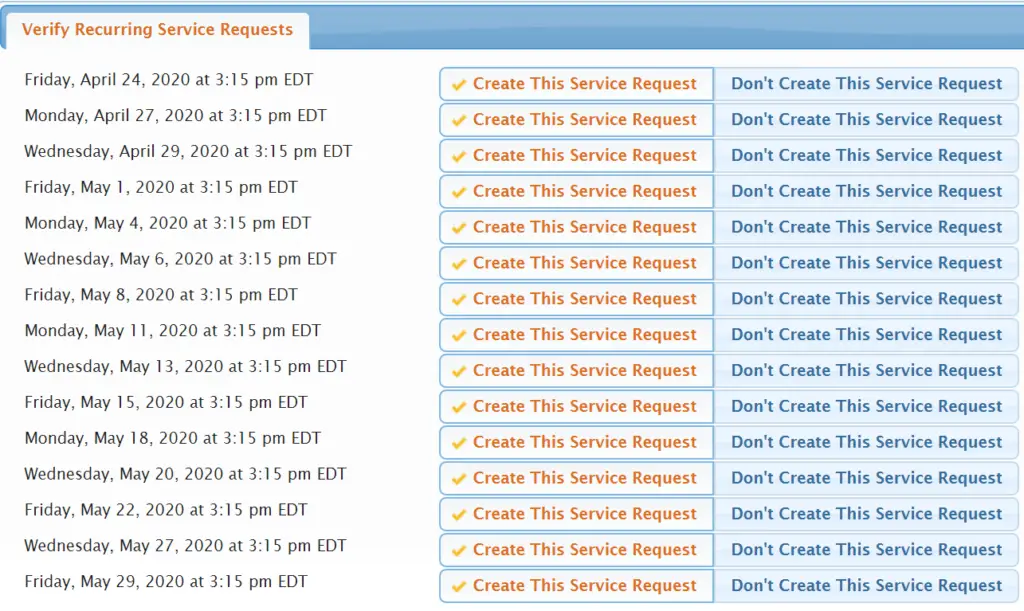
9. Once you agree with the requests that will be created, click on Submit Recurring Service Requests as Pending Confirmation.
10. The series is now saved, but just like when creating a single request you want to confirm them as well. Don’t worry, there is a handy short cut so you do not need to confirm these one by one. From the Actions menu of the initial request click on List Recurring Service Requests.
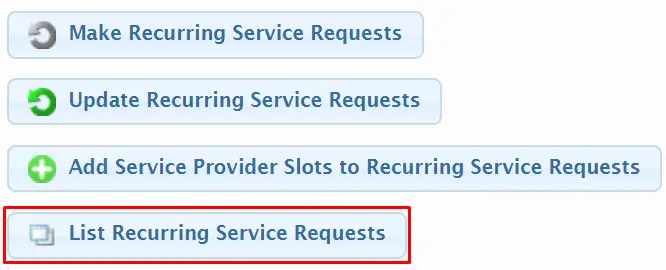
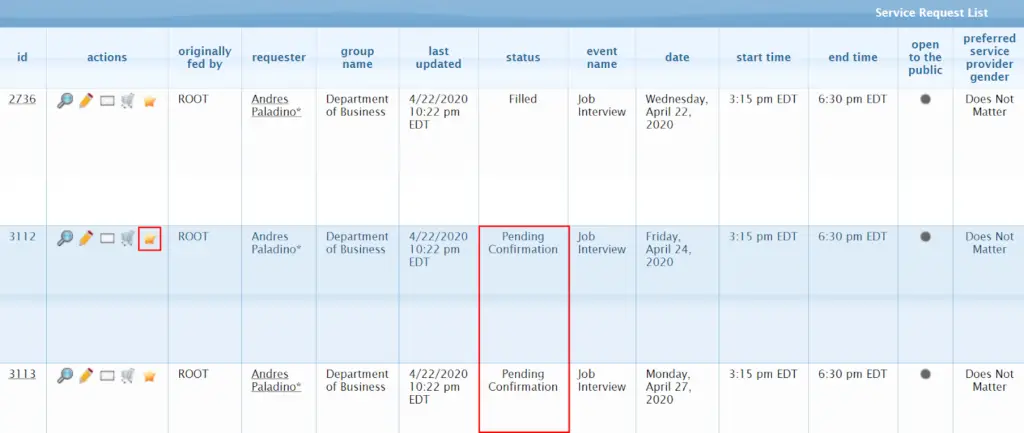
11. You’ll now see a list of all the requests in the series. Notice that the first one (the initial request of the series) shows as To Be Filled or Filled in the status column, but the rest are still Pending Confirmation status. To confirm the rest of the requests click on the star icon for the first request listed with Pending Confirmation status.
12. Click on Confirm Service Request.
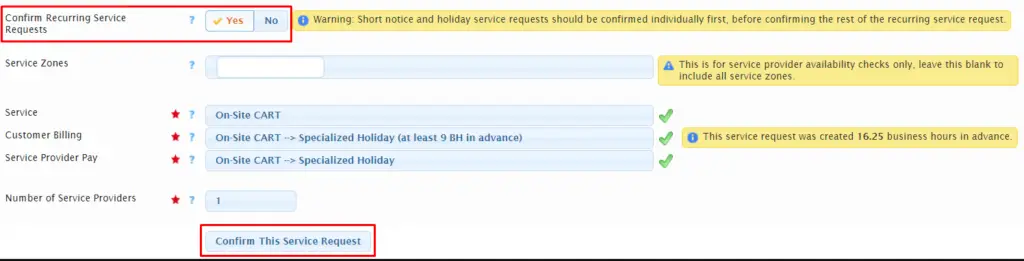
13. *THIS IS IMPORTANT* Make sure to toggle to Yes for Confirm Recurring Service Requests. This will tell the system that you want to confirm ALL of those requests in the series. Then click on Confirm This Service Request.
14. You’ll then see a list of all the requests that will be confirmed. Look this over and once approved, click on Confirm Selected Recurring Service Requests.

You’ll then be taken back to the list of all the requests in the recurring series and see that the statuses have changed. Each of these requests in the series can be treated as standalone, independent requests (assigning them, canceling them, etc), but because they are all connected in the series they can also be updated all together.
Updating recurring requests #
How do I make a change to all recurring requests in a series once they are already created? Change is inevitable, so it is likely you may need to update something in the middle of the series. Luckily, Usked makes this super easy to do. Just follow the steps below:
1. Click on the star icon next to the first request where this new change occurs, to open up the Actions menu.
2. Click on Update Recurring Service Requests.
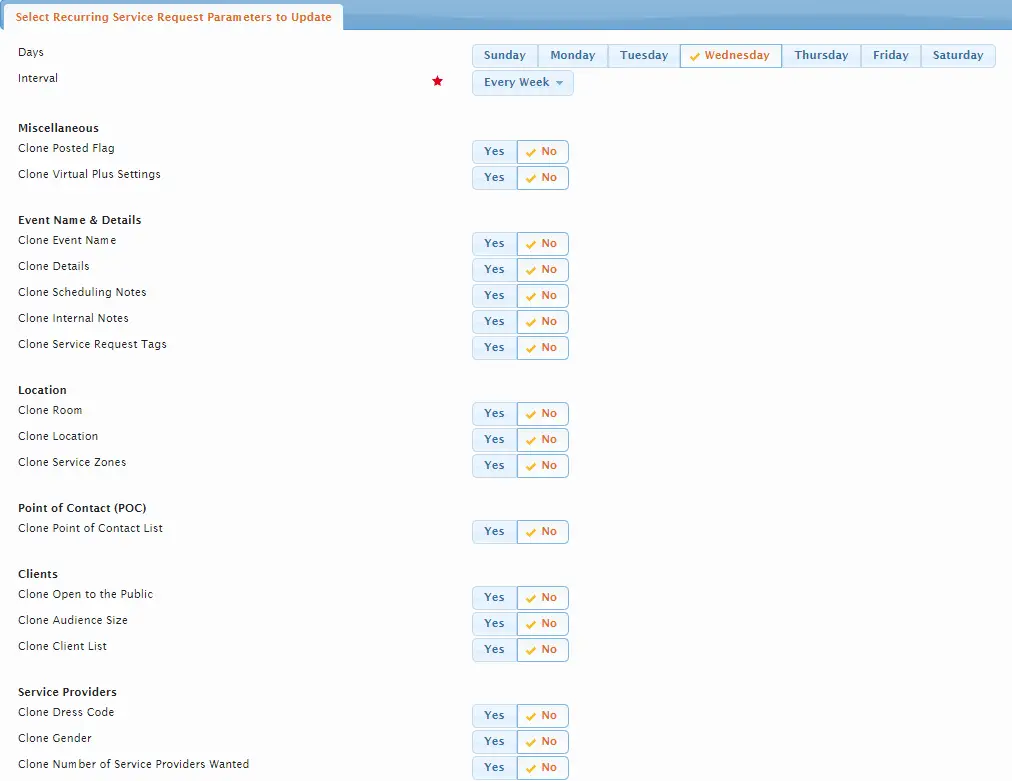
3. This will take you to the list of items that can be changed or updated on any service request so you can make a change to all the remaining requests within a series.
Let’s try an example. Halfway through this series, the service provider has an emergency and cannot continue providing services for the remainder of the requests in the series. You would go to the List Recurring Service Request screen and find the FIRST occurrence where the service provider is unable to perform the service. For this example let’s say that starting from May 7, the service provider is no longer able to finish off the series and we do not have a replacement assigned yet.
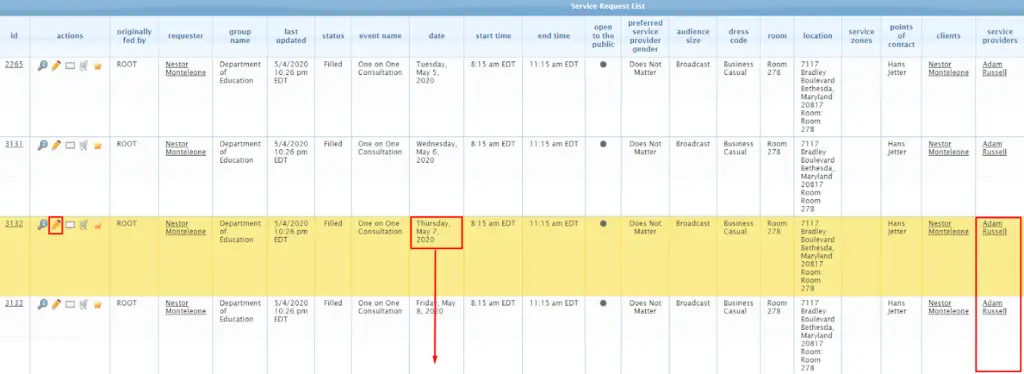
4. Click on the pencil icon for that event (in this case Request #3132 – the yellow highlighted one).
5. Then from the Service Providers tab select Unassigned from the drop down to replace the service provider’s name in the slot.


Do not click on the Remove button, as this will remove the entire service provider slot and cause mass chaos!
6. Then select Save Changes. You’ll then be taken back to the list of recurring requests in this series. From here you want to repeat that change for the remainder of future events. Lucky for you, we can use the Update Recurring Service Request feature to do this.
7. Click on the star icon next to the request you just changed (for the example Request #3132).
8. Click the days of the week this change will be applied to at the top.
9. Scroll down until you get to the item that needs to be updated. In our example, the Service Provider Slot #1 we want to change to Unassigned. In this example we would select Yes for Clone Service Provider Name (Unassigned).
10. Select Continue at the bottom of the page.
11. Once you are okay with the list of service requests that will be updated click on Update Selected Recurring Service Requests.