
Did you know it’s equally as important to confirm a service request as it is to create one? Let’s walk through the confirmation steps! #
Confirming a request is equally as important as creating one? Why? #
When you create a service request, you are setting up the details of the job. When confirming, you are setting up how the job will be paid (both to the service provider AND customer). Also, until the job is confirmed, no service provider slots will be available to be filled.
When should I confirm a request? #
The most appropriate time to confirm is immediately after the creation of a request. If however, a scheduler can’t do this right away for some reason, then it has status of “Pending Confirmation” and they would need to then confirm it as soon as possible. Confirming a job earlier rather than later gives more time for the job to be filled by a service provider.
Steps for Confirmation #
STEP 1 – Finding “Pending Confirmation” jobs #
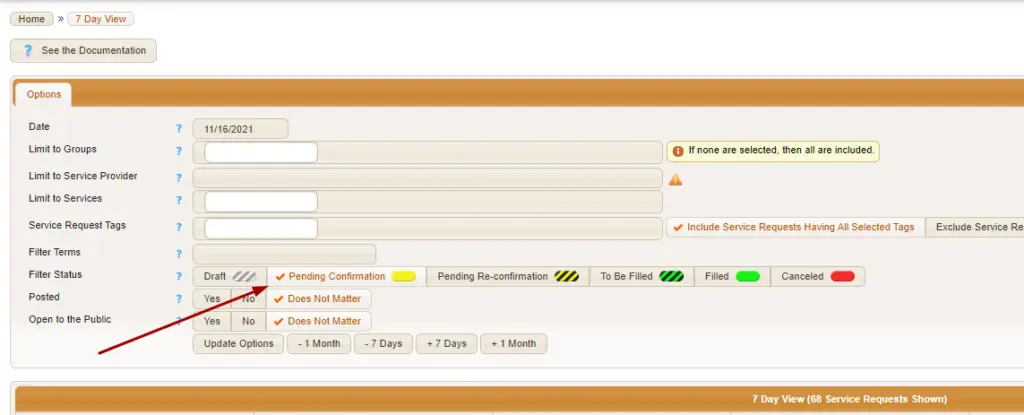
Finding “Pending Confirmation” jobs can be done by using their status tag. If you navigate to SCHEDULING > VIEWS > 7 DAY VIEW, you will find the filter status listed as an option on the top of your screen. Here you would choose only “Pending confirmation” (a checkmark will appear next to the field) :
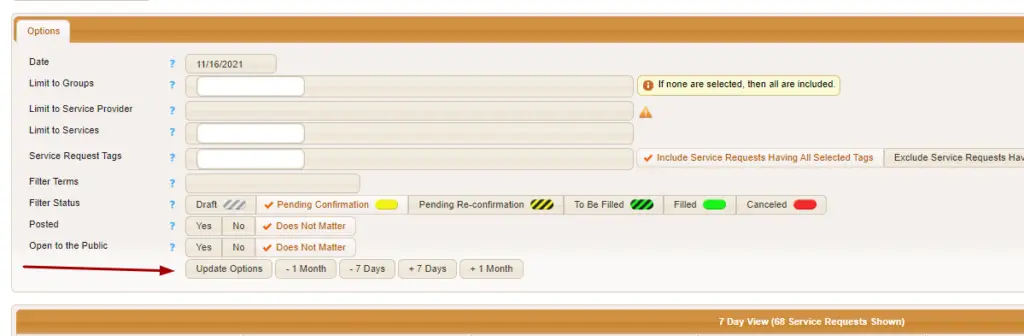
and then make sure to click on the button “update options”:
STEP 2 – Go to the Actions menu of the job #
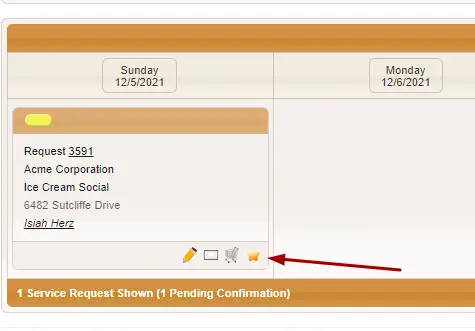
Find your job and click on the star icon to get to the actions menu.
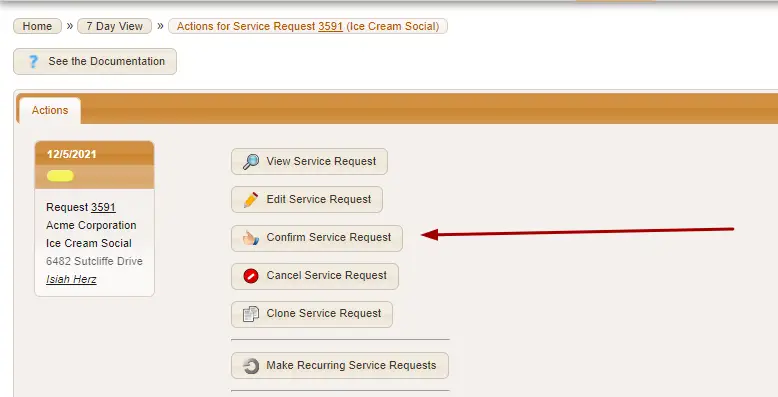
You’ll see then see the “Confirm Service Request” button (it has a thumbs up icon):
STEP 3 – Fill out confirmation fields #
Once you are on the page for confirming a service request, you should see fields that look like this:
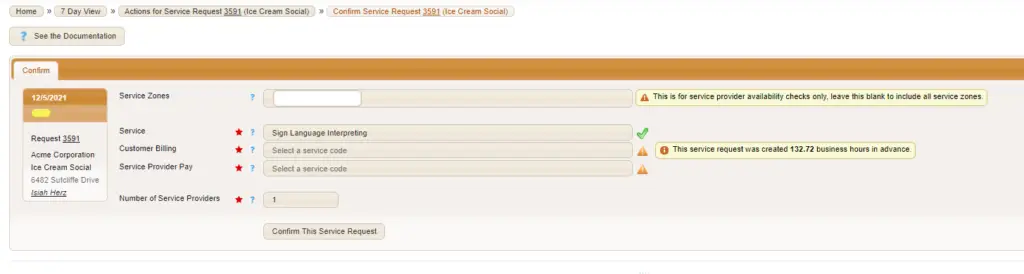
Let’s go over what each field is for.
Service Zones – This is for service provider availability checks only (i.e. it affects blasts). If your job is in Virginia and you only want service providers in the Virginia area to get a blast for this job or see it when they search for posted jobs, put in that service zone.
Service – What is the service being provided at this job?
Customer Billing – Here you need to enter the service code used to bill the customer. The service code you choose must be affiliated with the service selected.
Service Provider Pay – Like above, you need to enter the service code but this time, it is used to pay the service provider. The service code you choose must be affiliated with the service selected.
Number of Service Providers – You can decide how many service providers you’d like on this job here. This controls how many service provider slots are created once “Confirm This Service Request” is clicked on.
STEP 4 – Confirm the request #
Lastly, select “Confirm This Service Request”
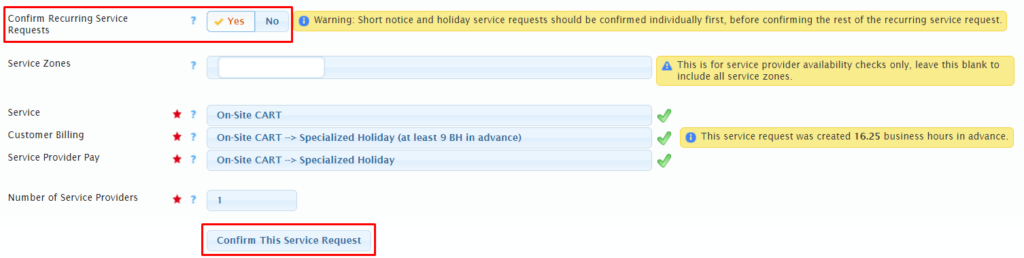
Can I confirm all recurring requests in a series at once? #
Yes! When you are creating your recurring requests, you have the option to submit all recurring requests as pending confirmation. From our article “Recurring Requests“…
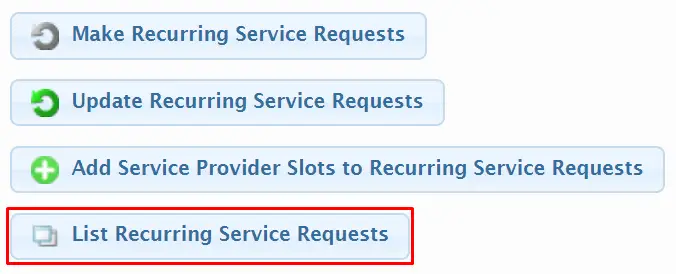
… From the Actions menu of the initial request click on List Recurring Service Requests.
You’ll now see a list of all the requests in the series. Notice that the first one (the initial request of the series) shows as To Be Filled or Filled in the status column, but the rest are still Pending Confirmation status. To confirm the rest of the requests click on the star icon for the first request listed with Pending Confirmation status.
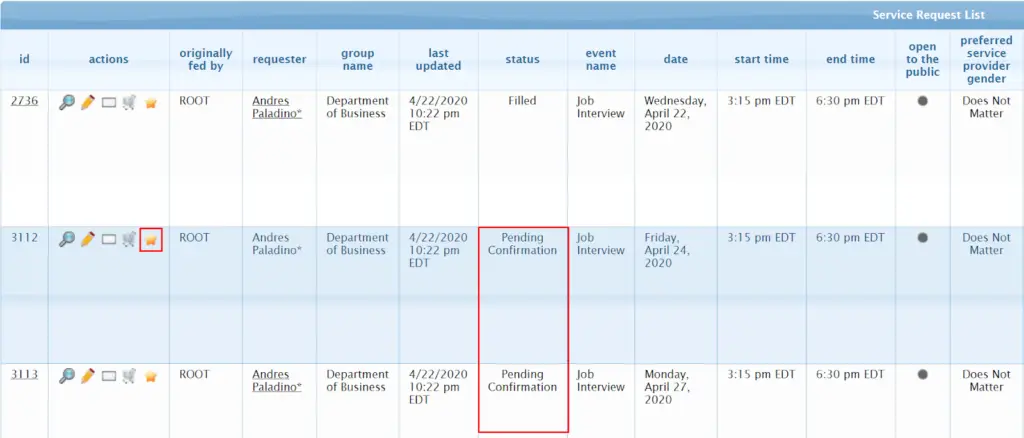
Click on Confirm Service Request.
*THIS IS IMPORTANT* Make sure to toggle to Yes for Confirm Recurring Service Requests. This will tell the system that you want to confirm ALL of those requests in the series. Then click on Confirm This
Service Request.
You’ll then see a list of all the requests that will be confirmed. Look this over and once approved, click on Confirm Selected Recurring Service Requests.
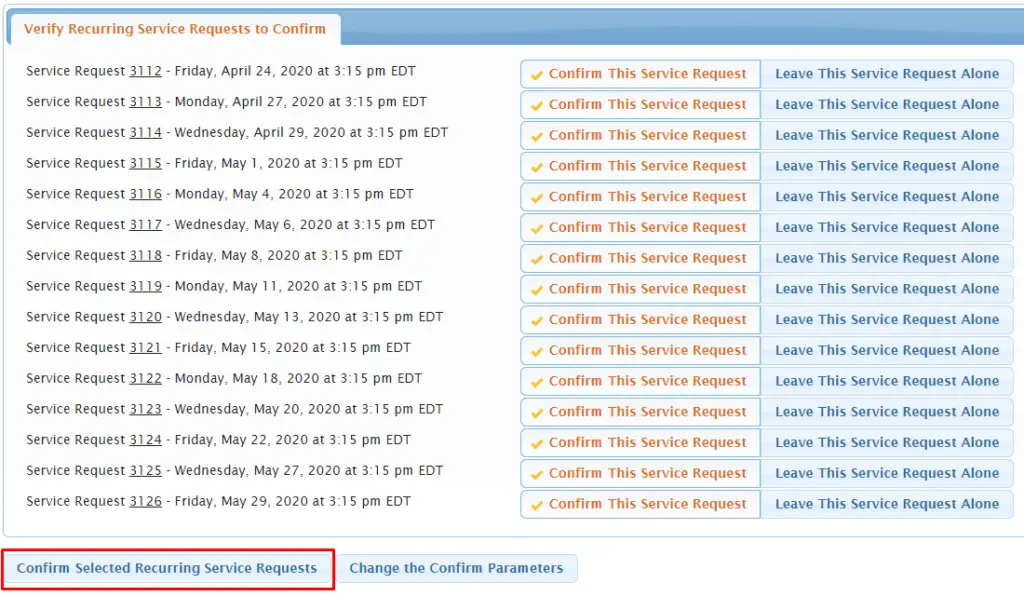
You’ll then be taken back to the list of all the requests in the recurring series and see that the statuses have changed. Each of these requests in the series can be treated as standalone, independent requests (assigning them, canceling them, etc.), but because they are all connected in the series they can also be updated all together.
What do I do after I confirm a service request? #
Typically you’ll then want to shift to filling the service provider slots. If you’d like to blast a job to a large group of service providers to see who is free or offer the assignment to a specific set of service providers you already have in mind, check out these articles on Blasts and Offers.