Have you ever wanted to let all your available or preferred service providers know about an assignment but weren’t sure how to set that up? Sounds like you’re looking to send out a job blast! #
What’s a blast? Are we sending someone to the moon?! #
If the job you want to send all your service providers is the opportunity to be an astronaut going to the moon, then yes, this kind of blast will blast your service provider off into space.
While your job may not require as much travel, the blast function gives you the option to send all of your Service Providers a potential job opportunity (not in space) via email. Let’s learn how to set this up!
How to Create and Send a Blast #
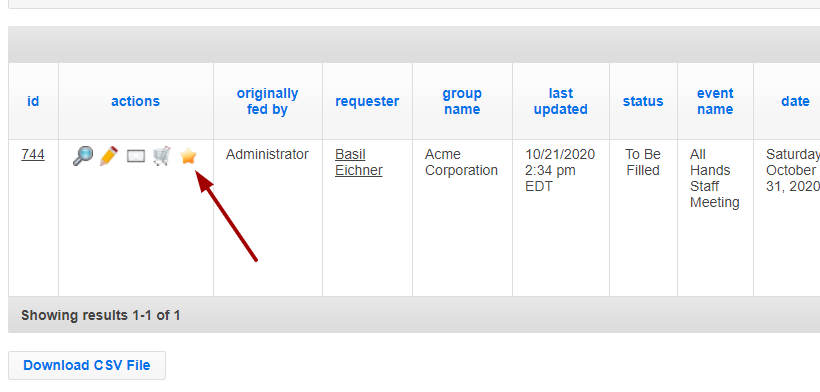
Find the job you’d like to blast by going to REQUESTS > SERVICE REQUESTS and use the filter to find your job. Once you find your job, click on the action icon, which looks like a yellow star.
Click on “Post Service Request” (if the post-service request button is not there, double check your request has been confirmed and is for a future date.)
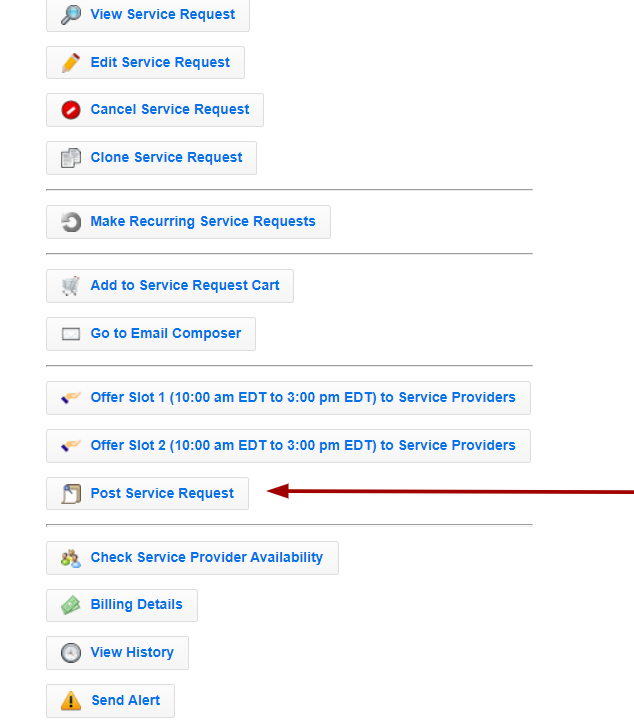
Staying on the actions screen, click on “Go to Email Composer”. This will take you to a page where you can select a template. In this case, we will select “New Assignment Blast”. Once selected, click on “Select Template.”
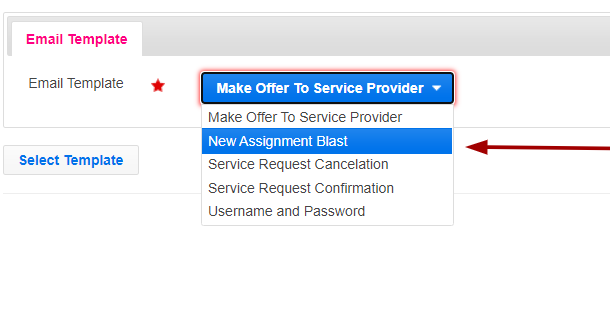
Here on the email composer page, we need to customize the template for your service providers! Let’s see what each tab does:
Email Content – On the initial tab, you’ll see the “From” and “BCC” email address set up from the template and displayed. You will also see an opportunity to add any additional subject or message to this specific distribution of the template.

Recipients – The recipient’s tab will list all of the individuals connected to this Service Request. For the blast we can look to the options available next to “Email Blast.” We need to decide if we want to send this email blast to all available service providers or available preferred service providers.
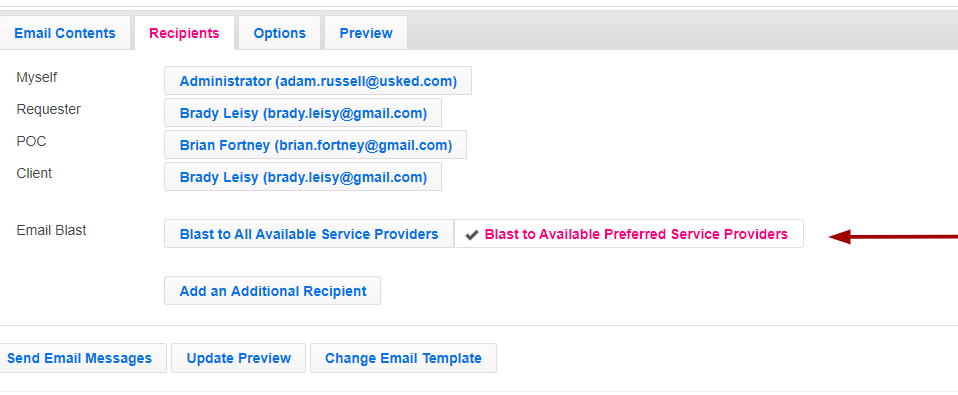
To determine which service providers are “available” Usked uses the Availability Logic, which includes an assignment conflict check, gender match, paperwork check, etc.
To determine which service providers are “preferred” Usked will pull from the preferred service providers tab found in the job, as well as from the group, and group members profiles. To add a preferred service provider to the job, go back to the service request, and click on the “preferred service providers” tab.

Options – This is anything on the public-facing job post and blast email. You can choose yes/no to what information is revealed to the service provider. This is typically set up for you already from the email template and there is no need to adjust it unless you require something different for this particular blast.
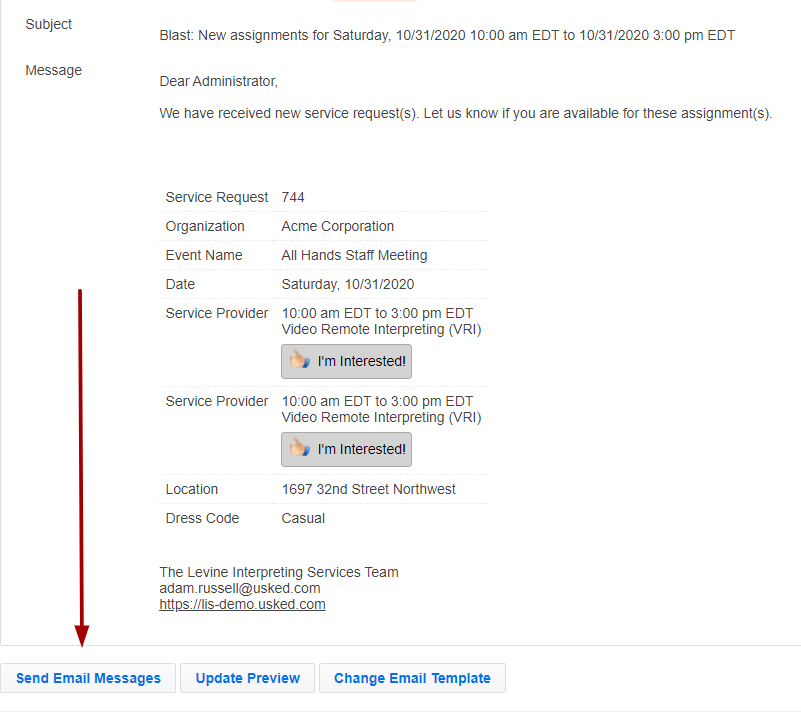
Preview – this last tab gives you a preview of what the email will look like. As long as you are happy with what the email looks like, go ahead and send out that blast!
What happens after an email blast is sent? #
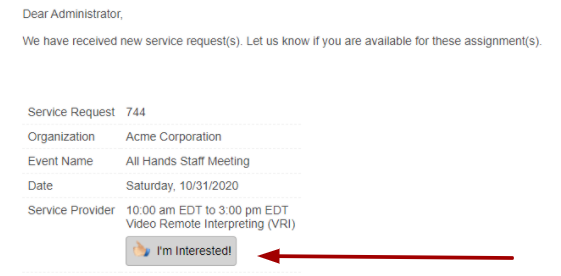
If a service provider clicks on the “I’m interested” button on their email, Usked will automatically send them an email verifying their interest has been sent/communicated with the scheduling team. It will also direct them to the job board, where the service provider will see the posted job and have the ability to view the assignment in closer detail.
Once on the job board, they can click on the “thumb up” to say they are interested in the job. If they decide later on that they are no longer available for the job, they can click the “thumb down” to remove interest.
FOR SERVICE PROVIDERS WHO GET ASSIGNED TO THE JOB – Immediately after you assign the service provider, you will want to go back to the “Email Composer” and send them the confirmation.
FOR SERVICE PROVIDERS WHO ARE NOT GETTING THE JOB – If there were several interested Service Providers, you can then click this button from the actions menu.

This will send the unassigned service providers the “You Didn’t Get the Job” email.
FAQs #
How do I know who received the blast and who didn’t? #
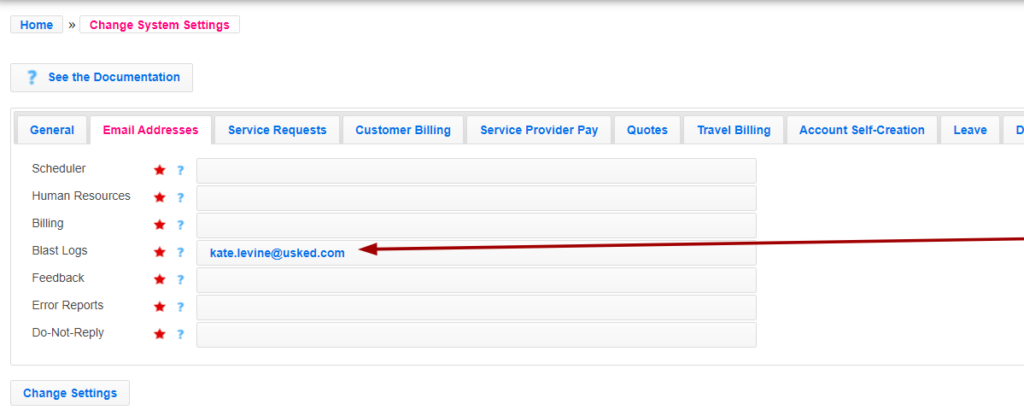
The Blast Log! This log will allow you to see who has received the blast and who has been rejected depending on the criteria of the job. This is sent to email addresses listed under Blast Logs in System Settings. Admins can add additional email addresses to receive the blast log by going to Admin>Change System Settings. From the Email Addresses tab, simply add the email addresses (separated by commas) to the “Blast Logs” field and select Change Settings.
Can I blast multiple requests at once? #
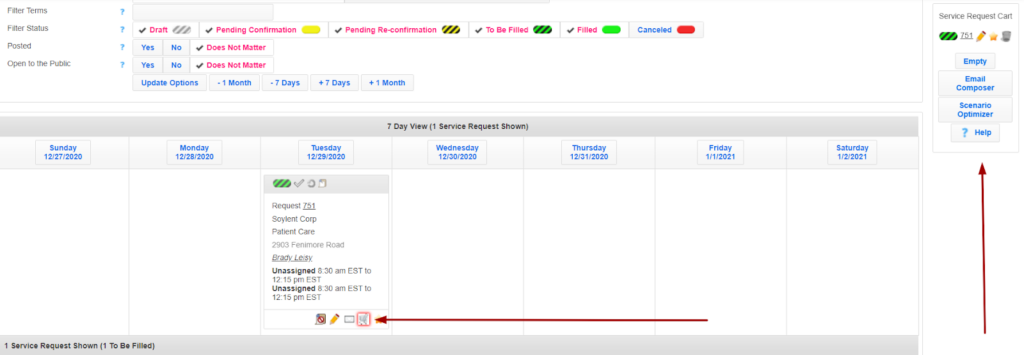
You sure can! If you would like to blast more than one service request, you can set that up using the Service Request Cart. Similar to buying something online, you’d select the shopping cart icon on your job and then a pop-up will appear on the right with all of the jobs you have selected. From there, select the Email Composer and send out the blast following the instructions above.