
Purpose #
Locations in QuickBooks Online must match the BillAddrState values in the Usked Invoice Export file before importing customer invoices. If items do not match exactly, invoice imports may fail or create errors.
Locations also support sales reporting in QuickBooks Online by tracking total revenue by state. Accounting firms may require this information for reporting and compliance purposes.

System Access #
System: QuickBooks Online
Login: Log in to QBO using your assigned credentials.
Procedure #
- Step 1 – Navigate to Custom Fields
- Step 2 – Create a New Field
- Step 3 – Navigate to Locations
- Step 4 – Create a New Location
Step 1 – Navigate to Custom Fields #
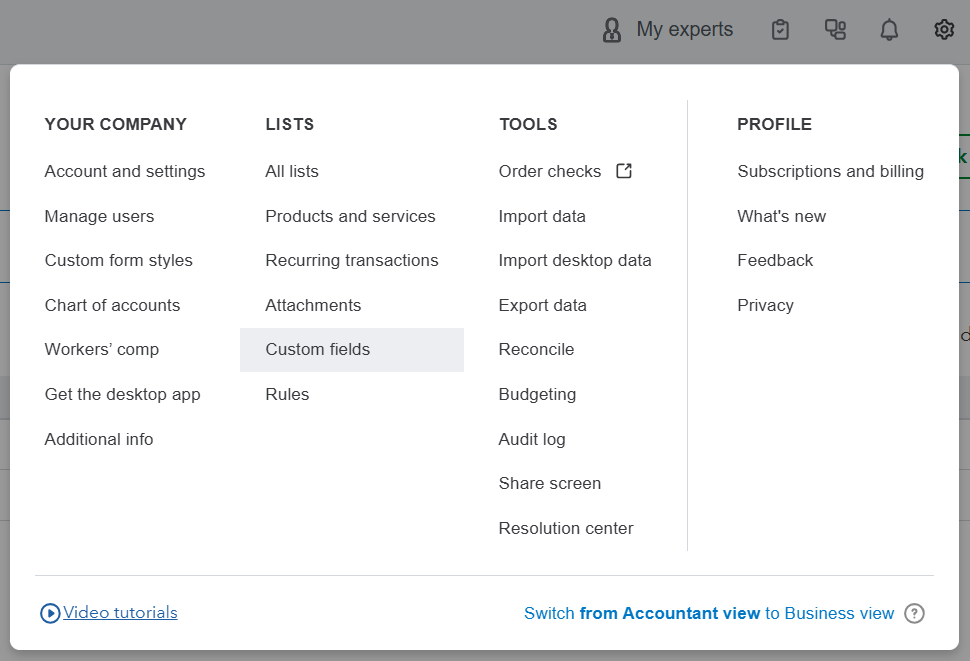
- Select ⚙️Settings
- Go to Lists → All lists
- Select Custom fields
Step 2 – Create a New field #
- Click Add field

- Enter Name
- Select Customer category
- Select Invoice form
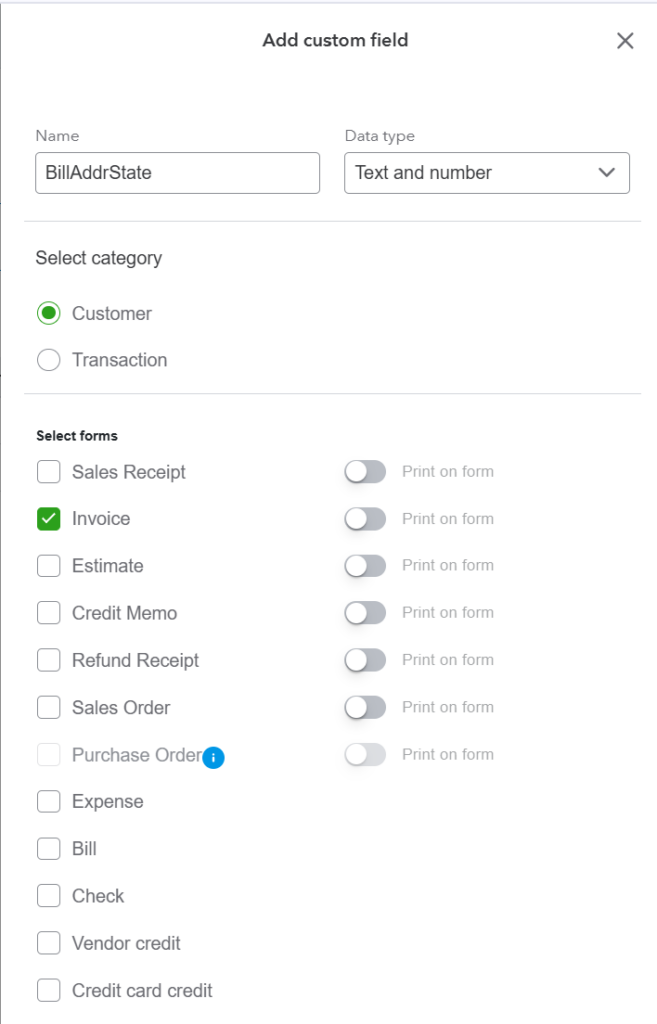
- Save
Step 3 – Navigate to Locations #
- Select ⚙️Settings
- Go to Lists → All lists
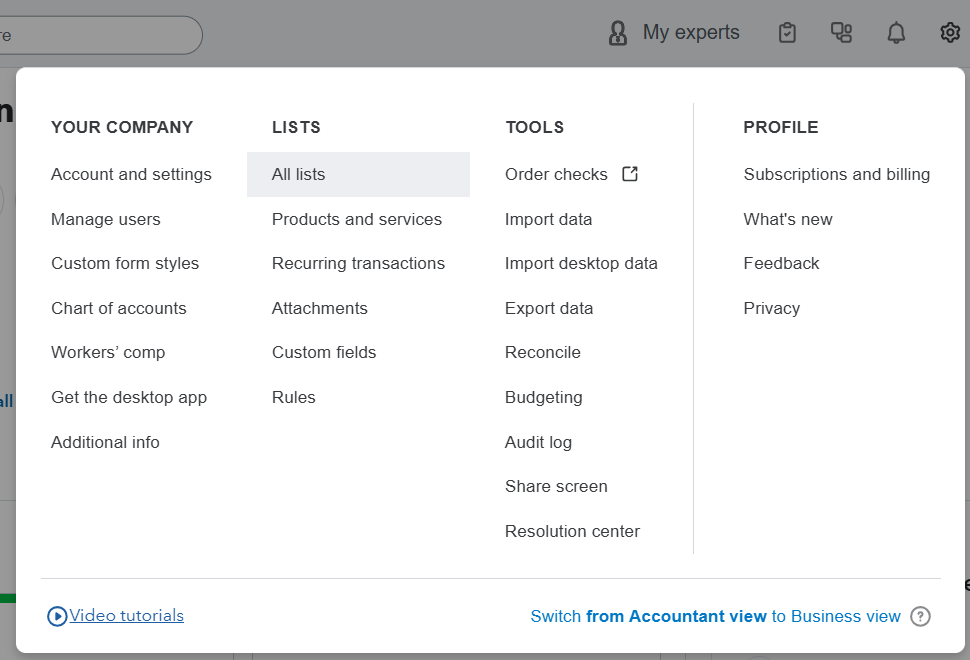
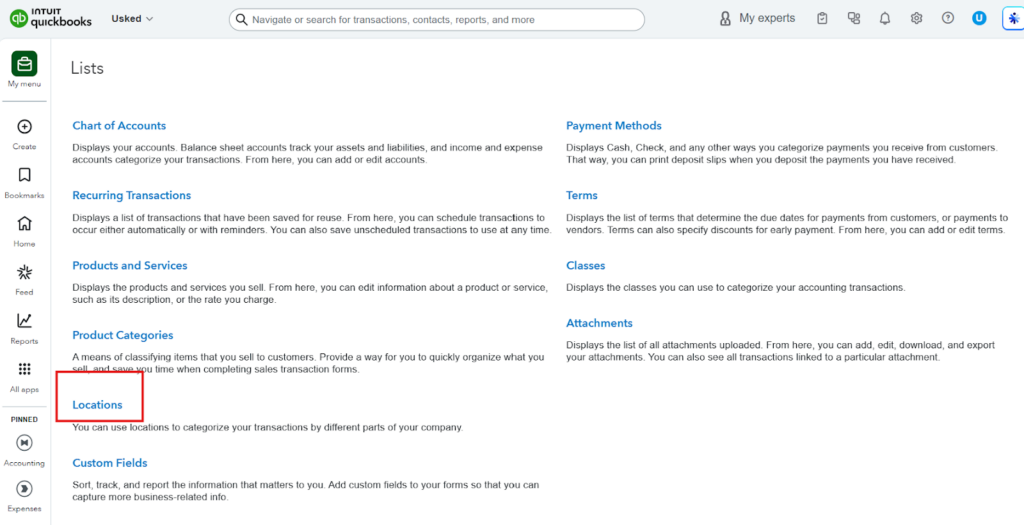
- Click Locations
Step 4 – Create a New Location #
- Click New

- Enter Name
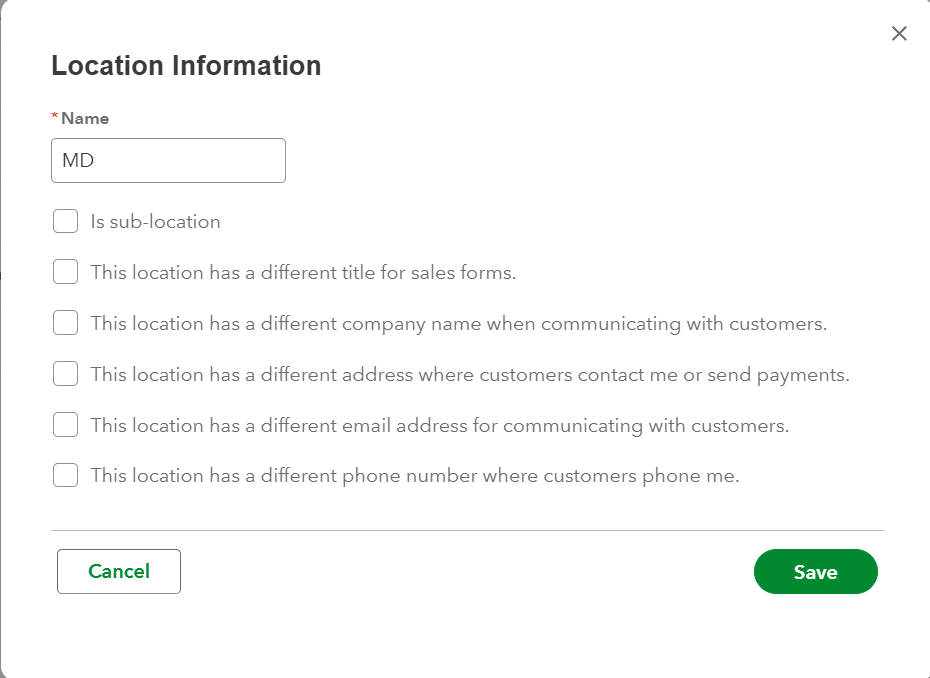
- Save