
Purpose #
Products and Services in QuickBooks Online must match the LineItem values in the Usked Invoice Export file before importing customer invoices. If items do not match exactly, invoice imports may fail or create errors.
Products and Services also enable sales reporting in QuickBooks Online by categorizing revenue, allowing you to view total amounts by service type, such as specialized, short notice, holiday, business, and evening rates.

System Access #
System: QuickBooks Online
Login: Log in to QBO using your assigned credentials
Procedure #
- Step 1 – Navigate to Products and Services (Individual)
- Step 2 – Create a New Product or Service
- Step 3 – Add Multiple Products and Services (Batch Import)
Step 1 – Navigate to Products and Services #
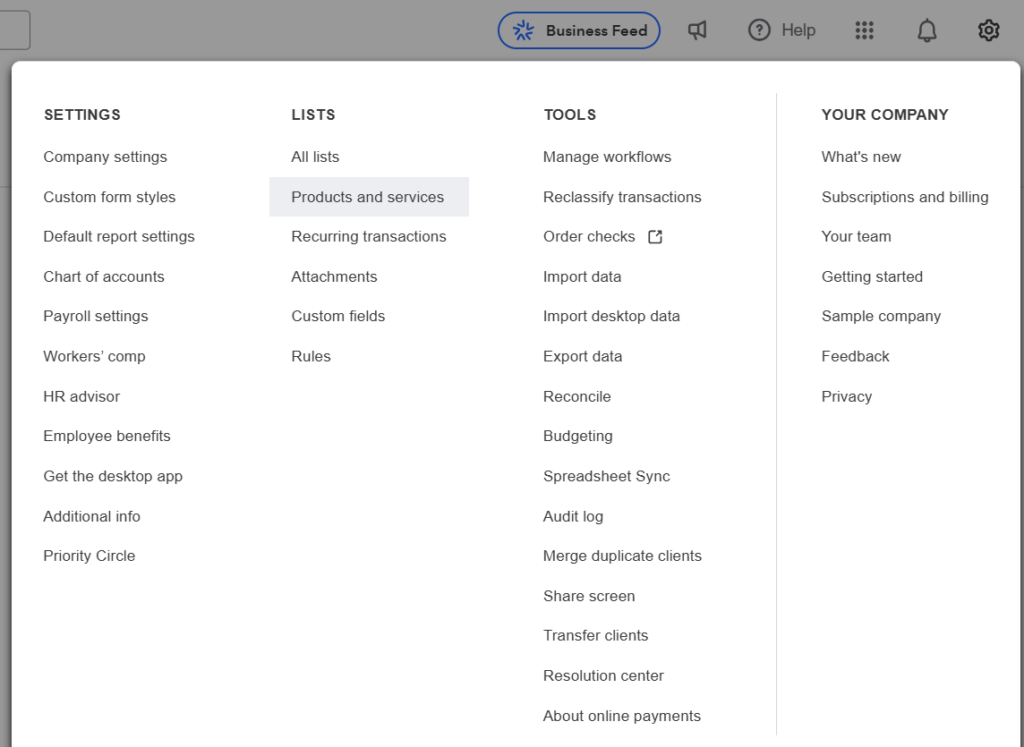
- Select ⚙️Settings
- Go to Lists → Products and Services
Step 2 – Create a New Product or Service #
- Click New product/service
- Select Service
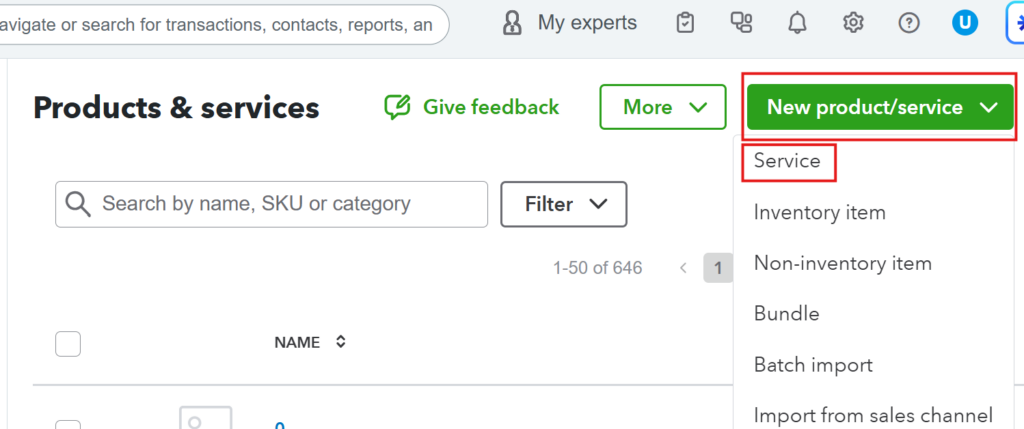
- Enter the service name (Example: Translation:Specialized Hour)
- Map the item to the correct Class and Income Account
- Save and close
Step 3 – Add Multiple Products and Services #
There are two ways to add more than items at once:
- Batch import
- Import from File
Batch Import
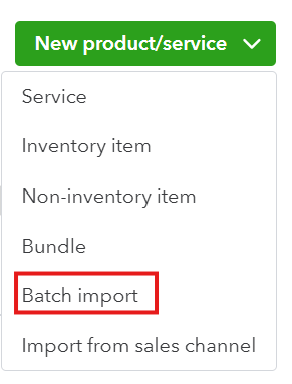
- Click New Product/service
- Select Batch import
- Complete the required fields:
- Sell
- Product/service Name
- Category
- Item type
- Taxable
- Income account
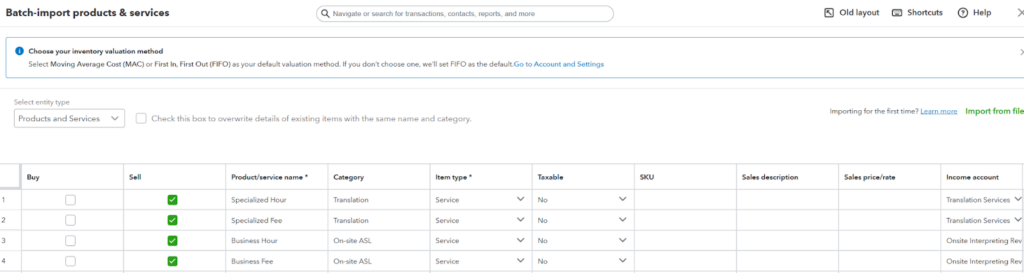
- Save
Import from file
- Click New Product/service
- Select Import from file
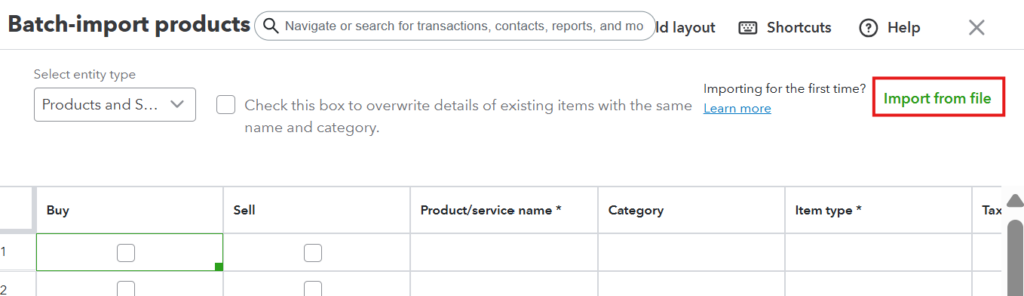
- Click Download our sample csv to see QBO recommended fields
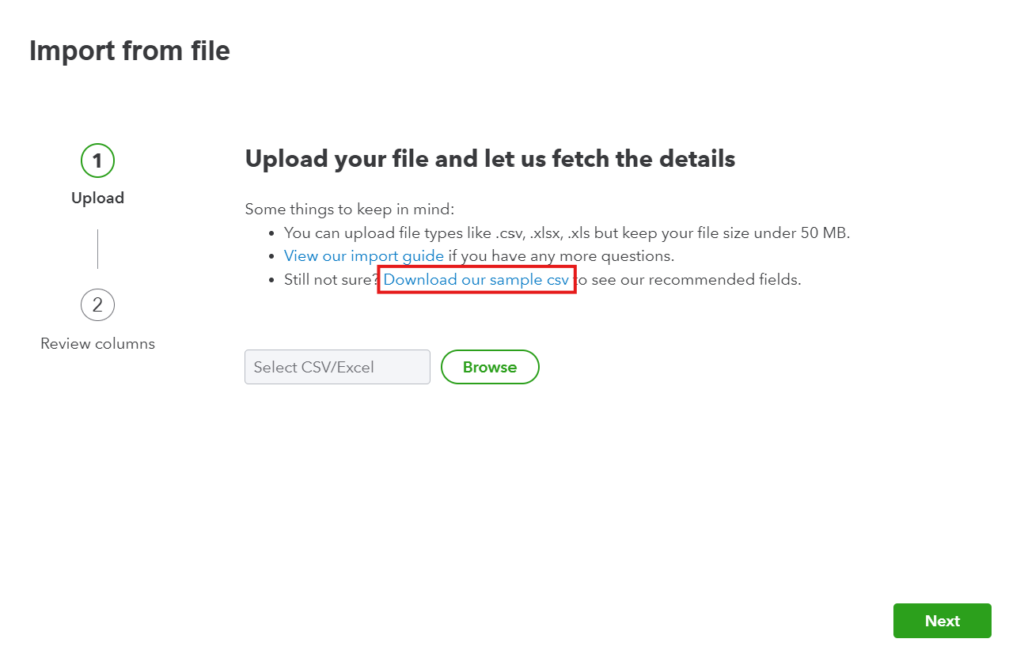
- Upload the updated .csv file
- Click Next