
Email templates allow you to send the same email message to many people at once, with each one being personalized to each recipient through a tag replacement system. #
Who can create email templates? #
Staff with the role of Manager or Human Resources have the ability to create and update email templates.
How do I create one? #

From your Usked portal go to Settings > Email Templates, then select this button:

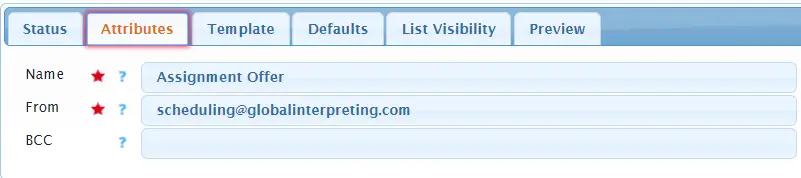
From the Attributes tab fill out the name, from, and BCC fields as desired.

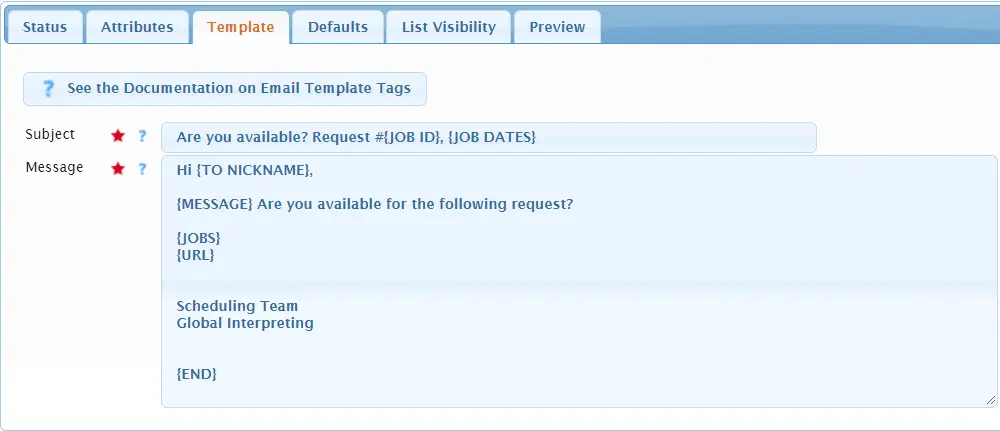
From the Template tab fill out the subject and message of the template. For a list of tags that can be used in the subject and/or message visit here.


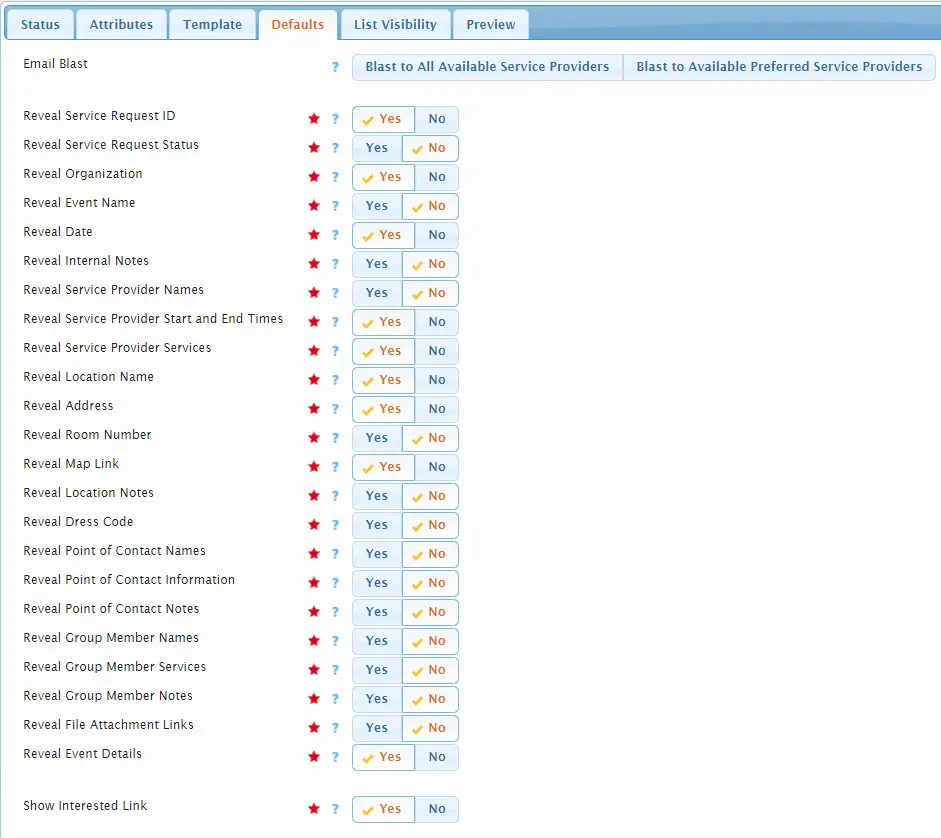
From the Defaults tab select either email blast option if desired and select Yes or No for each Reveal/show option listed.

From the List Visibility tab select either Yes or No for Show in Composer.


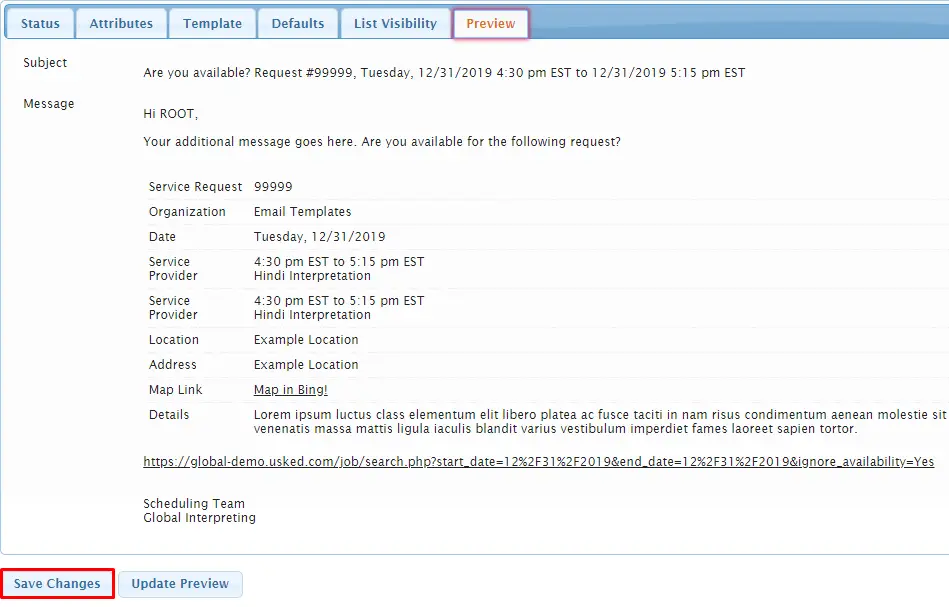
From the Preview tab look over the populated preview to make sure the template looks the way you want. If not, go back to the other tabs to modify it and then select Update Preview. Once you’re happy with how it looks, select Save Changes.