
In this article, we are going to show you all the parts that make up a dashboard and then build one together! #

What we will be discussing in this article: #
- Frequently Asked Questions about Dashboards
- Dashboard Tabs
- Types of Widgets
- Dashboard Example: Looking at number of requests per service this month vs. last month
1. What exactly is a dashboard in Usked? #
Our dashboard feature allows you to create your own customized reports and arrange them in a way that allows you to quickly check metrics.
2. Where can I find these dashboards? #
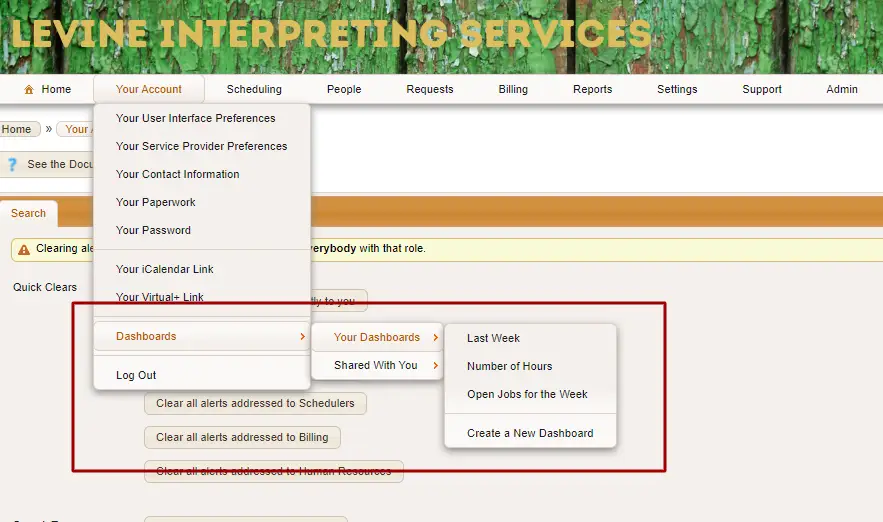
If you navigate to YOUR ACCOUNT>DASHBOARDS, you can see both the dashboards you have created and any that have been shared with you. It is here where you can also create a new dashboard as well.
3. Who has the ability to create a dashboard? #
Anyone with an Office Staff role has the ability to create, update, and share dashboards.
4. Is there a limit to the number of dashboards we can create? #
Nope! Each staff member may have as many dashboards as needed, and within the
dashboard, as many customized reports! A gift that keeps on giving!
When you create a new dashboard, you will see four different tabs that control settings. #
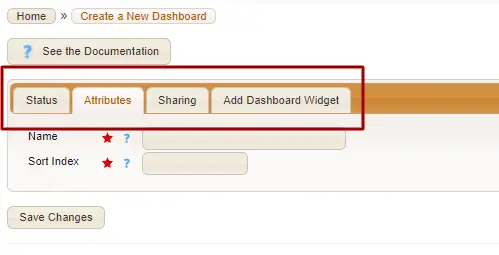
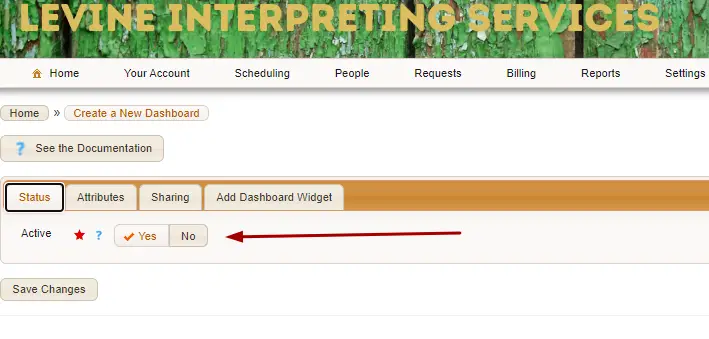
1. Status #
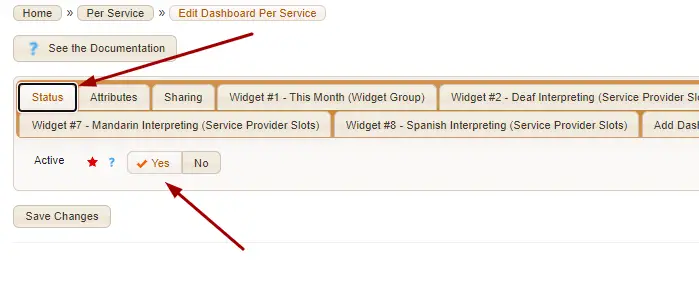
Active – This toggle determines if your dashboard is active or not. If you set this to NO, the dashboard will no longer appear as an option to view.
2. Attributes #
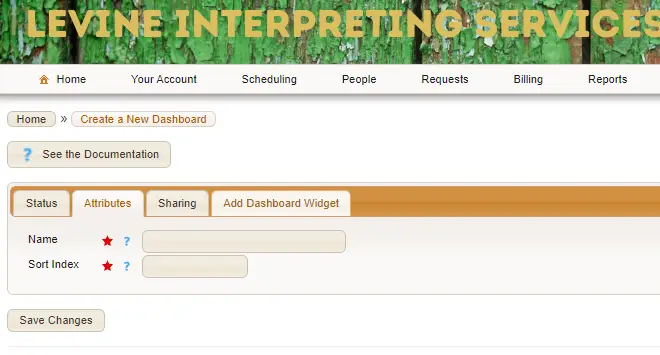
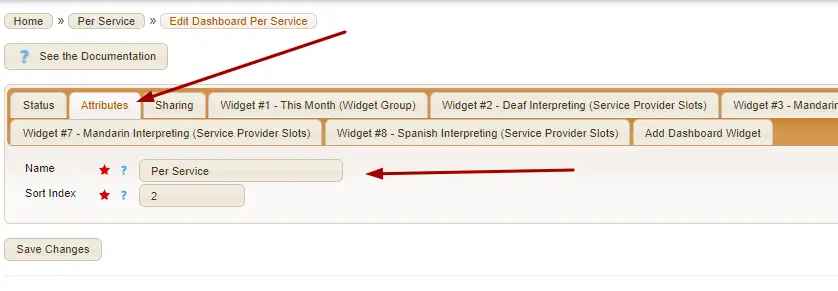
Name – The name of your dashboard
Sort Index – This controls the order in which your dashboards appear when displayed in your list of dashboards.
3. Sharing #
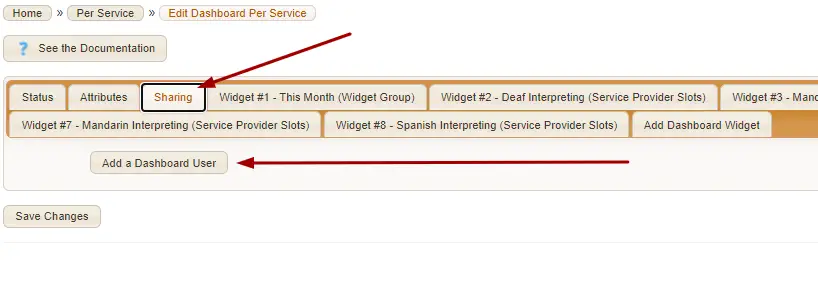
Here you have the option to share your dashboard with any fellow staff. When you click on Add Another Dashboard User, it will give you a drop-down list to add as many staff members as you’d like.
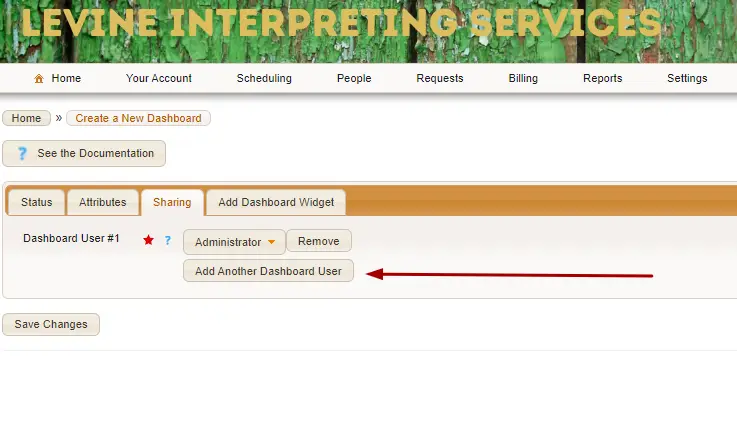

Note, only a person who creates a dashboard can make edits to it later on. If shared, the recipient will only be able to view it.
4. Add Dashboard Widget #
In dashboards, a “widget” is similar to a report. We select our fill our dashboards with widgets to display data. Let’s take a closer look at different kinds of widgets.
You have three options of widgets that create data for your dashboard. Widget Groups, which have the ability to group multiple widgets together, Service Provider Slot Widgets, which focus primarily on any data related to service requests, and Contract Day Widgets, which focus on Contract Days (includes Staff Days). #

Note, when you choose your widget type, you must click update before entering any further data.
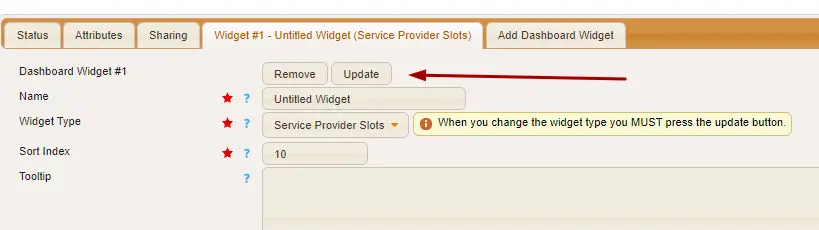
This confirms you are pulling the right data for your widget type.
1. Widget Group #
You’ll want to start by adding a Widget group. The purpose of a widget group is to group other widgets into a panel. All subsequent widgets after this one up to the next group will be grouped together. In this example, the widget groups are “This Month” and “Last Month.”

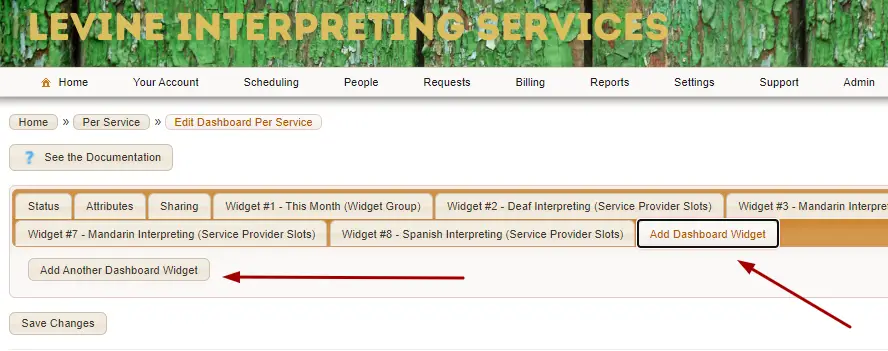
To create a widget group, we want to start on the page of dashboard-related tabs. From the Add Dashboard Widget tab, click on Add Another Dashboard Widget.
Once you change your Widget Type to Widget Group and select Update, you will have no further fields to fill out.
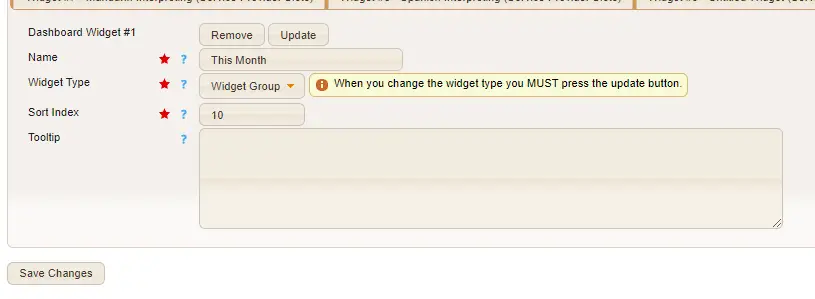
The reason there is no further data to list is that your widget group is essentially the container that holds a group of service provider slot and contract day widgets. When you build your dashboard, think of widget groups as new chapters of a book. They tell you what you are about to look at, but not necessarily giving away any further details.
2. SERVICE PROVIDER SLOTS #
Like you would for creating a widget group, start by clicking the “Add Dashboard Widget” tab, but choose the type “Service Provider Slots” and click update. Now you should see groups of fields to edit below. This is where you will select your data for this widget.

Let’s go through each of these fields, starting with the ones under the Service Provider Slot Filters section. #
Starting Date and Time – This is the start date/time of the date range you’d like to pull data for.
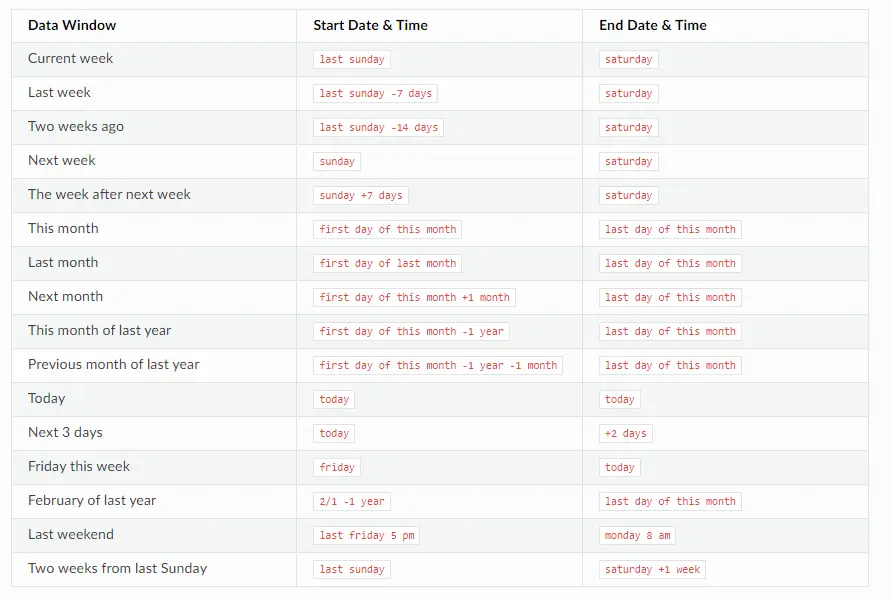
Ending Date and Time – This is the ending date/time of the date range you’d like to pull data for. As you can see from the image above, the ending date/time is relative to the starting date/time. For example, if you are trying to pull in data from “last month” you’d want to set your starting date & time to “first day of last month”
The following are some ready-made examples to cover various situations — understanding the examples should help you be able to create your own relative date & time data windows, for whatever purpose you may need.
Limit to Service Provider – An optional field if you only want to report on a specific service provider.
Assigned – if you set the toggle to YES, then this widget will only include service provider slots that have been assigned to a service provider. If you select Does Not Matter, then the filter is ignored.
Customer is Billable – If this toggle is set you YES, then this widget will only show service provider slots that have the customer billing field set to anything other than Not Billable. If Does Not Matter is selected, the filter is ignored.
Service Provider is Payable – If this toggle is set you YES, then this widget will only show service provider slots that have the service provider pay set to anything other than Not Billable. If Does Not Matter is selected, the filter is ignored.
Customer Billing Service Code – This allows you to only show service provider slots that have customer billing set to a specific service code. If this is set to any, then the filter is ignored.
Service Provider Pay Code – This allows you to only show service provider slots that have the service provider pay set to a specific service code. If this is set to any, then the filter is ignored.
FTF (Failed to Fill) – If this toggle is set to YES, then it will only include service provider slots that have been marked failed to fill. Like above, if Does Not Matter is selected, the filter is ignored.
Minimum Assignment Count – Usked has the ability to keep track of how many times the service provider assigned to a slot that has been changed. Using this filter, you have the option to only include slots where the name of the service provider assigned to it has been changed at least this many times. If set to 0, the filter is ignored.
Selected Services – This is where you choose which services you’d like to see on this report. You must have at least one selected.
NOTE: If you add a new service after your widget is created and you want it to pull data from this service as well, you’d need to go back to your widget and add this new service as well.
In the Service Request Filters section, we will be looking at the status of the job as well as groups and tags. #
#
Limit to Groups – If you want to limit your data by a specific group, here is where you’d enter that information. If you want to see all groups, ignore this field.
Service Request Tags – If you want to limit your data by specific service requests tags enter those tags here. It will return slots connected to requests that have all service request tags you have included. If none are selected, then this filter is ignored.
Event Name Search Terms – If you want to limit your data by a specific event name enter that event name here. It will return slots connected to requests that have event names that at least partially match the terms you add here.
Negative Event Name Search Terms – This does the opposite of the field above. If you type in any specific search term here, slots connected to requests that have an event name that at least partially match the terms you added will be excluded.
Filter Status – If you want to pull data from jobs that have a specific status(es) you can select those here. If any of these filters are selected, only the slots connected to requests with these statuses will appear.
Posted – If you toggle this to YES, only slots on posted requests will appear. If set to Does Not Matter, the filter will be ignored.
Open to the Public – If this is set to YES, then it will only include slots connected to requests where the “open to the public” field is set to yes. If set to Does Not Matter, the filter will be ignored.
Now let’s look at the location and history filters, as well as calculations! #
Location Filters – You can choose to filter data by requests that fall inside of or outside of specific service zones, or you could choose does not matter and this filter is ignored.
History Filters – These are used when you’d like to monitor changes to the service provider assigned made within a specific time prior to the start date/time.
Column Name – Here you select “Service Provider Slot->Provider ID.”
Within Time – Here you select the number of calendar hours in advance of the start date/time you’d like to monitor for changes. If you’d like to monitor for changes to the service provider assigned made within 8 hours before the start date/time, you would put “8.”
Calculation – Time for some math! Here we have a few options.
Function – This controls how the widget displays on the main dashboard screen.
Service Request Count – This displays a single number which is the total number of service requests with service provider slots that match the selected filters.
Service Provider Slot Count – This also displays a single number, which is the total number of service provider slots that match the selected filters.
Total Man Hours – Another single number display, which is the total number of man-hours (start of service to the end of service without any billing considerations) across all service provider slots that match the selected filters.
Total Man Hours within Bounds -Similar to above, but only includes man-hours that fall between the times of P1 and P2 (see below parameter descriptions). If P1 is set to 9 AM and P2 is set to 5 PM, then the only service that occurred between 9 am-5 pm will be included.
Lead Time – This displays as a double layered split donut chart 🍩(YUM!). The outside chart represents unassigned slots and the inside chart represents assigned slots. Then, using the P1 parameter (more on that below), the slots are split into over the threshold (orange) and under the threshold (blue) groups. For example, if you’d like to see the percentage of slots you are able/not able to assign a service provider to when a request is made 12 business hours or more in advance of the service start time you’d set P1 to “12.”
P1 – Parameter used for the Total Man Hours within Bounds function and Lead Time functions. When used for Total Man Hours Within Bounds function this parameter represents the Start time. When used for the Lead Time function this parameter represents the Threshold in business hours.
P2 – Parameter used for the Total Man Hours within Bounds function. When used for this function it represents the End time.
To finish it off let’s select which columns show up in the breakdown! #
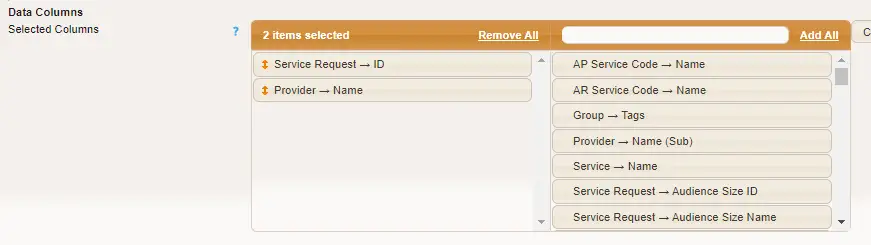
Data columns – these show up when you select View Details at this level within your widget. This is where you choose what data you’d like displayed in that breakdown. You can then easily Download it as a CSV file.
3. Contract Days #
Like you would for creating a widget group and service provider slots, we always start by clicking the “Add Dashboard Widget” tab, but in this case, we will choose the type “Contract Days“. This will show us only assignments that at least partially overlap with contract days (includes staff days). Once you select Update, you’ll see the applicable filters below.
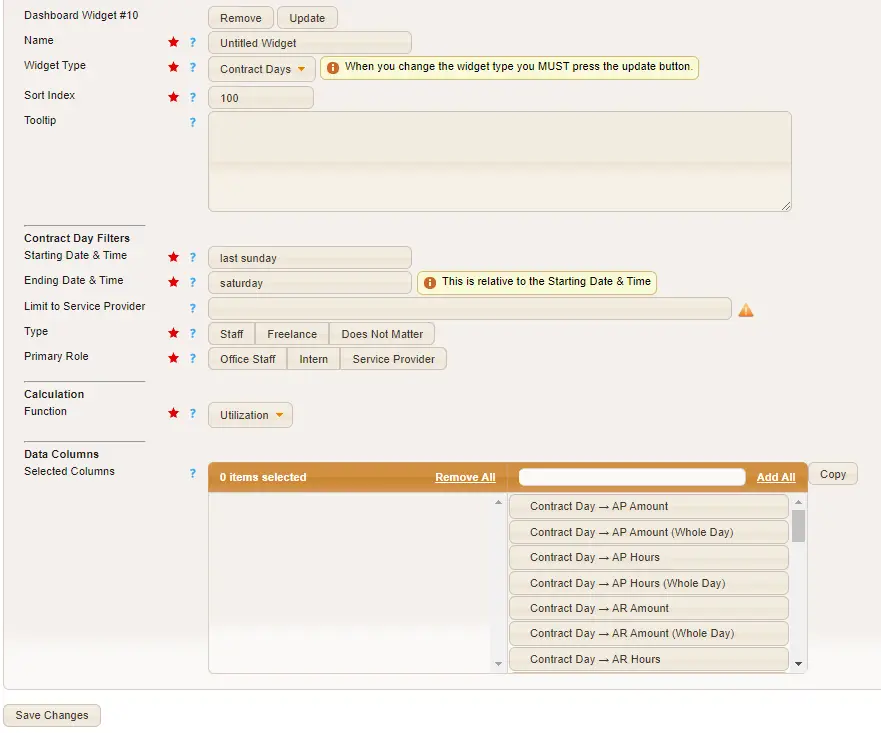
It starts with the same fields as the service provider slot widget type. #
Starting Date and Time – This is the start date/time of the date range you’d like to pull data for.
Ending Date and Time – This is the ending date/time of the date range you’d like to pull data for. As you can see from the image above, the ending date/time is relative to the starting date/time. For example, if you are trying to pull in data from “last month” you’d want to set your starting date & time to “first day of last month”
NOTE: See above for some ready-made examples of Start-End Date/time ranges!
Limit to Service Provider – An optional field if you only want to report on a specific service provider.
Starting at “type” do we get different data. #
Type – If this is set to Staff, then only Staff Days are included. If set to Freelance, then Contract Days are included. If you leave the field to “Does not Matter“, then the filter is ignored.
Primary Role – This filter is in effect only for Staff Days. If it is set to Office Staff, then only staff with the primary role set to office staff are included. Same with Intern, or Service Provider.
Function – This controls how the widget displays on the main dashboard screen.
Utilization – This will display the utilization number as a percentage. The utilization number is defined as the total customer billing time divided by the total service provider pay time and is shown as a percentage. If the total service provider pay time is 0, then N/A is displayed instead.
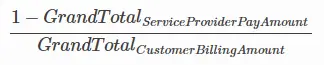
Gross Profit Margin – This will display the gross profit margin as a percentage. If the total customer billing amount is 0, then N/A is displayed instead. The formula used to get the percentage is shown below:

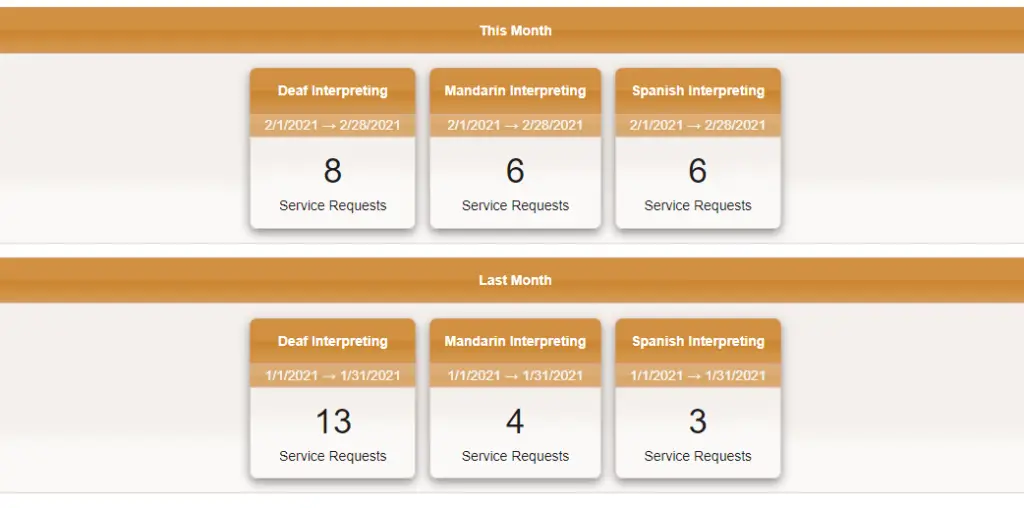
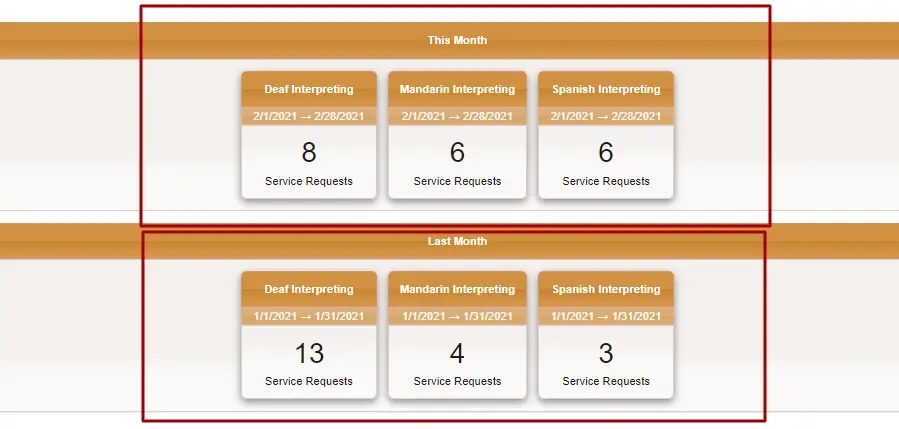
So now that we have just read through all the parts that make up a dashboard, let’s go ahead and try to build one! For this example, we are going to build a “Per Service Dashboard”. Once finished, it will display the number of service requests across three different services for the ranges of last month and this month. #
Once we finish, it will look like this: #
STEP 1: CREATE THE DASHBOARD #
Navigate to YOUR ACCOUNT > DASHBOARDS > YOUR DASHBOARDS > CREATE NEW
In the STATUS tab, make sure the dashboard is active.
In the ATTRIBUTES tab, name your dashboard and choose the sort index. Because we are having this look at service, choose something like “Per Service”
If you’d like to share this dashboard with someone, click on add a dashboard user in the SHARING tab.
Now we are going to start building our dashboard with data. If we want to group data by month, we will first need to make a widget group. #
Click on “Add Dashboard Widget“. Because we are making a widget group, let’s choose that type and click UPDATE so we know we are collecting the right data.
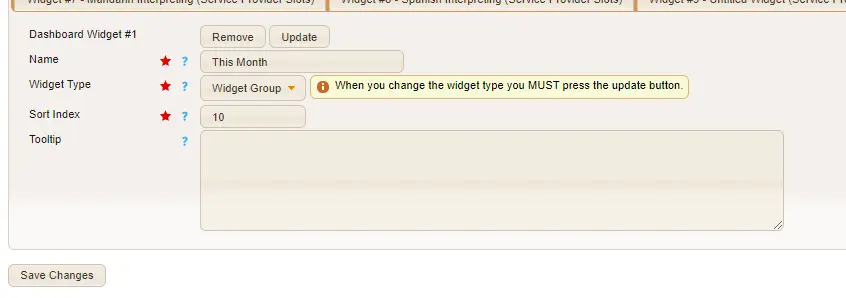
Let’s name it “This Month“. The sort index can be left as 10, in case we need to add anything before then later down the line. It should look like this when you are done.
Now we will create our widget for our first service. Click on “Add Dashboard Widget” again, as this is going to be the widget we are adding to the “This Month” group. Name the group the first service you’d like to look at. In my example, we will choose Deaf Interpreting. For widget type, we will select Service Provider Slots, because we are wanting to see data pulled from service provider slots. Once you select that, click on Update.
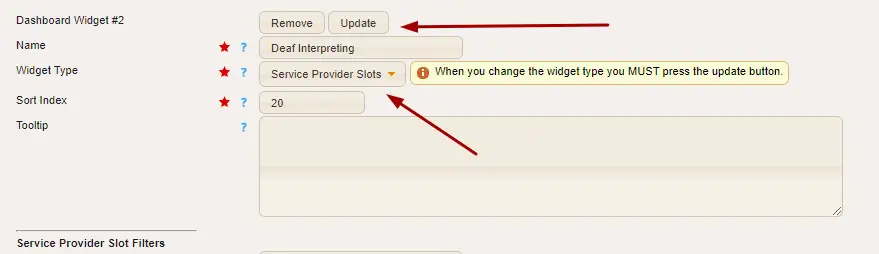
You should now see a long list of fields to enter data. If I want to see all Deaf Interpreting for this month, regardless of these additional filters, I’d set the Starting date and time to “first day of this month”, and Ending date and time “last day of this month”. I would also select “Deaf Interpreting” under the Selected Services filter. The rest of this section would look like this:
In this next section for Service Request Filters, I only want to see data from requests that have Filled status. That means Filled should be the only filter status with a check mark. (This can be adjusted by clicking on the fields directly).
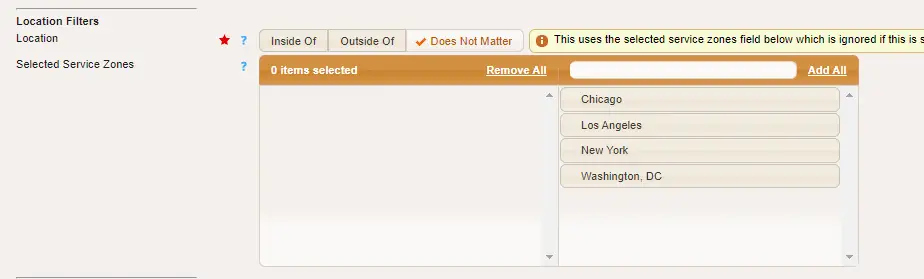
For Location filters, I want to see data from all Deaf interpreting jobs regardless of a service zone, so I will leave this filter set to “Does Not Matter” and have no selected service zones.
For My History and Calculation fields, I am going to leave these blank or as the default, as they are not necessary in this example. Our calculation function defaults to “Service Request Count,” which is exactly what we need this time around.
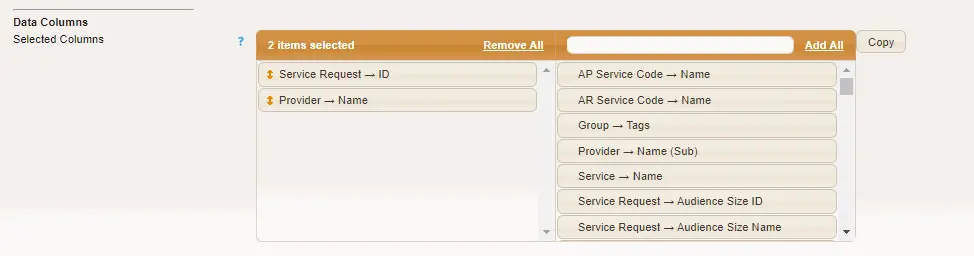
In my Data Columns section, I will choose what data I want to see in my widget breakdown. I can choose all of the data or select specific options. In this case, I only want to see Service Request ID and the Provider Name.
Click Save Changes.
Now we will recreate steps 6-12, copying the same exact information, but with a different service. You will do this as many times as you want to compare data for services. In my case, I chose Mandarin Interpreting and Spanish Interpreting to compare as well, so I needed to recreate these steps twice.
Once we have collected all of our data for looking at services this month, we will create a new widget group. This time, we want to see filled requests for these services from “Last Month”. #
Click on “Add Dashboard Widget” and create your Widget Group called “Last Month”
Now we will create our service provider slot widget for our first service again. Click on “Add Dashboard Widget“, and use the same name as your first service, Deaf Interpreting. We will be matching the data entirely (as well as your other services), except for your starting date and time and ending date and time.
For your Starting Date & Time we will use “first day of last month” and your Ending Date & Time, since it is relative to the Starting Date & Time, will be “last day of this month.”
Repeat steps 6-12 with the new date range information to be applicable for last month.
Once completed, your dashboard will be finished! As you can see below, your services will be listed in each widget group with the proper dates.
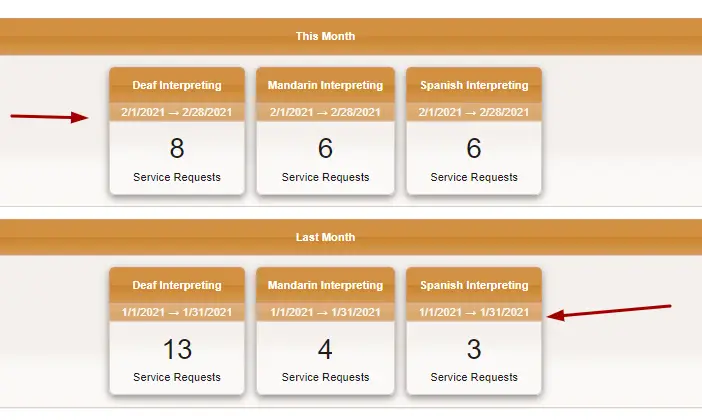
To access more data on these graphics, you simply need to click on their headers.
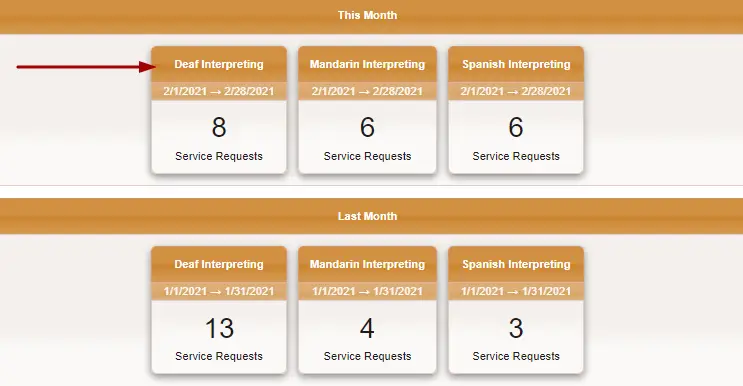
Once clicked, it will take you to a bar chart of each group that had Deaf interpreting requests this month. You could either, “View Details at This Level” for a full breakdown of data for all the groups listed, or click on one of these bars for data breakdown for a specific group.

While this example just goes through a Per service dashboard, you can also create dashboards that give you counts and data for these common categories:
- By Status
- By Service Tag
- By Service Zone
…the possibilities are endless! Give it a try on your end and if you have questions with assembly, reach out to our team by submitting a support ticket!