
Want to require customers to electronically sign an agreement prior to being able to submit requests? Need a way to keep track of these agreements? Look no further than customer agreements! #


What is a customer agreement? #
A customer agreement is any kind of legally binding agreement between you and your customer, that needs to be signed by them in order to receive your services. Below are some examples of agreements:
- Rate sheets
- Terms and conditions
- Privacy policies
Who can sign agreements? #
Administrative group members (those with Can See All Service Requests set to Yes) can sign, as well as those with Is Authorized Signatory set to Yes.
How many agreements can I add to a group? #
As many as your heart desires!
Do the agreements apply to subgroups of the parent group I’ve added the agreement to? #
Yes – agreements set at the parent group will be inherited by subgroups.
What do I need to set up before I start uploading customer agreements? #
Agreement Signature Message #
This is the message you want to display, if any, to the person signing on the agreement signature screen. This message can be customized per group if desired, by going to the Messages tab for the group. Once you’ve entered your message make sure to click on Save Changes.
Agreement Signature Message #
This is the message you want to display, if any, to the person signing on the agreement signature screen. This message can be customized per group if desired, by going to the Messages tab for the group. Once you’ve entered your message, make sure to click on Save Changes.
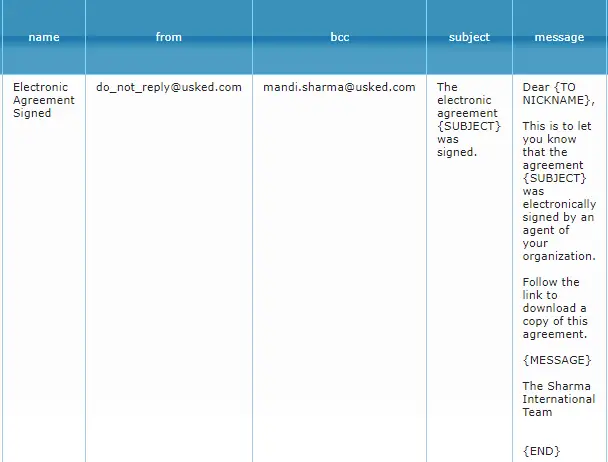
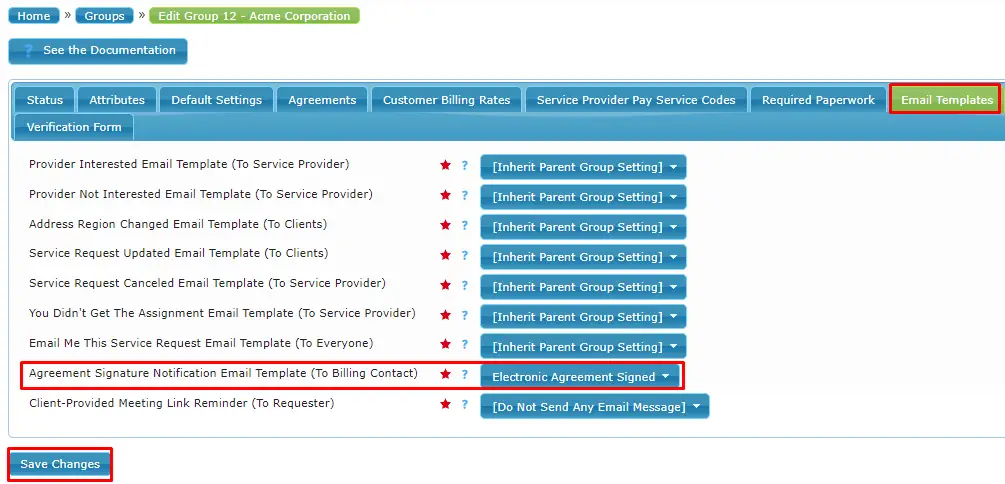
Once your email template is set, you can then head to the Email Templates tab for the group and select your email template next to Agreement Signature Notification Email Template (To Billing Contact). Then, click Save Changes.
How can I upload a customer agreement to a group? #
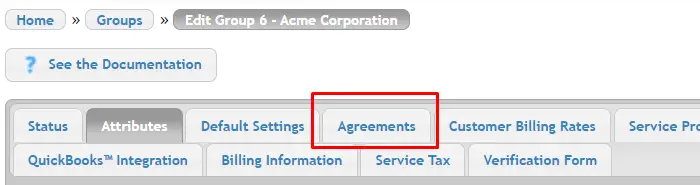
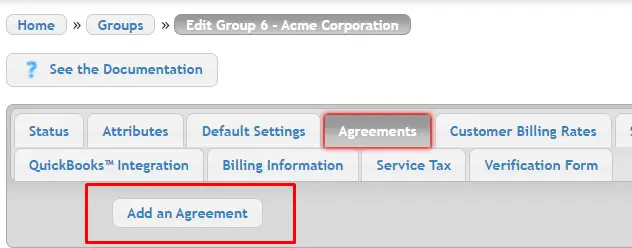
To upload an agreement, you’ll want to first edit the Group and click the “Agreements” tab.
You’ll then be able to click Add an Agreement.
Next, you will need to upload the file, define the Effective and Expiration Dates, and give it a name.
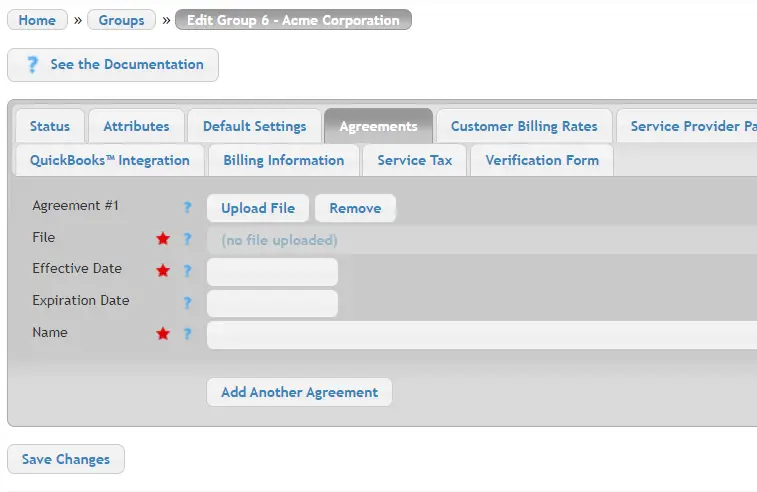
You can upload another agreement, or click “Save Changes” if you’re done.
Once the agreement is uploaded, Usked will recognize it as a new agreement and it will need to be electronically signed.
What happens after I upload the agreement? #
The next step is for the group member to sign. The next time they visit your Usked site they will be directed to the agreements page to sign any outstanding agreements.
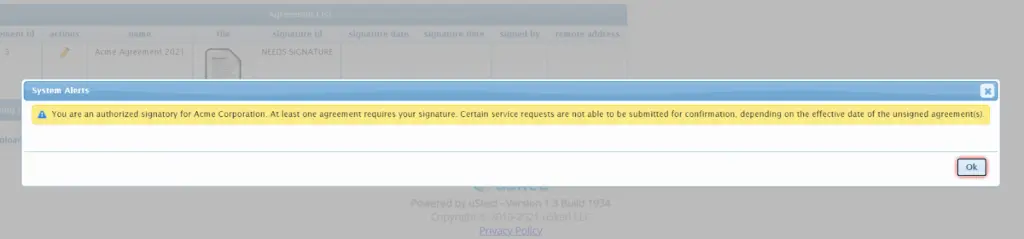
Once they select Ok they will see the uploaded agreement and then will need to click the pencil icon.
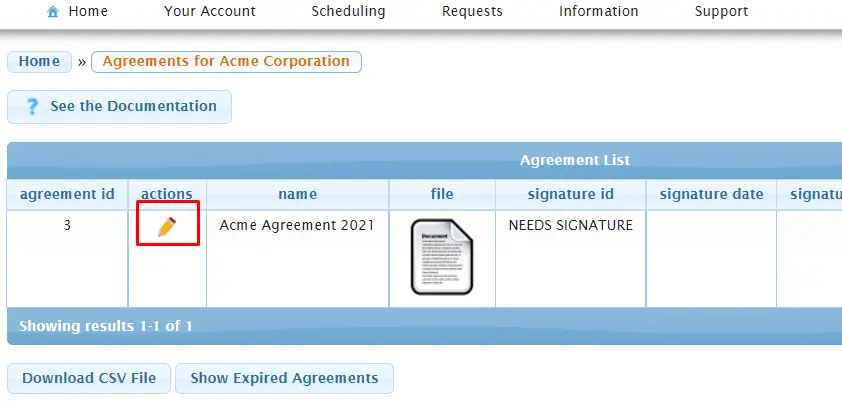
From here, they can view the agreement, review/update billing information, and finally, at the bottom click Agree to document their electronic sign off on this agreement.
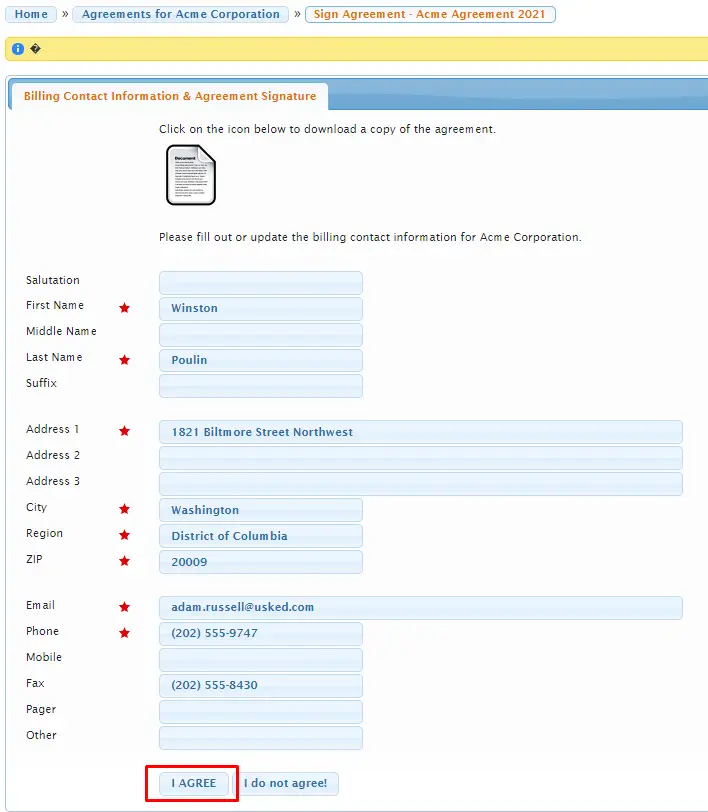
Once the agreement is signed by clicking the I Agree button, an email message will be sent to the billing contact of the group, if you’ve set up that email template setting mentioned earlier.
What happens if the customer goes to create a request before the agreement has been signed? #
If a group has at least one agreement (with an effective date in the past) that has not yet been signed all group members of that group will not be able to submit requests until all agreements have been signed. They will see this warning/error message at the top of their screen.
“Warning: Service Requests for (THIS GROUP) cannot be submitted to us until an authorized signatory has signed all outstanding agreements.“

Group members will still be able to create Draft status requests, but will not be able to submit them as pending confirmation for schedulers to see until all outstanding agreements have been signed.
Where can I see signature info for agreements for a group? #
Head to People>Groups and click on the folder icon next to the desired group.
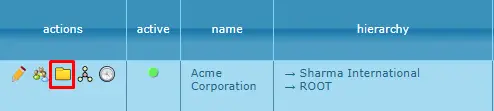
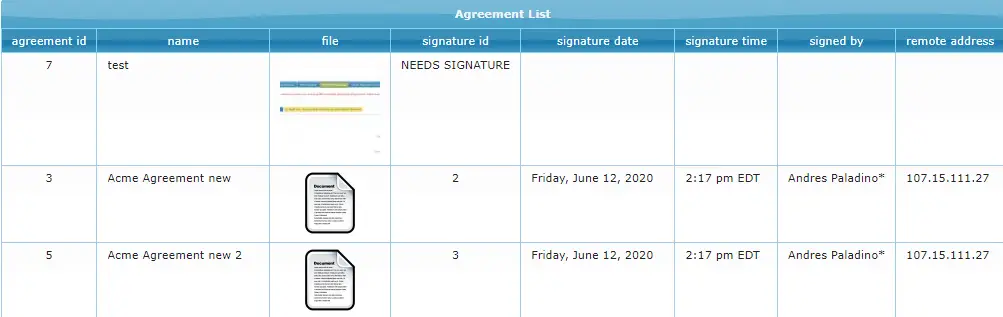
Here you’ll will see a list of all active agreements for this group, including whether a signature is still needed, and if signed – the signature date and time and who signed.