
Tagging is everywhere. Hashtags on social media have revolutionized the way people search, organize and consume information. So, why not get your tag on in Usked too? #
What is a tag? #
Tags are abstract labels that you want to associate with groups or service requests. Within various reports and views in Usked, you are able to filter the displayed results by these tags.
Who can create tags? #
Staff with the Manager role enabled can create tags.
How do I create tags? #
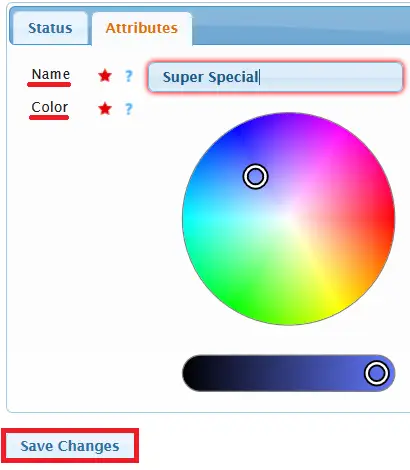
Go to Settings > Tags, then select Create a New Tag.

Then, type in the name and select the color you want for your tag before selecting Save Changes.
How many tags do I get? #
As many as your heart desires. You can create an infinite amount of tags and colors that you can use to better manage your operational workflows and reporting needs.
Kinds of tags #
GROUP TAGS #
This kind of tag will allow you to search by groups that have this tag for reports that include group tags, such as the Assignments report. Example: a “Tulsa branch” group tag can allow schedulers to filter by only groups assigned to the Tulsa branch.
These group tags can be set up by going to People > Groups, clicking on the pencil (edit) icon next to the group, and typing in the tag name in Tags field before selecting Save Changes.

SERVICE REQUEST TAGS #
This kind of tag will allow you to search by requests that have this tag for reports or views that include service request tags, such as the Scheduling views. Example: an “Urgent Request” service request tag can allow schedulers to filter by urgent requests to prioritize filling these requests first.
Service request tags can be added to service requests by opening a request to edit and typing in/selecting the desired tag into the Tag field before selecting Save Changes.
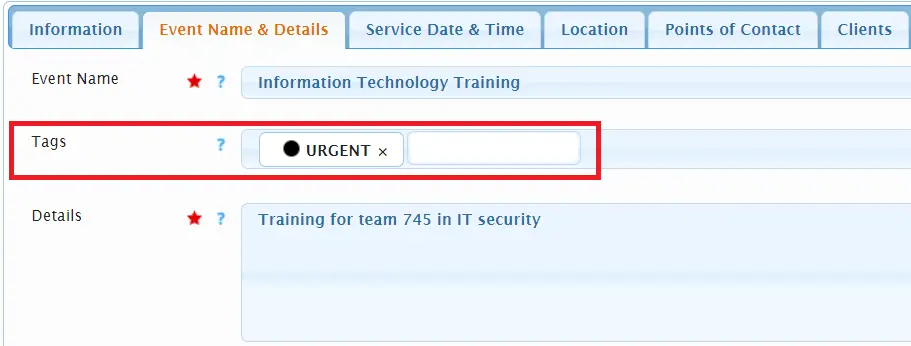
Service request tags can also be set as defaults at the group level. So, let’s say you wanted all requests from General Hospital to have the “Medical” tag, you can set this to default for all new General Hospital requests instead of having to add to each request individually. To set default service request tags per group go to People > Groups and select the pencil (edit) icon next to the group. Then from the Default Settings tab type in/select the desired tag into the Default Service Request Tags field before selecting Save Changes.
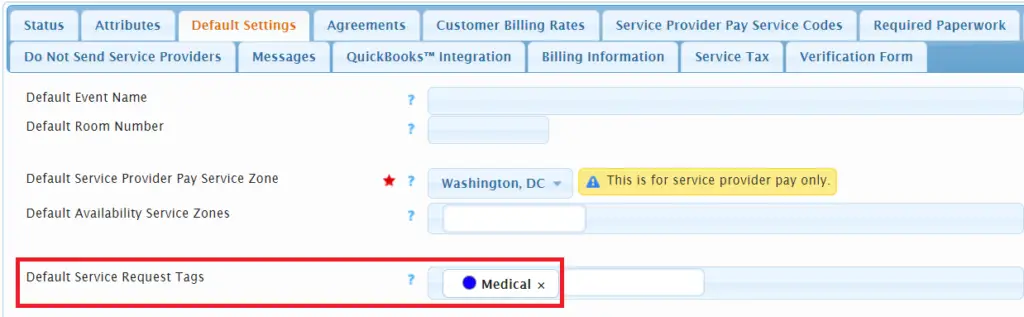
Now, when any request for General Hospital is created it will automatically include the Medical tag.


#inspiration – Here are some examples of tags and ways to use them: #
- Workflow related tags: Use these to show what work still needs to be done or who it is assigned to.
Examples: Need more info, Authorization required, Staff service provider, Needs review, Scheduler A, Scheduler B, etc.
- Industry related tags: Use these to see how many industry specific service hours were provided this month vs. last month and notice what industry you may need to focus more attention on.
Examples: Medical, Government, Education, Private, etc. - Location related tags: Use these to see requests by location or region if you have multiple branches or provide service to different areas.
Examples: LA, DC, NYC, Tulsa branch, Dayton branch, U.S., Canada, etc. - Customer service related tags: Use these to ensure a high priority assignment is filled first or that a specific requirement is met. Can be used to monitor trends for things like client no shows or set goals for your team to reduce issues.
Examples: Urgent request, Short notice, Certification needed, Service provider late, Client no show, Issue/compliant - Billing related tags: Use these to indicate where the assignment is in the billing process or if special attention is needed from your billing dept.
Examples: Special Billing, Canceled But Not Billable, Same Day Billing, Verification Form needed, Processed in Quickbooks