When something important is missing or looks like it may be a problem, Usked will send out a notification. This is an alert! #
The purpose of an alert is to let us know of a potential situation. Once we become aware of the situation, we can take steps to resolve them in a timely manner.
Who gets alerts? #
There are automatic role specific alerts in Usked detailed below:
Administrator
- None
Manager
- When someone cancels a service request and forces all service provider slots to be non-billable.
- When additional minutes for a service provider slot is not the same value for customer billing and service provider pay.
- When someone submits a survey response.
Scheduler
- When a non-staff group member changes any of their email address.
- When a non-staff group member changes any of their phone numbers.
- When a non-staff group member changes any of their instant messenger accounts.
- Conflicting service provider slots.
- Conflicting assignment with leave.
- Conflicting service requests for clients.
- Out of state requests.
- Assigning a holiday service code to a service provider slot that is not on a holiday (and vice versa).
- When combined travel expenses and mileage reimbursement would be more than the set travel cap.
- Warn when there is a gender mismatch between the assigned service provider and the requested gender.
- Warn when assigning a service provider that has not yet passed screening.
- Warn when assigning a service provider that does not meet all of the required paperwork for the group or service.
- Service request was modified by the client.
- If the service provider has had their assignment reduced within the cancel billable policy time.
- If it is past the start time of a service request but unassigned service provider slots do not have the FTF flag turned on.
- If leave is approved for service providers that have already been assigned to service requests.
Billing
- When any service provider’s mailing address has been changed.
- When a service provider has been assigned to a service request and a pay rate cannot be found.
- When any changes are made to a service provider slot for a service request completed in the past.
- Requests from scheduling to unlock a service provider slot so it can be modified.
- Whenever there is a leave balance violation.
Human Resources
- When a service provider has been assigned to a service request and a pay rate cannot be found.
- When a service provider updates their gender
Quality Assurance
- None
Supervisor
- When a subordinate creates or modifies a leave request.
Manual alerts #
A manual alert can be sent to users with specific roles within your organization. For example, let’s say you are a scheduler and you want to send an alert to the billing department that the requester for the assignment mentioned a new billing office when making the request. From the job actions menu select . Next, select the role you’d like to send the alert to, type in the message you’d like to send, and select Send Alert.
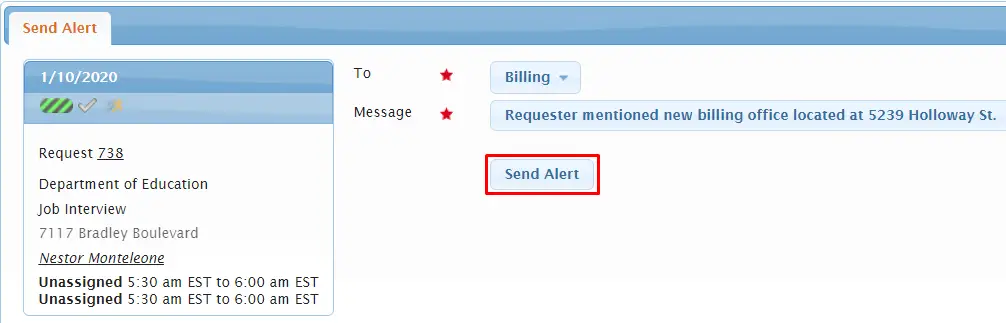
The alert will then show up in the alerts report for anyone with the Billing role enabled.
Where can I see alerts? #
The alerts report will show you all alerts that are addressed to you, or addressed to a role that you have. The alert icon appears directly on the menu bar with a count, and is visible only if there is at least one alert that is visible to you.

When we click on this icon, Usked takes us to the alerts page:
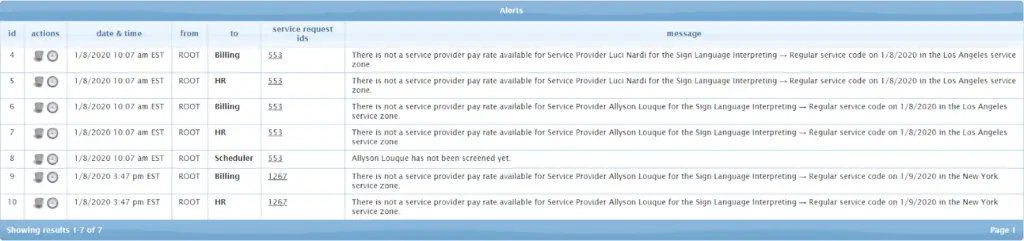
On this page it lists all of the alerts that are currently active and in need of our attention. For each alert in the list we can see the ID number of the alert, the date and time that this alert was generated and sent, the person that triggered the alert, the person, or role, that this alert is intended for, a list of service ID numbers that are associated with this alert, and finally the alert message itself.
What do I do with the alerts? #
The process to handle an alert would be to first read the message to try and determine what happened. We may also hover the mouse cursor over, or click on the service request ID number, to get more details about the requests associated with this alert. Once we have determined the cause of the alert, we would then take the appropriate steps to resolve the issue. For example, for this alert:

We would need to go to the service provider’s profile and check for a pay rate for the “Sign Language Interpreting –> Regular” service code. We will then see that this service provider has a pay rate for this service code, but when the alert also mentions the “Los Angeles” service zone and the only service zone for this pay rate is “Washington, DC.”
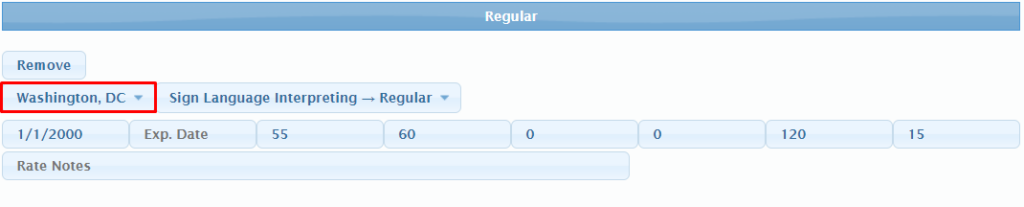
So, now that we have located the issue let’s solve it. We could either set the service zone for the existing pay rate to “All Service Zones” if the pay rate will be the same for all or create a new pay rate for this service code for the Los Angeles service zone. Once the pay rate is adjusted we have resolved the issue, so we then need to disable the alert. We can do this by clicking on the trash can icon for this alert.

This will remove the alert from the report.


Alert Management #
A general rule of thumb is that you should always keep up with your alerts, and not to let the alert list grow too long. It may help to assign specific individuals to manage alerts or have the person that initiated the alert be responsible for resolving it (if the alert goes out to their role as well). We recommend going through any active alerts at least once a day to make sure all issues are resolved and then disable the alerts. This will keep any potential issues at bay while keeping your alerts report relevant and clean.
Bulk clearing of Alerts #
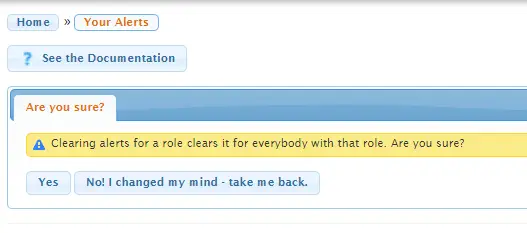
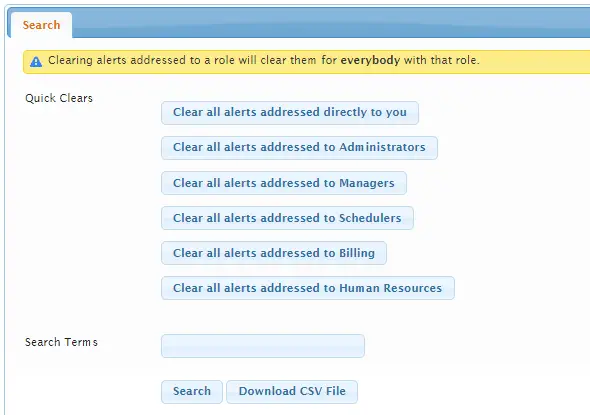
If your list does get a little long, you also have the option to clear them in bulk! On the top of your alerts page, you will see an option for “Quick Clears” where you can clean up your alerts by staff role or any directly to you.
You will get one more message confirming you want to delete alerts that looks like this: