
Within email templates, there are ways to control what information is revealed when an user clicks on the view service request details icon (magnifying glass), or moves their cursor over a service request ID number!
First… Settings > Email Templates (click on the pencil icon in actions column to the left of the template)
Here, every email template has a Defaults tab, where you can toggle what information is included, or not included, within that particular template:
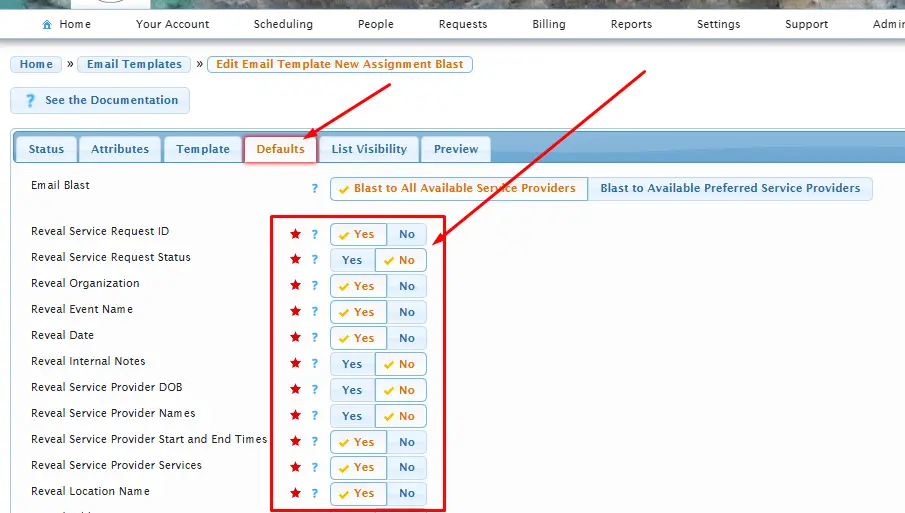
So, for each email template, you are able to determine what the defaults are.
Then…
On Admin > System Settings > Service Requests tab page, you will see three different settings here for “Service Request Details Email Templates”:
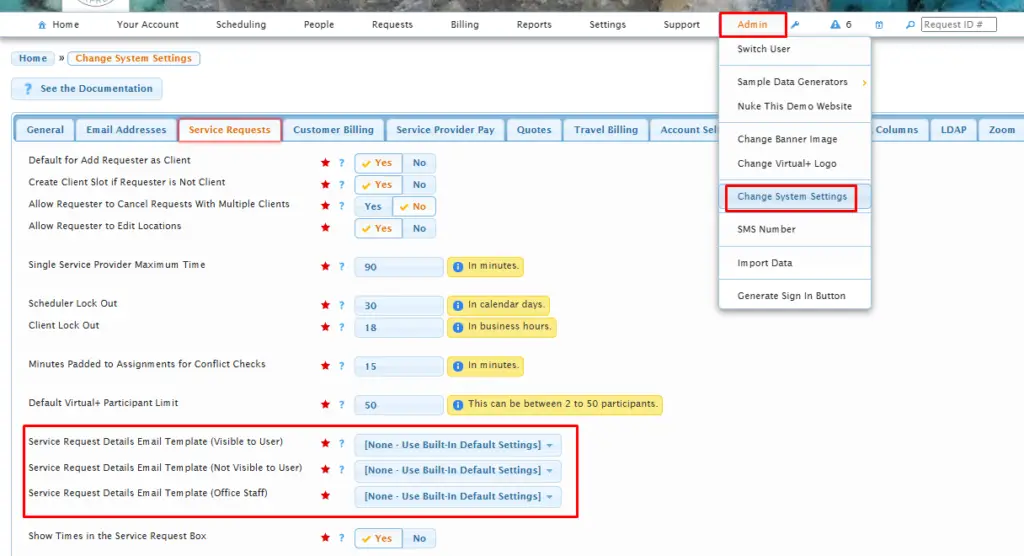
Service Request Details Email Template (Visible to User): When the user clicks on the view service request details icon (magnifying glass), or moves the cursor over the service request ID number, some service request details are shown. This setting allows you to control exactly which service request details are shown, for those users that do have full privileged access to the service request. Only the “reveal component” fields of the selected email template are used. The other parts of the selected email template are not used for this purpose.
The default value is “[None – Use Built-In Default Settings]” which means to use the built-in default settings instead of an email template.
The built-in default settings is “yes” to every option for users that do have full privileged access to the service request, except for the internal notes and the location name.
Service Request Details Email Template (Not Visible to User): This is the same as above, except that this email template is used for those users that do NOT have full privileged access to the service request — these users would be service providers that are viewing service requests that are posted, or have been offered to them.
The built-in default settings is “no” to every option for users that do not have full privileged access to the service request, except for the following details: service request ID, event name, organization name, service request date, location address, map link, assignment start and end times, assigned service, and dress code.
Service Request Details Email Template (Visible to Staff): The default settings on the selected template control what is visible to your staff viewing the service request box while in Usked.
If you want to customize / differ what is visible when viewing service request details or moving the cursor over the service request ID number — and according to the type of user that is looking at it, then you’ll need to select/set a template on each of these that has the default tabs toggled as you need them to be.
(You can create email templates specifically for this purpose — toggling what you want to show — and then assign them to these fields, not necessarily needing to use them in email composer.)