
Want to collect feedback from your service providers, clients, and/or requesters about requests? Look no further than the Usked Feedback feature! #
What is feedback in Usked? #
Feedback is a kind of survey that allows you to ask those involved in a request at least one question in order to get responses about things like service performance, customer and client satisfaction, etc.
What is the default survey used for feedback? #
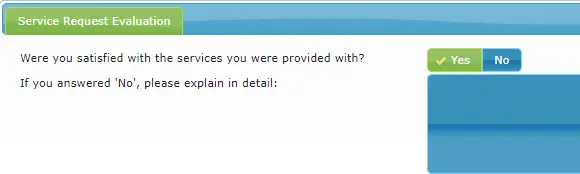
This is what the default survey looks like for feedback on a request from the web version of Usked:
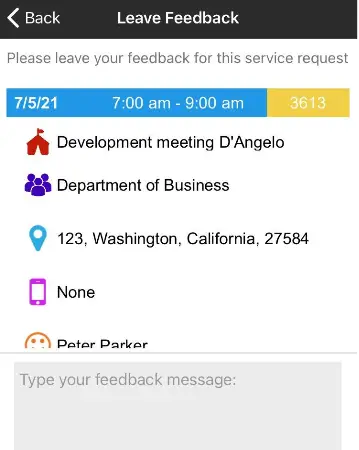
Here’s what the default survey looks like from the Usked app:

At this time, it is only possible to have one usable survey, and it must have the code of “job_evaluation” in order to show up for service requests. Usked will technically allow you to create other surveys but they would not be shown anywhere.
Can I make changes to the default survey used for feedback? #
If you are staff with the Manager role you can access and update the survey used in the web version of Usked. At this time, the feedback survey shown in the Usked app is not customizable.
How do I make changes to the default survey used for feedback in the web version of sked? #
To change the feedback survey, go to Settings > Surveys and click the middle icon “List Questions.”
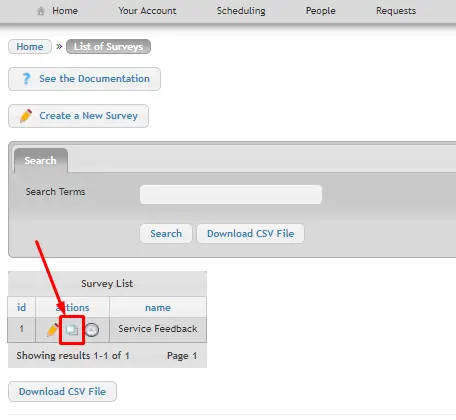
Here you can edit the questions and heading within the survey by clicking the pencil icon.
Once you’ve made the changes you want, click Save Changes.
Who sees the feedback survey on requests and when? #
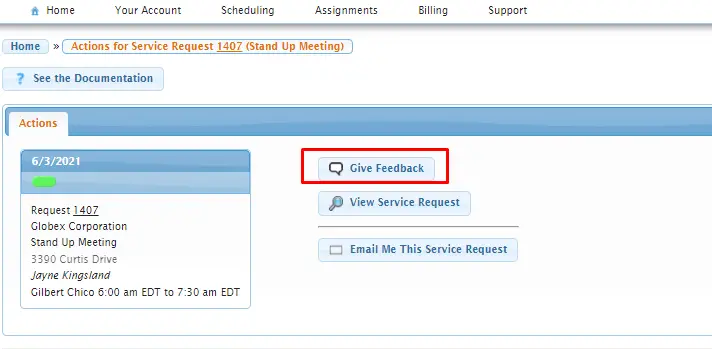
Requesters, clients, and service providers associated to the request will see a Give Feedback button. This button will only appear in the web version if the start date & time of the request is in the past.
Where can feedback be submitted? #
From the web version of Usked: #
Users can click on the “Star” icon to get the “Actions” screen of the request. There they will see the “Give Feedback” button.
Once they click this, they will be able to see the feedback survey, enter responses accordingly, then click Save Changes.

From the Usked app: #
The user can click on the “Give Feedback” button at the bottom of the mobile device screen.
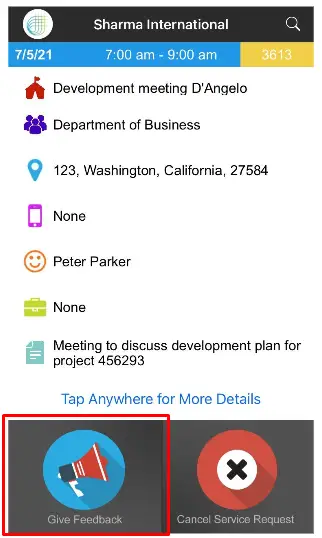
They will be able to type in any feedback they want to give about that request, and then tap Submit.
Where does it all go? #
Where you can find the feedback depends on how where it was submitted from.
Web version feedback submissions: #
1) Submissions are added as Alerts for those with the Manager role.

2) Submissions can be found in a report too (Reports>Manager>Survey Responses).

Usked app feedback submissions: #
1) Submissions are sent to an email address as defined in your system settings (Admin > Change System Settings>Email Addresses tab>Feedback field).
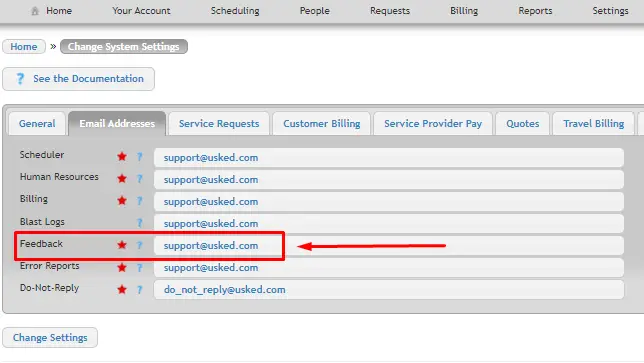
The email that is sent to this email address will look like this:

2) Submissions will also appear in the “Internal Notes” section of the request.
So to review:
